
Windows Server Remote Desktop Services: Virtual Desktop Infrastructure
[PSCustomObject]@{ ProductVersion = $license.ProductVersion Type = $license.TypeAndModel Total = $license.TotalLicenses Issued = $license.IssuedLicenses Available = $license.AvailableLicenses PercentUsed = [math]::Round(($license.IssuedLicenses / $license.TotalLicenses) * 100, 2) }``` } | Format-Table -AutoSize
## High Availability Configuration

### Connection Broker High Availability


```powershell
## Requirements:


## - SQL Server database


## - Multiple RD Connection Broker servers


## - DNS round-robin or load balancer


## Configure Connection Broker for HA (first broker)
Add-RDServer -Server "RDS-Broker01.contoso.com" `
```text
-Role RDS-CONNECTION-BROKER `
-ConnectionBroker "RDS-Broker01.contoso.com"
Create HA database
SQL Server: Create database "RDS-HA"
Configure HA on Connection Broker
Set-RDConnectionBrokerHighAvailability -ConnectionBroker "RDS-Broker01.contoso.com" `
-DatabaseConnectionString "DRIVER=SQL Server Native Client 11.0;SERVER=SQL01;Trusted_Connection=Yes;APP=Remote Desktop Services Connection Broker;Database=RDS-HA" `
-ClientAccessName "rds-broker.contoso.com"
Add second broker to HA
Add-RDServer -Server "RDS-Broker02.contoso.com" `
-Role RDS-CONNECTION-BROKER `
-ConnectionBroker "rds-broker.contoso.com"
Verify HA configuration
Get-RDConnectionBrokerHighAvailability -ConnectionBroker "rds-broker.contoso.com"
## Session Host Load Balancing

```powershell


## Load balancing is automatic with Connection Broker


## Configure session host drain mode (for maintenance)
Set-RDSessionHost -SessionHost "RDS-SH01.contoso.com" `
```text
-ConnectionBroker "rds-broker.contoso.com" `
-NewConnectionAllowed No
View session distribution
Get-RDUserSession -ConnectionBroker "rds-broker.contoso.com" |
Group-Object HostServer |
Select-Object Count, Name |
Sort-Object Count -Descending
## Performance Tuning

### Graphics Optimization


```powershell
## Enable RemoteFX (requires GPU)


## RemoteFX deprecated in Windows Server 2019+, use GPU partitioning with VDI


## Configure graphics mode
Set-RDSessionCollectionConfiguration -CollectionName "Office Apps" `
```text
-ConnectionBroker "rds-broker.contoso.com" `
-CustomRdpProperty "use multimon:i:1`naudiomode:i:0`naudiocapturemode:i:1"
Optimize for VDI
Set-RDVirtualDesktopCollectionConfiguration -CollectionName "VDI Desktops" `
-ConnectionBroker "rds-broker.contoso.com" `
-CustomRdpProperty "use multimon:i:1`ndevicestoredirect:s:*`nredirectprinters:i:1"
## Bandwidth Optimization

```powershell


## Configure compression and caching
Set-RDSessionCollectionConfiguration -CollectionName "Office Apps" `
```text
-ConnectionBroker "rds-broker.contoso.com" `
-CustomRdpProperty "compression:i:1`nbitmapcachesize:i:1500`nbitmappersistedcache:i:1"
Disable unnecessary redirections for low bandwidth
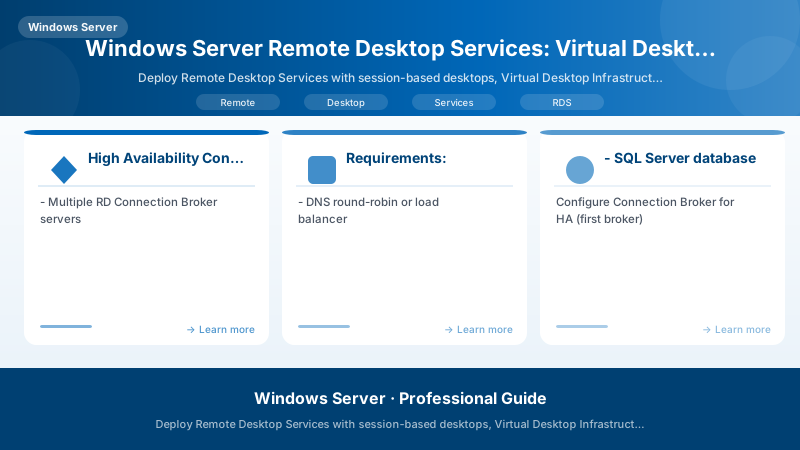
Figure: Program.cs – service registration with IntelliSense for DI lifetimes.
Set-RDSessionCollectionConfiguration -CollectionName "Office Apps" `
-ConnectionBroker "rds-broker.contoso.com" `
-CustomRdpProperty "redirectprinters:i:0`nredirectcomports:i:0`nredirectsmartcards:i:0"
## Performance Monitoring

```powershell


## RDS-specific performance counters
$rdsCounters = @(
```text
'\Terminal Services Session(*)\% Processor Time'
'\Terminal Services Session(*)\Working Set'
'\RemoteFX Network(*)\Current TCP Bandwidth'
'\RemoteFX Network(*)\Current UDP Bandwidth'
'\User Input Delay per Session(*)\Max Input Delay'```
)


Get-Counter -Counter $rdsCounters -SampleInterval 5 -MaxSamples 10 |
```powershell
ForEach-Object { $_.CounterSamples | Format-Table -AutoSize }
Monitor active sessions
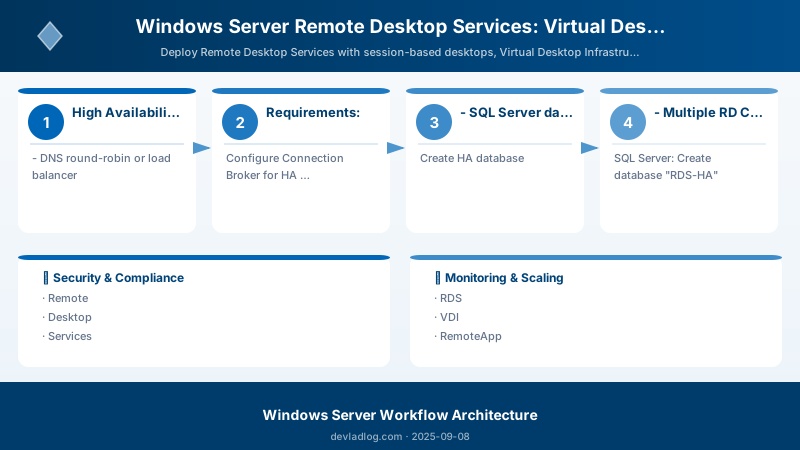
Figure: Azure Monitor Logs – KQL query results with time-series visualization.
Get-RDUserSession -ConnectionBroker "rds-broker.contoso.com" |
Select-Object UserName, HostServer, UnifiedSessionId, SessionState, IdleTime |
Format-Table -AutoSize
## Capacity Planning

```powershell


## Calculate capacity
$capacityReport = @"


## RDS Capacity Planning


## Session Host Sizing:
- Light users (Office apps): 15-20 users per 8 vCPU, 16 GB RAM
- Medium users (multiple apps): 10-15 users per 8 vCPU, 32 GB RAM
- Heavy users (graphics/dev): 5-10 users per 8 vCPU, 64 GB RAM


## Storage Requirements:
- User Profile Disk: 10-30 GB per user
- Session host OS: 60 GB minimum, 100 GB recommended
- RemoteApp: Add application size + 20% overhead


## Network Bandwidth:
- Per session: 50-150 Kbps (Office apps)
- Per session: 150-300 Kbps (multimedia)
- Gateway overhead: Add 20%


## Example: 100 office users
- Session hosts: 6 servers (8 vCPU, 32 GB RAM each)
- UPD storage: 2 TB
- Network bandwidth: 15 Mbps
"@


$capacityReport | Out-File "C:\Reports\RDS-Capacity.txt"
Architecture Decision and Tradeoffs
When designing server infrastructure solutions with Windows Server, consider these key architectural trade-offs:
| Approach | Best For | Tradeoff |
|---|---|---|
| Managed / platform service | Rapid delivery, reduced ops burden | Less customisation, potential vendor lock-in |
| Custom / self-hosted | Full control, advanced tuning | Higher operational overhead and cost |
Recommendation: Start with the managed approach for most workloads and move to custom only when specific requirements demand it.
Validation and Versioning
- Last validated: April 2026
- Validate examples against your tenant, region, and SKU constraints before production rollout.
- Keep module, CLI, and SDK versions pinned in automation pipelines and review quarterly.
Security and Governance Considerations
- Apply least-privilege access using RBAC roles and just-in-time elevation for admin tasks.
- Store secrets in managed secret stores and avoid embedding credentials in scripts or source files.
- Enable audit logging, data protection policies, and periodic access reviews for regulated workloads.
Cost and Performance Notes
- Define budgets and alerts, then monitor usage and cost trends continuously after go-live.
- Baseline performance with synthetic and real-user checks before and after major changes.
- Scale resources with measured thresholds and revisit sizing after usage pattern changes.
Official Microsoft References
- https://learn.microsoft.com/windows-server/
- https://learn.microsoft.com/windows/security/
- https://learn.microsoft.com/azure/azure-arc/
Public Examples from Official Sources
- These examples are sourced from official public Microsoft documentation and sample repositories.
- Documentation examples: https://learn.microsoft.com/windows-server/
- Sample repositories: https://github.com/microsoft/Windows-Containers
- Prefer adapting these examples to your tenant, subscriptions, and governance requirements before production use.
Key Takeaways
- RDS delivers virtual desktops and RemoteApp applications
- Session hosts provide shared desktop sessions
- RD Gateway secures remote access over HTTPS
- RemoteApp publishes individual applications
- Licensing requires RDS CALs (Per User or Per Device)
- High availability uses Connection Broker with SQL Server
- Performance tuning optimizes graphics and bandwidth
- Capacity planning ensures adequate resources
Next Steps
- Deploy RDS with Connection Broker and Session Hosts
- Configure RD Gateway for secure external access
- Publish RemoteApp applications
- Activate and configure RDS licensing
- Implement high availability with multiple brokers
- Optimize performance for user experience
- Monitor RDS health and capacity
Additional Resources
Connect. Publish. Scale. Secure.
Discussion