
PowerShell DSC: Desired State Configuration for Windows Server
Introduction
PowerShell Desired State Configuration (DSC) enables declarative infrastructure management for Windows Server environments. Instead of writing imperative scripts that describe how to configure a server, DSC lets you declare what the configuration should be — and the DSC engine ensures the system matches that desired state, automatically correcting drift.
This guide covers DSC fundamentals, configuration authoring, Pull Server deployment, Azure Automation DSC integration, and best practices for enterprise environments.
Prerequisites
- Windows Server 2019/2022 with PowerShell 5.1+
- Local Administrator privileges on target nodes
- Understanding of PowerShell scripting basics
- For Azure DSC: Azure subscription with Automation account
DSC Architecture
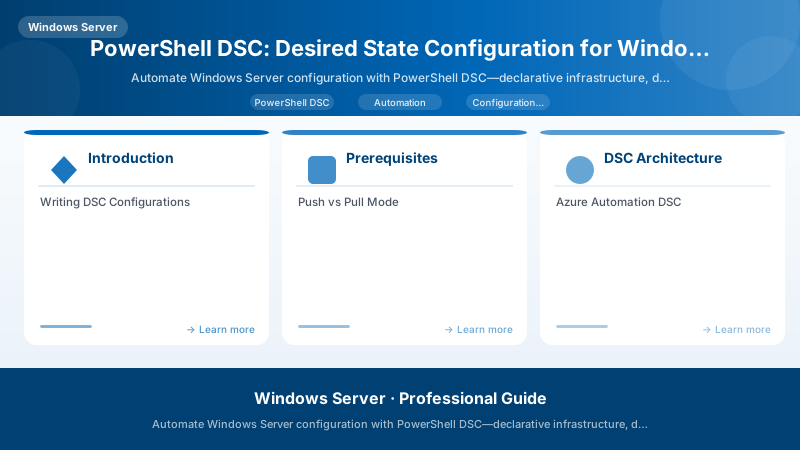
Figure: Enterprise architecture – integrated components with data flow.
Architecture Overview: Configuration Authoring
Writing DSC Configurations
Web Server Configuration
Configuration WebServerConfig {
    param (
        [string[]]$NodeName = 'localhost'
    )

    Import-DscResource -ModuleName PSDesiredStateConfiguration
    Import-DscResource -ModuleName xWebAdministration

    Node $NodeName {
        # Ensure IIS is installed
        WindowsFeature IIS {
            Ensure = 'Present'
            Name   = 'Web-Server'
        }

        WindowsFeature IISManagement {
            Ensure    = 'Present'
            Name      = 'Web-Mgmt-Tools'
            DependsOn = '[WindowsFeature]IIS'
        }

        WindowsFeature ASPNet45 {
            Ensure    = 'Present'
            Name      = 'Web-Asp-Net45'
            DependsOn = '[WindowsFeature]IIS'
        }

        # Configure website
        xWebsite DefaultSite {
            Ensure       = 'Present'
            Name         = 'Default Web Site'
            State        = 'Started'
            PhysicalPath = 'C:\inetpub\wwwroot'
            BindingInfo  = @(
                MSFT_xWebBindingInformation {
                    Protocol = 'HTTP'
                    Port     = 80
                }
                MSFT_xWebBindingInformation {
                    Protocol  = 'HTTPS'
                    Port      = 443
                    CertificateThumbprint = $Node.CertThumbprint


                }
            )
            DependsOn    = '[WindowsFeature]IIS'
        }

        # Security: Disable unnecessary services
        Service TelnetService {
            Name   = 'TlntSvr'
            State  = 'Stopped'
            Ensure = 'Present'
        }

        # Firewall rules
        Script ConfigureFirewall {
            SetScript = {
                New-NetFirewallRule -DisplayName "Allow HTTP" -Direction Inbound -Port 80 -Protocol TCP -Action Allow
                New-NetFirewallRule -DisplayName "Allow HTTPS" -Direction Inbound -Port 443 -Protocol TCP -Action Allow
            }
            TestScript = {
                $http = Get-NetFirewallRule -DisplayName "Allow HTTP" -ErrorAction SilentlyContinue
                $https = Get-NetFirewallRule -DisplayName "Allow HTTPS" -ErrorAction SilentlyContinue
                return ($null -ne $http -and $null -ne $https)
            }
            GetScript = { return @{ Result = "Firewall rules configured" } }
        }
    }
}

# Compile and apply
WebServerConfig -NodeName 'WebServer01' -OutputPath './WebConfig'
Start-DscConfiguration -Path './WebConfig' -Wait -Verbose -Force
Security Hardening Configuration
Configuration SecurityBaseline {
    Import-DscResource -ModuleName PSDesiredStateConfiguration
    Import-DscResource -ModuleName SecurityPolicyDsc
    Import-DscResource -ModuleName AuditPolicyDsc

    Node $AllNodes.NodeName {
        # Password policy
        AccountPolicy PasswordPolicy {
            Name                             = 'PasswordPolicy'
            Minimum_Password_Length           = 14
            Password_must_meet_complexity    = 'Enabled'
            Maximum_Password_Age             = 60
            Minimum_Password_Age             = 1
            Enforce_password_history         = 24
        }

        # Audit policy
        AuditPolicySubcategory LogonAudit {
            Name      = 'Logon'
            AuditFlag = 'Success'
            Ensure    = 'Present'
        }

        AuditPolicySubcategory LogonFailureAudit {
            Name      = 'Logon'
            AuditFlag = 'Failure'
            Ensure    = 'Present'
        }

        # Registry settings for security
        Registry DisableRemoteDesktopNLA {
            Key       = 'HKLM:\SYSTEM\CurrentControlSet\Control\Terminal Server\WinStations\RDP-Tcp'
            ValueName = 'UserAuthentication'
            ValueData = '1'
            ValueType = 'Dword'
            Ensure    = 'Present'
        }
    }
}
Push vs Pull Mode
| Aspect | Push Mode | Pull Mode |
|---|---|---|
| Initiation | Admin pushes to nodes | Nodes pull from server |
| Scale | Small environments (<50) | Large environments |
| Setup complexity | Minimal | Requires Pull Server |
| Compliance reporting | Manual | Automatic |
| Self-healing | On demand | Continuous (configurable) |
Azure Automation DSC
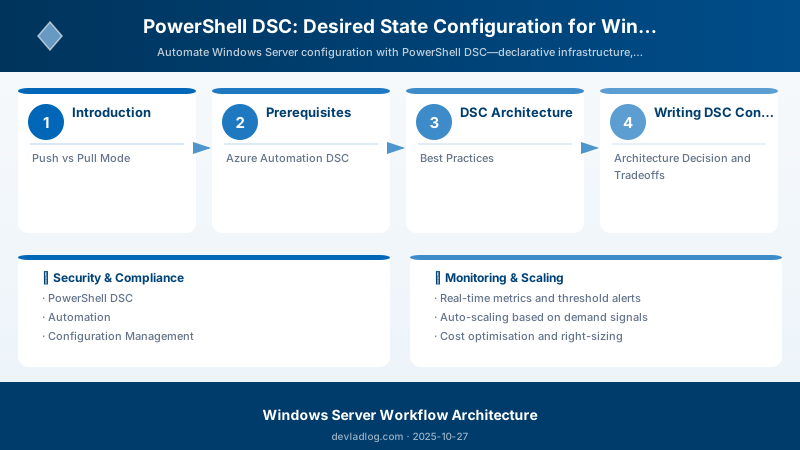
Figure: Test Studio – recorded test cases, assertions, and execution results.
# Register a node with Azure Automation DSC
$RegistrationInfo = Get-AzAutomationRegistrationInfo -ResourceGroupName "rg-dsc" -AutomationAccountName "aa-dsc"


# Configure LCM on target node
[DSCLocalConfigurationManager()]
Configuration LCMConfig {
    Node 'localhost' {
        Settings {
            RefreshMode = 'Pull'
            RefreshFrequencyMins = 30
            ConfigurationMode = 'ApplyAndAutoCorrect'
            RebootNodeIfNeeded = $false
        }
        ConfigurationRepositoryWeb AzureAutomation {
            ServerURL = $RegistrationInfo.Endpoint
            RegistrationKey = $RegistrationInfo.PrimaryKey
        }
    }
}

LCMConfig -OutputPath './LCMConfig'
Set-DscLocalConfigurationManager -Path './LCMConfig' -Verbose
Best Practices
- Version control configurations: Store DSC configs in Git alongside your infrastructure code
- Use configuration data: Separate environment-specific values from configuration logic
- Test configurations: Use Pester tests to validate DSC resources before applying
- Monitor compliance: Use Azure Automation or custom reporting to detect configuration drift
- Modular design: Break large configurations into composites for reusability
- Credential management: Use certificates or Azure Key Vault — never embed passwords in configs
Architecture Decision and Tradeoffs
When designing server infrastructure solutions with Windows Server, consider these key architectural trade-offs:
| Approach | Best For | Tradeoff |
|---|---|---|
| Managed / platform service | Rapid delivery, reduced ops burden | Less customisation, potential vendor lock-in |
| Custom / self-hosted | Full control, advanced tuning | Higher operational overhead and cost |
Recommendation: Start with the managed approach for most workloads and move to custom only when specific requirements demand it.
Validation and Versioning
- Last validated: April 2026
- Validate examples against your tenant, region, and SKU constraints before production rollout.
- Keep module, CLI, and SDK versions pinned in automation pipelines and review quarterly.
Security and Governance Considerations
- Apply least-privilege access using RBAC roles and just-in-time elevation for admin tasks.
- Store secrets in managed secret stores and avoid embedding credentials in scripts or source files.
- Enable audit logging, data protection policies, and periodic access reviews for regulated workloads.
Cost and Performance Notes
- Define budgets and alerts, then monitor usage and cost trends continuously after go-live.
- Baseline performance with synthetic and real-user checks before and after major changes.
- Scale resources with measured thresholds and revisit sizing after usage pattern changes.
Official Microsoft References
- https://learn.microsoft.com/windows-server/
- https://learn.microsoft.com/windows/security/
- https://learn.microsoft.com/azure/azure-arc/
Public Examples from Official Sources
- These examples are sourced from official public Microsoft documentation and sample repositories.
- Documentation examples: https://learn.microsoft.com/windows-server/
- Sample repositories: https://github.com/microsoft/Windows-Containers
- Prefer adapting these examples to your tenant, subscriptions, and governance requirements before production use.
Key Takeaways
- ✅ DSC enables declarative, idempotent infrastructure management for Windows Server
- ✅ Configuration drift is automatically corrected in Pull mode with ApplyAndAutoCorrect
- ✅ Azure Automation DSC scales management across hybrid cloud environments
- ✅ Security baselines and compliance policies can be enforced consistently via DSC
- ✅ Version-controlled configurations provide auditability and reproducibility
Discussion