
Windows Admin Center: Modern Server Management Platform
@{N='Size(GB)';E={[math]::Round($.Size/1GB,2)}}, @{N='Free(GB)';E={[math]::Round($.SizeRemaining/1GB,2)}}
## List installed roles
Get-WindowsFeature | Where-Object { $_.InstallState -eq 'Installed' } |
```text
Select-Object Name, DisplayName
View running services
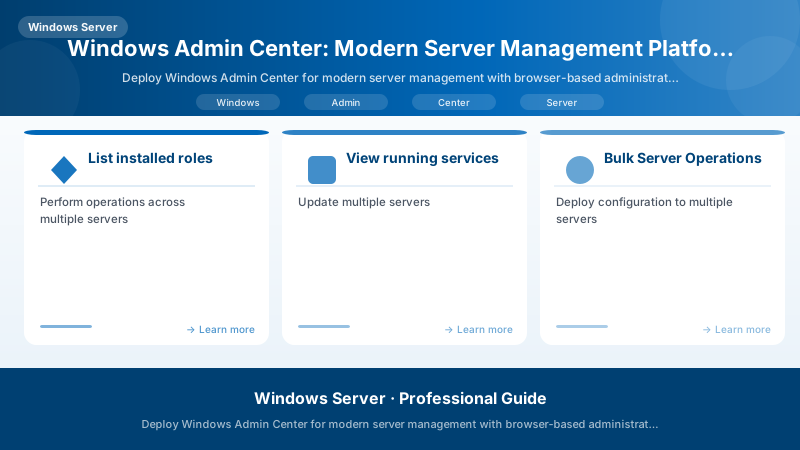
Figure: Program.cs – service registration with IntelliSense for DI lifetimes.
Get-Service | Where-Object { $_.Status -eq 'Running' } |
Select-Object Name, DisplayName, StartType |
Sort-Object DisplayName
## Bulk Server Operations

```powershell


## Perform operations across multiple servers


## Update multiple servers
$servers = "server1", "server2", "server3"


foreach ($server in $servers) {
```sql
Invoke-Command -ComputerName $server -ScriptBlock {
    Install-WindowsUpdate -AcceptAll -AutoReboot
}```
}

## Deploy configuration to multiple servers
$configScript = @"


## Install common features
Install-WindowsFeature -Name RSAT-AD-PowerShell, RSAT-DNS-Server, RSAT-DHCP


## Configure time sync
w32tm /config /manualpeerlist:"time.windows.com" /syncfromflags:manual /update
Restart-Service w32time


## Set power plan
powercfg /setactive 8c5e7fda-e8bf-4a96-9a85-a6e23a8c635c  # High performance
"@


Invoke-Command -ComputerName $servers -ScriptBlock { param($script) Invoke-Expression $script } -ArgumentList $configScript
Azure Integration
Azure Hybrid Services Registration
## Register Windows Admin Center with Azure


## In WAC: Settings → Azure → Register


## Or use PowerShell
Install-Module -Name Az -AllowClobber -Force
Connect-AzAccount


## Register gateway
$resourceGroup = "RG-Management"
$location = "East US"
$gatewayName = "WAC-Gateway"


## Create resource group if needed
New-AzResourceGroup -Name $resourceGroup -Location $location


## Register Windows Admin Center


## This creates Azure AD app registration for authentication
Expected output:
Package installed successfully.

Azure Monitor Integration
## Enable Azure Monitor for servers


## Install Log Analytics agent on managed servers
$workspaceId = "YOUR_WORKSPACE_ID"
$workspaceKey = "YOUR_WORKSPACE_KEY"


$servers = "server1", "server2", "server3"

foreach ($server in $servers) {
```powershell
Invoke-Command -ComputerName $server -ScriptBlock {
    param($wsId, $wsKey)

    # Download agent
    $agentUrl = "https://go.microsoft.com/fwlink/?LinkId=828603"
    $agentPath = "$env:TEMP\MMASetup-AMD64.exe"
    Invoke-WebRequest -Uri $agentUrl -OutFile $agentPath

    # Install agent
    Start-Process -FilePath $agentPath -ArgumentList "/C:setup.exe /qn NOAPM=1 ADD_OPINSIGHTS_WORKSPACE=1 OPINSIGHTS_WORKSPACE_ID=$wsId OPINSIGHTS_WORKSPACE_KEY=$wsKey AcceptEndUserLicenseAgreement=1" -Wait

} -ArgumentList $workspaceId, $workspaceKey```
}

## Configure data collection in Azure Monitor


## Collect performance counters, Windows events, Syslog, IIS logs
Azure Backup Configuration
Architecture Overview: 
Azure File Sync
Architecture Overview: 
-Name $storageSyncServiceName ` -Location "East US"
## Install Azure File Sync agent on server


## Download from: https://go.microsoft.com/fwlink/?linkid=858257

Invoke-Command -ComputerName "fileserver01" -ScriptBlock {
```powershell


## Install agent
Start-Process -FilePath "C:\Temp\StorageSyncAgent.msi" -ArgumentList "/qn" -Wait


## Import module
Import-Module "C:\Program Files\Azure\StorageSyncAgent\StorageSync.Management.ServerCmdlets.dll"```
}


## Register server
Register-AzStorageSyncServer -ResourceGroupName $resourceGroup `
```text
-StorageSyncServiceName $storageSyncServiceName
## Azure Update Management

```powershell


## Enable Azure Update Management


## Windows Admin Center → Settings → Azure → Update Management


## Configure update schedules in Azure portal


## Automation Account → Update Management → Schedule update deployment


## View update compliance
Get-AzAutomationSoftwareUpdateConfiguration `
```text
-ResourceGroupName "RG-Automation" `
-AutomationAccountName "Automation01"
View update deployments
Get-AzAutomationSoftwareUpdateRun `
-ResourceGroupName "RG-Automation" `
-AutomationAccountName "Automation01"
## Extension Ecosystem

### Installing Extensions


```powershell
## Install extensions via Windows Admin Center UI:


## Settings → Extensions → Available extensions


## Popular extensions:


## - Active Directory: Domain controller management


## - DHCP: DHCP server management


## - DNS: DNS server management


## - Storage Replica: Storage Replica management


## - System Insights: Predictive analytics


## - Security (Azure): Security Center integration


## View installed extensions
Get-ItemProperty "HKLM:\SOFTWARE\Microsoft\ServerManagementGateway\Extensions\*" |
```text
Select-Object PSChildName, Version
## Developing Custom Extensions

```powershell


## Windows Admin Center SDK for custom extensions


## https://aka.ms/wacsdk


## Install Node.js and npm


## Install Windows Admin Center CLI
npm install -g windows-admin-center-cli


## Create new extension
wac create --company Contoso --tool CustomTool


## Build extension
cd CustomTool
npm install
npm run build


## Package extension
npm run package


## Upload to Windows Admin Center


## Settings → Extensions → Sideload extension → Upload .nupkg file
Expected output:
added 245 packages in 8s
found 0 vulnerabilities

Remote Management Capabilities
Browser-Based Access
## Windows Admin Center accessible from any device with web browser:


## - Windows (Chrome, Edge, Firefox)


## - macOS (Chrome, Safari, Firefox)


## - Linux (Chrome, Firefox)


## - iOS/Android (mobile browsers with limited functionality)


## Configure external access via reverse proxy or Azure AD Application Proxy


## Example: Configure IIS reverse proxy
Install-WindowsFeature Web-Server, Web-WebSockets, Web-Asp-Net45 -IncludeManagementTools


## Install URL Rewrite and Application Request Routing modules


## Configure reverse proxy rules in IIS for external access
Certificate Management
## Use trusted SSL certificate for production


## Generate CSR
$cert = New-SelfSignedCertificate -DnsName "wac.contoso.com" `
```powershell
-CertStoreLocation "cert:\LocalMachine\My" `
-KeyLength 2048 `
-KeyExportPolicy Exportable `
-NotAfter (Get-Date).AddYears(2)
Export CSR (submit to CA)
$csrPath = "C:\Certs\wac-csr.txt" certreq -new -f -q "$env:TEMP\wac-request.inf" $csrPath
After receiving certificate from CA, import and bind to Windows Admin Center
$pfxPath = "C:\Certs\wac.contoso.com.pfx" $pfxPassword = ConvertTo-SecureString "P@ssw0rd123!" -AsPlainText -Force $cert = Import-PfxCertificate -FilePath $pfxPath `
-CertStoreLocation "Cert:\LocalMachine\My" `
-Password $pfxPassword
Update Windows Admin Center to use new certificate
Settings → Gateway → Use this certificate → Select certificate
## Multi-Server Sessions

```powershell


## Windows Admin Center supports multiple concurrent server connections


## Open multiple browser tabs for different servers


## Each tab maintains independent session


## Or use Server Manager extension for consolidated view of multiple servers
Hybrid Cloud Scenarios
Azure Arc-Enabled Servers
## Onboard on-premises servers to Azure Arc


## Install Azure Arc agent
$tenant = "YOUR_TENANT_ID"
$subscription = "YOUR_SUBSCRIPTION_ID"
$resourceGroup = "RG-HybridServers"
$location = "eastus"


$servers = "server1", "server2", "server3"

foreach ($server in $servers) {
```powershell
Invoke-Command -ComputerName $server -ScriptBlock {
    param($tid, $sid, $rg, $loc)

    # Download Arc agent
    Invoke-WebRequest -Uri "https://aka.ms/AzureConnectedMachineAgent" -OutFile "$env:TEMP\AzureConnectedMachineAgent.msi"

    # Install agent
    msiexec /i "$env:TEMP\AzureConnectedMachineAgent.msi" /qn

    # Connect to Azure
    & "$env:ProgramW6432\AzureConnectedMachineAgent\azcmagent.exe" connect `
        --tenant-id $tid `
        --subscription-id $sid `
        --resource-group $rg `
        --location $loc `
        --cloud "AzureCloud"

} -ArgumentList $tenant, $subscription, $resourceGroup, $location```
}

## Manage Arc-enabled servers from Windows Admin Center


## Azure Arc extension provides unified management
Unified Monitoring Across Environments
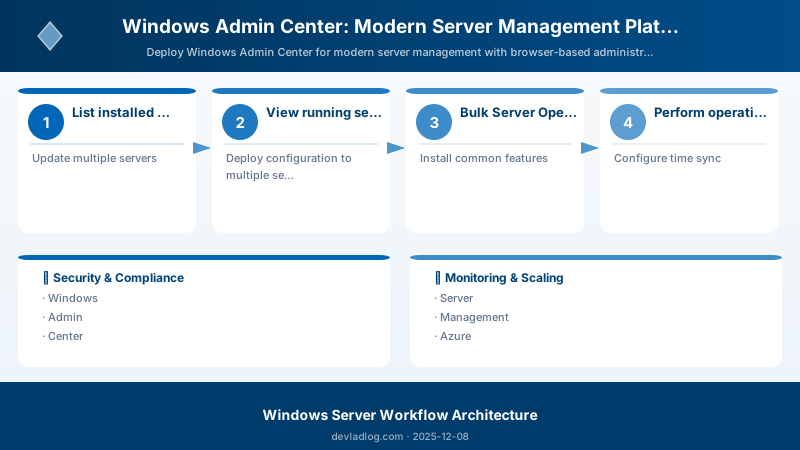
Figure: Azure Monitor Logs – KQL query results with time-series visualization.
## Use Azure Monitor to monitor both Azure and on-premises servers


## Query logs across all servers
$workspaceId = "YOUR_WORKSPACE_ID"


## Example query using Azure Monitor Logs
$query = @"
Perf
| where TimeGenerated > ago(1h)
| where ObjectName == "Processor" and CounterName == "% Processor Time"
| summarize AvgCPU = avg(CounterValue) by Computer
| order by AvgCPU desc
"@


## Execute query
Invoke-AzOperationalInsightsQuery -WorkspaceId $workspaceId -Query $query
Disaster Recovery with Azure Site Recovery
Architecture Overview: 
Architecture Decision and Tradeoffs
When designing server infrastructure solutions with Windows Server, consider these key architectural trade-offs:
| Approach | Best For | Tradeoff |
|---|---|---|
| Managed / platform service | Rapid delivery, reduced ops burden | Less customisation, potential vendor lock-in |
| Custom / self-hosted | Full control, advanced tuning | Higher operational overhead and cost |
Recommendation: Start with the managed approach for most workloads and move to custom only when specific requirements demand it.
Validation and Versioning
- Last validated: April 2026
- Validate examples against your tenant, region, and SKU constraints before production rollout.
- Keep module, CLI, and SDK versions pinned in automation pipelines and review quarterly.
Security and Governance Considerations
- Apply least-privilege access using RBAC roles and just-in-time elevation for admin tasks.
- Store secrets in managed secret stores and avoid embedding credentials in scripts or source files.
- Enable audit logging, data protection policies, and periodic access reviews for regulated workloads.
Cost and Performance Notes
- Define budgets and alerts, then monitor usage and cost trends continuously after go-live.
- Baseline performance with synthetic and real-user checks before and after major changes.
- Scale resources with measured thresholds and revisit sizing after usage pattern changes.
Official Microsoft References
- https://learn.microsoft.com/windows-server/
- https://learn.microsoft.com/windows/security/
- https://learn.microsoft.com/azure/azure-arc/
Public Examples from Official Sources
- These examples are sourced from official public Microsoft documentation and sample repositories.
- Documentation examples: https://learn.microsoft.com/windows-server/
- Sample repositories: https://github.com/microsoft/Windows-Containers
- Prefer adapting these examples to your tenant, subscriptions, and governance requirements before production use.
Key Takeaways
- Windows Admin Center provides browser-based server management
- Gateway mode recommended for production environments
- Built-in tools cover all common administration tasks
- Azure integration enables hybrid cloud scenarios
- Extension ecosystem extends functionality
- Remote management works from any device with browser
- Azure Arc brings Azure services to on-premises servers
- Unified monitoring across hybrid environments
Next Steps
- Install Windows Admin Center in gateway mode
- Connect servers to management gateway
- Configure Azure integration for hybrid services
- Enable Azure Monitor for unified monitoring
- Install useful extensions for additional capabilities
- Configure SSL certificate for secure access
- Onboard servers to Azure Arc for unified management
Additional Resources
Manage. Monitor. Integrate. Simplify.
Discussion