
Windows Server IIS and Web Hosting: Enterprise Web Services
Add-WebConfigurationProperty -PSPath "MACHINE/WEBROOT/APPHOST" -Filter "system.applicationHost/sites/site[@name='ContosoWeb']/hsts" -Name "." -Value @{enabled=$true;max-age=31536000;includeSubDomains=$true}
## URL Rewrite Module

### Installing URL Rewrite


```powershell
## Download and install URL Rewrite module


## https://www.iis.net/downloads/microsoft/url-rewrite


## Or use Web Platform Installer


## Install-Module -Name WebPlatformInstaller


## Install-Package -Name UrlRewrite2
Creating Rewrite Rules
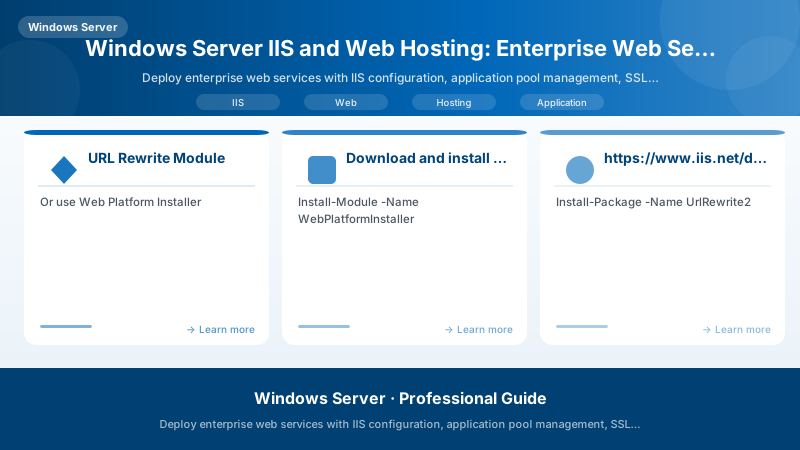
Figure: Outlook Web – mail rules, shared calendars, and resource booking.
## HTTP to HTTPS redirect
Add-WebConfigurationProperty -PSPath "MACHINE/WEBROOT/APPHOST/ContosoWeb" `
```text
-Filter "system.webServer/rewrite/rules" `
-Name "." `
-Value @{name='HTTP to HTTPS';stopProcessing='True'}
Set-WebConfigurationProperty -PSPath "MACHINE/WEBROOT/APPHOST/ContosoWeb" `
-Filter "system.webServer/rewrite/rules/rule[@name='HTTP to HTTPS']/match" `
-Name "url" -Value "(.*)"
Set-WebConfigurationProperty -PSPath "MACHINE/WEBROOT/APPHOST/ContosoWeb" `
-Filter "system.webServer/rewrite/rules/rule[@name='HTTP to HTTPS']/conditions" `


-Name "." `
-Value @{input='{HTTPS}';pattern='off'}
Set-WebConfigurationProperty -PSPath "MACHINE/WEBROOT/APPHOST/ContosoWeb" `
-Filter "system.webServer/rewrite/rules/rule[@name='HTTP to HTTPS']/action" `
-Name "type" -Value "Redirect"```
Set-WebConfigurationProperty -PSPath "MACHINE/WEBROOT/APPHOST/ContosoWeb" `
```text
-Filter "system.webServer/rewrite/rules/rule[@name='HTTP to HTTPS']/action" `
-Name "url" -Value "https://{HTTP_HOST}/{R:1}"
Canonical hostname (www to non-www)
Example web.config snippet:
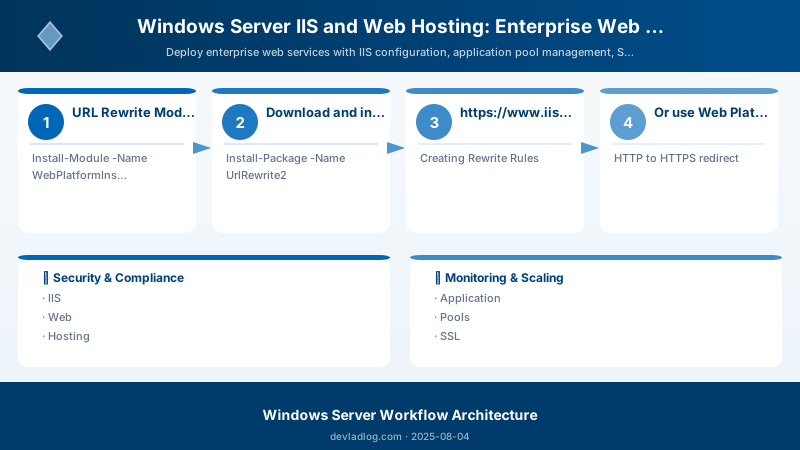
Figure: Configuration and management dashboard with status overview.
$rewriteConfig = @"
<rule name="Canonical Hostname" stopProcessing="true">
  <match url="(.*)" />
  <conditions>
    <add input="{HTTP_HOST}" pattern="^www\.contoso\.com$" />
  </conditions>
  <action type="Redirect" url="https://contoso.com/{R:1}" redirectType="Permanent" />
</rule>```
  </rules>
</rewrite>
"@
Load Balancing with ARR
Installing Application Request Routing
## Download and install ARR


## https://www.iis.net/downloads/microsoft/application-request-routing


## Enable proxy mode
Set-WebConfigurationProperty -PSPath "MACHINE/WEBROOT/APPHOST" -Filter "system.webServer/proxy" -Name "enabled" -Value $true
Creating Server Farm
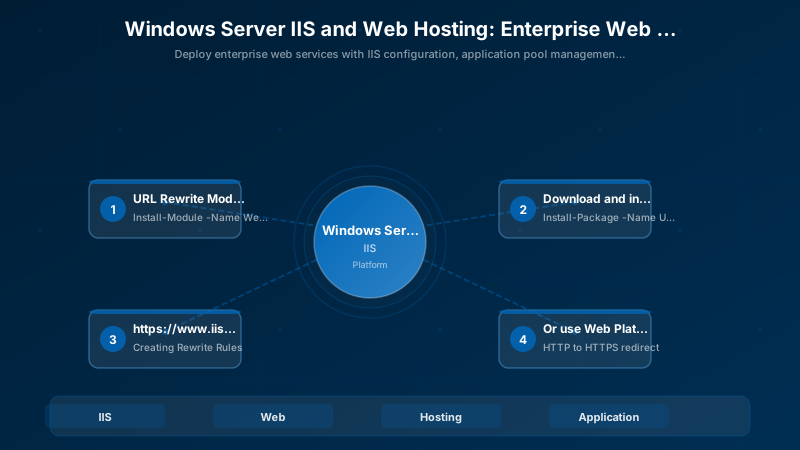
Figure: Configuration and management dashboard with status overview.
## Server farm configuration requires IIS Manager or web.config editing


## Example: Configure server farm in applicationHost.config
$serverFarmConfig = @"
<webFarms>
  <webFarm name="ContosoFarm" enabled="true">
```text
<server address="web01.contoso.com" enabled="true" />
<server address="web02.contoso.com" enabled="true" />
<applicationRequestRouting>
  <affinity useCookie="true" cookieName="ARRAffinity" />
  <loadBalance algorithm="WeightedRoundRobin" />
  <healthCheck url="http://localhost/health" interval="00:00:30" />
</applicationRequestRouting>```
  </webFarm>
</webFarms>
"@


## URL rewrite rule to route to farm
$farmRouting = @"
<rule name="ARR_ContosoFarm_loadbalance" patternSyntax="Wildcard" stopProcessing="true">
  <match url="*" />
  <action type="Rewrite" url="http://ContosoFarm/{R:0}" />
</rule>
"@
Health Monitoring
## Health check configuration


## Create health endpoint in application (e.g., /health)


## Returns HTTP 200 when healthy


## Monitor server farm health


## Get-WebConfigurationProperty -PSPath "MACHINE/WEBROOT/APPHOST" -Filter "webFarms/webFarm[@name='ContosoFarm']/server" | Select-Object address, enabled, state
![Get-WebConfigurationProperty -PSPath "MACHINE/WEBROOT/APPHOST" -Filter "webFarms/webFarm[@name='ContosoFarm']/server" | Select-Object address, enabled, state](https://devladlogimgs.blob.core.windows.net/images/articles/windows-server/2025-08-04-windows-server-iis-web-hosting-enterprise-web-services-sec24-implementation.jpg)
Web Farm Configuration
Shared Configuration
## Export IIS configuration
Export-IISConfiguration -PhysicalPath "\\fileserver\IISConfig" `
```text
-DontExportKeys $false `
-Force
On additional web servers, import configuration
Enable-IISSharedConfig -PhysicalPath "\fileserver\IISConfig" `
-KeyEncryptionPassword (ConvertTo-SecureString "P@ssw0rd123!" -AsPlainText -Force) `
-Force
View shared config status
Get-IISSharedConfig
## Content Synchronization

```powershell


## Synchronize content using Robocopy
$syncScript = @"


## Sync web content from primary to secondary servers
`$source = '\\web01\C$\inetpub\wwwroot\ContosoWeb'
`$destinations = @('\\web02\C$\inetpub\wwwroot\ContosoWeb', '\\web03\C$\inetpub\wwwroot\ContosoWeb')


foreach (`$dest in `$destinations) {
```text
robocopy `$source `$dest /MIR /R:3 /W:5 /MT:8 /LOG:C:\Logs\Sync.log```
}
"@

$syncScript | Out-File "C:\Scripts\SyncContent.ps1"

## Schedule content sync
$action = New-ScheduledTaskAction -Execute 'PowerShell.exe' `
```text
-Argument '-ExecutionPolicy Bypass -File C:\Scripts\SyncContent.ps1'```
$trigger = New-ScheduledTaskTrigger -Daily -At 3am
Register-ScheduledTask -TaskName "IIS Content Sync" -Action $action -Trigger $trigger -User "SYSTEM"
Security Best Practices
Request Filtering
## Configure request filtering
Set-WebConfigurationProperty -PSPath "MACHINE/WEBROOT/APPHOST/ContosoWeb" `
```text
-Filter "system.webServer/security/requestFiltering" `
-Name "allowDoubleEscaping" -Value $false
Set-WebConfigurationProperty -PSPath "MACHINE/WEBROOT/APPHOST/ContosoWeb" `
-Filter "system.webServer/security/requestFiltering" `
-Name "allowHighBitCharacters" -Value $false
Block file extensions
Add-WebConfigurationProperty -PSPath "MACHINE/WEBROOT/APPHOST/ContosoWeb" `
-Filter "system.webServer/security/requestFiltering/fileExtensions" `
-Name "." -Value @{fileExtension='.config';allowed=$false}
Block dangerous strings
Add-WebConfigurationProperty -PSPath "MACHINE/WEBROOT/APPHOST/ContosoWeb" `
-Filter "system.webServer/security/requestFiltering/denyUrlSequences" `
-Name "." -Value @{sequence='..'}
Add-WebConfigurationProperty -PSPath "MACHINE/WEBROOT/APPHOST/ContosoWeb" `
-Filter "system.webServer/security/requestFiltering/denyUrlSequences" `
-Name "." -Value @{sequence='<script'}
## IP Restrictions

```powershell


## Allow only specific IP addresses
Set-WebConfigurationProperty -PSPath "MACHINE/WEBROOT/APPHOST/ContosoWeb" `
```text
-Filter "system.webServer/security/ipSecurity" `
-Name "allowUnlisted" -Value $false
Add-WebConfigurationProperty -PSPath "MACHINE/WEBROOT/APPHOST/ContosoWeb" `
-Filter "system.webServer/security/ipSecurity" `
-Name "." -Value @{ipAddress='192.168.1.0';subnetMask='255.255.255.0';allowed=$true}
Block specific IP
Add-WebConfigurationProperty -PSPath "MACHINE/WEBROOT/APPHOST/ContosoWeb" `
-Filter "system.webServer/security/ipSecurity" `
-Name "." -Value @{ipAddress='10.0.0.50';allowed=$false}
## Authentication Configuration

```powershell


## Disable anonymous authentication
Set-WebConfigurationProperty -PSPath "MACHINE/WEBROOT/APPHOST/ContosoWeb" `
```text
-Filter "system.webServer/security/authentication/anonymousAuthentication" `
-Name "enabled" -Value $false
Enable Windows authentication
Set-WebConfigurationProperty -PSPath "MACHINE/WEBROOT/APPHOST/ContosoWeb" `
-Filter "system.webServer/security/authentication/windowsAuthentication" `
-Name "enabled" -Value $true
Configure authorization
Add-WebConfiguration -Filter "/system.webServer/security/authorization" `
-Value @{accessType='Allow';roles='CONTOSO\Web Users'} `
-PSPath "IIS:\" -Location "ContosoWeb"
Remove-WebConfiguration -Filter "/system.webServer/security/authorization/add[@users='*']" `
-PSPath "IIS:\" -Location "ContosoWeb"
## Performance Optimization

### Static Compression


```powershell
## Enable static compression
Set-WebConfigurationProperty -PSPath "MACHINE/WEBROOT/APPHOST" `
```text
-Filter "system.webServer/httpCompression" `
-Name "staticCompressionEnableCpuUsage" -Value 90
Set-WebConfigurationProperty -PSPath "MACHINE/WEBROOT/APPHOST" `
-Filter "system.webServer/httpCompression/scheme[@name='gzip']" `
-Name "staticCompressionLevel" -Value 9
Add file types to compress
Add-WebConfigurationProperty -PSPath "MACHINE/WEBROOT/APPHOST" `
-Filter "system.webServer/httpCompression/staticTypes" `
-Name "." -Value @{mimeType='application/json';enabled=$true}
## Output Caching

```powershell


## Enable output caching
Set-WebConfigurationProperty -PSPath "MACHINE/WEBROOT/APPHOST/ContosoWeb" `
```text
-Filter "system.webServer/caching" `
-Name "enabled" -Value $true
Add cache rule
Add-WebConfiguration -Filter "/system.webServer/caching/profiles" `
-Value @{extension='.html';policy='CacheUntilChange';kernelCachePolicy='CacheUntilChange'} `
-PSPath "IIS:\" -Location "ContosoWeb"
Set cache duration
Set-WebConfigurationProperty -PSPath "MACHINE/WEBROOT/APPHOST/ContosoWeb" `
-Filter "system.webServer/staticContent/clientCache" `
-Name "cacheControlMode" -Value "UseMaxAge"
Set-WebConfigurationProperty -PSPath "MACHINE/WEBROOT/APPHOST/ContosoWeb" `
-Filter "system.webServer/staticContent/clientCache" `
-Name "cacheControlMaxAge" -Value "7.00:00:00"  # 7 days
## HTTP/2 Configuration

```powershell


## Enable HTTP/2 (enabled by default on Windows Server 2016+)
Set-WebConfigurationProperty -PSPath "MACHINE/WEBROOT/APPHOST" `
```text
-Filter "system.applicationHost/sites/site[@name='ContosoWeb']/bindings/binding[@protocol='https']" `
-Name "sslFlags" -Value 0  # HTTP/2 requires SNI
Verify HTTP/2 is enabled
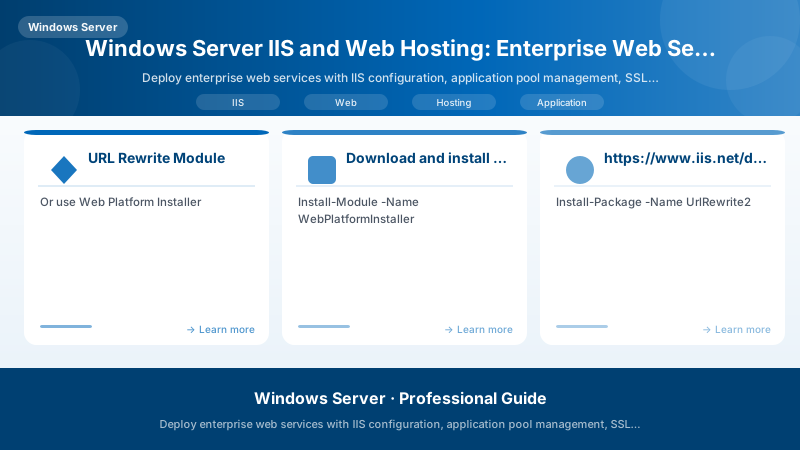
Figure: Configuration and management dashboard with status overview.
Get-WebConfigurationProperty -PSPath "MACHINE/WEBROOT/APPHOST" `
-Filter "system.webServer/serverRuntime" `
-Name "enabled"
## Application Initialization

```powershell


## Enable application initialization
Set-ItemProperty -Path "IIS:\AppPools\ContosoAppPool" -Name "startMode" -Value "AlwaysRunning"


Set-WebConfigurationProperty -PSPath "MACHINE/WEBROOT/APPHOST/ContosoWeb" `
```text
-Filter "system.webServer/applicationInitialization" `
-Name "doAppInitAfterRestart" -Value $true
Add initialization page
Add-WebConfiguration -Filter "/system.webServer/applicationInitialization/add" `
-Value @{initializationPage='/warmup.aspx'} `
-PSPath "IIS:\" -Location "ContosoWeb"
## Monitoring IIS

### IIS Logs


```powershell
## Configure logging
Set-WebConfigurationProperty -PSPath "MACHINE/WEBROOT/APPHOST/ContosoWeb" `
```text
-Filter "system.webServer/httpLogging" `
-Name "dontLog" -Value $false
Set-WebConfigurationProperty -PSPath "MACHINE/WEBROOT/APPHOST/ContosoWeb" `
-Filter "system.applicationHost/sites/site[@name='ContosoWeb']/logFile" `
-Name "directory" -Value "D:\IISLogs"
View recent errors
Get-Content "C:\inetpub\logs\LogFiles\W3SVC1*.log" -Tail 50 | Where-Object { $_ -like '500' }
## Performance Counters

```powershell


## Monitor IIS performance counters
$counters = @(
```text
'\Web Service(_Total)\Current Connections'
'\Web Service(_Total)\Bytes Total/sec'
'\ASP.NET Applications(__Total__)\Requests/Sec'
'\ASP.NET Applications(__Total__)\Request Execution Time'
'\Process(w3wp)\% Processor Time'
'\Process(w3wp)\Private Bytes'```
)


Get-Counter -Counter $counters -SampleInterval 5 -MaxSamples 10 |
```powershell
ForEach-Object { $_.CounterSamples | Format-Table -AutoSize }
## Architecture Decision and Tradeoffs

When designing server infrastructure solutions with Windows Server, consider these key architectural trade-offs:

| Approach | Best For | Tradeoff |
|----------|----------|----------|
| Managed / platform service | Rapid delivery, reduced ops burden | Less customisation, potential vendor lock-in |
| Custom / self-hosted | Full control, advanced tuning | Higher operational overhead and cost |

> **Recommendation:** Start with the managed approach for most workloads and move to custom only when specific requirements demand it.

## Validation and Versioning

- Last validated: April 2026
- Validate examples against your tenant, region, and SKU constraints before production rollout.
- Keep module, CLI, and SDK versions pinned in automation pipelines and review quarterly.

## Security and Governance Considerations

- Apply least-privilege access using RBAC roles and just-in-time elevation for admin tasks.
- Store secrets in managed secret stores and avoid embedding credentials in scripts or source files.
- Enable audit logging, data protection policies, and periodic access reviews for regulated workloads.

## Cost and Performance Notes

- Define budgets and alerts, then monitor usage and cost trends continuously after go-live.
- Baseline performance with synthetic and real-user checks before and after major changes.
- Scale resources with measured thresholds and revisit sizing after usage pattern changes.

## Official Microsoft References

- https://learn.microsoft.com/windows-server/
- https://learn.microsoft.com/windows/security/
- https://learn.microsoft.com/azure/azure-arc/

## Public Examples from Official Sources

- These examples are sourced from official public Microsoft documentation and sample repositories.
- Documentation examples: https://learn.microsoft.com/windows-server/
- Sample repositories: https://github.com/microsoft/Windows-Containers
- Prefer adapting these examples to your tenant, subscriptions, and governance requirements before production use.

## Key Takeaways

- IIS provides enterprise web hosting on Windows Server
- Application pools isolate applications for security and stability
- SSL/TLS certificates secure web traffic with HTTPS
- URL Rewrite handles redirects and URL normalization
- ARR delivers load balancing across web servers
- Web farms share configuration and content
- Security features include request filtering and IP restrictions
- Performance optimization includes compression, caching, and HTTP/2


## Next Steps

- Deploy IIS with application pool isolation
- Configure SSL certificates for HTTPS
- Implement URL rewrite rules
- Set up load balancing with ARR
- Configure web farm with shared configuration
- Harden IIS security settings
- Optimize performance with compression and caching


## Additional Resources

- [IIS Documentation](https://learn.microsoft.com/iis/)
- [Application Request Routing](https://learn.microsoft.com/iis/extensions/planning-for-arr/application-request-routing-version-2-overview)
- [URL Rewrite Module](https://learn.microsoft.com/iis/extensions/url-rewrite-module/url-rewrite-module-configuration-reference)
- [IIS Security Best Practices](https://learn.microsoft.com/iis/get-started/whats-new-in-iis-10/http2-on-iis)


---

*Host. Secure. Scale. Optimize.*
Discussion