
Windows Server Storage Solutions: Storage Spaces Direct and Advanced Storage
`$report += [PSCustomObject]@{
Component = 'Storage Pool'
Status = `$pool.HealthStatus
OperationalStatus = `$pool.OperationalStatus
FreeCapacity = ([math]::Round((`$pool.Size - `$pool.AllocatedSize)/1GB, 2)).ToString() + ' GB'```
}

## Virtual disks health
Get-VirtualDisk | ForEach-Object {
```powershell
`$report += [PSCustomObject]@{
    Component = "Virtual Disk: `$(`$_.FriendlyName)"
    Status = `$_.HealthStatus
    OperationalStatus = `$_.OperationalStatus
    FreeCapacity = 'N/A'
}```
}


## Physical disks with issues
Get-PhysicalDisk | Where-Object { `$_.HealthStatus -ne 'Healthy' } | ForEach-Object {
```powershell
`$report += [PSCustomObject]@{
    Component = "Physical Disk: `$(`$_.FriendlyName)"
    Status = `$_.HealthStatus
    OperationalStatus = `$_.OperationalStatus
    FreeCapacity = 'N/A'
}```
}


`$report | Format-Table -AutoSize

if (`$report | Where-Object { `$_.Status -ne 'Healthy' }) {
```text
Send-MailMessage ``
    -To 'storage-admin@contoso.com' ``
    -From 's2d-monitor@contoso.com' ``
    -Subject 'S2D Health Alert' ``
    -Body (`$report | Format-Table | Out-String) ``
    -SmtpServer 'smtp.contoso.com'```
}
"@

$s2dMonitor | Out-File "C:\Scripts\S2D-Monitor.ps1"
Resilient File System (ReFS)
ReFS vs NTFS Comparison
## ReFS advantages:


## - Integrity streams for corruption detection


## - Block cloning for instant copies


## - Sparse VDL for efficient virtual disk creation


## - Mirror-accelerated parity for balanced performance/capacity


## - No need for chkdsk (self-healing)


## - Maximum volume size 4.7 ZB


## - Optimized for Storage Spaces Direct


## NTFS advantages:


## - File compression


## - Disk quotas


## - EFS encryption


## - Named streams


## - Smaller volume support (< 100 GB)
Creating ReFS Volumes
## Format volume with ReFS
Format-Volume -DriveLetter E -FileSystem ReFS -NewFileSystemLabel "Data" -Confirm:$false


## Create ReFS volume on Storage Spaces
New-Volume -FriendlyName "ReFS-Volume" `
```text
-FileSystem ReFS `
-StoragePoolFriendlyName "S2D-Pool" `
-Size 2TB `
-ResiliencySettingName Mirror
Enable integrity streams
Set-FileIntegrity -FileName "E:\ImportantData" -Enable $true
Verify integrity
Get-FileIntegrity -FileName "E:\ImportantData"
View ReFS volume properties
Get-Volume -DriveLetter E | Format-List *
## Block Cloning on ReFS

```powershell


## Block cloning creates instant copies by referencing existing blocks


## Requires Windows Server 2016+ and ReFS


## Enable block cloning


## Already enabled by default on ReFS volumes


## Example: Clone file using Windows API


## PowerShell doesn't have native cmdlet, but you can use Robocopy with /B flag


## or use Storage Replica for volume-level cloning


## Clone virtual disk efficiently


## When creating new VM from template on ReFS, block cloning is automatic
Data Deduplication
Enabling Deduplication
## Install deduplication feature
Install-WindowsFeature -Name FS-Data-Deduplication -IncludeManagementTools


## Enable deduplication on volume
Enable-DedupVolume -Volume "E:" -UsageType Default


## Usage types:


## - Default: General purpose file server (files older than 5 days)


## - HyperV: Hyper-V VDI (files older than 3 days)


## - Backup: Backup target (all files)


## Enable for Hyper-V workload
Enable-DedupVolume -Volume "V:" -UsageType HyperV


## Set deduplication schedule
Set-DedupVolume -Volume "E:" -MinimumFileAgeDays 3


## View deduplication settings
Get-DedupVolume -Volume "E:"
Monitoring Deduplication
Figure: Azure Monitor Logs – KQL query results with time-series visualization.
## View deduplication status
Get-DedupStatus -Volume "E:" | Format-List


## View savings
$dedupStats = Get-DedupStatus -Volume "E:"
$savedSpace = $dedupStats.SavedSpace / 1GB
$savingsRate = $dedupStats.SavingsRate


Write-Host "Deduplication Savings:" -ForegroundColor Cyan
Write-Host "Space Saved: $([math]::Round($savedSpace, 2)) GB" -ForegroundColor Green
Write-Host "Savings Rate: $([math]::Round($savingsRate, 2))%" -ForegroundColor Green

## View deduplication jobs
Get-DedupJob


## Start manual optimization
Start-DedupJob -Volume "E:" -Type Optimization


## Start garbage collection
Start-DedupJob -Volume "E:" -Type GarbageCollection


## Start scrubbing (integrity check)
Start-DedupJob -Volume "E:" -Type Scrubbing
Deduplication Best Practices
## Schedule optimization during off-hours
Set-DedupSchedule -Name "NightlyOptimization" `
```text
-Type Optimization `
-DaysOfWeek Monday, Tuesday, Wednesday, Thursday, Friday `
-Start 02:00 `
-DurationHours 6 `
-Priority Normal `
-Memory 50
Schedule garbage collection weekly
Set-DedupSchedule -Name "WeeklyGC" `
-Type GarbageCollection `
-DaysOfWeek Saturday `
-Start 02:00 `
-DurationHours 4
Schedule scrubbing monthly
Set-DedupSchedule -Name "MonthlyScrub" `
-Type Scrubbing `
-DaysOfWeek Sunday `
-Start 02:00 `
-DurationHours 8
View schedules
Get-DedupSchedule
## Storage Tiering

### Configuring Storage Tiers


```powershell
## Storage tiering automatically moves hot data to SSD and cold data to HDD


## Create tiered storage space
New-StorageTier -StoragePoolFriendlyName "Storage-Pool" `
```text
-FriendlyName "SSD-Tier" `
-MediaType SSD `
-ResiliencySettingName Simple
New-StorageTier -StoragePoolFriendlyName "Storage-Pool" `
-FriendlyName "HDD-Tier" `
-MediaType HDD `
-ResiliencySettingName Simple
Create virtual disk with tiers
$ssdTier = Get-StorageTier -FriendlyName "SSD-Tier" $hddTier = Get-StorageTier -FriendlyName "HDD-Tier"
New-VirtualDisk -StoragePoolFriendlyName "Storage-Pool" `
-FriendlyName "Tiered-Disk" `
-StorageTiers $ssdTier, $hddTier `
-StorageTierSizes 100GB, 900GB `
-WriteCacheSize 1GB
Format and assign drive letter
Figure: Power Apps form control – edit form with validation rules and error handling.
Get-VirtualDisk -FriendlyName "Tiered-Disk" | Get-Disk |
Initialize-Disk -PartitionStyle GPT -PassThru |
New-Partition -AssignDriveLetter -UseMaximumSize |
Format-Volume -FileSystem NTFS -NewFileSystemLabel "Tiered Storage" -Confirm:$false
## Managing File Tiering

```powershell


## Pin file to SSD tier
Set-FileStorageTier -FilePath "E:\HotData\Database.mdf" -DesiredStorageTierFriendlyName "SSD-Tier"


## View file storage tier
Get-FileStorageTier -FilePath "E:\HotData\Database.mdf"


## Clear pinning (allow automatic tiering)
Clear-FileStorageTier -FilePath "E:\HotData\Database.mdf"


## View tier optimization status
Get-StorageTierSupportedSize -FriendlyName "Tiered-Disk" -TierSizeMin
iSCSI Target Server
Deploying iSCSI Target
## Install iSCSI Target Server
Install-WindowsFeature -Name FS-iSCSITarget-Server -IncludeManagementTools


## Create iSCSI virtual disk
New-IscsiVirtualDisk -Path "C:\iSCSI\Disk01.vhdx" -Size 100GB


## Create iSCSI target
New-IscsiServerTarget -TargetName "Target01" -InitiatorIds "IQN:iqn.1991-05.com.microsoft:client01"


## Add virtual disk to target
Add-IscsiVirtualDiskTargetMapping -TargetName "Target01" -Path "C:\iSCSI\Disk01.vhdx"


## View iSCSI configuration
Get-IscsiServerTarget
Get-IscsiVirtualDisk
Configuring iSCSI Initiator (Client)
Figure: PnP PowerShell session – site provisioning and configuration output.
## Start iSCSI initiator service
Start-Service MSiSCSI
Set-Service MSiSCSI -StartupType Automatic


## Configure iSCSI initiator
Set-Service MSiSCSI -Status Running


## Discover iSCSI target
New-IscsiTargetPortal -TargetPortalAddress "192.168.1.10"


## Connect to iSCSI target
Get-IscsiTarget | Connect-IscsiTarget -IsPersistent $true


## View connected targets
Get-IscsiSession


## Initialize and format iSCSI disk
Get-Disk | Where-Object { $_.PartitionStyle -eq 'RAW' } |
```powershell
Initialize-Disk -PartitionStyle GPT -PassThru |
New-Partition -AssignDriveLetter -UseMaximumSize |
Format-Volume -FileSystem NTFS -NewFileSystemLabel "iSCSI Storage" -Confirm:$false
## iSCSI MPIO Configuration

```powershell


## Install MPIO feature
Install-WindowsFeature -Name Multipath-IO -IncludeManagementTools -Restart


## Add iSCSI support to MPIO
New-MSDSMSupportedHW -VendorId "MSFT2005" -ProductId "iSCSIBusType_0x9"


## Configure MPIO policy
Set-MSDSMGlobalDefaultLoadBalancePolicy -Policy RR  # Round Robin


## Connect to target with multiple paths
Connect-IscsiTarget -NodeAddress "iqn.1991-05.com.microsoft:target01" -IsPersistent $true -IsMultipathEnabled $true


## View MPIO configuration
Get-MSDSMGlobalDefaultLoadBalancePolicy
Get-MPIOAvailableHW
Storage Replica
Configuring Storage Replica
## Install Storage Replica feature (requires Datacenter edition)
Install-WindowsFeature -Name Storage-Replica, RSAT-Storage-Replica -IncludeManagementTools


## Test replication prerequisites
Test-SRTopology -SourceComputerName "SRV01" -SourceVolumeName "E:" -SourceLogVolumeName "L:" `
```text
-DestinationComputerName "SRV02" -DestinationVolumeName "E:" -DestinationLogVolumeName "L:" `
-DurationInMinutes 5 -ResultPath "C:\Reports"
Create server-to-server replication
New-SRPartnership -SourceComputerName "SRV01" -SourceRGName "RG01" `
-SourceVolumeName "E:" -SourceLogVolumeName "L:" `
-DestinationComputerName "SRV02" -DestinationRGName "RG02" `
-DestinationVolumeName "E:" -DestinationLogVolumeName "L:" `
-ReplicationMode Synchronous
View replication status
Get-SRGroup Get-SRPartnership | Format-List *
Monitor replication
(Get-SRGroup).Replicas | Select-Object ReplicatedSize, ReplicationStatus
Reverse replication direction (for failover)
Figure: Failover Cluster Manager – node status, roles, and quorum config.
Set-SRPartnership -NewSourceComputerName "SRV02" -SourceRGName "RG02" `
-DestinationComputerName "SRV01" -DestinationRGName "RG01"
## Distributed File System (DFS)

### DFS Namespaces


```powershell
## Install DFS Namespaces
Install-WindowsFeature -Name FS-DFS-Namespace -IncludeManagementTools


## Create DFS namespace
New-DfsnRoot -Path "\\contoso.com\Files" -TargetPath "\\FileServer01\Files" -Type DomainV2


## Add folder to namespace
New-DfsnFolder -Path "\\contoso.com\Files\Departments" -TargetPath "\\FileServer01\Departments"


## Add folder target (for redundancy)
New-DfsnFolderTarget -Path "\\contoso.com\Files\Departments" -TargetPath "\\FileServer02\Departments"


## View DFS namespace
Get-DfsnRoot
Get-DfsnFolder -Path "\\contoso.com\Files\*"
DFS Replication
## Install DFS Replication
Install-WindowsFeature -Name FS-DFS-Replication -IncludeManagementTools


## Create replication group
New-DfsReplicationGroup -GroupName "Files-RG"


## Add members
Add-DfsrMember -GroupName "Files-RG" -ComputerName "FileServer01", "FileServer02"


## Add replicated folder
New-DfsReplicatedFolder -GroupName "Files-RG" -FolderName "Departments"


## Set replication topology (full mesh)
Add-DfsrConnection -GroupName "Files-RG" `
```text
-SourceComputerName "FileServer01" `
-DestinationComputerName "FileServer02"
Configure membership
Set-DfsrMembership -GroupName "Files-RG" -FolderName "Departments" `
-ComputerName "FileServer01" -ContentPath "D:\Departments" -PrimaryMember $true
Set-DfsrMembership -GroupName "Files-RG" -FolderName "Departments" `
-ComputerName "FileServer02" -ContentPath "D:\Departments"
View replication status
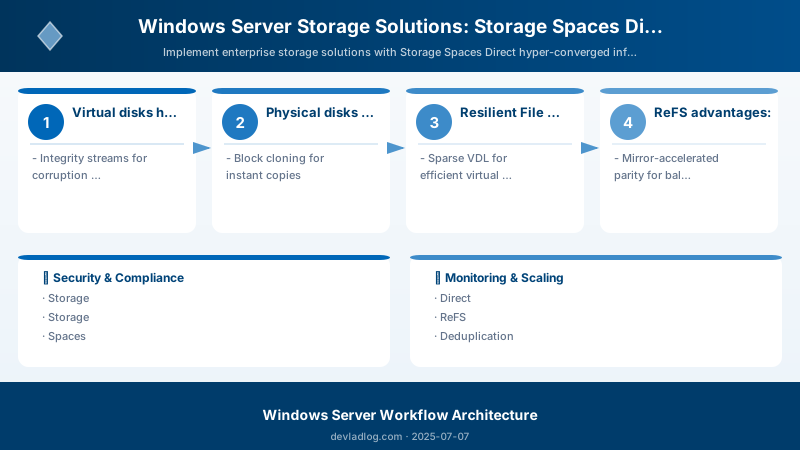
Figure: Always On dashboard – replica sync status and failover readiness.
Get-DfsrState -ComputerName "FileServer01" Get-DfsrBacklog -GroupName "Files-RG" -FolderName "Departments" `
-SourceComputerName "FileServer01" -DestinationComputerName "FileServer02"
## Architecture Decision and Tradeoffs

When designing server infrastructure solutions with Windows Server, consider these key architectural trade-offs:

| Approach | Best For | Tradeoff |
|----------|----------|----------|
| Managed / platform service | Rapid delivery, reduced ops burden | Less customisation, potential vendor lock-in |
| Custom / self-hosted | Full control, advanced tuning | Higher operational overhead and cost |

> **Recommendation:** Start with the managed approach for most workloads and move to custom only when specific requirements demand it.

## Validation and Versioning

- Last validated: April 2026
- Validate examples against your tenant, region, and SKU constraints before production rollout.
- Keep module, CLI, and SDK versions pinned in automation pipelines and review quarterly.

## Security and Governance Considerations

- Apply least-privilege access using RBAC roles and just-in-time elevation for admin tasks.
- Store secrets in managed secret stores and avoid embedding credentials in scripts or source files.
- Enable audit logging, data protection policies, and periodic access reviews for regulated workloads.

## Cost and Performance Notes

- Define budgets and alerts, then monitor usage and cost trends continuously after go-live.
- Baseline performance with synthetic and real-user checks before and after major changes.
- Scale resources with measured thresholds and revisit sizing after usage pattern changes.

## Official Microsoft References

- https://learn.microsoft.com/windows-server/
- https://learn.microsoft.com/windows/security/
- https://learn.microsoft.com/azure/azure-arc/

## Public Examples from Official Sources

- These examples are sourced from official public Microsoft documentation and sample repositories.
- Documentation examples: https://learn.microsoft.com/windows-server/
- Sample repositories: https://github.com/microsoft/Windows-Containers
- Prefer adapting these examples to your tenant, subscriptions, and governance requirements before production use.

## Key Takeaways

- Storage Spaces Direct delivers hyper-converged infrastructure
- ReFS provides data integrity and modern storage features
- Deduplication saves disk space on file servers and backups
- Storage tiering balances performance and capacity
- iSCSI Target Server provides SAN storage over Ethernet
- Storage Replica enables synchronous/asynchronous replication
- DFS Namespaces simplify file access across servers
- DFS Replication keeps folders synchronized across sites


## Next Steps

- Deploy Storage Spaces Direct for hyper-converged infrastructure
- Implement ReFS on new volumes for data integrity
- Enable deduplication on appropriate workloads
- Configure storage tiering for balanced performance
- Set up iSCSI for block-level storage
- Implement Storage Replica for disaster recovery
- Deploy DFS for distributed file access


## Additional Resources

- [Storage Spaces Direct](https://learn.microsoft.com/windows-server/storage/storage-spaces/storage-spaces-direct-overview)
- [Resilient File System (ReFS)](https://learn.microsoft.com/windows-server/storage/refs/refs-overview)
- [Data Deduplication](https://learn.microsoft.com/windows-server/storage/data-deduplication/overview)
- [iSCSI Target Server](https://learn.microsoft.com/windows-server/storage/iscsi/iscsi-target-server)
- [Storage Replica](https://learn.microsoft.com/windows-server/storage/storage-replica/storage-replica-overview)
- [DFS Namespaces and Replication](https://learn.microsoft.com/windows-server/storage/dfs-namespaces/dfs-overview)


---

*Store. Protect. Replicate. Scale.*
Discussion