
Windows Server Active Directory: Modern Identity Management
@{Name="SizeGB";Expression={[math]::Round($.Size/1GB,2)}}, @{Name="FreeGB";Expression={[math]::Round($.SizeRemaining/1GB,2)}}
## Verify static IP configuration
Get-NetIPAddress -AddressFamily IPv4 |
```powershell
Where-Object {$_.IPAddress -notlike "169.254.*" -and $_.IPAddress -ne "127.0.0.1"} |
Select-Object InterfaceAlias, IPAddress, PrefixLength
Check network connectivity
Test-NetConnection -ComputerName "8.8.8.8" -Port 53
## Step 1: Prepare Server for AD DS Installation

### Set Static IP Address and Configure DNS


```powershell
## Get network adapter name
$adapter = Get-NetAdapter | Where-Object {$_.Status -eq "Up"}
$adapterName = $adapter.Name


Write-Host "Network Adapter: $adapterName" -ForegroundColor Cyan

## Configure static IP
$ipConfig = @{
```text
InterfaceAlias = $adapterName
IPAddress = "10.0.0.10"           # Your DC IP
PrefixLength = 24                  # Subnet mask (/24 = 255.255.255.0)
DefaultGateway = "10.0.0.1"       # Your gateway```
}


New-NetIPAddress @ipConfig

Write-Host "✓ Static IP configured" -ForegroundColor Green

## Configure DNS (point to itself and secondary DNS)
Set-DnsClientServerAddress -InterfaceAlias $adapterName `
                            -ServerAddresses "127.0.0.1", "8.8.8.8"


Write-Host "✓ DNS servers configured" -ForegroundColor Green

## Verify configuration
Get-NetIPConfiguration | Select-Object InterfaceAlias, IPv4Address, IPv4DefaultGateway, DNSServer
Rename Computer and Set Time Zone
Figure: Configuration and management dashboard with status overview.
## Rename computer to DC01
Rename-Computer -NewName "DC01" -Force


Write-Host "✓ Computer renamed to DC01 (restart required)" -ForegroundColor Green

## Set time zone (adjust for your location)
Set-TimeZone -Id "Eastern Standard Time"


## Verify time zone
Get-TimeZone


## Configure Windows Update settings (optional but recommended)
Set-ItemProperty -Path "HKLM:\SOFTWARE\Policies\Microsoft\Windows\WindowsUpdate\AU" `
                 -Name "NoAutoUpdate" -Value 0


Write-Host "✓ Time zone configured" -ForegroundColor Green

## Restart to apply changes
Write-Host "`n⚠ Restart required. Restarting in 10 seconds..." -ForegroundColor Yellow
Start-Sleep -Seconds 10
Restart-Computer -Force
Step 2: Install Active Directory Domain Services
Install AD DS Role
## Install AD DS role and management tools
Write-Host "Installing Active Directory Domain Services..." -ForegroundColor Cyan


Install-WindowsFeature -Name AD-Domain-Services `
                       -IncludeManagementTools `
                       -IncludeAllSubFeature

Write-Host "✓ AD DS role installed" -ForegroundColor Green

## Verify installation
Get-WindowsFeature | Where-Object {$_.Name -like "*AD-Domain*"} |
```text
Select-Object Name, InstallState, DisplayName | Format-Table
Check for required modules
$requiredModules = @("ActiveDirectory", "ADDSDeployment", "GroupPolicy")
foreach ($module in $requiredModules) {
if (Get-Module -ListAvailable -Name $module) {
    Write-Host "✓ Module available: $module" -ForegroundColor Green
} else {
    Write-Host "✗ Module missing: $module" -ForegroundColor Red
}```
}
Promote Server to Domain Controller (New Forest)
Figure: AD Users and Computers – OU structure and group policy links.
Architecture Overview: 
Test-ADDSForestInstallation -DomainName $domainName -DomainNetbiosName $netBiosName
-ForestMode $forestMode -DomainMode $domainMode
-SafeModeAdministratorPassword $dsrmPassword -InstallDns
-NoRebootOnCompletion `
-Force
Write-Host "✓ Prerequisites check passed" -ForegroundColor Green``` } catch {
Architecture Overview: Write Host "✗ Prerequisites check failed: $($_.Exception.Message)" ForegroundColor Red
Install-ADDSForest -DomainName $domainName -DomainNetbiosName $netBiosName
-ForestMode $forestMode -DomainMode $domainMode
-SafeModeAdministratorPassword $dsrmPassword -InstallDns
-DatabasePath "C:\Windows\NTDS" -LogPath "C:\Windows\NTDS"
-SysvolPath "C:\Windows\SYSVOL" -NoRebootOnCompletion:$false
-Force
Write-Host "✓ Domain controller promotion initiated" -ForegroundColor Green Write-Host "✓ Server will restart automatically" -ForegroundColor Green
} catch {
```powershell
Write-Host "✗ Promotion failed: $($_.Exception.Message)" -ForegroundColor Red```
}
Verify Domain Controller Installation
## After server restarts, login with domain administrator


## Verify domain controller status
Write-Host "Verifying Domain Controller Status..." -ForegroundColor Cyan


## Check AD DS service
$addsService = Get-Service -Name "NTDS"
Write-Host "  AD DS Service: $($addsService.Status)" -ForegroundColor $(if($addsService.Status -eq "Running"){"Green"}else{"Red"})


## Check DNS service
$dnsService = Get-Service -Name "DNS"
Write-Host "  DNS Service: $($dnsService.Status)" -ForegroundColor $(if($dnsService.Status -eq "Running"){"Green"}else{"Red"})


## Check Netlogon service
$netlogonService = Get-Service -Name "Netlogon"
Write-Host "  Netlogon Service: $($netlogonService.Status)" -ForegroundColor $(if($netlogonService.Status -eq "Running"){"Green"}else{"Red"})


## Get domain information
$domain = Get-ADDomain
Write-Host "`nDomain Information:" -ForegroundColor Yellow
Write-Host "  Domain Name: $($domain.DNSRoot)" -ForegroundColor White
Write-Host "  NetBIOS Name: $($domain.NetBIOSName)" -ForegroundColor White
Write-Host "  Domain Mode: $($domain.DomainMode)" -ForegroundColor White


## Get forest information
$forest = Get-ADForest
Write-Host "`nForest Information:" -ForegroundColor Yellow
Write-Host "  Forest Name: $($forest.Name)" -ForegroundColor White
Write-Host "  Forest Mode: $($forest.ForestMode)" -ForegroundColor White
Write-Host "  Schema Master: $($forest.SchemaMaster)" -ForegroundColor White
Write-Host "  Domain Naming Master: $($forest.DomainNamingMaster)" -ForegroundColor White


## List domain controllers
Write-Host "`nDomain Controllers:" -ForegroundColor Yellow
Get-ADDomainController -Filter * |
```text
Select-Object Name, IPv4Address, OperatingSystem, IsGlobalCatalog |
Format-Table -AutoSize
Verify DNS zones
Write-Host "DNS Zones:" -ForegroundColor Yellow Get-DnsServerZone | Select-Object ZoneName, ZoneType, IsAutoCreated | Format-Table -AutoSize
## Step 3: Create Organizational Unit Structure

### Design OU Hierarchy


```powershell
## Define OU structure
$ouStructure = @{
```text
"IT" = @(
    "Servers",
    "Workstations",
    "Users",
    "Groups",
    "Service Accounts"
)
"HR" = @(
    "Users",
    "Groups"
)
"Finance" = @(


    "Users",
    "Groups",
    "Workstations"
)
"Sales" = @(
    "North Region",
    "South Region",
    "Users",
    "Groups"
)
"Marketing" = @(
    "Users",
    "Groups"
)```
}

$domainDN = (Get-ADDomain).DistinguishedName

Write-Host "Creating Organizational Unit Structure..." -ForegroundColor Cyan
Write-Host "Domain: $domainDN`n" -ForegroundColor Yellow

## Create parent OUs
foreach ($parentOU in $ouStructure.Keys) {
```powershell
try {
    $ouPath = "OU=$parentOU,$domainDN"


    # Check if OU exists
    $existingOU = Get-ADOrganizationalUnit -Filter "DistinguishedName -eq '$ouPath'" -ErrorAction SilentlyContinue

    if ($existingOU) {
        Write-Host "  ⚠ OU exists: $parentOU" -ForegroundColor Yellow
    } else {
        # Create OU
        New-ADOrganizationalUnit -Name $parentOU `
                                 -Path $domainDN `
                                 -ProtectedFromAccidentalDeletion $true

        Write-Host "  ✓ Created: $parentOU" -ForegroundColor Green
    }

    # Create child OUs
    foreach ($childOU in $ouStructure[$parentOU]) {
        $childPath = "OU=$childOU,OU=$parentOU,$domainDN"

        $existingChildOU = Get-ADOrganizationalUnit -Filter "DistinguishedName -eq '$childPath'" -ErrorAction SilentlyContinue

        if ($existingChildOU) {
            Write-Host "    ⚠ Child OU exists: $parentOU\$childOU" -ForegroundColor Yellow
        } else {
            New-ADOrganizationalUnit -Name $childOU `
                                     -Path "OU=$parentOU,$domainDN" `
                                     -ProtectedFromAccidentalDeletion $true

            Write-Host "    ✓ Created: $parentOU\$childOU" -ForegroundColor Green
        }
    }

} catch {
    Write-Host "  ✗ Error creating $parentOU: $($_.Exception.Message)" -ForegroundColor Red
}```
}

Write-Host "`n✓ OU structure created" -ForegroundColor Green

## Display OU tree
Write-Host "`nOrganizational Unit Tree:" -ForegroundColor Yellow
Get-ADOrganizationalUnit -Filter * -Properties CanonicalName |
```powershell
Sort-Object CanonicalName |
Select-Object @{Name="OU Path";Expression={$_.CanonicalName}}, DistinguishedName |
Format-Table -AutoSize
## Step 4: Create Users and Groups

### Create Security Groups


```powershell
## Define security groups
$groups = @(
```sql
@{Name = "IT Administrators"; Description = "IT Department Administrators"; OU = "IT"},
@{Name = "IT Users"; Description = "IT Department Users"; OU = "IT"},
@{Name = "HR Administrators"; Description = "HR Department Administrators"; OU = "HR"},
@{Name = "HR Users"; Description = "HR Department Users"; OU = "HR"},
@{Name = "Finance Administrators"; Description = "Finance Department Administrators"; OU = "Finance"},
@{Name = "Finance Users"; Description = "Finance Department Users"; OU = "Finance"},
@{Name = "Sales Users"; Description = "Sales Department Users"; OU = "Sales"},
@{Name = "Marketing Users"; Description = "Marketing Department Users"; OU = "Marketing"},
@{Name = "Remote Users"; Description = "Users with VPN access"; OU = "IT"}```
)


Write-Host "Creating Security Groups..." -ForegroundColor Cyan

foreach ($group in $groups) {
```powershell
$ouPath = "OU=Groups,OU=$($group.OU),$domainDN"

## Check if Groups OU exists, create if not
$groupsOU = Get-ADOrganizationalUnit -Filter "DistinguishedName -eq '$ouPath'" -ErrorAction SilentlyContinue
if (-not $groupsOU) {
    New-ADOrganizationalUnit -Name "Groups" -Path "OU=$($group.OU),$domainDN" -ProtectedFromAccidentalDeletion $true
}


try {
    # Check if group exists
    $existingGroup = Get-ADGroup -Filter "Name -eq '$($group.Name)'" -ErrorAction SilentlyContinue

    if ($existingGroup) {
        Write-Host "  ⚠ Group exists: $($group.Name)" -ForegroundColor Yellow
    } else {
        # Create group
        New-ADGroup -Name $group.Name `
                    -GroupScope Global `
                    -GroupCategory Security `
                    -Description $group.Description `
                    -Path $ouPath

        Write-Host "  ✓ Created: $($group.Name)" -ForegroundColor Green
    }

} catch {
    Write-Host "  ✗ Error creating $($group.Name): $($_.Exception.Message)" -ForegroundColor Red
}```
}

Write-Host "`n✓ Security groups created" -ForegroundColor Green
Create User Accounts (Bulk)
## Define users
$users = @(
```text
@{FirstName="John"; LastName="Doe"; Department="IT"; Title="IT Manager"; Username="jdoe"},
@{FirstName="Jane"; LastName="Smith"; Department="IT"; Title="System Administrator"; Username="jsmith"},
@{FirstName="Alice"; LastName="Lee"; Department="HR"; Title="HR Manager"; Username="alee"},
@{FirstName="Bob"; LastName="Johnson"; Department="Finance"; Title="Financial Analyst"; Username="bjohnson"},
@{FirstName="Charlie"; LastName="Brown"; Department="Sales"; Title="Sales Representative"; Username="cbrown"},
@{FirstName="Diana"; LastName="Williams"; Department="Marketing"; Title="Marketing Specialist"; Username="dwilliams"}```
)


$defaultPassword = ConvertTo-SecureString "P@ssw0rd123!" -AsPlainText -Force

Write-Host "Creating User Accounts..." -ForegroundColor Cyan

foreach ($user in $users) {
```powershell
$ouPath = "OU=Users,OU=$($user.Department),$domainDN"
$upn = "$($user.Username)@$domainName"
$displayName = "$($user.FirstName) $($user.LastName)"
$email = "$($user.Username)@$domainName"

try {
    # Check if user exists
    $existingUser = Get-ADUser -Filter "SamAccountName -eq '$($user.Username)'" -ErrorAction SilentlyContinue

    if ($existingUser) {
        Write-Host "  ⚠ User exists: $($user.Username)" -ForegroundColor Yellow
    } else {
        # Create user
        New-ADUser -Name $displayName `
                   -GivenName $user.FirstName `
                   -Surname $user.LastName `
                   -SamAccountName $user.Username `
                   -UserPrincipalName $upn `
                   -DisplayName $displayName `
                   -EmailAddress $email `
                   -Department $user.Department `
                   -Title $user.Title `
                   -Path $ouPath `
                   -AccountPassword $defaultPassword `
                   -Enabled $true `
                   -ChangePasswordAtLogon $true `
                   -PasswordNeverExpires $false

        Write-Host "  ✓ Created: $displayName ($($user.Username))" -ForegroundColor Green

        # Add to department group
        $groupName = "$($user.Department) Users"
        Add-ADGroupMember -Identity $groupName -Members $user.Username
        Write-Host "    ✓ Added to group: $groupName" -ForegroundColor Green
    }

} catch {
    Write-Host "  ✗ Error creating $($user.Username): $($_.Exception.Message)" -ForegroundColor Red
}```
}

Write-Host "`n✓ User accounts created" -ForegroundColor Green

## Display created users
Write-Host "`nCreated Users:" -ForegroundColor Yellow
Get-ADUser -Filter * -SearchBase "OU=IT,DC=contoso,DC=com" -Properties Department, Title |
```text
Select-Object Name, SamAccountName, Department, Title, Enabled |
Format-Table -AutoSize
## Import Users from CSV

```powershell


## Create sample CSV file
$csvContent = @"
FirstName,LastName,Department,Title,Username
Michael,Scott,Sales,Regional Manager,mscott
Dwight,Schrute,Sales,Assistant Regional Manager,dschrute
Pam,Beesly,Sales,Receptionist,pbeesly
Jim,Halpert,Sales,Sales Representative,jhalpert
"@


$csvPath = "C:\Temp\NewUsers.csv"
$csvContent | Out-File -FilePath $csvPath -Encoding UTF8

Write-Host "Created sample CSV: $csvPath" -ForegroundColor Green

## Import users from CSV
Write-Host "`nImporting users from CSV..." -ForegroundColor Cyan


$importedUsers = Import-Csv -Path $csvPath

foreach ($user in $importedUsers) {

> **Architecture Overview:** $ouPath = "OU=Users,OU=$($user.Department),$domainDN"


## Step 5: Configure Group Policy

### Create and Link GPO for Password Policy


```powershell
## Import Group Policy module
Import-Module GroupPolicy


Write-Host "Creating Group Policy Objects..." -ForegroundColor Cyan

## Create password policy GPO
$gpoName = "Corporate Password Policy"


try {
```powershell
## Check if GPO exists
$existingGPO = Get-GPO -Name $gpoName -ErrorAction SilentlyContinue


if ($existingGPO) {
    Write-Host "  ⚠ GPO exists: $gpoName" -ForegroundColor Yellow
    $passwordGPO = $existingGPO
} else {
    # Create GPO
    $passwordGPO = New-GPO -Name $gpoName -Comment "Corporate password policy settings"
    Write-Host "  ✓ Created GPO: $gpoName" -ForegroundColor Green
}

## Configure password policy settings
Write-Host "  Configuring password settings..." -ForegroundColor Cyan


## Minimum password length: 12 characters
Set-GPRegistryValue -Name $gpoName -Key "HKLM\Software\Microsoft\Windows\CurrentVersion\Policies\System" `
                    -ValueName "MinimumPasswordLength" -Type DWord -Value 12


## Password complexity: Enabled
Set-GPRegistryValue -Name $gpoName -Key "HKLM\Software\Microsoft\Windows\CurrentVersion\Policies\System" `
                    -ValueName "PasswordComplexity" -Type DWord -Value 1


## Password history: 24 passwords
Set-GPRegistryValue -Name $gpoName -Key "HKLM\Software\Microsoft\Windows\CurrentVersion\Policies\System" `
                    -ValueName "PasswordHistorySize" -Type DWord -Value 24


## Maximum password age: 90 days
Set-GPRegistryValue -Name $gpoName -Key "HKLM\Software\Microsoft\Windows\CurrentVersion\Policies\System" `
                    -ValueName "MaximumPasswordAge" -Type DWord -Value 90


Write-Host "  ✓ Password settings configured" -ForegroundColor Green

## Link GPO to domain
New-GPLink -Name $gpoName -Target $domainDN -LinkEnabled Yes -ErrorAction SilentlyContinue
Write-Host "  ✓ GPO linked to domain" -ForegroundColor Green
} catch {
Write-Host "  ✗ Error: $($_.Exception.Message)" -ForegroundColor Red```
}
Create GPO for Desktop Configuration
## Create desktop configuration GPO
$desktopGPO = "Corporate Desktop Configuration"


try {
```powershell
$gpo = New-GPO -Name $desktopGPO -Comment "Standard desktop configuration for all users"
Write-Host "  ✓ Created GPO: $desktopGPO" -ForegroundColor Green

## Set wallpaper
Set-GPRegistryValue -Name $desktopGPO `
                    -Key "HKCU\Software\Microsoft\Windows\CurrentVersion\Policies\System" `
                    -ValueName "Wallpaper" -Type String `
                    -Value "\\dc01\netlogon\wallpaper.jpg"


## Disable screen saver password
Set-GPRegistryValue -Name $desktopGPO `
                    -Key "HKCU\Software\Policies\Microsoft\Windows\Control Panel\Desktop" `
                    -ValueName "ScreenSaveTimeOut" -Type String -Value "900"


## Configure screen saver
Set-GPRegistryValue -Name $desktopGPO `
                    -Key "HKCU\Software\Policies\Microsoft\Windows\Control Panel\Desktop" `
                    -ValueName "ScreenSaverIsSecure" -Type String -Value "1"


## Link to domain
New-GPLink -Name $desktopGPO -Target $domainDN -LinkEnabled Yes


Write-Host "  ✓ Desktop configuration GPO created and linked" -ForegroundColor Green
} catch {
Write-Host "  ✗ Error: $($_.Exception.Message)" -ForegroundColor Red```
}
Create Security Baseline GPO
## Create security hardening GPO
$securityGPO = "Security Baseline"


try {
```powershell
$gpo = New-GPO -Name $securityGPO -Comment "Security hardening for all computers"
Write-Host "  ✓ Created GPO: $securityGPO" -ForegroundColor Green

## Disable SMBv1
Set-GPRegistryValue -Name $securityGPO `
                    -Key "HKLM\SYSTEM\CurrentControlSet\Services\LanmanServer\Parameters" `
                    -ValueName "SMB1" -Type DWord -Value 0


## Enable Windows Firewall
Set-GPRegistryValue -Name $securityGPO `
                    -Key "HKLM\SOFTWARE\Policies\Microsoft\WindowsFirewall\DomainProfile" `
                    -ValueName "EnableFirewall" -Type DWord -Value 1


## Disable guest account
Set-GPRegistryValue -Name $securityGPO `
                    -Key "HKLM\SOFTWARE\Microsoft\Windows NT\CurrentVersion\Winlogon" `
                    -ValueName "DisableCAD" -Type DWord -Value 0


## Enable audit policy
Set-GPRegistryValue -Name $securityGPO `
                    -Key "HKLM\SYSTEM\CurrentControlSet\Control\Lsa" `
                    -ValueName "SCENoApplyLegacyAuditPolicy" -Type DWord -Value 1


## Link to domain
New-GPLink -Name $securityGPO -Target $domainDN -LinkEnabled Yes

Write-Host "  ✓ Security baseline GPO created and linked" -ForegroundColor Green
} catch {
Write-Host "  ✗ Error: $($_.Exception.Message)" -ForegroundColor Red```
}

Write-Host "`n✓ Group Policy configuration completed" -ForegroundColor Green

## Display all GPOs
Write-Host "`nConfigured GPOs:" -ForegroundColor Yellow
Get-GPO -All | Select-Object DisplayName, GpoStatus, CreationTime | Format-Table -AutoSize
Force Group Policy Update
Figure: GPMC – GPO inheritance, security filtering, and WMI filters.
## Force GP update on domain controller
Write-Host "Forcing Group Policy update..." -ForegroundColor Cyan


gpupdate /force

Write-Host "✓ Group Policy updated" -ForegroundColor Green

## Check GP replication status
Write-Host "`nGroup Policy Replication Status:" -ForegroundColor Yellow
Get-GPOReport -All -ReportType Html -Path "C:\Temp\GPOReport.html"
Write-Host "✓ GPO report generated: C:\Temp\GPOReport.html" -ForegroundColor Green
Step 6: Active Directory Backup and Recovery
Configure Windows Server Backup
## Install Windows Server Backup feature
Write-Host "Installing Windows Server Backup..." -ForegroundColor Cyan


Install-WindowsFeature -Name Windows-Server-Backup -IncludeManagementTools

Write-Host "✓ Windows Server Backup installed" -ForegroundColor Green

## Create backup policy
$backupPolicy = New-WBPolicy


## Add System State to backup
Add-WBSystemState -Policy $backupPolicy


## Add bare metal recovery
Add-WBBareMetalRecovery -Policy $backupPolicy


## Set backup target (external drive or network share)
$backupLocation = "E:\"  # Adjust to your backup drive
$backupTarget = New-WBBackupTarget -VolumePath $backupLocation


Add-WBBackupTarget -Policy $backupPolicy -Target $backupTarget

## Schedule daily backup at 11 PM
$backupTime = (Get-Date).Date.AddHours(23)
Set-WBSchedule -Policy $backupPolicy -Schedule $backupTime


## Save policy
Set-WBPolicy -Policy $backupPolicy


Write-Host "✓ Backup policy configured (daily at 11 PM)" -ForegroundColor Green

## Start immediate backup
Write-Host "`nStarting backup (this may take 30-60 minutes)..." -ForegroundColor Yellow
Start-WBBackup -Policy $backupPolicy -Async


Write-Host "✓ Backup initiated" -ForegroundColor Green
Backup Active Directory (System State)
Figure: AD Users and Computers – OU structure and group policy links.
## Backup System State (includes AD database)
Write-Host "Backing up Active Directory System State..." -ForegroundColor Cyan


$backupPath = "E:\ADBackup\$(Get-Date -Format 'yyyyMMdd_HHmmss')"
New-Item -ItemType Directory -Path $backupPath -Force

## Perform system state backup
wbadmin start systemstatebackup -backupTarget:$backupPath -quiet


Write-Host "✓ System State backup completed: $backupPath" -ForegroundColor Green

## List backups
Write-Host "`nAvailable Backups:" -ForegroundColor Yellow
wbadmin get versions
Restore Active Directory (Authoritative Restore)
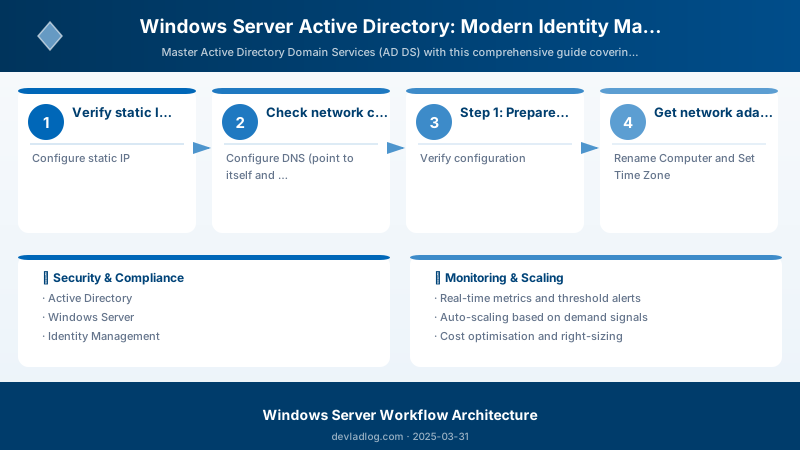
Figure: AD Users and Computers – OU structure and group policy links.
## IMPORTANT: This is for reference only. DO NOT RUN on production!


## Authoritative restore procedure:

<#


## 1. Restart DC in Directory Services Restore Mode (DSRM)
bcdedit /set {default} safeboot dsrepair
Restart-Computer


## 2. After restart, login with DSRM password


## 3. Restore System State from backup
wbadmin start systemstaterecovery -version:MM/DD/YYYY-HH:MM -backupTarget:E:\ADBackup


## 4. Mark restored objects as authoritative (so they replicate to other DCs)
ntdsutil
activate instance ntds
authoritative restore
restore database


## Or restore specific subtree:
restore subtree "OU=IT,DC=contoso,DC=com"
quit
quit


## 5. Restart in normal mode
bcdedit /deletevalue {default} safeboot
Restart-Computer
#>


Write-Host "⚠ AD restore procedures documented above" -ForegroundColor Yellow
Write-Host "⚠ Always test restores in lab environment first!" -ForegroundColor Yellow
Step 7: Monitoring and Troubleshooting
Create AD Health Check Script
Diagram: See the official Microsoft documentation for architecture details.
$trigger = New-ScheduledTaskTrigger -Daily -At "8:00AM"
$principal = New-ScheduledTaskPrincipal -UserID "NT AUTHORITY\SYSTEM" -LogonType ServiceAccount -RunLevel Highest
Register-ScheduledTask -TaskName "AD Health Check" -Action $action
-Trigger $trigger -Principal $principal
-Description "Daily Active Directory health check"
Write-Host "✓ Scheduled daily health check at 8:00 AM" -ForegroundColor Green
## Best Practices Summary

### DO:


1. ✅ Use strong DSRM passwords and store securely
2. ✅ Implement regular backups (daily minimum)
3. ✅ Deploy multiple domain controllers for redundancy
4. ✅ Create OU structure before adding users/computers
5. ✅ Use security groups for permissions (not direct user assignment)
6. ✅ Enable auditing for sensitive actions
7. ✅ Implement least privilege principle
8. ✅ Document all changes and configurations
9. ✅ Test restores regularly in lab environment
10. ✅ Monitor replication and event logs


### DON'T:

1. ❌ Use weak passwords for any accounts
2. ❌ Run single domain controller in production
3. ❌ Skip backups or disaster recovery planning
4. ❌ Modify schema without thorough testing
5. ❌ Disable security features without justification
6. ❌ Ignore replication errors
7. ❌ Grant everyone domain admin rights
8. ❌ Forget to patch and update regularly
9. ❌ Skip monitoring and health checks
10. ❌ Make changes without change control process

## Architecture Decision and Tradeoffs

When designing server infrastructure solutions with Windows Server, consider these key architectural trade-offs:

| Approach | Best For | Tradeoff |
|----------|----------|----------|
| Managed / platform service | Rapid delivery, reduced ops burden | Less customisation, potential vendor lock-in |
| Custom / self-hosted | Full control, advanced tuning | Higher operational overhead and cost |

> **Recommendation:** Start with the managed approach for most workloads and move to custom only when specific requirements demand it.

## Validation and Versioning

- Last validated: April 2026
- Validate examples against your tenant, region, and SKU constraints before production rollout.
- Keep module, CLI, and SDK versions pinned in automation pipelines and review quarterly.

## Security and Governance Considerations

- Apply least-privilege access using RBAC roles and just-in-time elevation for admin tasks.
- Store secrets in managed secret stores and avoid embedding credentials in scripts or source files.
- Enable audit logging, data protection policies, and periodic access reviews for regulated workloads.

## Cost and Performance Notes

- Define budgets and alerts, then monitor usage and cost trends continuously after go-live.
- Baseline performance with synthetic and real-user checks before and after major changes.
- Scale resources with measured thresholds and revisit sizing after usage pattern changes.

## Official Microsoft References

- https://learn.microsoft.com/windows-server/
- https://learn.microsoft.com/windows/security/
- https://learn.microsoft.com/azure/azure-arc/

## Public Examples from Official Sources

- These examples are sourced from official public Microsoft documentation and sample repositories.
- Documentation examples: https://learn.microsoft.com/windows-server/
- Sample repositories: https://github.com/microsoft/Windows-Containers
- Prefer adapting these examples to your tenant, subscriptions, and governance requirements before production use.

## Key Takeaways

1. **Active Directory is mission-critical** - Plan deployment carefully with redundancy
2. **OU structure drives administration** - Design logical hierarchy before deploying
3. **Group Policy centralizes management** - Use GPOs for configuration and security
4. **Backups save businesses** - Test system state backups and restore procedures
5. **Monitoring prevents disasters** - Regular health checks catch issues early
6. **Security requires layers** - Password policy, auditing, least privilege
7. **Replication ensures availability** - Multiple DCs prevent single point of failure
8. **Documentation is essential** - Record configurations, changes, and procedures
9. **Automation scales management** - PowerShell reduces errors and saves time
10. **Hybrid identity is future** - Integrate with Azure AD for cloud services


## Additional Resources

- [Active Directory Domain Services Overview](https://docs.microsoft.com/windows-server/identity/ad-ds/get-started/virtual-dc/active-directory-domain-services-overview)
- [AD DS Deployment Guide](https://docs.microsoft.com/windows-server/identity/ad-ds/deploy/ad-ds-deployment)
- [Group Policy Documentation](https://docs.microsoft.com/windows-server/identity/ad-ds/manage/group-policy/group-policy-overview)
- [AD PowerShell Module](https://docs.microsoft.com/powershell/module/activedirectory/)
- [Best Practices Analyzer](https://docs.microsoft.com/windows-server/administration/server-manager/best-practices-analyzer)


## Next Steps

1. **Deploy secondary DC**: Add redundancy with second domain controller
2. **Implement Azure AD Connect**: Enable hybrid identity for Microsoft 365
3. **Configure Certificate Services**: Deploy PKI for enhanced security
4. **Set up RADIUS/NPS**: Centralize network authentication
5. **Implement LAPS**: Manage local administrator passwords
6. **Deploy MFA**: Add multi-factor authentication with Azure MFA
7. **Create disaster recovery plan**: Document and test recovery procedures
8. **Implement privileged access management**: Protect administrative accounts


*Ready to build enterprise identity infrastructure? Start with a lab environment to practice these procedures—Active Directory skills are foundational for any Windows system administrator!*
Discussion