
Windows Server Security Hardening: Comprehensive Protection Guide
$serviceReport += [PSCustomObject]@{ ServiceName = $svc Status = $service.Status StartType = $service.StartType Recommendation = if ($service.StartType -ne 'Disabled') { 'DISABLE' } else { 'OK' } } }``` }
Services that must be running
$mustBeRunning = @('WinDefend','MpsSvc','EventLog')
foreach ($svc in $mustBeRunning) {
$service = Get-Service -Name $svc
$serviceReport += [PSCustomObject]@{
    ServiceName = $svc
    Status = $service.Status
    StartType = $service.StartType
    Recommendation = if ($service.Status -ne 'Running') { 'CRITICAL: START IMMEDIATELY' } else { 'OK' }
}```
}

$serviceReport | Format-Table -AutoSize
$serviceReport | Export-Csv C:\Reports\ServiceHardening_$(Get-Date -Format 'yyyyMMdd').csv -NoTypeInformation
Security Baselines
Microsoft Security Compliance Toolkit
## Download Security Compliance Toolkit from Microsoft


## https://www.microsoft.com/en-us/download/details.aspx?id=55319


## Extract baseline GPOs
$baselinePath = "C:\SecurityBaselines\Windows-Server-2022"


## Import baseline GPO
Import-GPO -BackupGpoName "MSFT Windows Server 2022 - Domain Security" `
```text
-Path $baselinePath `
-TargetName "WS2022-Security-Baseline" `
-CreateIfNeeded
Link to OU
New-GPLink -Name "WS2022-Security-Baseline" `
-Target "OU=Servers,DC=contoso,DC=com" `
-LinkEnabled Yes `
-Order 1
## CIS Benchmarks

```powershell


## Install CIS-CAT Lite (assessment tool)


## https://www.cisecurity.org/cybersecurity-tools/cis-cat-lite/


## Run CIS assessment
& "C:\CIS-CAT\Assessor-CLI.bat" `
```text
-b "C:\CIS-CAT\benchmarks\CIS_Microsoft_Windows_Server_2022_Benchmark_v1.0.0-xccdf.xml" `
-D "C:\CIS-Reports\"
Review HTML report for compliance gaps
## Custom Security GPO

```powershell


## Create custom security GPO
New-GPO -Name "Custom-Server-Hardening" -Comment "Custom security policies"


## Configure password policy
Set-GPRegistryValue -Name "Custom-Server-Hardening" `
```text
-Key "HKLM\SYSTEM\CurrentControlSet\Control\Lsa" `
-ValueName "NoLMHash" `
-Type DWord `
-Value 1
Disable SMBv1
Set-GPRegistryValue -Name "Custom-Server-Hardening" `
-Key "HKLM\SYSTEM\CurrentControlSet\Services\LanmanServer\Parameters" `
-ValueName "SMB1" `
-Type DWord `
-Value 0
Enable credential guard
Set-GPRegistryValue -Name "Custom-Server-Hardening" `
-Key "HKLM\SOFTWARE\Policies\Microsoft\Windows\DeviceGuard" `
-ValueName "EnableVirtualizationBasedSecurity" `
-Type DWord `
-Value 1
Set-GPRegistryValue -Name "Custom-Server-Hardening" `
-Key "HKLM\SOFTWARE\Policies\Microsoft\Windows\DeviceGuard" `
-ValueName "RequirePlatformSecurityFeatures" `
-Type DWord `
-Value 3  # Secure Boot and DMA Protection
## Windows Defender Advanced Threat Protection


*Figure 2: Microsoft Defender for Endpoint provides comprehensive threat protection*


### Installing and Configuring Defender ATP

```powershell
## Check Windows Defender status
Get-MpComputerStatus


## Update definitions
Update-MpSignature


## Configure real-time protection
Set-MpPreference -DisableRealtimeMonitoring $false
Set-MpPreference -DisableBehaviorMonitoring $false
Set-MpPreference -DisableIOAVProtection $false
Set-MpPreference -DisableScriptScanning $false


## Enable cloud-delivered protection
Set-MpPreference -MAPSReporting Advanced
Set-MpPreference -SubmitSamplesConsent SendAllSamples


## Configure scanning
Set-MpPreference -ScanScheduleDay Everyday
Set-MpPreference -ScanScheduleTime 02:00
Set-MpPreference -SignatureScheduleDay Everyday
Set-MpPreference -SignatureScheduleTime 01:00


## Onboard to Microsoft Defender for Endpoint (requires subscription)


## Download onboarding package from Microsoft 365 Defender portal


## Run onboarding script
& "C:\Onboarding\WindowsDefenderATPOnboardingScript.cmd"
Defender Exclusions (Use Sparingly)
Figure: Configuration and management dashboard with status overview.
## Add exclusions for known safe applications
Add-MpPreference -ExclusionPath "C:\Program Files\Microsoft SQL Server\MSSQL15.MSSQLSERVER\MSSQL\DATA"
Add-MpPreference -ExclusionProcess "sqlservr.exe"
Add-MpPreference -ExclusionExtension ".bak"


## View current exclusions
Get-MpPreference | Select-Object -ExpandProperty ExclusionPath
Get-MpPreference | Select-Object -ExpandProperty ExclusionProcess
Threat Detection and Response
Figure: Approval flow – Start and wait action with outcome conditions.
## View threat history
Get-MpThreatDetection


## View recent scans
Get-MpThreat


## Manual scan
Start-MpScan -ScanType QuickScan


## Full scan
Start-MpScan -ScanType FullScan


## Scan specific path
Start-MpScan -ScanType CustomScan -ScanPath "C:\Users"


## Remove detected threats
Remove-MpThreat


## Restore quarantined items (if false positive)
Restore-MpPreference -ThreatID <ThreatID>
Advanced Threat Analytics Integration
Figure: SharePoint in Teams – document library and page views in channel tab.
## Monitor for credential theft patterns


## Check for suspicious sign-in activity (potential credential spraying)
$suspiciousLogons = Get-WinEvent -FilterHashtable @{
```powershell
LogName = 'Security'
ID = 4624  # Successful logon
StartTime = (Get-Date).AddHours(-24)```
} | Where-Object {
```powershell
$_.Properties[8].Value -eq 10  # RemoteInteractive (RDP)```
} | Group-Object {$_.Properties[5].Value} |
```text
Where-Object Count -gt 20  # More than 20 RDP logons per account
if ($suspiciousLogons) {
Write-Warning "Potential credential spraying attack detected!"
$suspiciousLogons | Format-Table Name, Count```
}

## Monitor for Pass-the-Hash attacks
$pthIndicators = Get-WinEvent -FilterHashtable @{
```powershell
LogName = 'Security'
ID = 4624
StartTime = (Get-Date).AddHours(-4)```
} | Where-Object {
```powershell
$_.Properties[8].Value -eq 3 -and  # Network logon
$_.Properties[10].Value -eq 'NTLM'  # NTLM authentication```
}


if ($pthIndicators.Count -gt 50) {
```text
Write-Warning "High volume of NTLM network logons detected - possible Pass-the-Hash attack"```
}

## Alert on privilege escalation attempts
$privEscalation = Get-WinEvent -FilterHashtable @{
```powershell
LogName = 'Security'
ID = 4672  # Special privileges assigned to new logon
StartTime = (Get-Date).AddHours(-4)```
}


if ($privEscalation.Count -gt 0) {
```text
Write-Host "$($privEscalation.Count) privilege escalation events detected" -ForegroundColor Yellow```
}

## Monitor for suspicious PowerShell usage
$suspiciousPowerShell = Get-WinEvent -FilterHashtable @{
```powershell
LogName = 'Microsoft-Windows-PowerShell/Operational'
ID = 4104  # Script block logging
StartTime = (Get-Date).AddHours(-8)```
} | Where-Object {
```powershell
$_.Message -match 'Invoke-Mimikatz|Invoke-Expression|IEX|downloadstring|bypass'```
}


if ($suspiciousPowerShell) {
```powershell
Write-Warning "Potentially malicious PowerShell commands detected!"```
}
Active Directory Security Hardening
Figure 7: Tiered administrative model prevents lateral movement between tiers
Securing Privileged Groups
Critical: Enterprise Admins, Domain Admins, and Administrators groups are primary targets for attackers.
## Audit privileged group membership
$privilegedGroups = @(
```text
'Enterprise Admins',
'Domain Admins',
'Administrators',
'Schema Admins',
'Account Operators',
'Backup Operators',
'Server Operators',
'Print Operators'```
)


foreach ($group in $privilegedGroups) {
```powershell
$members = Get-ADGroupMember -Identity $group -Recursive

Write-Host "`n$group Members:" -ForegroundColor Cyan
$members | Select-Object Name, SamAccountName, ObjectClass | Format-Table

## Alert if too many members
if ($members.Count -gt 5) {
    Write-Warning "$group has $($members.Count) members - review for least privilege!"
}```
}


## Export privileged group audit
$auditReport = foreach ($group in $privilegedGroups) {
```powershell
Get-ADGroupMember -Identity $group -Recursive | Select-Object @{
    Name = 'Group'
    Expression = {$group}
}, Name, SamAccountName, ObjectClass```
}


$auditReport | Export-Csv C:\Reports\PrivilegedGroups_$(Get-Date -Format 'yyyyMMdd').csv -NoTypeInformation
Least-Privilege Administrative Model
## Create tiered admin groups (prevent lateral movement)


## Tier 0: Domain Controllers & AD infrastructure


## Tier 1: Servers & enterprise applications


## Tier 2: Workstations & user support


## Tier 1 Server Admins (cannot access DCs)
New-ADGroup -Name "Tier1-ServerAdmins" `
```text
-GroupScope Universal `
-GroupCategory Security `
-Description "Tier 1 server administrators - no DC access"
Create separate admin accounts for each tier
$adminUser = "jdoe" $tier1Admin = New-ADUser -Name "admin-t1-$adminUser" `
-SamAccountName "admin-t1-$adminUser" `
-UserPrincipalName "admin-t1-$adminUser@contoso.com" `
-AccountPassword (ConvertTo-SecureString "P@ssw0rd123!" -AsPlainText -Force) `
-Enabled $true `
-ChangePasswordAtLogon $true `
-PassThru
Add-ADGroupMember -Identity "Tier1-ServerAdmins" -Members $tier1Admin
Deny Tier 1 admins from logging into DCs
$denyGPO = New-GPO -Name "Tier1-DenyDCLogon" Set-GPPermissions -Name "Tier1-DenyDCLogon" `
-PermissionLevel GpoApply `
-TargetName "Tier1-ServerAdmins" `
-TargetType Group
Link to Domain Controllers OU
Figure: AD Users and Computers – OU structure and group policy links.
New-GPLink -Name "Tier1-DenyDCLogon" `
-Target "OU=Domain Controllers,DC=contoso,DC=com"
## Protecting Domain Controller

s


```powershell
## Harden Domain Controller security


## Disable unnecessary services on DCs
$dcServicesToDisable = @('Browser', 'HomeGroupListener', 'HomeGroupProvider')


foreach ($svc in $dcServicesToDisable) {
```powershell
Get-Service -Name $svc -ErrorAction SilentlyContinue |
    Stop-Service -PassThru -ErrorAction SilentlyContinue |
    Set-Service -StartupType Disabled -ErrorAction SilentlyContinue```
}

## Enable DC security audit logging
auditpol /set /subcategory:"Directory Service Access" /success:enable /failure:enable
auditpol /set /subcategory:"Directory Service Changes" /success:enable /failure:enable
auditpol /set /subcategory:"Account Lockout" /success:enable /failure:enable
auditpol /set /subcategory:"Kerberos Authentication Service" /success:disable /failure:enable
auditpol /set /subcategory:"Kerberos Service Ticket Operations" /success:disable /failure:enable


## Monitor DC for suspicious activity
$dcSecurityEvents = Get-WinEvent -FilterHashtable @{
```powershell
LogName = 'Security'
ID = 4742  # Computer account changed
StartTime = (Get-Date).AddDays(-1)```
}


if ($dcSecurityEvents.Count -gt 20) {
```text
Write-Warning "High number of computer account changes - investigate!"```
}
Credential Theft Prevention
## Prevent credential caching on servers


## Computer Configuration → Policies → Windows Settings → Security Settings → Local Policies → Security Options
Set-GPRegistryValue -Name "Security-Baseline" `
```text
-Key "HKLM\SOFTWARE\Microsoft\Windows NT\CurrentVersion\Winlogon" `
-ValueName "CachedLogonsCount" `
-Type DWord `
-Value 0
Disable storage of LM hashes
Set-GPRegistryValue -Name "Security-Baseline" `
-Key "HKLM\SYSTEM\CurrentControlSet\Control\Lsa" `
-ValueName "NoLMHash" `
-Type DWord `
-Value 1
Restrict NTLM authentication (prefer Kerberos)
Set-GPRegistryValue -Name "Security-Baseline" `
-Key "HKLM\SYSTEM\CurrentControlSet\Control\Lsa" `
-ValueName "RestrictSendingNTLMTraffic" `
-Type DWord `
-Value 2  # Deny all
Enable Protected Users security group
(requires Windows Server 2012 R2+ functional level)
Members cannot use NTLM, DES, RC4, or credential delegation
$protectedUsersGroup = Get-ADGroup -Identity "Protected Users"
Add high-privilege accounts to Protected Users
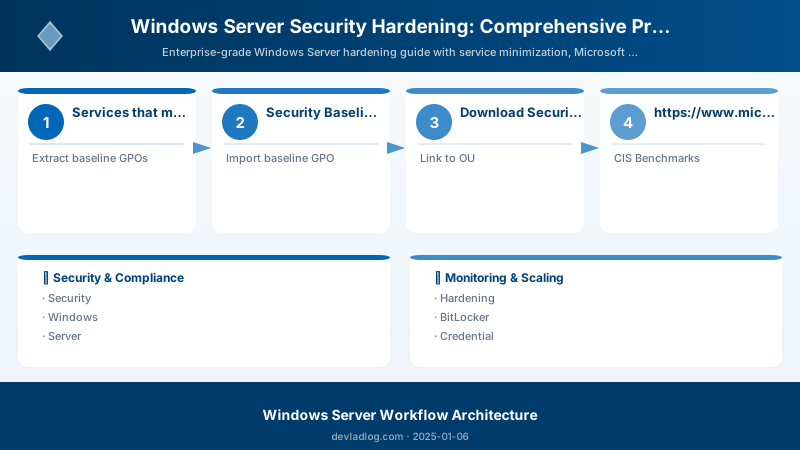
Figure: SSMS query editor – execution plan, results grid, and query statistics.
$domainAdmins = Get-ADGroupMember -Identity "Domain Admins" foreach ($admin in $domainAdmins) {
Add-ADGroupMember -Identity "Protected Users" -Members $admin -ErrorAction SilentlyContinue```
}
Monitoring Active Directory for Compromise
Figure: AD Users and Computers – OU structure and group policy links.
## Check for unauthorized DC promotion
$allDCs = Get-ADComputer -Filter {PrimaryGroupID -eq 516} -Properties OperatingSystem, Created


Write-Host "Domain Controllers:" -ForegroundColor Cyan
$allDCs | Select-Object Name, OperatingSystem, Created | Format-Table

## Alert on newly created DCs
$recentDCs = $allDCs | Where-Object {$_.Created -gt (Get-Date).AddDays(-7)}
if ($recentDCs) {
```text
Write-Warning "New Domain Controller(s) detected in last 7 days!"
$recentDCs | Format-Table Name, Created```
}


## Monitor for AdminSDHolder modifications (privilege escalation indicator)
$adminSDHolder = Get-ADObject -Identity "CN=AdminSDHolder,CN=System,DC=contoso,DC=com" -Properties whenChanged


Write-Host "AdminSDHolder last modified: $($adminSDHolder.whenChanged)"

## Check for suspicious SPNs (Kerberoasting targets)
$suspiciousSPNs = Get-ADUser -Filter {ServicePrincipalName -like "*"} -Properties ServicePrincipalName |
```powershell
Where-Object {$_.ServicePrincipalName -notmatch "^(MSSQL|HTTP|HOST)"}
if ($suspiciousSPNs) {
Write-Warning "Unusual SPNs detected (potential Kerberoasting prep):"
$suspiciousSPNs | Select-Object Name, ServicePrincipalName | Format-Table```
}


## Audit changes to sensitive OUs
$sensitiveOUs = @("OU=Domain Controllers", "OU=Servers", "OU=Admin Accounts")


foreach ($ou in $sensitiveOUs) {
```powershell
$ouChanges = Get-WinEvent -FilterHashtable @{
    LogName = 'Security'
    ID = 5136  # Directory service object modified
    StartTime = (Get-Date).AddDays(-1)
} | Where-Object {$_.Message -match $ou}

if ($ouChanges) {
    Write-Host "`nChanges in $ou : $($ouChanges.Count) events" -ForegroundColor Yellow
}```
}
Windows Firewall Hardening
Figure 3: Windows Firewall with Advanced Security provides network protection
Advanced Firewall Configuration
## Enable firewall for all profiles
Set-NetFirewallProfile -Profile Domain,Public,Private -Enabled True


## Block all inbound by default
Set-NetFirewallProfile -DefaultInboundAction Block -DefaultOutboundAction Allow


## Enable logging
Set-NetFirewallProfile -LogFileName "%SystemRoot%\System32\LogFiles\Firewall\pfirewall.log" `
```text
-LogMaxSizeKilobytes 16384 `
-LogAllowed True `
-LogBlocked True
Allow RDP (restrict by source)
New-NetFirewallRule -DisplayName "Allow RDP from Management Network" `
-Direction Inbound `
-Protocol TCP `
-LocalPort 3389 `
-RemoteAddress 10.0.1.0/24 `
-Action Allow `
-Profile Domain
Allow WinRM (for remote management)
New-NetFirewallRule -DisplayName "Allow WinRM HTTPS" `
-Direction Inbound `
-Protocol TCP `
-LocalPort 5986 `
-Action Allow `
-Profile Domain
Block SMBv1
New-NetFirewallRule -DisplayName "Block SMBv1" `
-Direction Inbound `
-Protocol TCP `
-LocalPort 445 `
-Action Block `
-Enabled True
## IPSec Configuration

```powershell


## Create IPSec policy for server-to-server communication
New-NetIPsecRule -DisplayName "Server Authentication" `
```text
-InboundSecurity Require `
-OutboundSecurity Request `
-Protocol TCP `
-LocalPort 1433 `  # SQL Server
-Authentication Required `
-Encryption Dynamic
Configure authentication method
Set-NetIPsecRule -DisplayName "Server Authentication" `
-Auth1 ComputerKerb `
-Auth2 UserKerb
## BitLocker Drive Encryption


*Figure 4: BitLocker provides full-volume encryption with TPM protection*


### Enabling BitLocker on Data Volumes

```powershell


## Check BitLocker capability
Get-BitLockerVolume


## Enable BitLocker on data volume
Enable-BitLocker -MountPoint "E:" `
```text
-EncryptionMethod Aes256 `
-UsedSpaceOnly `
-RecoveryPasswordProtector
Backup recovery key to AD
Backup-BitLockerKeyProtector -MountPoint "E:" `
-KeyProtectorId (Get-BitLockerVolume -MountPoint "E:").KeyProtector[0].KeyProtectorId
Add TPM protector (for OS volume)
Add-BitLockerKeyProtector -MountPoint "C:" -TpmProtector Enable-BitLocker -MountPoint "C:" -EncryptionMethod Aes256 -SkipHardwareTest
View BitLocker status
Get-BitLockerVolume | Select-Object MountPoint, VolumeStatus, EncryptionPercentage, ProtectionStatus
## BitLocker Management

```powershell


## Suspend BitLocker (for firmware updates)
Suspend-BitLocker -MountPoint "C:" -RebootCount 1


## Resume BitLocker
Resume-BitLocker -MountPoint "C:"


## Decrypt volume (if needed)
Disable-BitLocker -MountPoint "E:"


## Rotate recovery password
Add-BitLockerKeyProtector -MountPoint "E:" -RecoveryPasswordProtector
Remove-BitLockerKeyProtector -MountPoint "E:" -KeyProtectorId $oldKeyProtectorId
BitLocker GPO Configuration
## Configure BitLocker via GPO


## Computer Configuration → Policies → Administrative Templates → Windows Components → BitLocker Drive Encryption


## Operating System Drives
Set-GPRegistryValue -Name "BitLocker-Policy" `
```text
-Key "HKLM\SOFTWARE\Policies\Microsoft\FVE" `
-ValueName "OSEncryptionType" `
-Type DWord `
-Value 1  # Full encryption
Data Drives
Set-GPRegistryValue -Name "BitLocker-Policy" `
-Key "HKLM\SOFTWARE\Policies\Microsoft\FVE" `
-ValueName "FDVEncryptionType" `
-Type DWord `
-Value 1
## Credential Guard


*Figure 5: Credential Guard uses virtualization-based security to protect credentials*


### Enabling Credential Guard

```powershell
## Prerequisites: Windows Server 2016+ with Hyper-V capability


## Enable Virtualization-Based Security
Enable-WindowsOptionalFeature -Online -FeatureName VirtualMachinePlatform -NoRestart


## Enable Credential Guard via GPO or Registry
New-ItemProperty -Path "HKLM:\SYSTEM\CurrentControlSet\Control\Lsa" `
```text
-Name "LsaCfgFlags" `
-Value 1 `
-PropertyType DWord `
-Force
Enable Secure Boot (UEFI firmware setting required)
Confirm-SecureBootUEFI should return True
Restart computer
Restart-Computer -Force
## Verifying Credential Guard

```powershell


## Check if Credential Guard is running
Get-CimInstance -ClassName Win32_DeviceGuard -Namespace root\Microsoft\Windows\DeviceGuard


## Expected output:


## SecurityServicesRunning: {1, 2}  # 1 = Credential Guard, 2 = HVCI


## Alternative check via System Information
msinfo32.exe


## Look for "Credential Guard" under "System Summary"
AppLocker Application Control
Figure 6: AppLocker supports multiple rule types for application control
Configuring AppLocker Rules
## Enable AppLocker service
Set-Service -Name AppIDSvc -StartupType Automatic
Start-Service -Name AppIDSvc


## Create default rules (allow built-in apps)
$rules = @"
<AppLockerPolicy Version="1">
  <RuleCollection Type="Exe" EnforcementMode="Enabled">
```text
<FilePathRule Id="921cc481-6e17-4653-8f75-050b80acca20" Name="(Default Rule) All files located in the Windows folder" Description="Allows members of the Everyone group to run applications that are located in the Windows folder." UserOrGroupSid="S-1-1-0" Action="Allow">
  <Conditions>
    <FilePathCondition Path="%WINDIR%\*"/>
  </Conditions>
</FilePathRule>
<FilePathRule Id="a61c8b2c-a319-4cd0-9690-d2177cad7b51" Name="(Default Rule) All files located in the Program Files folder" Description="Allows members of the Everyone group to run applications that are located in the Program Files folder." UserOrGroupSid="S-1-1-0" Action="Allow">
  <Conditions>
    <FilePathCondition Path="%PROGRAMFILES%\*"/>
  </Conditions>
</FilePathRule>```


  </RuleCollection>
  <RuleCollection Type="Script" EnforcementMode="Enabled">
```text
<FilePathRule Id="06dce67b-934c-454f-a263-2515c8796a5d" Name="(Default Rule) All scripts located in the Program Files folder" Description="Allows members of the Everyone group to run scripts that are located in the Program Files folder." UserOrGroupSid="S-1-1-0" Action="Allow">
  <Conditions>
    <FilePathCondition Path="%PROGRAMFILES%\*"/>
  </Conditions>
</FilePathRule>
<FilePathRule Id="9428c672-5fc3-47f4-808a-a0011f36dd2c" Name="(Default Rule) All scripts located in the Windows folder" Description="Allows members of the Everyone group to run scripts that are located in the Windows folder." UserOrGroupSid="S-1-1-0" Action="Allow">
  <Conditions>
    <FilePathCondition Path="%WINDIR%\*"/>
  </Conditions>
</FilePathRule>```
  </RuleCollection>
</AppLockerPolicy>
"@

$rules | Set-AppLockerPolicy -Merge

## Set enforcement mode
Set-AppLockerPolicy -XmlPolicy $rules -Merge
Publisher Rules (Recommended)
## Create publisher rule for signed applications
New-AppLockerPolicy -FileInformation (Get-AppLockerFileInformation -Path "C:\Program Files\Application\app.exe") `
```powershell
-RuleType Publisher `
-User Everyone `
-RuleNamePrefix "Contoso-App-" |
Set-AppLockerPolicy -Merge
Test AppLocker policy before enforcement
Test-AppLockerPolicy -XmlPolicy C:\AppLockerPolicy.xml -Path "C:\Users\TestApp.exe"
## Security Auditing

### Configuring Advanced Audit Policies


```powershell
## Enable advanced audit policies
auditpol /set /subcategory:"Logon" /success:enable /failure:enable
auditpol /set /subcategory:"Logoff" /success:enable
auditpol /set /subcategory:"Account Lockout" /success:enable /failure:enable
auditpol /set /subcategory:"Security Group Management" /success:enable /failure:enable
auditpol /set /subcategory:"User Account Management" /success:enable /failure:enable
auditpol /set /subcategory:"Process Creation" /success:enable
auditpol /set /subcategory:"File Share" /success:enable /failure:enable
auditpol /set /subcategory:"Sensitive Privilege Use" /success:enable /failure:enable


## View current audit settings
auditpol /get /category:*


## Export audit policy
auditpol /backup /file:C:\AuditPolicy.csv


## Import audit policy
auditpol /restore /file:C:\AuditPolicy.csv
Security Event Monitoring
## Monitor failed logon attempts (Event ID 4625)
Get-WinEvent -FilterHashtable @{
```powershell
LogName = 'Security'
ID = 4625
StartTime = (Get-Date).AddDays(-1)```
} | Select-Object TimeCreated, Message | Format-Table -AutoSize


## Monitor account lockouts (Event ID 4740)
Get-WinEvent -FilterHashtable @{
```powershell
LogName = 'Security'
ID = 4740
StartTime = (Get-Date).AddDays(-1)```
}


## Monitor privilege escalation (Event ID 4672)
Get-WinEvent -FilterHashtable @{
```powershell
LogName = 'Security'
ID = 4672
StartTime = (Get-Date).AddHours(-8)```
}


## Create scheduled task for daily security report
$action = New-ScheduledTaskAction -Execute 'PowerShell.exe' `
```text
-Argument '-File C:\Scripts\SecurityReport.ps1'
$trigger = New-ScheduledTaskTrigger -Daily -At 8am
Register-ScheduledTask -TaskName "Daily Security Report" `
-Action $action `
-Trigger $trigger `
-User "SYSTEM"
## Patch Management

### Windows Update Configuration


```powershell
## Install PSWindowsUpdate module
Install-Module -Name PSWindowsUpdate -Force


## Check for updates
Get-WindowsUpdate


## Install all updates
Install-WindowsUpdate -AcceptAll -AutoReboot


## Install security updates only
Install-WindowsUpdate -MicrosoftUpdate -Category "Security Updates" -AcceptAll


## Hide specific update
Hide-WindowsUpdate -KBArticleID "KB5012345"


## View update history
Get-WindowsUpdateLog
Get-WUHistory
Expected output:
Package installed successfully.

WSUS Configuration
Figure: WSUS console – update approvals, computer groups, and sync status.
## Configure client to use WSUS
Set-ItemProperty -Path "HKLM:\SOFTWARE\Policies\Microsoft\Windows\WindowsUpdate\AU" `
```text
-Name "UseWUServer" `
-Value 1
Set-ItemProperty -Path "HKLM:\SOFTWARE\Policies\Microsoft\Windows\WindowsUpdate" `
-Name "WUServer" `
-Value "http://wsus.contoso.com:8530"
Set-ItemProperty -Path "HKLM:\SOFTWARE\Policies\Microsoft\Windows\WindowsUpdate" `
-Name "WUStatusServer" `
-Value "http://wsus.contoso.com:8530"
Restart Windows Update service
Restart-Service wuauserv
Force detection
wuauclt /detectnow
## Automated Patching Schedule

```powershell


## Create maintenance window
$maintenanceScript = @"
`$updates = Get-WindowsUpdate -MicrosoftUpdate -Category 'Security Updates','Critical Updates'
if (`$updates.Count -gt 0) {
```sql
Install-WindowsUpdate -MicrosoftUpdate -Category 'Security Updates','Critical Updates' -AcceptAll -IgnoreReboot


## Send notification
Send-MailMessage -To 'admin@contoso.com' ``
    -From 'server@contoso.com' ``
    -Subject 'Server Patching Completed' ``
    -Body "`$(`$updates.Count) updates installed on `$env:COMPUTERNAME" ``
    -SmtpServer 'smtp.contoso.com'


## Schedule reboot
shutdown /r /t 300 /c "Server will reboot in 5 minutes for updates"```
}
"@


$maintenanceScript | Out-File C:\Scripts\WeeklyPatching.ps1

## Schedule weekly patching (Tuesday 2 AM)
$action = New-ScheduledTaskAction -Execute 'PowerShell.exe' `
```text
-Argument '-ExecutionPolicy Bypass -File C:\Scripts\WeeklyPatching.ps1'
$trigger = New-ScheduledTaskTrigger -Weekly -DaysOfWeek Tuesday -At 2am
Register-ScheduledTask -TaskName "Weekly Patching" `
-Action $action `
-Trigger $trigger `
-User "SYSTEM" `
-RunLevel Highest
## Security Compliance Scanning

### PowerShell Security Assessment


```powershell
## Security assessment script
$report = @()


## Check if Windows Firewall is enabled
$firewallStatus = Get-NetFirewallProfile | Select-Object Name, Enabled
$report += [PSCustomObject]@{
```text
Check = "Windows Firewall"
Status = if ($firewallStatus.Enabled -contains $false) { "FAIL" } else { "PASS" }
Details = $firewallStatus```
}


## Check if BitLocker is enabled
$bitlockerStatus = Get-BitLockerVolume | Select-Object MountPoint, ProtectionStatus
$report += [PSCustomObject]@{
```text
Check = "BitLocker Encryption"
Status = if ($bitlockerStatus.ProtectionStatus -contains "Off") { "FAIL" } else { "PASS" }
Details = $bitlockerStatus```
}


## Check if Windows Defender is enabled
$defenderStatus = Get-MpComputerStatus | Select-Object RealTimeProtectionEnabled, AntivirusEnabled
$report += [PSCustomObject]@{
```text
Check = "Windows Defender"
Status = if (-not $defenderStatus.RealTimeProtectionEnabled) { "FAIL" } else { "PASS" }
Details = $defenderStatus```
}


## Check for pending updates
$pendingUpdates = Get-WindowsUpdate
$report += [PSCustomObject]@{
```text
Check = "Pending Updates"
Status = if ($pendingUpdates.Count -gt 0) { "WARN" } else { "PASS" }
Details = "$($pendingUpdates.Count) updates pending"```
}


## Export report
$report | Export-Csv C:\Reports\SecurityAssessment_$(Get-Date -Format 'yyyyMMdd').csv -NoTypeInformation
$report | Format-Table -AutoSize
Real-World Security Scenarios
Figure 8: Modern security operations require defense against sophisticated threats
Scenario 1: Preventing Credential Theft
Challenge: Attackers compromise a workstation and extract privileged credentials from memory.
Solution Implementation:
## 1. Enable Credential Guard on all servers
Set-ItemProperty -Path "HKLM:\SYSTEM\CurrentControlSet\Control\Lsa" `
```text
-Name "LsaCfgFlags" -Value 1
2. Add privileged accounts to Protected Users group
$privilegedAccounts = Get-ADGroupMember -Identity "Domain Admins" Add-ADGroupMember -Identity "Protected Users" -Members $privilegedAccounts
3. Restrict where privileged accounts can logon
Deny interactive logon to workstations via GPO
**Result**: Credentials protected by virtualization-based security cannot be extracted by Mimikatz or similar tools.

## Scenario 2: Ransomware Protection

**Challenge**: Ransomware encrypts server data, demanding payment for decryption keys.


**Solution Implementation**:

```powershell
## 1. Enable BitLocker on all volumes
Enable-BitLocker -MountPoint "D:" -EncryptionMethod Aes256 -RecoveryPasswordProtector


## 2. Configure Controlled Folder Access (Windows Defender)
Set-MpPreference -EnableControlledFolderAccess Enabled
Add-MpPreference -ControlledFolderAccessProtectedFolders "C:\CriticalData"


## 3. Enable Windows Defender Exploit Guard
Set-ProcessMitigation -System -Enable DEP,SEHOP,ForceRelocateImages


## 4. AppLocker rules to prevent unauthorized executables


## Only allow signed applications from trusted publishers
Result: Multiple layers of protection prevent ransomware execution and data encryption.
Scenario 3: Compliance Requirements (HIPAA, PCI-DSS)
Challenge: Healthcare organization must demonstrate HIPAA compliance for server infrastructure.
Compliance Mapping:
| HIPAA Requirement | Windows Server Control | Implementation |
|---|---|---|
| Access Control (164.312(a)(1)) | Credential Guard, MFA | Protect credentials, require multifactor auth |
| Audit Controls (164.312(b)) | Advanced Audit Policy | Log all access to ePHI |
| Integrity (164.312(c)(1)) | BitLocker, File Screening | Encrypt data, prevent unauthorized modification |
| Transmission Security (164.312(e)(1)) | IPSec, TLS 1.3 | Encrypt data in transit |
## HIPAA Compliance Script


## Enable required audit policies
auditpol /set /subcategory:"Logon" /success:enable /failure:enable
auditpol /set /subcategory:"Object Access" /success:enable /failure:enable
auditpol /set /subcategory:"File Share" /success:enable /failure:enable
auditpol /set /subcategory:"Sensitive Privilege Use" /success:enable /failure:enable


## Enable BitLocker encryption
Get-Volume | Where-Object {$_.DriveLetter -and $_.DriveType -eq 'Fixed'} | ForEach-Object {
```powershell
Enable-BitLocker -MountPoint "$($_.DriveLetter):" -EncryptionMethod Aes256 -UsedSpaceOnly```
}


## Configure password complexity
Set-ADDefaultDomainPasswordPolicy -Identity contoso.com `
```text
-MinPasswordLength 12 `
-PasswordHistoryCount 24 `
-MaxPasswordAge 90.00:00:00
## Scenario 4: Zero Trust Architecture

**Challenge**: Implement "never trust, always verify" security model.


**Implementation**:

```powershell
## 1. Require MFA for all administrative access


## Configure Azure MFA or on-premises NPS with RADIUS


## 2. Implement Just-In-Time (JIT) administration


## Time-bound group membership for privileged access


## 3. Micro-segmentation with Windows Firewall


## Default deny, explicit allow only required traffic
Set-NetFirewallProfile -DefaultInboundAction Block


## 4. Continuous monitoring and validation


## Real-time threat detection with Microsoft Defender for Endpoint


## 5. Encrypted communications only


## Disable SMBv1, require SMB encryption
Set-SmbServerConfiguration -EncryptData $true -RejectUnencryptedAccess $true
Architecture Decision and Tradeoffs
When designing server infrastructure solutions with Windows Server, consider these key architectural trade-offs:
| Approach | Best For | Tradeoff |
|---|---|---|
| Managed / platform service | Rapid delivery, reduced ops burden | Less customisation, potential vendor lock-in |
| Custom / self-hosted | Full control, advanced tuning | Higher operational overhead and cost |
Recommendation: Start with the managed approach for most workloads and move to custom only when specific requirements demand it.
Validation and Versioning
- Last validated: April 2026
- Validate examples against your tenant, region, and SKU constraints before production rollout.
- Keep module, CLI, and SDK versions pinned in automation pipelines and review quarterly.
Security and Governance Considerations
- Apply least-privilege access using RBAC roles and just-in-time elevation for admin tasks.
- Store secrets in managed secret stores and avoid embedding credentials in scripts or source files.
- Enable audit logging, data protection policies, and periodic access reviews for regulated workloads.
Cost and Performance Notes
- Define budgets and alerts, then monitor usage and cost trends continuously after go-live.
- Baseline performance with synthetic and real-user checks before and after major changes.
- Scale resources with measured thresholds and revisit sizing after usage pattern changes.
Official Microsoft References
- https://learn.microsoft.com/windows-server/
- https://learn.microsoft.com/windows/security/
- https://learn.microsoft.com/azure/azure-arc/
Public Examples from Official Sources
- These examples are sourced from official public Microsoft documentation and sample repositories.
- Documentation examples: https://learn.microsoft.com/windows-server/
- Sample repositories: https://github.com/microsoft/Windows-Containers
- Prefer adapting these examples to your tenant, subscriptions, and governance requirements before production use.
Key Takeaways
Security Hardening Priorities
Immediate Actions (Day 1):
- Disable unnecessary services (Xbox Live, Bluetooth, Geolocation)
- Enable Windows Firewall with default-deny rules
- Install all security updates and patches
- Enable Windows Defender real-time protection
- Configure strong password policies
Week 1:
- Apply Microsoft Security Baselines via GPO
- Enable BitLocker on all data volumes
- Implement AppLocker application control
- Configure comprehensive audit logging
- Review and minimize privileged group membership
Month 1:
- Enable Credential Guard on all servers
- Implement least-privilege administrative model
- Deploy Microsoft Defender for Endpoint
- Configure automated patch management
- Establish security monitoring and alerting
Ongoing:
- Weekly security scanning and compliance checks
- Monthly privilege access reviews
- Quarterly penetration testing and vulnerability assessments
- Continuous threat hunting and incident response
- Regular staff security awareness training
Critical Security Principles
- Defense in Depth: Multiple layers of security controls
- Least Privilege: Minimum necessary permissions for all accounts
- Assume Breach: Design for compromise detection and response
- Zero Trust: Verify explicitly, use least privilege, assume breach
- Continuous Monitoring: Real-time threat detection and response
- Automation: Consistent, repeatable security configurations
- Documentation: Track changes, exceptions, and business justifications
Common Pitfalls to Avoid
- ❌ Using the same local administrator password across all servers
- ❌ Browsing the internet with privileged accounts
- ❌ Disabling security features without compensating controls
- ❌ Ignoring security updates and patches
- ❌ Permanent membership in Enterprise Admins/Domain Admins
- ❌ Insufficient logging and monitoring
- ❌ No incident response plan or disaster recovery testing
Compliance Considerations
| Standard | Key Controls | Windows Server Features |
|---|---|---|
| HIPAA | Access control, audit logs, encryption | Credential Guard, BitLocker, Advanced Audit Policy |
| PCI-DSS | Network segmentation, logging, access control | Windows Firewall, AppLocker, Security baselines |
| GDPR | Data protection, access rights, breach notification | BitLocker, audit logs, data classification |
| SOC 2 | Logical access, monitoring, change management | MFA, Event logs, WSUS patch management |
| NIST 800-53 | Access control, audit, configuration management | All controls in this guide map to NIST controls |
Troubleshooting Common Issues
Credential Guard Won't Enable
Symptoms: LsaCfgFlags set to 1, but Credential Guard not running
Solution:
## Verify hardware requirements
Confirm-SecureBootUEFI  # Must return True


## Check virtualization support
Get-ComputerInfo | Select-Object HyperVisorPresent, HyperVRequirementVirtualizationFirmwareEnabled


## Enable required features
Enable-WindowsOptionalFeature -Online -FeatureName Microsoft-Hyper-V-Hypervisor -All -NoRestart


## Verify Credential Guard status
(Get-CimInstance -ClassName Win32_DeviceGuard -Namespace root\Microsoft\Windows\DeviceGuard).SecurityServicesRunning


## Should include: 1 (Credential Guard), 2 (HVCI)
AppLocker Blocking Legitimate Applications
Symptoms: Users report applications won't run after AppLocker enabled
Solution:
## Check AppLocker event logs
Get-WinEvent -LogName "Microsoft-Windows-AppLocker/EXE and DLL" -MaxEvents 50 |
```powershell
Where-Object {$_.Id -eq 8004}  # Blocked events
Temporarily set to Audit mode (doesn't block, only logs)
Set-AppLockerPolicy -XmlPolicy $policy -Merge -ErrorAction SilentlyContinue
Add exception for specific application
$fileInfo = Get-AppLockerFileInformation -Path "C:\Program Files\LegitApp\app.exe" New-AppLockerPolicy -FileInformation $fileInfo -RuleType Publisher -User Everyone |
Set-AppLockerPolicy -Merge
## BitLocker Recovery Key Not Found

**Symptoms**: Server requires BitLocker recovery key after firmware update


**Solution**:

```powershell
## Search AD for recovery password
Get-ADComputer -Identity SERVER01 -Properties msTPM-OwnerInformation |
```text
Select-Object Name, msTPM-OwnerInformation
Retrieve from AD (run on DC)
$bitlockerObject = Get-ADObject -Filter {objectClass -eq 'msFVE-RecoveryInformation'} -SearchBase "CN=SERVER01,OU=Computers,DC=contoso,DC=com" $bitlockerObject.'msFVE-RecoveryPassword'
Suspend BitLocker for next reboot
Suspend-BitLocker -MountPoint "C:" -RebootCount 1
## Security Hardening Checklist

### Initial Assessment


- [ ] Document current server inventory and roles
- [ ] Identify critical assets and data classification
- [ ] Review existing security policies and configurations
- [ ] Scan for vulnerabilities with Microsoft Baseline Security Analyzer
- [ ] Audit privileged account usage and group membership


### Service Hardening

- [ ] Disable Xbox Live Auth Manager and Game Save services
- [ ] Disable Bluetooth, Camera, Phone, and Mobile Hotspot services
- [ ] Verify critical services are running (Firewall, Defender, Event Log)
- [ ] Configure Print Spooler appropriately (DCs vs member servers)
- [ ] Document all service configuration changes


### Security Baselines

- [ ] Download and extract Microsoft Security Compliance Toolkit
- [ ] Import and apply Windows Server security baseline GPO
- [ ] Review CIS Benchmarks and implement applicable controls
- [ ] Configure custom security GPO for organization-specific needs
- [ ] Link GPOs to appropriate OUs in correct order


### Active Directory Hardening

- [ ] Audit and minimize Enterprise Admins group membership
- [ ] Audit and minimize Domain Admins group membership
- [ ] Implement tiered administrative model (Tier 0/1/2)
- [ ] Add privileged accounts to Protected Users group
- [ ] Enable advanced AD audit policies on domain controllers
- [ ] Configure AdminSDHolder protection and monitoring


### Credential Protection

- [ ] Enable Credential Guard on all servers
- [ ] Disable LM hash storage
- [ ] Restrict NTLM authentication (prefer Kerberos)
- [ ] Set CachedLogonsCount to 0 on servers
- [ ] Implement MFA for all administrative access


### Data Protection

- [ ] Enable BitLocker on all fixed data volumes
- [ ] Backup BitLocker recovery keys to Active Directory
- [ ] Configure BitLocker TPM + PIN for OS volumes
- [ ] Enable EFS for sensitive file encryption
- [ ] Test BitLocker recovery procedures


### Network Security

- [ ] Enable Windows Firewall on all profiles
- [ ] Configure default-deny inbound rules
- [ ] Create explicit allow rules for required services only
- [ ] Enable firewall logging (allowed and blocked)
- [ ] Configure IPSec for server-to-server encryption


### Application Control

- [ ] Enable AppLocker service (AppIDSvc)
- [ ] Create default allow rules for Windows/Program Files
- [ ] Implement publisher rules for signed applications
- [ ] Test AppLocker policies in Audit mode first
- [ ] Monitor AppLocker event logs for blocked applications


### Threat Protection

- [ ] Enable Windows Defender real-time protection
- [ ] Configure cloud-delivered protection (MAPS)
- [ ] Schedule daily signature updates and weekly scans
- [ ] Onboard servers to Microsoft Defender for Endpoint
- [ ] Configure Defender exclusions only when necessary


### Auditing and Monitoring

- [ ] Enable advanced audit policies (logon, account management, privilege use)
- [ ] Configure event log sizes and retention
- [ ] Forward security logs to SIEM or central collector
- [ ] Create alerts for suspicious activities (failed logons, privilege escalation)
- [ ] Schedule weekly security compliance reports


### Patch Management

- [ ] Configure Windows Update or WSUS client settings
- [ ] Schedule automatic patching during maintenance windows
- [ ] Test patches in non-production environment first
- [ ] Monitor patch deployment status and failures
- [ ] Maintain patch compliance dashboard


### Documentation and Compliance

- [ ] Document all security baseline configurations
- [ ] Create exception justifications for any deviations
- [ ] Map controls to compliance requirements (HIPAA, PCI-DSS, etc.)
- [ ] Schedule quarterly security assessments
- [ ] Maintain incident response and disaster recovery plans


## Next Steps

### Phase 1: Foundation (Week 1)

1. **Assessment**: Inventory servers, identify critical systems, document current state
2. **Quick Wins**: Disable unnecessary services, enable firewalls, install patches
3. **Baselines**: Apply Microsoft Security Baselines to test environment
4. **Monitoring**: Enable basic audit logging and Windows Defender


### Phase 2: Core Hardening (Month 1)

1. **Service Minimization**: Systematically disable non-essential services
2. **Data Protection**: Enable BitLocker on all data volumes
3. **Application Control**: Implement AppLocker in audit mode, then enforcement
4. **Credential Security**: Enable Credential Guard, implement least-privilege model
5. **Testing**: Validate all controls in non-production environment


### Phase 3: Advanced Protection (Month 2-3)

1. **Active Directory**: Harden privileged groups, implement tiered admin model
2. **Network Segmentation**: Configure Windows Firewall with micro-segmentation
3. **Threat Detection**: Deploy Microsoft Defender for Endpoint
4. **Automation**: Create PowerShell scripts for compliance checking
5. **Documentation**: Complete security documentation and runbooks


### Phase 4: Continuous Improvement (Ongoing)

1. **Monitoring**: 24/7 security monitoring and alerting
2. **Threat Hunting**: Proactive searching for indicators of compromise
3. **Incident Response**: Regular tabletop exercises and response drills
4. **Vulnerability Management**: Quarterly penetration tests and remediation
5. **Training**: Monthly security awareness training for staff
6. **Compliance**: Annual audits and certification renewals


### Training and Skill Development

- Microsoft Learn: [Windows Server Security](https://learn.microsoft.com/training/paths/implement-windows-server-security/)
- SANS SEC505: Securing Windows and Resisting Malware
- Offensive Security: PEN-300 (Advanced Windows Attacks and Defense)
- Microsoft Certified: Security, Compliance, and Identity Fundamentals


## Additional Resources

### Official Microsoft Documentation

- [Windows Server Security Documentation](https://learn.microsoft.com/windows-server/security/security-and-assurance)
- [Windows Security Baselines](https://learn.microsoft.com/windows/security/operating-system-security/device-management/windows-security-configuration-framework/windows-security-baselines)
- [Microsoft Defender for Endpoint](https://learn.microsoft.com/microsoft-365/security/defender-endpoint/)
- [BitLocker Drive Encryption](https://learn.microsoft.com/windows/security/operating-system-security/data-protection/bitlocker/)
- [Credential Guard](https://learn.microsoft.com/windows/security/identity-protection/credential-guard/)
- [AppLocker](https://learn.microsoft.com/windows/security/application-security/application-control/windows-defender-application-control/applocker/applocker-overview)
- [Securing Active Directory](https://learn.microsoft.com/windows-server/identity/ad-ds/plan/security-best-practices/best-practices-for-securing-active-directory)
- [Windows Firewall with Advanced Security](https://learn.microsoft.com/windows/security/operating-system-security/network-security/windows-firewall/)


### Industry Standards and Benchmarks

- [CIS Benchmarks for Windows Server](https://www.cisecurity.org/benchmark/microsoft_windows_server)
- [NIST Special Publication 800-53](https://csrc.nist.gov/publications/detail/sp/800-53/rev-5/final)
- [Microsoft Security Compliance Toolkit](https://www.microsoft.com/download/details.aspx?id=55319)
- [DISA STIGs for Windows Server](https://public.cyber.mil/stigs/downloads/)


### Security Tools

- Microsoft Baseline Security Analyzer (MBSA)
- Azure Security Center (for hybrid environments)
- Microsoft Sentinel (SIEM)
- Microsoft Advanced Threat Analytics (ATA)
- BloodHound (AD attack path analysis)


### Community Resources

- [Microsoft Tech Community - Windows Server Security](https://techcommunity.microsoft.com/t5/windows-server/ct-p/Windows-Server)
- [r/sysadmin](https://reddit.com/r/sysadmin) - System Administrator Community
- [PowerShell Gallery](https://www.powershellgallery.com/) - Security automation scripts


---

*Harden. Protect. Monitor. Secure.*
Discussion