Prerequisites
| Requirement | Details |
|---|---|
| Basic setup and tooling | Basic setup and tooling |
Figure: Tenant configuration for enterprise microsoft teams—policy settings, security baselines, compliance controls, and user provisioning.
Figure: Migration workflow for enterprise microsoft teams—assessment, pilot phase, bulk migration, and post-migration validation.
Figure: Governance framework for enterprise microsoft teams—lifecycle policies, access reviews, usage monitoring, and cost optimization.
param( [Parameter(Mandatory)] [string]$DisplayName,
[Parameter(Mandatory)] [ValidateSet('Department', 'Project', 'CommunityOfPractice')] [string]$TeamType,
[Parameter(Mandatory)] [string[]]$Owners,
[string[]]$Members,
[ValidateSet('Standard', 'Sensitive', 'HighlyConfidential')] [string]$SensitivityLevel = 'Standard',
[int]$ExpirationDays = 365,
[hashtable]$Metadata )
Naming convention enforcement
$prefix = switch ($TeamType) { 'Department' { 'DEPT' } 'Project' { 'PROJ' } 'CommunityOfPractice' { 'COP' } } $normalizedName = "$prefix-$($DisplayName -replace '[^a-zA-Z0-9\s-]', '' -replace '\s+', '-')"
Sensitivity label mapping
$labelMapping = @{ 'Standard' = 'General' 'Sensitive' = 'Confidential' 'HighlyConfidential' = 'Highly Confidential' } $labelId = (Get-Label | Where-Object { $_.DisplayName -eq $labelMapping[$SensitivityLevel] }).ImmutableId
Create team with governance settings
$teamParams = @{ DisplayName = $normalizedName Description = "$TeamType team - Expires $(Get-Date).AddDays($ExpirationDays).ToString('yyyy-MM-dd')" Visibility = if ($SensitivityLevel -eq 'HighlyConfidential') { 'Private' } else { 'Private' } Owner = $Owners[0] }
$team = New-Team @teamParams
Add additional owners and members
foreach ($owner in $Owners | Select-Object -Skip 1) { Add-TeamUser -GroupId $team.GroupId -User $owner -Role Owner } foreach ($member in $Members) { Add-TeamUser -GroupId $team.GroupId -User $member -Role Member }
Apply sensitivity label
if ($labelId) { Set-UnifiedGroup -Identity $team.GroupId -SensitivityLabelId $labelId }
Configure team settings based on type
$settingsConfig = @{ 'Department' = @{ AllowGiphy = $true; GiphyContentRating = 'Moderate'; AllowGuestCreateUpdateChannels = $false } 'Project' = @{ AllowGiphy = $false; AllowGuestCreateUpdateChannels = $true; AllowUserDeleteMessages = $false } 'CommunityOfPractice' = @{ AllowGiphy = $true; AllowChannelMentions = $true; AllowUserEditMessages = $true } } Set-Team -GroupId $team.GroupId @($settingsConfig[$TeamType])
Create standard channels
$standardChannels = @( @{ Name = 'Announcements'; Description = 'Official team announcements' } @{ Name = 'Resources'; Description = 'Shared resources and documentation' } ) foreach ($channel in $standardChannels) { New-TeamChannel -GroupId $team.GroupId -DisplayName $channel.Name -Description $channel.Description }
Set expiration policy
$expirationDate = (Get-Date).AddDays($ExpirationDays) Set-UnifiedGroup -Identity $team.GroupId -CustomAttribute1 "ExpirationDate:$($expirationDate.ToString('yyyy-MM-dd'))"
Metadata tagging
if ($Metadata) { $metadataJson = $Metadata | ConvertTo-Json -Compress Set-UnifiedGroup -Identity $team.GroupId -Notes $metadataJson }
Audit logging
$auditEntry = @{ Timestamp = Get-Date Action = 'TeamCreated' TeamName = $normalizedName TeamType = $TeamType SensitivityLevel = $SensitivityLevel Owners = $Owners -join ';' GroupId = $team.GroupId } $auditEntry | Export-Csv "C:\Logs\TeamProvisioningAudit.csv" -Append -NoTypeInformation
Write-Output "Team created: $normalizedName (GroupId: $($team.GroupId))" return $team``` }
Usage example
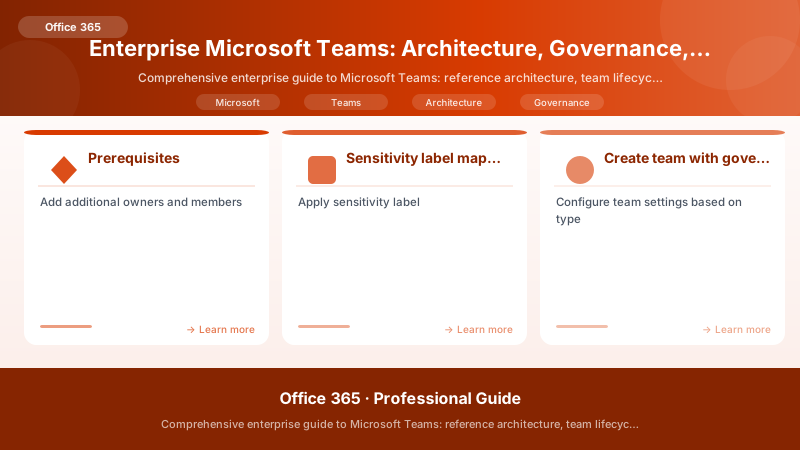
Figure: Configuration and management dashboard with status overview.
$newTeam = New-EnterpriseTeam -DisplayName "Cloud Migration Initiative" `
-TeamType Project `
-Owners @('pm@contoso.com', 'lead@contoso.com') `
-Members @('dev1@contoso.com', 'dev2@contoso.com') `
-SensitivityLevel Sensitive `
-ExpirationDays 180 `
-Metadata @{ CostCenter = 'IT-001'; ProjectCode = 'CLOUD-2025' }
## Expiration & Renewal Workflow

```powershell


## Automated expiration check (run daily via Azure Automation)
function Invoke-TeamExpirationCheck {
```powershell
[CmdletBinding()]
param(
    [int]$WarningDays = 30,
    [int]$GracePeriod = 14
)


$today = Get-Date
$teams = Get-UnifiedGroup -ResultSize Unlimited | Where-Object { $_.CustomAttribute1 -like "ExpirationDate:*" }

foreach ($team in $teams) {
    $expirationString = ($team.CustomAttribute1 -split ':')[1]
    $expirationDate = [datetime]::ParseExact($expirationString, 'yyyy-MM-dd', $null)
    $daysUntilExpiration = ($expirationDate - $today).Days

    if ($daysUntilExpiration -le 0) {
        # Expired - archive team
        Set-TeamArchivedState -GroupId $team.ExternalDirectoryObjectId -Archived $true
        Write-Host "Archived expired team: $($team.DisplayName)"

        # Notify owners
        $owners = Get-TeamUser -GroupId $team.ExternalDirectoryObjectId -Role Owner
        $emailBody = @"```
Your team '$($team.DisplayName)' has been archived due to expiration.
Archived date: $today
Retention period: 180 days before soft-delete.

To restore, contact IT support within the retention period.
"@
            foreach ($owner in $owners) {
                Send-MailMessage -To $owner.User -Subject "Team Archived: $($team.DisplayName)" -Body $emailBody
            }

        } elseif ($daysUntilExpiration -le $WarningDays -and $daysUntilExpiration -gt $GracePeriod) {
            # Send renewal reminder
            $owners = Get-TeamUser -GroupId $team.ExternalDirectoryObjectId -Role Owner
            $renewalLink = "https://portal.contoso.com/teams/renew?id=$($team.ExternalDirectoryObjectId)"
            $emailBody = @"
Your team '$($team.DisplayName)' will expire in $daysUntilExpiration days.
Expiration date: $expirationDate

To renew for another 365 days, click here: $renewalLink

If not renewed, the team will be archived and deleted after retention period.
"@
            foreach ($owner in $owners) {
                Send-MailMessage -To $owner.User -Subject "Action Required: Team Expiring Soon" -Body $emailBody
            }
            Write-Host "Sent renewal reminder for: $($team.DisplayName)"
        }
```text
}```
}

## Renewal action (triggered from portal or email link)
function Invoke-TeamRenewal {
```powershell
param([string]$GroupId, [int]$ExtensionDays = 365)


$team = Get-UnifiedGroup -Identity $GroupId
$currentExpiration = [datetime]::ParseExact(($team.CustomAttribute1 -split ':')[1], 'yyyy-MM-dd', $null)
$newExpiration = $currentExpiration.AddDays($ExtensionDays)

Set-UnifiedGroup -Identity $GroupId -CustomAttribute1 "ExpirationDate:$($newExpiration.ToString('yyyy-MM-dd'))"
Write-Output "Team renewed until $newExpiration"```
}
4. Security Hardening & Compliance Enforcement
Data Loss Prevention (DLP) for Teams
## Enterprise DLP policy for sensitive data in Teams chats/channels
New-DlpCompliancePolicy -Name "Teams PII Protection" `
```text
-TeamsLocation All `
-Mode Enable `
-Priority 1
New-DlpComplianceRule -Name "Block Credit Card Sharing" `
-Policy "Teams PII Protection" `
-ContentContainsSensitiveInformation @{
    Name="Credit Card Number"; minCount=1; maxConfidence=100
} `
-BlockAccess $true `
-NotifyUser Owner, LastModifier `


-IncidentReportContent DetectionDetails `
-GenerateIncidentReport "security@contoso.com"
New-DlpComplianceRule -Name "Warn on SSN" `
-Policy "Teams PII Protection" `
-ContentContainsSensitiveInformation @{
    Name="U.S. Social Security Number (SSN)"; minCount=1
} `
-NotifyUser Owner `
-NotifyPolicyTipCustomText "Sharing SSNs in Teams violates company policy. Remove or encrypt." `
-GenerateAlert "SecurityAdmin"
### Sensitivity Labels & Information Protection

```powershell
## Apply sensitivity labels to teams (requires Azure Information Protection P2)


## Create label hierarchy
New-Label -DisplayName "General" -Name "General" `
```text
-Tooltip "Public information - no restrictions"
New-Label -DisplayName "Confidential" -Name "Confidential" `
-Tooltip "Internal use only - requires authentication" `
-EncryptionEnabled $true `
-EncryptionPromptUser $false `
-EncryptionProtectionType Template `
-EncryptionTemplateId (Get-AipServiceTemplate | Where-Object { $_.Name -eq "Confidential" }).TemplateId
New-Label -DisplayName "Highly Confidential" -Name "HighlyConfidential" `
-Tooltip "Restricted access - executive/legal only" `
-EncryptionEnabled $true `
-EncryptionDoNotForward $true
Auto-apply label policy
New-LabelPolicy -Name "Teams Auto-Labeling" `
-Labels "General", "Confidential", "HighlyConfidential" `
-Settings @{
    "TeamsMandatoryLabel" = "Confidential"  # Default for new teams
    "RequireDowngradejustification" = $true
} `
-ModernGroupLocation All
### Guest Access Governance

```powershell
## Configure guest access policies (least-privilege model)


## Restrict guest capabilities
Set-AzureADPolicy -Id (Get-AzureADPolicy | Where-Object { $_.Type -eq "B2BManagementPolicy" }).Id `
```text
-Definition @"```
{
  "B2BManagementPolicy": {
```text
"InvitationsAllowedAndBlockedDomainsPolicy": {
  "AllowedDomains": ["partner.com", "vendor.com"],
  "BlockedDomains": ["*"]
},
"GuestUserRoleId": "10dae51f-b6af-4016-8d66-8c2a99b929b3"  # Restricted guest role```
  }
}
"@


## Teams guest policy
Set-CsTeamsGuestMessagingConfiguration -AllowUserEditMessage $false `
```text
-AllowUserDeleteMessage $false `
-AllowUserChat $true `
-AllowGiphy $false
Set-CsTeamsGuestMeetingConfiguration -AllowIPVideo $true `
-ScreenSharingMode EntireScreen `
-AllowMeetNow $false
Conditional Access: Require MFA for all guests
$conditions = New-Object -TypeName Microsoft.Open.MSGraph.Model.ConditionalAccessConditionSet $conditions.Users = New-Object -TypeName Microsoft.Open.MSGraph.Model.ConditionalAccessUserCondition $conditions.Users.IncludeUserTypes = @("Guest")
$controls = New-Object -TypeName Microsoft.Open.MSGraph.Model.ConditionalAccessGrantControls $controls.BuiltInControls = @("mfa") $controls._Operator = "AND"
New-AzureADMSConditionalAccessPolicy -DisplayName "Require MFA for Guests in Teams" `
-State "Enabled" `
-Conditions $conditions `
-GrantControls $controls `
-CloudAppIds "00000003-0000-0ff1-ce00-000000000000"  # Microsoft Teams
Guest access review (quarterly audit)
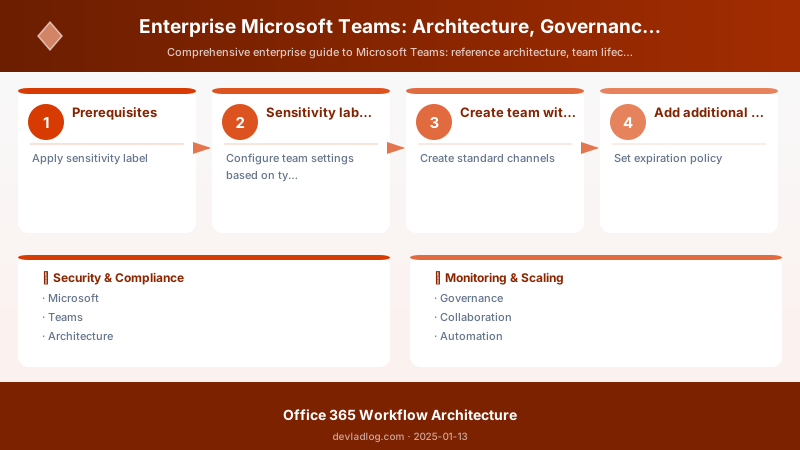
Figure: Site permissions – groups, external sharing, and access request settings.
New-AccessReviewScheduleDefinition -DisplayName "Quarterly Guest Access Review" `
-DescriptionForAdmins "Review guest users in Teams" `
-DescriptionForReviewers "Confirm continued need for guest access" `
-Scope @{ "@odata.type" = "#microsoft.graph.principalResourceMembershipsScope"
          "principalScopes" = @(@{ "@odata.type" = "#microsoft.graph.accessReviewQueryScope"
                                   "query" = "/users?`$filter=userType eq 'Guest'"
                                   "queryType" = "MicrosoftGraph" })
          "resourceScopes" = @(@{ "@odata.type" = "#microsoft.graph.accessReviewQueryScope"
                                  "query" = "/groups?`$filter=resourceProvisioningOptions/Any(x:x eq 'Team')"
                                  "queryType" = "MicrosoftGraph" }) } `
-ReviewerType "GroupOwners" `
-FallbackReviewers @(@{ "query" = "/users/{security-admin-id}"; "queryType" = "MicrosoftGraph" }) `
-Settings @{ "recurrence" = @{ "pattern" = @{ "type" = "absoluteMonthly"; "interval" = 3 } } }
---

## 5. Monitoring, Telemetry, and KPI Framework

### Key Performance Indicators (KPIs)


| KPI | Measurement | Target | Data Source | Remediation Trigger |
|-----|------------|--------|-------------|-------------------|
| **Adoption Rate** | (Active Teams Users / Total Licensed Users) × 100 | >80% | Graph API: `/reports/getTeamsUserActivityUserDetail` | <60% → Launch adoption campaign |
| **Team Sprawl Index** | Avg teams per user | 5-10 optimal | Graph API: `/groups?$filter=resourceProvisioningOptions/Any(x:x eq 'Team')` | >15 → Review governance policies |
| **Inactive Team %** | (Teams with 0 activity last 90d / Total Teams) × 100 | <10% | Graph API activity reports + Log Analytics | >20% → Trigger expiration workflow |
| **Guest Access Compliance** | (Guests in approved domains / Total guests) × 100 | 100% | Azure AD guest user reports | <100% → Quarantine non-compliant guests |
| **DLP Violation Rate** | DLP incidents per 1000 messages | <0.5% | Microsoft Purview compliance reports | >1% → Security awareness training |
| **Call Quality Score** | % calls with poor quality (CQD classification) | <5% | Call Quality Dashboard (CQD) API | >10% → Network infrastructure review |
| **Expiration Compliance** | (Teams renewed before expiration / Expiration notices sent) × 100 | >90% | Custom audit log (expiration workflow) | <75% → Review expiration policy communication |

### Monitoring Dashboard (PowerShell + Log Analytics)

```powershell
## Daily KPI collection script (Azure Automation Runbook)
function Collect-TeamsKPIs {
```powershell
[CmdletBinding()]
param(
    [string]$WorkspaceId,
    [string]$WorkspaceKey
)


## Connect to Microsoft Graph
Connect-MgGraph -Scopes "Reports.Read.All", "Group.Read.All"


## KPI 1: Adoption Rate
$period = 'D30'
$activityReport = Invoke-MgGraphRequest -Uri "https://graph.microsoft.com/v1.0/reports/getTeamsUserActivityUserDetail(period='$period')" -OutputType PSObject
$activeUsers = ($activityReport.value | Where-Object { $_.'Last Activity Date' -ne $null }).Count
$totalLicensed = (Get-MgUser -All -Filter "assignedLicenses/any(x:x/skuId eq '{Teams-SKU-ID}')").Count
$adoptionRate = if ($totalLicensed -gt 0) { ($activeUsers / $totalLicensed) * 100 } else { 0 }


## KPI 2: Team Sprawl Index
$allTeams = Get-MgGroup -Filter "resourceProvisioningOptions/Any(x:x eq 'Team')" -All
$teamCount = $allTeams.Count
$avgTeamsPerUser = if ($totalLicensed -gt 0) { $teamCount / $totalLicensed } else { 0 }


## KPI 3: Inactive Team %
$inactiveThreshold = (Get-Date).AddDays(-90)
$inactiveTeams = @()
foreach ($team in $allTeams) {
    $activity = Invoke-MgGraphRequest -Uri "https://graph.microsoft.com/v1.0/groups/$($team.Id)/activities" -OutputType PSObject
    if (-not $activity.value -or $activity.value[0].lastActivityDateTime -lt $inactiveThreshold) {
        $inactiveTeams += $team
    }
}
$inactivePercentage = if ($teamCount -gt 0) { ($inactiveTeams.Count / $teamCount) * 100 } else { 0 }


## KPI 4: Guest Access Compliance
$allowedDomains = @('partner.com', 'vendor.com')
$allGuests = Get-MgUser -Filter "userType eq 'Guest'" -All
$compliantGuests = $allGuests | Where-Object { $allowedDomains -contains ($_.UserPrincipalName -split '#')[0] }
$guestCompliance = if ($allGuests.Count -gt 0) { ($compliantGuests.Count / $allGuests.Count) * 100 } else { 100 }


## KPI 5: DLP Violation Rate (requires Purview API)
$dlpIncidents = Invoke-MgGraphRequest -Uri "https://graph.microsoft.com/v1.0/security/alerts?`$filter=eventDateTime ge $(Get-Date).AddDays(-30).ToString('yyyy-MM-ddTHH:mm:ssZ') and category eq 'DLP'" -OutputType PSObject
$messageCount = ($activityReport.value | Measure-Object -Property 'Team Chat Message Count' -Sum).Sum
$dlpRate = if ($messageCount -gt 0) { ($dlpIncidents.value.Count / ($messageCount / 1000)) } else { 0 }


## Construct KPI payload
$kpiPayload = @{
    Timestamp = Get-Date -Format "yyyy-MM-ddTHH:mm:ssZ"
    AdoptionRate = [math]::Round($adoptionRate, 2)
    AvgTeamsPerUser = [math]::Round($avgTeamsPerUser, 2)
    InactiveTeamPercentage = [math]::Round($inactivePercentage, 2)
    GuestCompliance = [math]::Round($guestCompliance, 2)
    DLPViolationRate = [math]::Round($dlpRate, 4)
    TotalTeams = $teamCount
    TotalUsers = $totalLicensed
    InactiveTeamsCount = $inactiveTeams.Count
} | ConvertTo-Json


## Send to Log Analytics
$headers = @{
    "Content-Type" = "application/json"
    "Authorization" = "SharedKey $WorkspaceId:$(New-LogAnalyticsSignature -WorkspaceId $WorkspaceId -WorkspaceKey $WorkspaceKey -Body $kpiPayload)"
}
$uri = "https://$WorkspaceId.ods.opinsights.azure.com/api/logs?api-version=2016-04-01"
Invoke-RestMethod -Uri $uri -Method Post -Headers $headers -Body $kpiPayload


Write-Output "KPIs collected and logged to Log Analytics"```
}

## Helper function for Log Analytics authentication
function New-LogAnalyticsSignature {
```powershell
param($WorkspaceId, $WorkspaceKey, $Body)
$method = "POST"
$contentType = "application/json"
$resource = "/api/logs"
$rfc1123date = [DateTime]::UtcNow.ToString("r")
$contentLength = $Body.Length
$signature = "POST`n$contentLength`n$contentType`nx-ms-date:$rfc1123date`n$resource"
$hmac = New-Object System.Security.Cryptography.HMACSHA256
$hmac.Key = [Convert]::FromBase64String($WorkspaceKey)
$signatureBytes = $hmac.ComputeHash([Text.Encoding]::UTF8.GetBytes($signature))
$signatureEncoded = [Convert]::ToBase64String($signatureBytes)
return "$signatureEncoded"```


}
Expected output:
Welcome to Microsoft Graph!

Alert Configuration
## Azure Monitor alert rules for KPI thresholds


## Alert 1: Low Adoption Rate
$actionGroup = Get-AzActionGroup -ResourceGroupName "Monitoring-RG" -Name "TeamsAdmins"
$condition = New-AzMetricAlertRuleV2Criteria -MetricName "AdoptionRate" -TimeAggregation Average -Operator LessThan -Threshold 60
New-AzMetricAlertRuleV2 -Name "LowTeamsAdoption" `
```powershell
-ResourceGroupName "Monitoring-RG" `
-TargetResourceId "/subscriptions/{sub-id}/resourceGroups/Monitoring-RG" `
-Condition $condition `
-ActionGroupId $actionGroup.Id `
-Severity 2 `
-WindowSize (New-TimeSpan -Minutes 60) `
-EvaluationFrequency (New-TimeSpan -Minutes 15)
Alert 2: High Team Sprawl
(Similar pattern for AvgTeamsPerUser > 15)
Alert 3: DLP Violations Spike
(Similar pattern for DLPViolationRate > 1%)
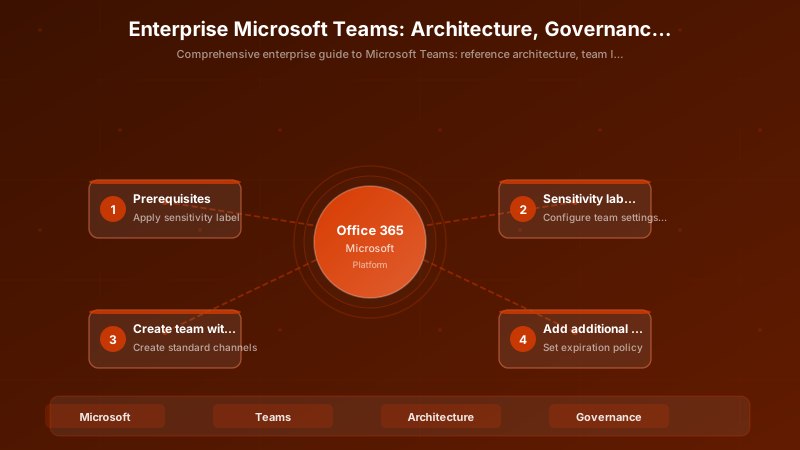
Figure: Purview compliance – DLP policies and information protection labels.
---

## 6. Capacity Planning & Performance Optimization

### Storage Growth Projection


```powershell
## Analyze SharePoint storage growth for Teams sites
function Get-TeamStorageGrowthAnalysis {
```powershell
param([int]$HistoricalDays = 90, [int]$ForecastDays = 365)


Connect-SPOService -Url "https://contoso-admin.sharepoint.com"

$teams = Get-UnifiedGroup -ResultSize Unlimited | Where-Object { $_.SharePointSiteUrl -ne $null }
$storageData = @()

foreach ($team in $teams) {
    $site = Get-SPOSite -Identity $team.SharePointSiteUrl
    $usageHistory = Get-SPOSiteUsage -Identity $site.Url -Detailed

    # Calculate growth rate (GB per day)
    $earliestUsage = $usageHistory | Sort-Object Date | Select-Object -First 1
    $latestUsage = $usage History | Sort-Object Date | Select-Object -Last 1
    $daysDiff = ($latestUsage.Date - $earliestUsage.Date).Days
    if ($daysDiff -gt 0) {
        $growthRate = ($latestUsage.StorageUsedGB - $earliestUsage.StorageUsedGB) / $daysDiff
    } else {
        $growthRate = 0
    }

    # Forecast
    $currentStorage = $site.StorageUsageCurrent / 1024  # MB to GB
    $projectedStorage = $currentStorage + ($growthRate * $ForecastDays)
    $quotaGB = $site.StorageQuota / 1024
    $utilizationForecast = if ($quotaGB -gt 0) { ($projectedStorage / $quotaGB) * 100 } else { 0 }

    $storageData += [PSCustomObject]@{
        TeamName = $team.DisplayName
        CurrentStorageGB = [math]::Round($currentStorage, 2)
        GrowthRateGBPerDay = [math]::Round($growthRate, 4)
        ProjectedStorageGB = [math]::Round($projectedStorage, 2)
        QuotaGB = $quotaGB
        UtilizationForecast = [math]::Round($utilizationForecast, 2)
        RiskLevel = if ($utilizationForecast -gt 90) { 'High' } elseif ($utilizationForecast -gt 75) { 'Medium' } else { 'Low' }
    }
}

## Architecture Decision and Tradeoffs

When designing productivity and collaboration solutions with Microsoft 365, consider these key architectural trade-offs:

| Approach | Best For | Tradeoff |
|----------|----------|----------|
| Managed / platform service | Rapid delivery, reduced ops burden | Less customisation, potential vendor lock-in |
| Custom / self-hosted | Full control, advanced tuning | Higher operational overhead and cost |

> **Recommendation:** Start with the managed approach for most workloads and move to custom only when specific requirements demand it.

## Validation and Versioning

- Last validated: April 2026
- Validate examples against your tenant, region, and SKU constraints before production rollout.
- Keep module, CLI, and SDK versions pinned in automation pipelines and review quarterly.

## Security and Governance Considerations

- Apply least-privilege access using RBAC roles and just-in-time elevation for admin tasks.
- Store secrets in managed secret stores and avoid embedding credentials in scripts or source files.
- Enable audit logging, data protection policies, and periodic access reviews for regulated workloads.

## Cost and Performance Notes

- Define budgets and alerts, then monitor usage and cost trends continuously after go-live.
- Baseline performance with synthetic and real-user checks before and after major changes.
- Scale resources with measured thresholds and revisit sizing after usage pattern changes.

## Official Microsoft References

- https://learn.microsoft.com/microsoft-365/
- https://learn.microsoft.com/exchange/
- https://learn.microsoft.com/microsoftteams/

## Public Examples from Official Sources

- These examples are sourced from official public Microsoft documentation and sample repositories.
- Documentation examples: https://learn.microsoft.com/microsoft-365/
- Sample repositories: https://github.com/pnp
- Prefer adapting these examples to your tenant, subscriptions, and governance requirements before production use.

## Summary
$totalCurrentStorage = ($storageData | Measure-Object -Property CurrentStorageGB -Sum).Sum
$totalProjectedStorage = ($storageData | Measure-Object -Property ProjectedStorageGB -Sum).Sum
$additionalStorageNeeded = $totalProjectedStorage - $totalCurrentStorage


Write-Output "Current Total Storage: $([math]::Round($totalCurrentStorage, 2)) GB"
Write-Output "Projected Storage ($ForecastDays days): $([math]::Round($totalProjectedStorage, 2)) GB"
Write-Output "Additional Storage Needed: $([math]::Round($additionalStorageNeeded, 2)) GB"


## High-risk teams report
$highRiskTeams = $storageData | Where-Object { $_.RiskLevel -eq 'High' } | Sort-Object UtilizationForecast -Descending
$highRiskTeams | Format-Table TeamName, CurrentStorageGB, ProjectedStorageGB, UtilizationForecast


return $storageData```
}
Performance Optimization Best Practices
Teams Performance Optimization Checklist:

1. **Channel Structure**
   - Limit channels to 15-20 per team (findability degrades beyond this)
   - Use folders/labels in General channel instead of creating excessive channels
   - Archive completed project channels rather than deleting

2. **File Management**
   - Store files in SharePoint (not in chat attachments)
   - Use SharePoint folder structure for organization
   - Enable versioning (max 500 major versions to avoid bloat)
   - Apply retention policies to auto-delete aged files

3. **App Integration**
   - Limit tabs per channel to 5-7 (reduces load time)
   - Remove unused connectors/bots
   - Use pinned messages instead of custom tabs for simple info

4. **Meeting Optimization**
   - Disable video for large meetings (>50 participants) to reduce bandwidth
   - Use Together Mode or Large Gallery (not Grid) for better encoding efficiency
   - Enable live captions (reduces cognitive load without quality hit)

5. **Storage Archival**
   - Move inactive teams to archived state (readonly, preserves data)
   - Export chat history for legal hold teams before deletion
   - Implement tiered storage (recent files in primary, aged files in archive)

6. **Network Optimization**
   - Configure QoS (Quality of Service) for Teams traffic
   - Implement ExpressRoute for hybrid deployments
   - Monitor Call Quality Dashboard (CQD) for network issues
   - Deploy Teams-certified network equipment


> **Architecture Overview:** ## 7. Enterprise Maturity Model

## Check team provisioning status
Get-UnifiedGroup -Identity <team-id> | Select-Object DisplayName, WhenCreated, ManagedBy, ResourceProvisioningOptions


## Verify guest access settings
Get-CsTeamsGuestMessagingConfiguration
Get-CsTeamsGuestMeetingConfiguration


## Test call quality for user
Get-CsOnlineUser -Identity user@contoso.com | Select-Object DisplayName, EnterpriseVoiceEnabled, LineURI, OnPremLineURI


## Check DLP policy assignments
Get-DlpCompliancePolicy | Select-Object Name, Mode, TeamsLocation
Get-DlpComplianceRule -Policy "Teams PII Protection" | Select-Object Name, BlockAccess, ContentContainsSensitiveInformation


## Validate sensitivity label application
Get-Label | Select-Object DisplayName, ImmutableId, EncryptionEnabled
Get-UnifiedGroup -Identity <team-id> | Select-Object SensitivityLabelId


## Review audit logs for team activity
Search-UnifiedAuditLog -StartDate (Get-Date).AddDays(-7) -EndDate (Get-Date) `
```text
-Operations TeamCreated, TeamDeleted, MemberAdded, GuestUserAdded `
-ResultSize 1000 | Export-Csv "C:\Audit\TeamActivity.csv" -NoTypeInformation
---

## 9. Cost Optimization Strategies

| Lever | Strategy | Implementation | Potential Savings |
|-------|---------|---------------|------------------|
| **License Right-Sizing** | Downgrade inactive users from E5 to E3 or F3 | Identify users with <5 Teams sessions/month; reassign licenses | 20-30% license cost reduction |
| **SharePoint Storage Optimization** | Enable archive tier for aged files; delete orphaned sites | Automated archival policy for files >2 years old; quarterly site cleanup | 15-25% storage cost reduction |
| **Phone System Consolidation** | Replace legacy PBX with Teams Phone + Direct Routing | Decommission on-prem voice infrastructure; implement SBC | 40-60% telephony cost reduction |
| **Meeting Recording Governance** | Auto-delete recordings >180 days; limit recording permissions | Retention policy for Stream/OneDrive recordings; restrict recording roles | 10-20% Stream storage reduction |
| **External Collaboration Efficiency** | Use external access (federation) instead of guest licenses where possible | Audit guest users; convert to federated access for partners | Variable (depends on guest count) |


### Monthly Cost Dashboard KPIs

```powershell
## Cost optimization KPI collection
function Get-TeamsCostMetrics {
```powershell
Connect-MgGraph -Scopes "Reports.Read.All", "Directory.Read.All"


## License utilization
$licensedUsers = Get-MgUser -Filter "assignedLicenses/any(x:x/skuId eq '{Teams-E3-SKU}')" -All
$activeUsers = (Invoke-MgGraphRequest -Uri "https://graph.microsoft.com/v1.0/reports/getTeamsUserActivityUserDetail(period='D30')").value |
    Where-Object { $_.'Last Activity Date' -ne $null }
$utilizationRate = ($activeUsers.Count / $licensedUsers.Count) * 100

## Inactive license candidates (< 5 sessions/month)
$inactiveLicenses = $licensedUsers | Where-Object {
    $userId = $_.Id
    $activityCount = ($activeUsers | Where-Object { $_.UserId -eq $userId }).'Team Chat Message Count'
    $activityCount -lt 5
}
$potentialSavings = $inactiveLicenses.Count * 12 * 20  # Assume $20/mo E3 license


## SharePoint storage costs
$allSites = Get-SPOSite -Limit All -Filter {Template -eq 'GROUP#0'}
$totalStorageGB = ($allSites | Measure-Object -Property StorageUsageCurrent -Sum).Sum / 1024
$storageCost = $totalStorageGB * 0.20  # Assume $0.20/GB/month


Write-Output @"```
License Utilization: $([math]::Round($utilizationRate, 2))%
Inactive License Count: $($inactiveLicenses.Count)
Potential License Savings: `$$potentialSavings/year
Total SharePoint Storage: $([math]::Round($totalStorageGB, 2)) GB
Est. Storage Cost: `$$([math]::Round($storageCost, 2))/month
"@
}
Expected output:
Welcome to Microsoft Graph!

10. Best Practices (DO / DON'T)
DO:
- Enforce naming conventions via Azure AD Group naming policy.
- Implement lifecycle governance (expiration, renewal, archival).
- Apply sensitivity labels to all teams (especially Confidential/Highly Confidential).
- Use PowerShell/Graph API for bulk operations (never manual at scale).
- Monitor KPIs daily (adoption, sprawl, compliance, call quality).
- Configure DLP policies before enabling guest access.
- Conduct quarterly access reviews for guests and team owners.
- Test call quality regularly via CQD reports.
DON'T:
- Allow unrestricted team creation (spawl leads to chaos).
- Provision teams manually without metadata tagging.
- Grant guest access without domain whitelisting and conditional access.
- Ignore inactive teams (accumulate storage costs and compliance risk).
- Deploy Teams Phone without network readiness assessment.
- Skip expiration policies (leads to abandoned team sprawl).
- Overlook sensitivity labeling (exposes data to unauthorized access).
- Neglect audit log monitoring (miss security incidents and policy violations).
11. FAQs
Q: How to handle team sprawl (200+ teams created in first 6 months)?
A: Implement lifecycle governance: expiration policies (365-day default), approval workflows for new teams, metadata tagging (cost center, project code), quarterly inactive team cleanup via automated archival.
Q: Guest access security concerns—how to mitigate?
A: Domain whitelisting (block all except approved partners), conditional access (require MFA for all guests), restrict guest capabilities (no channel creation, no file deletion), quarterly access reviews, DLP policies for sensitive data.
Q: Managing Teams at scale (10,000+ users)—automation priorities?
A: (1) Automated provisioning with approval workflows, (2) expiration/renewal automation, (3) KPI monitoring dashboard, (4) self-service portal (Power Apps) for common tasks, (5) AI-driven adoption interventions.
Q: Hybrid voice deployment (Teams Phone + on-prem PBX coexistence)?
A: Use Direct Routing with certified SBC; configure voice routing policies for call flow (on-prem→SBC→Teams); implement number porting plan; test E911 compliance; monitor call quality via CQD.
Q: Teams data residency and compliance for multi-geo deployments?
A: Enable Multi-Geo Capabilities (requires Microsoft 365 Multi-Geo); assign PreferredDataLocation for users/groups; verify data residency via compliance reports; implement region-specific retention policies.
12. Key Takeaways
- Layered architecture enables independent scaling of identity, collaboration, security, and automation.
- Lifecycle governance (provision → active → expire → archive → delete) prevents sprawl and ensures compliance.
- Security hardening: DLP + sensitivity labels + guest policies + conditional access = defense-in-depth.
- PowerShell automation frameworks eliminate manual provisioning inconsistencies at scale.
- KPI monitoring (adoption, sprawl, compliance, call quality) enables proactive issue detection.
- Maturity progression from ad-hoc (Level 1) to autonomous (Level 6) operations.
- Cost optimization via license right-sizing, storage archival, and external collaboration efficiency.
13. References & Resources
- Microsoft Teams Documentation
- Teams PowerShell Module
- Microsoft Graph API - Teams
- Teams Admin Center
- Call Quality Dashboard (CQD)
- Microsoft Purview Compliance
- Azure AD Conditional Access
- Teams Governance Best Practices
Architect. Govern. Automate. Monitor. Optimize.
Team and Channel Management
Creating Teams
## Install Microsoft Teams PowerShell module
Install-Module -Name MicrosoftTeams -Force
Import-Module MicrosoftTeams


## Connect to Microsoft Teams
Connect-MicrosoftTeams


## Create new team
New-Team -DisplayName "Marketing Department" `
```text
-Description "Marketing team workspace" `
-Visibility Private `
-Owner "admin@contoso.com"
Expected output:
Package installed successfully.

Create team from Microsoft 365 Group
$group = Get-UnifiedGroup -Identity "Sales Team" New-Team -GroupId $group.ExternalDirectoryObjectId
Get team details
Get-Team -DisplayName "Marketing Department"
Add team members
Add-TeamUser -GroupId
Remove team member
Remove-TeamUser -GroupId
### Channel Management

```powershell
## Create standard channel
New-TeamChannel -GroupId <team-id> `
```text
-DisplayName "Campaign Planning" `
-Description "Plan marketing campaigns"
Create private channel
New-TeamChannel -GroupId
-DisplayName "Budget Discussion" `
-Description "Private budget discussions" `
-MembershipType Private
Add members to private channel
Add-TeamChannelUser -GroupId
-DisplayName "Budget Discussion" `
-User "manager@contoso.com" `
-Role Owner
List channels
Get-TeamChannel -GroupId
Update channel
Set-TeamChannel -GroupId
-CurrentDisplayName "Campaign Planning" `
-NewDisplayName "Marketing Campaigns" `
-Description "Marketing campaign coordination"
Remove channel
Remove-TeamChannel -GroupId
### Team Settings Configuration

```powershell
## Configure team settings
Set-Team -GroupId <team-id> `
```text
-DisplayName "Marketing Department" `
-Description "Updated description" `
-AllowGiphy $true `
-GiphyContentRating Moderate `
-AllowStickersAndMemes $true `
-AllowCustomMemes $true `
-AllowGuestCreateUpdateChannels $false `
-AllowGuestDeleteChannels $false `
-AllowCreateUpdateChannels $true `
-AllowDeleteChannels $true `
-AllowAddRemoveApps $true `
-AllowCreateUpdateRemoveTabs $true `


-AllowCreateUpdateRemoveConnectors $true `
-AllowUserEditMessages $true `
-AllowUserDeleteMessages $true `
-AllowOwnerDeleteMessages $true `
-AllowTeamMentions $true `
-AllowChannelMentions $true
Archive team
Set-TeamArchivedState -GroupId
Restore archived team
Set-TeamArchivedState -GroupId
## Meetings and Calling

### Meeting Policies


```powershell
## Create meeting policy
New-CsTeamsMeetingPolicy -Identity "Marketing Meeting Policy" `
```text
-AllowMeetNow $true `
-AllowIPVideo $true `
-AllowAnonymousUsersToStartMeeting $false `
-AllowAnonymousUsersToJoinMeeting $true `
-AutoAdmittedUsers EveryoneInCompany `
-AllowCloudRecording $true `
-AllowOutlookAddIn $true `
-AllowPowerPointSharing $true `
-AllowWhiteboard $true `
-AllowSharedNotes $true `
-AllowTranscription $true `
-MediaBitRateKb 50000 `


-ScreenSharingMode EntireScreen
Assign policy to user
Grant-CsTeamsMeetingPolicy -Identity "user@contoso.com" -PolicyName "Marketing Meeting Policy"
View meeting policies
Get-CsTeamsMeetingPolicy | Select-Object Identity, AllowCloudRecording, AllowTranscription
### Teams Phone System

```powershell
## Assign Phone System license
Set-MsolUserLicense -UserPrincipalName "user@contoso.com" -AddLicenses "contoso:MCOEV"


## Assign phone number
Set-CsPhoneNumberAssignment -Identity "user@contoso.com" `
```text
-PhoneNumber "+14255551234" `
-PhoneNumberType CallingPlan
Configure voice routing policy
New-CsOnlineVoiceRoutingPolicy -Identity "US Calling Policy" `
-OnlinePstnUsages @{Add="US"}
Grant-CsOnlineVoiceRoutingPolicy -Identity "user@contoso.com" -PolicyName "US Calling Policy"
Create calling policy
New-CsTeamsCallingPolicy -Identity "Standard Calling" `
-AllowPrivateCalling $true `
-AllowVoicemail Always `
-AllowCallGroups $true `
-AllowDelegation $true `
-AllowCallForwardingToUser $true `
-AllowCallForwardingToPhone $true `
-PreventTollBypass $false `
-BusyOnBusyEnabledType Enabled
Grant-CsTeamsCallingPolicy -Identity "user@contoso.com" -PolicyName "Standard Calling"
### Meeting Room Configuration

```powershell
## Create room mailbox
New-Mailbox -Name "Conference Room A" `
```text
-Room `
-PrimarySmtpAddress "room-a@contoso.com"
Enable Teams Room
Set-Mailbox -Identity "room-a@contoso.com" `
-RoomMailboxPassword (ConvertTo-SecureString "P@ssw0rd123!" -AsPlainText -Force) `
-EnableRoomMailboxAccount $true
Configure room settings
Set-CalendarProcessing -Identity "room-a@contoso.com" `
-AutomateProcessing AutoAccept `
-AddOrganizerToSubject $false `
-RemovePrivateProperty $false `
-DeleteSubject $false `
-AddAdditionalResponse $true `
-AdditionalResponse "Welcome to Conference Room A. Capacity: 10 people."
## App Integration

### Adding Apps to Teams


```powershell
## List available apps
Get-TeamsApp | Select-Object Id, DisplayName, DistributionMethod


## Add app to team
Add-TeamsAppInstallation -GroupId <team-id> `
```text
-AppId "com.microsoft.teamspace.tab.planner"
Pin app to team
Set-TeamsAppSetup -Identity "user@contoso.com" `
-PinnedAppBarApps @{Add="com.microsoft.teamspace.tab.planner"}
Remove app from team
Remove-TeamsAppInstallation -GroupId
-AppId "com.microsoft.teamspace.tab.planner"
### Custom Tabs and Connectors

```powershell
## Add SharePoint tab to channel
Add-TeamChannelTab -GroupId <team-id> `
```text
-Channel "General" `
-DisplayName "Project Documents" `
-TeamsAppId "com.microsoft.teamspace.tab.files.sharepoint" `
-WebsiteUrl "https://contoso.sharepoint.com/sites/marketing/Shared Documents"
Add Planner tab
Add-TeamChannelTab -GroupId
-Channel "General" `
-DisplayName "Task Board" `
-TeamsAppId "com.microsoft.teamspace.tab.planner"
Add Power BI tab
Add-TeamChannelTab -GroupId
-Channel "General" `
-DisplayName "Sales Dashboard" `
-TeamsAppId "com.microsoft.teamspace.tab.powerbi"
## File Sharing and Collaboration

### SharePoint Integration


```powershell
## Teams files stored in SharePoint


## Each team has associated SharePoint site: https://contoso.sharepoint.com/sites/<team-name>


## Get team SharePoint site
$team = Get-Team -DisplayName "Marketing Department"
$group = Get-UnifiedGroup -Identity $team.GroupId
$siteUrl = $group.SharePointSiteUrl


Write-Host "SharePoint Site: $siteUrl"

## Configure SharePoint library permissions


## Use SharePoint PnP PowerShell
Connect-PnPOnline -Url $siteUrl -Interactive


Get-PnPList | Where-Object {$_.Title -eq "General"} |
```powershell
ForEach-Object { Grant-PnPPermission -Identity $_.Id -User "user@contoso.com" -Role "Contribute" }
Expected output:
Connected to https://contoso.sharepoint.com

### OneDrive File Sharing in Teams

```powershell
## Share OneDrive file in Teams chat


## Use Graph API

$accessToken = (Get-AzAccessToken -ResourceUrl "https://graph.microsoft.com").Token


$headers = @{
```text
"Authorization" = "Bearer $accessToken"
"Content-Type" = "application/json"```
}

## Create sharing link
$sharingBody = @{
```text
type = "view"
scope = "organization"```
} | ConvertTo-Json


$fileId = "<drive-item-id>"
$sharingLink = Invoke-RestMethod -Uri "https://graph.microsoft.com/v1.0/me/drive/items/$fileId/createLink" `
```text
-Method Post -Headers $headers -Body $sharingBody
Write-Host "Sharing Link: $($sharingLink.link.webUrl)"
## Governance and Compliance

### Teams Retention Policies


```powershell
## Connect to Security & Compliance Center
Connect-IPPSSession


## Create Teams retention policy
New-RetentionCompliancePolicy -Name "Teams 7 Year Retention" `
```text
-TeamsChannelLocation All `
-TeamsChatLocation All
New-RetentionComplianceRule -Name "Teams Retention Rule" `
-Policy "Teams 7 Year Retention" `
-RetentionDuration 2555 `
-RetentionComplianceAction Keep
Apply to specific teams
Set-RetentionCompliancePolicy -Identity "Teams 7 Year Retention" `
-AddTeamsChannelLocation "team1@contoso.com", "team2@contoso.com"
### Data Loss Prevention

```powershell
## Create DLP policy for Teams
New-DlpCompliancePolicy -Name "Protect Sensitive Data in Teams" `
```text
-TeamsLocation All `
-Mode Enable
New-DlpComplianceRule -Name "Block Credit Cards" `
-Policy "Protect Sensitive Data in Teams" `
-ContentContainsSensitiveInformation @{Name="Credit Card Number"; minCount="1"} `
-BlockAccess $true `
-NotifyUser Owner `
-NotifyUserType NotSet
### Naming Policies

```powershell
## Configure Microsoft 365 Group naming policy
$SettingsObjectID = (Get-AzureADDirectorySetting | Where-object {$_.Displayname -eq "Group.Unified"}).Id


$settings = Get-AzureADDirectorySetting -Id $SettingsObjectID
$settings["PrefixSuffixNamingRequirement"] = "PRE_[GroupName]_SUF"
$settings["CustomBlockedWordsList"] = "CEO,President,Admin"
Set-AzureADDirectorySetting -Id $SettingsObjectID -DirectorySetting $settings

## Naming policy affects new team creation
Guest Access
Configuring Guest Access
## Enable guest access in Teams
Set-CsTeamsClientConfiguration -AllowGuestUser $true


## Configure guest meeting experience
Set-CsTeamsMeetingConfiguration `
```text
-DisableAnonymousJoin $false `
-EnableQoS $true
Guest access settings at team level
Set-Team -GroupId
-AllowGuestCreateUpdateChannels $false `
-AllowGuestDeleteChannels $false
Add external guest
New-AzureADMSInvitation -InvitedUserEmailAddress "partner@external.com" `
-InviteRedirectUrl "https://teams.microsoft.com" `
-SendInvitationMessage $true
Add guest to team
Add-TeamUser -GroupId
### External Access (Federation)

```powershell
## Configure external access (federation)
Set-CsTenantFederationConfiguration -AllowFederatedUsers $true


## Allow specific domains
$allowed = New-CsEdgeAllowList -AllowedDomain "partner.com", "vendor.com"
Set-CsTenantFederationConfiguration -AllowedDomains $allowed


## Block specific domains
$blocked = New-CsEdgeBlockList -BlockedDomain "competitor.com"
Set-CsTenantFederationConfiguration -BlockedDomains $blocked
Teams Analytics and Reporting
Usage Reports
## Get Teams usage report via Graph API
$accessToken = (Get-AzAccessToken -ResourceUrl "https://graph.microsoft.com").Token
$headers = @{ "Authorization" = "Bearer $accessToken" }


## Teams user activity
$report = Invoke-RestMethod -Uri "https://graph.microsoft.com/v1.0/reports/getTeamsUserActivityUserDetail(period='D30')" `
```text
-Headers $headers
$report | Export-Csv "C:\Reports\TeamsActivity.csv" -NoTypeInformation
Teams device usage
$deviceReport = Invoke-RestMethod -Uri "https://graph.microsoft.com/v1.0/reports/getTeamsDeviceUsageUserDetail(period='D30')" `
-Headers $headers
$deviceReport | Export-Csv "C:\Reports\TeamsDeviceUsage.csv" -NoTypeInformation
### Call Quality Dashboard

```powershell
## Access Call Quality Dashboard


## https://cqd.teams.microsoft.com


## Export call quality data via PowerShell
$cqdData = Get-CsOnlineUser | Where-Object {$_.EnterpriseVoiceEnabled -eq $true} |
```text
Select-Object DisplayName, UserPrincipalName, OnPremLineURI, LineURI
$cqdData | Export-Csv "C:\Reports\VoiceEnabledUsers.csv" -NoTypeInformation
## Best Practices

### Team Structure Recommendations


```text
Recommended Team Structure:

1. Department-Level Teams
   - Marketing, Sales, Engineering, HR
   - Standard channels for ongoing work
   - Private channels for sensitive discussions

2. Project-Based Teams
   - Temporary teams for projects
   - Archive when project completes
   - Clear naming convention

3. Channel Organization
   - General: Team-wide announcements
   - Topic-specific channels (max 15-20)
   - Use channel descriptions
   - Pin important messages

4. Naming Conventions
   - Team: "DEPT - Purpose" (e.g., "MKT - Digital Marketing")
   - Channel: Clear, descriptive names
   - Files: Consistent naming

5. Governance
   - Team ownership assigned
   - Regular access reviews
   - Inactive team cleanup
   - Guest access policies
Communication Guidelines
Teams Communication Best Practices:

1. Channel vs. Chat
   - Channels: Team conversations, persistent
   - Chat: 1-on-1 or small group, temporary
   - Use @mentions appropriately

2. Meeting Etiquette
   - Video on for engagement
   - Mute when not speaking
   - Use chat for questions
   - Share meeting notes

3. File Management
   - Store files in channels (SharePoint)
   - Version control automatic
   - Use co-authoring
   - Organize with folders

4. App Integration
   - Add relevant apps to channels
   - Avoid app overload
   - Pin frequently used tabs

5. Notifications
   - Configure notification settings
   - Use priority access for urgent
   - Respect quiet hours
Key Takeaways
- Teams provides unified collaboration platform
- Channels organize work by topic or project
- Private channels for sensitive discussions
- Guest access enables external collaboration
- Apps and connectors extend functionality
- Governance policies ensure compliance
- Teams Phone replaces traditional PBX
- Analytics track adoption and quality
Next Steps
- Create team structure aligned with organization
- Configure meeting and calling policies
- Enable guest access with appropriate controls
- Implement retention and DLP policies
- Integrate business apps via tabs and connectors
- Train users on collaboration best practices
- Monitor usage and call quality
Additional Resources
Collaborate. Communicate. Connect. Succeed.
Discussion