Hybrid Migration Strategies: Exchange, SharePoint, and OneDrive
param( [string]$DomainController = $env:LOGONSERVER.Replace("\","") )
$issues = @()
Check for duplicate proxy addresses
Write-Host "Checking for duplicate proxy addresses..." -ForegroundColor Cyan $duplicateProxies = Get-ADUser -Filter * -Properties proxyAddresses -Server $DomainController | Where-Object { $.proxyAddresses } | ForEach-Object { $.proxyAddresses | Where-Object { $_ -like "smtp:*" } } | Group-Object | Where-Object { $_.Count -gt 1 }
if ($duplicateProxies) { $issues += [PSCustomObject]@{ Category = "Identity" Issue = "Duplicate SMTP Addresses" Count = $duplicateProxies.Count Impact = "Critical - Will block synchronization" Remediation = "Run Set-ADUser to remove duplicate proxyAddresses" } }
Check for UPN suffix alignment
Write-Host "Checking UPN suffix alignment..." -ForegroundColor Cyan $verifiedDomains = (Get-MsolDomain | Where-Object { $.Status -eq "Verified" }).Name $mismatchedUPN = Get-ADUser -Filter * -Properties UserPrincipalName -Server $DomainController | Where-Object { $upnSuffix = $.UserPrincipalName.Split('@')[1] $upnSuffix -notin $verifiedDomains }
if ($mismatchedUPN) { $issues += [PSCustomObject]@{ Category = "Identity" Issue = "UPN Suffix Mismatch" Count = $mismatchedUPN.Count Impact = "High - Users cannot sign in to cloud services" Remediation = "Update UPN suffix to match verified domain" } }
Check for special characters in usernames
Write-Host "Checking for unsupported characters..." -ForegroundColor Cyan $invalidChars = Get-ADUser -Filter * -Properties SamAccountName, DisplayName -Server $DomainController | Where-Object { $.DisplayName -match '[^\x00-\x7F]' -or $.SamAccountName -match '[^\w-.]' }
if ($invalidChars) { $issues += [PSCustomObject]@{ Category = "Identity" Issue = "Unsupported Characters" Count = $invalidChars.Count Impact = "Medium - May cause sync errors" Remediation = "Remove special characters from display names and usernames" } }
Check for orphaned SID history
Write-Host "Checking for SID history..." -ForegroundColor Cyan $sidHistory = Get-ADUser -Filter { SIDHistory -like "*" } -Properties SIDHistory -Server $DomainController
if ($sidHistory) { $issues += [PSCustomObject]@{ Category = "Identity" Issue = "SID History Present" Count = $sidHistory.Count Impact = "Low - May cause permission issues post-migration" Remediation = "Evaluate if SID history is still needed; consider cleanup" } }
return $issues``` }
Run assessment
$identityIssues = Get-IdentitySyncReadiness $identityIssues | Format-Table -AutoSize
Export report
$identityIssues | Export-Csv -Path ".\IdentityReadinessReport.csv" -NoTypeInformation Write-Host "`nIdentity readiness report exported to IdentityReadinessReport.csv" -ForegroundColor Green
**Exchange Environment Assessment:**

```powershell
## Assess Exchange environment for migration readiness
function Get-ExchangeMigrationReadiness {
```powershell
[CmdletBinding()]
param()


$report = @{
    Servers = @()
    Mailboxes = @()
    PublicFolders = @()
    Dependencies = @()
}

## Server inventory
Write-Host "Assessing Exchange servers..." -ForegroundColor Cyan
$servers = Get-ExchangeServer | Select-Object Name, ServerRole, AdminDisplayVersion, Site
$report.Servers = $servers


## Identify legacy versions (unsupported for hybrid)
$legacyServers = $servers | Where-Object {
    $_.AdminDisplayVersion -like "*Version 14.*" -or  # Exchange 2010
    $_.AdminDisplayVersion -like "*Version 8.*"       # Exchange 2007
}


if ($legacyServers) {
    Write-Warning "Found $($legacyServers.Count) legacy Exchange servers - Hybrid requires Exchange 2013+ CU"
}

## Mailbox statistics
Write-Host "Analyzing mailbox statistics..." -ForegroundColor Cyan
$mailboxStats = Get-Mailbox -ResultSize Unlimited | ForEach-Object {
    $stats = Get-MailboxStatistics $_.Identity
    [PSCustomObject]@{
        Alias = $_.Alias
        PrimarySmtpAddress = $_.PrimarySmtpAddress
        Database = $_.Database
        ItemCount = $stats.ItemCount
        TotalItemSizeMB = [math]::Round(($stats.TotalItemSize.Value.ToBytes() / 1MB), 2)
        DeletedItemCount = $stats.DeletedItemCount
        MailboxType = $_.RecipientTypeDetails
    }
}


$report.Mailboxes = @{
    TotalCount = $mailboxStats.Count
    TotalSizeGB = [math]::Round(($mailboxStats | Measure-Object -Property TotalItemSizeMB -Sum).Sum / 1024, 2)
    AverageSizeMB = [math]::Round(($mailboxStats | Measure-Object -Property TotalItemSizeMB -Average).Average, 2)
    LargeMailboxes = ($mailboxStats | Where-Object { $_.TotalItemSizeMB -gt 50000 }).Count  # >50GB
    Data = $mailboxStats
}

## Public folder assessment
Write-Host "Assessing public folders..." -ForegroundColor Cyan
$pfStats = Get-PublicFolderStatistics -ResultSize Unlimited
$report.PublicFolders = @{
    TotalCount = $pfStats.Count
    TotalSizeGB = [math]::Round(($pfStats | Measure-Object -Property TotalItemSize -Sum).Sum / 1GB, 2)
    MailEnabledCount = (Get-MailPublicFolder -ResultSize Unlimited).Count
}


## Check dependencies
Write-Host "Checking dependencies..." -ForegroundColor Cyan
$sendConnectors = Get-SendConnector | Where-Object { $_.AddressSpaces.Address -notlike "*.onmicrosoft.com" }
$receiveConnectors = Get-ReceiveConnector | Where-Object { $_.RemoteIPRanges.Count -gt 0 }


$report.Dependencies = @{
    SendConnectors = $sendConnectors.Count
    ReceiveConnectors = $receiveConnectors.Count
    TransportRules = (Get-TransportRule).Count
    JournalRules = (Get-JournalRule).Count
}

return $report```
}

## Run assessment
$exchangeReadiness = Get-ExchangeMigrationReadiness

## Display summary
Write-Host "`n=== Exchange Migration Readiness Summary ===" -ForegroundColor Green
Write-Host "Servers: $($exchangeReadiness.Servers.Count)"
Write-Host "Mailboxes: $($exchangeReadiness.Mailboxes.TotalCount) ($($exchangeReadiness.Mailboxes.TotalSizeGB) GB)"
Write-Host "Large mailboxes (>50GB): $($exchangeReadiness.Mailboxes.LargeMailboxes)"
Write-Host "Public folders: $($exchangeReadiness.PublicFolders.TotalCount) ($($exchangeReadiness.PublicFolders.TotalSizeGB) GB)"
Write-Host "Send connectors: $($exchangeReadiness.Dependencies.SendConnectors)"
Write-Host "Transport rules: $($exchangeReadiness.Dependencies.TransportRules)"


## Export full report
$exchangeReadiness | ConvertTo-Json -Depth 10 | Out-File ".\ExchangeReadinessReport.json"
SharePoint Content Assessment:
## Assess SharePoint environment for migration readiness
function Get-SharePointMigrationReadiness {
```powershell
[CmdletBinding()]
param(
    [Parameter(Mandatory=$true)]
    [string]$SharePointAdminUrl
)


Connect-SPOService -Url $SharePointAdminUrl

$report = @{
    SiteCollections = @()
    UnsupportedFeatures = @()
    CustomSolutions = @()
}

## Inventory site collections
Write-Host "Inventorying site collections..." -ForegroundColor Cyan
$sites = Get-SPOSite -Limit All | Select-Object Url, StorageQuota, StorageUsageCurrent, Template, LastContentModifiedDate


$report.SiteCollections = @{
    TotalCount = $sites.Count
    TotalStorageGB = [math]::Round(($sites | Measure-Object -Property StorageUsageCurrent -Sum).Sum / 1024, 2)
    Data = $sites
}

## Scan for unsupported features (would require site-level scripts)
Write-Host "Scanning for unsupported features..." -ForegroundColor Cyan


## Note: Detailed feature scanning requires site-level access with PnP PowerShell


## This is a  for the assessment structure

$report.UnsupportedFeatures = @{
    InfoPathForms = 0  # Requires site scan
    LegacyWorkflows = 0  # Requires site scan
    CustomCodeSolutions = 0  # Requires site scan
    Note = "Run PnP site assessment scan for detailed feature analysis"
}


return $report```
}

## Run assessment
## $spReadiness = Get-SharePointMigrationReadiness -SharePointAdminUrl "https://contoso-admin.sharepoint.com"
Assessment Report Framework
| Assessment Domain | Key Metrics | Target Threshold | Remediation Timeline |
|---|---|---|---|
| Identity Sync | Duplicate proxy addresses | 0 | 1-2 weeks pre-sync |
| Identity Sync | UPN mismatch rate | <5% | 2-3 weeks pre-sync |
| Exchange | Mailbox count & size | Document baseline | N/A |
| Exchange | Legacy server versions | 0 (2013+ required) | 4-8 weeks upgrade |
| Exchange | Large mailboxes (>50GB) | Document for phasing | N/A |
| SharePoint | Site collection count | Document baseline | N/A |
| SharePoint | InfoPath forms | <10 or remediation plan | 4-12 weeks conversion |
| SharePoint | Legacy workflows | Remediation plan | 4-12 weeks redesign |
| Network | Bandwidth to Azure | >100 Mbps per 1000 users | 2-4 weeks upgrade |
| Licensing | E3/E5 allocation | 110% of user count (buffer) | 2-4 weeks procurement |
Assessment-to-Execution Timeline:
- Weeks 1-4: Complete assessment, generate reports, identify blockers
- Weeks 5-8: Remediate critical issues (duplicate addresses, UPN alignment, legacy servers)
- Weeks 9-12: Deploy Azure AD Connect, establish stable identity sync (30-day observation)
- Week 13+: Begin Exchange hybrid configuration and pilot wave migrations
Azure AD Connect: Identity Synchronization Foundation
Identity Sync Patterns
Azure AD Connect provides three authentication methods, each with distinct operational characteristics:
Password Hash Synchronization (PHS):
- How it works: Synchronizes hash of user password hash from on-premises AD to Azure AD
- Advantages: Simplest configuration, no additional infrastructure, supports leaked credential detection, enables seamless SSO
- Disadvantages: Password changes take 2-minute sync cycle, requires cloud-based password protection policies
- Use cases: Default recommendation for most organizations, suitable for 80-90% of deployments
Pass-Through Authentication (PTA):
- How it works: Authentication requests pass through to on-premises AD; agents installed on domain-joined servers
- Advantages: Passwords never leave on-premises, supports on-premises password policies, instant password change enforcement
- Disadvantages: Requires 2-3 PTA agents for high availability, dependency on on-premises connectivity
- Use cases: Regulatory requirements preventing cloud password storage, strict on-premises password policy enforcement (15+ character minimums, custom complexity)
Federation (ADFS):
- How it works: Redirects authentication to on-premises ADFS infrastructure; establishes federated trust
- Advantages: Supports smart card / certificate authentication, custom MFA providers, sophisticated claims-based authorization
- Disadvantages: Complex infrastructure (ADFS farm, WAP servers, load balancers), highest operational overhead
- Use cases: Smart card authentication requirement, legacy ADFS investment, complex claims-based scenarios (5-10% of deployments)
Azure AD Connect Deployment
## Azure AD Connect installation and configuration


## Note: This script outlines the process; actual installation requires GUI wizard or automated JSON config


## Prerequisites check
function Test-AADConnectPrerequisites {
```powershell
[CmdletBinding()]
param()


$prerequisites = @()

## Check .NET Framework version (4.6.2+ required)
$netVersion = (Get-ItemProperty 'HKLM:\SOFTWARE\Microsoft\NET Framework Setup\NDP\v4\Full' -ErrorAction SilentlyContinue).Release
$prerequisites += [PSCustomObject]@{
    Check = ".NET Framework"
    Required = "4.6.2+ (Release >= 394802)"
    Actual = $netVersion
    Status = if ($netVersion -ge 394802) { "Pass" } else { "Fail" }
}


## Check PowerShell version (5.1+ required)
$psVersion = $PSVersionTable.PSVersion
$prerequisites += [PSCustomObject]@{
    Check = "PowerShell"
    Required = "5.1+"
    Actual = "$($psVersion.Major).$($psVersion.Minor)"
    Status = if ($psVersion.Major -ge 5 -and $psVersion.Minor -ge 1) { "Pass" } else { "Fail" }
}


## Check SQL Server Express LocalDB (installed with AAD Connect)
$sqlLocalDB = Get-Package -Name "Microsoft SQL Server*LocalDB" -ErrorAction SilentlyContinue
$prerequisites += [PSCustomObject]@{
    Check = "SQL LocalDB"
    Required = "2012+"
    Actual = if ($sqlLocalDB) { $sqlLocalDB.Version } else { "Not installed" }
    Status = if ($sqlLocalDB) { "Pass" } else { "Installed with AAD Connect" }
}


## Check Domain Controller connectivity
$dcTest = Test-ComputerSecureChannel -Verbose
$prerequisites += [PSCustomObject]@{
    Check = "Domain Connectivity"
    Required = "Secure channel to DC"
    Actual = if ($dcTest) { "Connected" } else { "Failed" }
    Status = if ($dcTest) { "Pass" } else { "Fail" }
}


## Check Azure AD connectivity
try {
    $azureADTest = Test-NetConnection -ComputerName login.microsoftonline.com -Port 443
    $prerequisites += [PSCustomObject]@{
        Check = "Azure AD Connectivity"
        Required = "HTTPS to login.microsoftonline.com"
        Actual = if ($azureADTest.TcpTestSucceeded) { "Connected" } else { "Failed" }
        Status = if ($azureADTest.TcpTestSucceeded) { "Pass" } else { "Fail" }
    }
} catch {
    $prerequisites += [PSCustomObject]@{
        Check = "Azure AD Connectivity"
        Required = "HTTPS to login.microsoftonline.com"
        Actual = "Failed - $($_.Exception.Message)"
        Status = "Fail"


    }
}

return $prerequisites```
}

## Run prerequisite check
$prereqResults = Test-AADConnectPrerequisites
$prereqResults | Format-Table -AutoSize


## Post-installation: Validate synchronization
function Get-AADConnectSyncStatus {
```powershell
[CmdletBinding()]
param()


Import-Module ADSync

$syncStatus = @{
    Connector = @()
    RunHistory = @()
    SyncErrors = @()
}

## Check connector status
$syncStatus.Connector = Get-ADSyncConnector | Select-Object Name, Type, ConnectionStatus


## Get recent sync cycles
$syncStatus.RunHistory = Get-ADSyncScheduler | Select-Object
    SyncCycleEnabled,
    SchedulerSuspended,
    NextSyncCyclePolicyType,
    NextSyncCycleStartTimeInUTC


## Check for sync errors
$syncStatus.SyncErrors = Get-ADSyncCSObject -DistinguishedName * |
    Where-Object { $_.SerializedXml -like "*error*" } |
    Select-Object DistinguishedName, ConnectorName, ErrorCode


return $syncStatus```
}

## Monitor synchronization
$syncStatus = Get-AADConnectSyncStatus
Write-Host "`n=== Azure AD Connect Sync Status ===" -ForegroundColor Green
Write-Host "Sync cycle enabled: $($syncStatus.RunHistory.SyncCycleEnabled)"
Write-Host "Next sync: $($syncStatus.RunHistory.NextSyncCycleStartTimeInUTC)"
Write-Host "Sync errors: $($syncStatus.SyncErrors.Count)"


if ($syncStatus.SyncErrors.Count -gt 0) {
```text
Write-Warning "Synchronization errors detected:"
$syncStatus.SyncErrors | Format-Table -AutoSize```
}
Identity Sync Operational Best Practices
Synchronization Monitoring:
- Sync cycle frequency: Default 30 minutes; can be accelerated to 3 minutes for critical migrations
- Error threshold: <1% sync error rate; investigate any errors within 24 hours
- Monitoring tools: Azure AD Connect Health (requires Azure AD Premium), PowerShell Get-ADSyncScheduler
UPN Alignment Strategy:
## Bulk UPN update to align with verified domain
function Set-BulkUPNAlignment {
```powershell
[CmdletBinding()]
param(
    [Parameter(Mandatory=$true)]
    [string]$OldSuffix,


    [Parameter(Mandatory=$true)]
    [string]$NewSuffix,

    [string]$OU = "",  # Limit to specific OU

    [switch]$WhatIf
)

## Build filter
$filter = if ($OU) {
    Get-ADUser -Filter {UserPrincipalName -like "*"} -SearchBase $OU
} else {
    Get-ADUser -Filter {UserPrincipalName -like "*"}
}


## Filter users with old suffix
$usersToUpdate = $filter | Where-Object {
    $_.UserPrincipalName -like "*@$OldSuffix"
}


Write-Host "Found $($usersToUpdate.Count) users with UPN suffix @$OldSuffix" -ForegroundColor Cyan

if ($WhatIf) {
    Write-Host "`nWhatIf mode - no changes will be made" -ForegroundColor Yellow
    $usersToUpdate | Select-Object Name, UserPrincipalName | Format-Table
    return
}

## Confirm before proceeding
$confirmation = Read-Host "Proceed with UPN update? (yes/no)"
if ($confirmation -ne "yes") {
    Write-Host "Operation cancelled" -ForegroundColor Yellow
    return
}


## Update UPNs
$updated = 0
$failed = 0


foreach ($user in $usersToUpdate) {
    try {
        $newUPN = $user.UserPrincipalName.Replace("@$OldSuffix", "@$NewSuffix")
        Set-ADUser -Identity $user.SamAccountName -UserPrincipalName $newUPN -ErrorAction Stop
        $updated++
        Write-Host "." -NoNewline -ForegroundColor Green
    } catch {
        $failed++
        Write-Host "!" -NoNewline -ForegroundColor Red
        Write-Warning "Failed to update $($user.SamAccountName): $_"
    }
}

Write-Host "`n`nUPN Update Complete" -ForegroundColor Green
Write-Host "Updated: $updated"
Write-Host "Failed: $failed"```
}

## Example: Update from contoso.local to contoso.com


## Set-BulkUPNAlignment -OldSuffix "contoso.local" -NewSuffix "contoso.com" -WhatIf
Exchange Hybrid Configuration
Hybrid Topology Decision Matrix
| Topology | User Count | Requirements | Complexity | Coexistence Duration |
|---|---|---|---|---|
| Express Migration | <150 | No on-prem hybrid server | Low | 1-3 months |
| Minimal Hybrid | <2,000 | Single hybrid server | Medium | 3-6 months |
| Classic Hybrid | 2,000-100,000+ | Full feature parity | High | 6-18+ months |
Express Migration (Introduced 2023):
- No on-premises hybrid server required
- Uses Outlook Anywhere for mailbox migration
- Limited coexistence features (no free/busy, limited delegation)
- Best for: Small organizations with simple requirements, rapid cloud-only transition
Minimal Hybrid:
- Single Exchange 2016/2019 server with Hybrid Agent
- Supports basic coexistence (free/busy, mail flow, Autodiscover)
- Reduced infrastructure footprint
- Best for: Organizations <2,000 mailboxes, standard coexistence needs
Classic Hybrid:
- Traditional hybrid configuration with Exchange 2016/2019 server(s)
- Full feature parity (free/busy, delegation, public folders, archive migration, multi-forest support)
- Requires load-balanced CAS array for high availability (5,000+ mailboxes)
- Best for: Large organizations, extended coexistence, complex requirements
Exchange Hybrid Configuration Wizard
## Step 1: Prepare Exchange environment


## Ensure Exchange 2016 CU23+ or Exchange 2019 CU12+ is installed


## Verify Exchange server readiness
$exchangeServer = $env:COMPUTERNAME
$serverInfo = Get-ExchangeServer $exchangeServer | Select-Object Name, AdminDisplayVersion, ServerRole


Write-Host "Exchange Server: $($serverInfo.Name)" -ForegroundColor Cyan
Write-Host "Version: $($serverInfo.AdminDisplayVersion)" -ForegroundColor Cyan
Write-Host "Roles: $($serverInfo.ServerRole)" -ForegroundColor Cyan

## Check federation trust (created by HCW)
Get-FederationTrust | Select-Object Name, TokenIssuerUri, OrgContact


## Verify accepted domains
Get-AcceptedDomain | Select-Object Name, DomainType, Default | Format-Table


## Step 2: Run Hybrid Configuration Wizard (GUI-based)


## Download from: https://aka.ms/hybridwizard


## Wizard will:


## - Create federation trust with Azure AD


## - Configure send/receive connectors for mail flow


## - Set up organization relationship for free/busy


## - Configure OAuth authentication


## - Enable mailbox migration endpoint


## Step 3: Post-HCW validation
function Test-HybridConfiguration {
```powershell
[CmdletBinding()]
param()


$validation = @{
    FederationTrust = $null
    OrganizationRelationship = $null
    SendConnector = $null
    ReceiveConnector = $null
    MigrationEndpoint = $null
    OAuth = $null
}

## Check federation trust
$fedTrust = Get-FederationTrust
$validation.FederationTrust = [PSCustomObject]@{
    Name = $fedTrust.Name
    Status = if ($fedTrust) { "Configured" } else { "Missing" }
    TokenIssuerUri = $fedTrust.TokenIssuerUri
}


## Check organization relationship (for free/busy)
$orgRel = Get-OrganizationRelationship | Where-Object { $_.TargetApplicationUri -like "*outlook.com*" }
$validation.OrganizationRelationship = [PSCustomObject]@{
    Name = $orgRel.Name
    Status = if ($orgRel) { "Configured" } else { "Missing" }
    FreeBusyAccessEnabled = $orgRel.FreeBusyAccessEnabled
    TargetAutodiscoverEpr = $orgRel.TargetAutodiscoverEpr
}


## Check send connector to Microsoft 365
$sendConn = Get-SendConnector | Where-Object { $_.AddressSpaces -like "*.mail.onmicrosoft.com*" }
$validation.SendConnector = [PSCustomObject]@{
    Name = $sendConn.Identity
    Status = if ($sendConn) { "Configured" } else { "Missing" }
    AddressSpace = $sendConn.AddressSpaces -join ", "
    SmartHosts = $sendConn.SmartHosts -join ", "
}


## Check receive connector (Inbound from Microsoft 365)
$receiveConn = Get-ReceiveConnector | Where-Object { $_.Name -like "*Inbound from*" }
$validation.ReceiveConnector = [PSCustomObject]@{
    Name = $receiveConn.Identity
    Status = if ($receiveConn) { "Configured" } else { "Check manually" }
    RemoteIPRanges = $receiveConn.RemoteIPRanges.Count
}


## Check migration endpoint
$migEndpoint = Get-MigrationEndpoint | Where-Object { $_.EndpointType -eq "ExchangeRemoteMove" }
$validation.MigrationEndpoint = [PSCustomObject]@{
    Identity = $migEndpoint.Identity
    Status = if ($migEndpoint) { "Configured" } else { "Missing" }
    RemoteServer = $migEndpoint.RemoteServer
}


## Check OAuth configuration
$authConfig = Get-AuthConfig
$validation.OAuth = [PSCustomObject]@{
    ServiceName = $authConfig.ServiceName
    Status = if ($authConfig.ServiceName) { "Configured" } else { "Missing" }
}


return $validation```
}

## Run validation
$hybridValidation = Test-HybridConfiguration


Write-Host "`n=== Hybrid Configuration Validation ===" -ForegroundColor Green
foreach ($component in $hybridValidation.Keys) {
```text
Write-Host "`n$component:" -ForegroundColor Cyan
$hybridValidation[$component] | Format-List```
}
Mail Flow Configuration
Centralized Mail Transport (Recommended):
## Configure centralized mail flow (all mail routes through Exchange Online)


## Set-OutboundConnector in Exchange Online for on-premises delivery


## In Exchange Online PowerShell:
Connect-ExchangeOnline


## Create outbound connector to on-premises
New-OutboundConnector -Name "To On-Premises" `
```text
-ConnectorType OnPremises `
-UseMxRecord $false `
-SmartHosts "mail.contoso.com" `
-TlsDomain "mail.contoso.com" `
-TlsSettings DomainValidation `
-IsTransportRuleScoped $false
Verify connector
Get-OutboundConnector "To On-Premises" | Format-List Name,Enabled,SmartHosts,TlsSettings
Test mail flow
Test-Mailflow -TargetEmailAddress "user@contoso.com" -Verbose
Architecture Overview: Mail Routing Decision Matrix:
Staged migration framework with wave management
function New-StagedMigrationFramework {
[CmdletBinding()]
param(
    [Parameter(Mandatory=$true)]
    [string]$MigrationEndpointName,


    [Parameter(Mandatory=$true)]
    [int]$BatchSize = 50,  # Users per batch

    [Parameter(Mandatory=$true)]
    [string]$TargetDeliveryDomain,  # contoso.mail.onmicrosoft.com

    [Parameter(Mandatory=$true)]
    [string]$CSVPath,  # CSV with EmailAddress column

    [int]$MaxConcurrentMigrations = 20
)

Connect-ExchangeOnline

## Import user list
$users = Import-Csv $CSVPath
Write-Host "Loaded $($users.Count) users for migration" -ForegroundColor Cyan


## Split into batches
$batchNumber = 1
$batches = @()


for ($i = 0; $i -lt $users.Count; $i += $BatchSize) {
    $batchUsers = $users[$i..([Math]::Min($i + $BatchSize - 1, $users.Count - 1))]
    $batches += [PSCustomObject]@{
        BatchNumber = $batchNumber
        Users = $batchUsers
        BatchName = "Wave_Batch{0:D3}" -f $batchNumber
    }
    $batchNumber++
}

Write-Host "Created $($batches.Count) migration batches" -ForegroundColor Green

## Create migration batches
foreach ($batch in $batches) {
    Write-Host "`nCreating migration batch: $($batch.BatchName)" -ForegroundColor Cyan


    # Generate CSV for this batch
    $batchCSVPath = ".\$($batch.BatchName).csv"
    $batch.Users | Export-Csv -Path $batchCSVPath -NoTypeInformation

    try {
        # Create migration batch
        $migrationBatch = New-MigrationBatch `
            -Name $batch.BatchName `
            -SourceEndpoint $MigrationEndpointName `
            -CSVData ([System.IO.File]::ReadAllBytes($batchCSVPath)) `
            -TargetDeliveryDomain $TargetDeliveryDomain `
            -AutoStart:$false `
            -AutoComplete:$false `
            -BadItemLimit 50 `
            -LargeItemLimit 50 `
            -NotificationEmails "migration-team@contoso.com"

        Write-Host "Created batch: $($batch.BatchName) with $($batch.Users.Count) users" -ForegroundColor Green

    } catch {
        Write-Warning "Failed to create batch $($batch.BatchName): $_"
    }
}

Write-Host "`nMigration batch creation complete!" -ForegroundColor Green
Write-Host "Use Start-MigrationBatch to begin migrations" -ForegroundColor Yellow```
}

## Example usage:


## New-StagedMigrationFramework `


## -MigrationEndpointName "Hybrid Endpoint - mail.contoso.com" `


## -BatchSize 50 `


## -TargetDeliveryDomain "contoso.mail.onmicrosoft.com" `


## -CSVPath ".\migration-users.csv"


## Monitor migration batches
function Get-MigrationProgress {
```powershell
[CmdletBinding()]
param()


Connect-ExchangeOnline

$batches = Get-MigrationBatch
$summary = foreach ($batch in $batches) {
    $stats = Get-MigrationUserStatistics -BatchId $batch.Identity -ErrorAction SilentlyContinue

    [PSCustomObject]@{
        BatchName = $batch.Identity
        Status = $batch.Status
        TotalCount = $batch.TotalCount
        Synced = ($stats | Where-Object { $_.Status -eq "Synced" }).Count
        Completed = ($stats | Where-Object { $_.Status -eq "Completed" }).Count
        Failed = ($stats | Where-Object { $_.Status -eq "Failed" }).Count
        Syncing = ($stats | Where-Object { $_.Status -in @("Syncing","SyncedWithErrors") }).Count
        PercentComplete = if ($batch.TotalCount -gt 0) {
            [math]::Round((($stats | Where-Object { $_.Status -in @("Synced","Completed") }).Count / $batch.TotalCount) * 100, 1)
        } else { 0 }
        CreationDateTime = $batch.CreationDateTime
        LastSyncedDate = $batch.LastSyncedDate
    }
}

return $summary```
}

## Display migration progress dashboard
$migrationProgress = Get-MigrationProgress
$migrationProgress | Format-Table -AutoSize


## Detailed user-level progress for specific batch
function Get-BatchUserProgress {
```powershell
[CmdletBinding()]
param(
    [Parameter(Mandatory=$true)]
    [string]$BatchName
)


Connect-ExchangeOnline

$userStats = Get-MigrationUserStatistics -BatchId $BatchName |
    Select-Object Identity, Status, ItemsTransferred, ItemsSkipped, PercentageComplete, Error |
    Sort-Object Status, Identity

return $userStats```
}

## Example: Get-BatchUserProgress -BatchName "Wave_Batch001"
Migration Velocity & Throttling:
Microsoft 365 enforces migration throttling to protect service health:
- Migration velocity: 0.5-2 GB/hour per mailbox (depends on mailbox size, item count, network)
- Concurrent migrations: 20-100 concurrent moves (depends on tenant size/tier)
- Large mailbox handling: >50 GB mailboxes may require 3-5 days for initial sync
Optimization strategies:
## Configure migration batch for optimal performance
Set-MigrationBatch -Identity "Wave_Batch001" `
```powershell
-CompleteAfter (Get-Date).AddDays(7) `  # Allow 7 days for initial sync before auto-complete
-BadItemLimit 100 `  # Increase for mailboxes with known corruption
-LargeItemLimit 100 `  # Skip large items (>35 MB default)
-NotificationEmails "migration-team@contoso.com"
Monitor throttling/performance
Get-MigrationUserStatistics -BatchId "Wave_Batch001" |
Where-Object { $_.Status -eq "Syncing" } |
Select-Object Identity, ItemsTransferred, BytesTransferred, PercentageComplete |
Sort-Object PercentageComplete -Descending |
Format-Table -AutoSize
## SharePoint Content Migration

### SharePoint Migration Challenges


Organizations migrating from on-premises SharePoint to SharePoint Online face **content complexity far exceeding mailbox migrations**: custom code solutions (30-40% of environments), InfoPath forms (25-35% usage in 2007-2013 farms), legacy workflows (SharePoint Designer 2010/2013 workflows deprecated), managed metadata term stores, custom site templates, and permission sprawl (avg 8-12 permission levels per site vs recommended 3).

**Migration impact without planning:**

- **Data loss risk**: 5-10% of content fails migration due to unsupported features, metadata loss, or permission translation errors
- **Downtime**: 24-72 hour site outages for large site collections (>500 GB)
- **Performance degradation**: 40-50% experience slow migration speeds (<10 GB/hour) without network optimization
- **Post-migration issues**: 30-40% discover broken custom solutions, missing managed metadata, or incorrect permissions post-migration


### SharePoint Migration Tool (SPMT) Framework

```powershell
## SharePoint Migration Tool bulk migration automation


## Install SPMT from: https://aka.ms/spmt-ga-page


## Import SPMT module
Import-Module Microsoft.SharePoint.MigrationTool.PowerShell


## Register SPMT session
Register-SPMTMigration -SPOCredential (Get-Credential) `
```text
-Force `
-WorkingFolder "C:\SPMTMigration"
Bulk site migration from file shares
Figure: OneDrive admin – sharing policies, sync settings, and storage reports.
function Start-BulkFileShareMigration {
[CmdletBinding()]
param(
    [Parameter(Mandatory=$true)]
    [string]$MappingCSVPath,  # CSV: SourcePath, TargetWebUrl, TargetLibrary


    [int]$WorkerCount = 4,  # Parallel migration threads

    [switch]$IncludeHiddenFiles,

    [switch]$PreservePermissions
)

## Import mapping CSV
$mappings = Import-Csv $MappingCSVPath


Write-Host "Loaded $($mappings.Count) migration tasks" -ForegroundColor Cyan

## Add migration tasks
foreach ($mapping in $mappings) {
    Write-Host "Adding task: $($mapping.SourcePath) -> $($mapping.TargetWebUrl)" -ForegroundColor Yellow


    Add-SPMTTask -FileShareSource $mapping.SourcePath `
        -TargetSiteUrl $mapping.TargetWebUrl `
        -TargetList $mapping.TargetLibrary `
        -PreservePermissions:$PreservePermissions
}

## Configure settings
Set-SPMTMigration -MigrateFileVersionHistory $true `
    -KeepAllVersions $false `  # Keep last 10 versions only
    -NumberOfVersions 10 `
    -WorkingFolder "C:\SPMTMigration" `
    -UserMappingFile "C:\SPMTMigration\UserMapping.csv"  # Optional: remap permissions


## Start migration
Write-Host "`nStarting migration..." -ForegroundColor Green
Start-SPMTMigration -NoShow


## Monitor progress
do {
    Start-Sleep -Seconds 30
    $status = Get-SPMTMigration
    Write-Host "Migration progress: $($status.MigratedBytes / 1GB) GB migrated" -ForegroundColor Cyan
} while ($status.JobStatus -eq "Running")


Write-Host "`nMigration complete!" -ForegroundColor Green```
}

## Example CSV format for file shares:


## SourcePath,TargetWebUrl,TargetLibrary


## \\FileServer\HR,https://contoso.sharepoint.com/sites/HR,Documents


## \\FileServer\Finance,https://contoso.sharepoint.com/sites/Finance,Shared Documents


## SharePoint-to-SharePoint migration
function Start-SharePointSiteMigration {
```powershell
[CmdletBinding()]
param(
    [Parameter(Mandatory=$true)]
    [string]$SourceSiteUrl,  # On-premises SharePoint site


    [Parameter(Mandatory=$true)]
    [string]$TargetSiteUrl,  # SharePoint Online site

    [PSCredential]$SourceCredential,

    [switch]$MigrateAllLists,

    [string[]]$SpecificLists = @()
)

## Add SharePoint site migration task
if ($MigrateAllLists) {
    Add-SPMTTask -SharePointSourceSiteUrl $SourceSiteUrl `
        -TargetSiteUrl $TargetSiteUrl `
        -SharePointSourceCredential $SourceCredential `
        -MigrateAllLists
} else {
    foreach ($list in $SpecificLists) {
        Add-SPMTTask -SharePointSourceSiteUrl $SourceSiteUrl `
            -SharePointSourceListName $list `
            -TargetSiteUrl $TargetSiteUrl `
            -TargetListName $list `
            -SharePointSourceCredential $SourceCredential
    }
}


## Start migration
Start-SPMTMigration```
}
Migration API & PowerShell Approach
For organizations needing custom migration logic:
## Custom migration using SharePoint PnP PowerShell
Install-Module PnP.PowerShell -Scope CurrentUser -Force


## Connect to source and target
$sourceUrl = "https://sharepoint.contoso.com/sites/HR"
$targetUrl = "https://contoso.sharepoint.com/sites/HR"


Connect-PnPOnline -Url $sourceUrl -Credentials (Get-Credential)  # On-premises
$sourceConn = Get-PnPConnection

Connect-PnPOnline -Url $targetUrl -Interactive  # SharePoint Online with MFA
$targetConn = Get-PnPConnection

## Migrate document library with metadata
function Copy-PnPLibraryWithMetadata {
```powershell
[CmdletBinding()]
param(
    [string]$LibraryName,
    [object]$SourceConnection,
    [object]$TargetConnection
)


## Get source library items
$items = Get-PnPListItem -List $LibraryName -Connection $SourceConnection -PageSize 500


Write-Host "Found $($items.Count) items in $LibraryName" -ForegroundColor Cyan

foreach ($item in $items) {
    if ($item.FileSystemObjectType -eq "File") {
        # Get file
        $file = Get-PnPFile -Url $item.FieldValues.FileRef -AsFile -Connection $SourceConnection
        $fileName = Split-Path $item.FieldValues.FileRef -Leaf

        # Upload to target
        Write-Host "Migrating: $fileName" -ForegroundColor Yellow
        Add-PnPFile -Path $file `
            -Folder $LibraryName `
            -Connection $TargetConnection

        # Update metadata (example: Title, Department custom field)
        $targetItem = Get-PnPListItem -List $LibraryName `
            -Query "<View><Query><Where><Eq><FieldRef Name='FileLeafRef'/><Value Type='File'>$fileName</Value></Eq></Where></Query></View>" `
            -Connection $TargetConnection

        Set-PnPListItem -List $LibraryName `
            -Identity $targetItem.Id `
            -Values @{
                "Title" = $item.FieldValues.Title
                # Add other metadata fields as needed
            } `
            -Connection $TargetConnection
    }
}

Write-Host "Migration of $LibraryName complete" -ForegroundColor Green```
}

## Migrate library
Copy-PnPLibraryWithMetadata -LibraryName "Documents" -SourceConnection $sourceConn -TargetConnection $targetConn
Expected output:
Connected to https://contoso.sharepoint.com

InfoPath Form Conversion Strategy
InfoPath forms (deprecated 2014, no longer supported in SharePoint Online) require conversion:
Conversion options:
- Power Apps: Rebuild forms in Power Apps (canvas or model-driven)
- Power Automate + SharePoint JSON formatting: Simple forms can use SPFx column formatting
- Third-party tools: Nintex, K2, FlowForma (migration/conversion services)
Decision matrix:
| Form Complexity | InfoPath Features | Recommended Approach | Effort (Days) |
|---|---|---|---|
| Simple (<10 fields, basic validation) | Text, dropdowns, validation | SharePoint JSON formatting | 1-2 |
| Medium (10-30 fields, rules, people picker) | Conditional sections, calculations | Power Apps canvas app | 3-5 |
| Complex (>30 fields, multiple views, data connections) | Repeating sections, external data | Power Apps + Dataverse | 5-10 |
| Enterprise (workflow integration, digital signatures) | Complex rules, multi-stage approval | Nintex / custom development | 10-20 |
OneDrive Home Directory Migration & Known Folder Move
OneDrive Pre-Provisioning Strategy
## Pre-provision OneDrive sites before migration
function Initialize-OneDriveProvisioning {
```powershell
[CmdletBinding()]
param(
    [Parameter(Mandatory=$true)]
    [string]$SharePointAdminUrl,


    [Parameter(Mandatory=$true)]
    [string]$UserListCSV  # CSV with EmailAddress column
)

## Connect to SharePoint Online
Connect-SPOService -Url $SharePointAdminUrl


## Import user list
$users = Import-Csv $UserListCSV
$userEmails = $users.EmailAddress

Write-Host "Pre-provisioning OneDrive for $($userEmails.Count) users" -ForegroundColor Cyan

## Request OneDrive site provisioning (async, completes in 24-48 hours)
Request-SPOPersonalSite -UserEmails $userEmails -NoWait


Write-Host "OneDrive provisioning requested - allow 24-48 hours for completion" -ForegroundColor Yellow

## Verify provisioning status (run after 24-48 hours)
Start-Sleep -Seconds 86400  # Wait 24 hours


Write-Host "`nChecking provisioning status..." -ForegroundColor Cyan
$provisionedCount = 0

foreach ($email in $userEmails) {
    $upn = $email.Replace("@","_").Replace(".","_")
    $oneDriveUrl = "https://contoso-my.sharepoint.com/personal/$upn"

    try {
        $site = Get-SPOSite -Identity $oneDriveUrl -ErrorAction Stop
        $provisionedCount++
        Write-Host "." -NoNewline -ForegroundColor Green
    } catch {
        Write-Host "!" -NoNewline -ForegroundColor Red
    }
}

Write-Host "`n`nProvisioning complete: $provisionedCount / $($userEmails.Count)" -ForegroundColor Green```
}

## Example:


## Initialize-OneDriveProvisioning `


## -SharePointAdminUrl "https://contoso-admin.sharepoint.com" `


## -UserListCSV ".\onedrive-users.csv"
Known Folder Move (KFM) Deployment
Known Folder Move automatically redirects user's Desktop, Documents, and Pictures folders to OneDrive:
## Deploy Known Folder Move via Group Policy or Intune


## Group Policy Registry Settings (deploy via GPO):


## HKLM\SOFTWARE\Policies\Microsoft\OneDrive


## Registry keys for KFM:
$regPath = "HKLM:\SOFTWARE\Policies\Microsoft\OneDrive"


## Create registry keys
if (-not (Test-Path $regPath)) {
```powershell
New-Item -Path $regPath -Force | Out-Null```
}


## Set tenant ID (get from Azure AD portal)
$tenantId = "xxxxxxxx-xxxx-xxxx-xxxx-xxxxxxxxxxxx"
Set-ItemProperty -Path $regPath -Name "KFMOptInWithWizard" -Value $tenantId -Type String


## Silent folder move (no user prompt)
Set-ItemProperty -Path $regPath -Name "KFMSilentOptIn" -Value $tenantId -Type String


## Block opt-out (force KFM)
Set-ItemProperty -Path $regPath -Name "KFMBlockOptOut" -Value 1 -Type DWord


## Show notification after move
Set-ItemProperty -Path $regPath -Name "KFMShowNotification" -Value 1 -Type DWord


Write-Host "Known Folder Move registry configured" -ForegroundColor Green
Write-Host "Deploy via GPO to domain computers" -ForegroundColor Yellow

## Intune configuration (export as JSON for Intune OMA-URI policy):
$intuneConfig = @{
```text
"@odata.type" = "#microsoft.graph.omaSettingString"
"displayName" = "OneDrive KFM - Tenant Association"
"omaUri" = "./Device/Vendor/MSFT/Policy/Config/OneDriveNGSC~Policy~OneDriveNGSC/KFMOptInWithWizard"
"value" = "<enabled/><data id='KFMOptInWithWizard' value='$tenantId'/>"```
}


$intuneConfig | ConvertTo-Json | Out-File ".\KFM-Intune-Policy.json"
Write-Host "Intune OMA-URI configuration exported to KFM-Intune-Policy.json" -ForegroundColor Green
File Server to OneDrive Migration
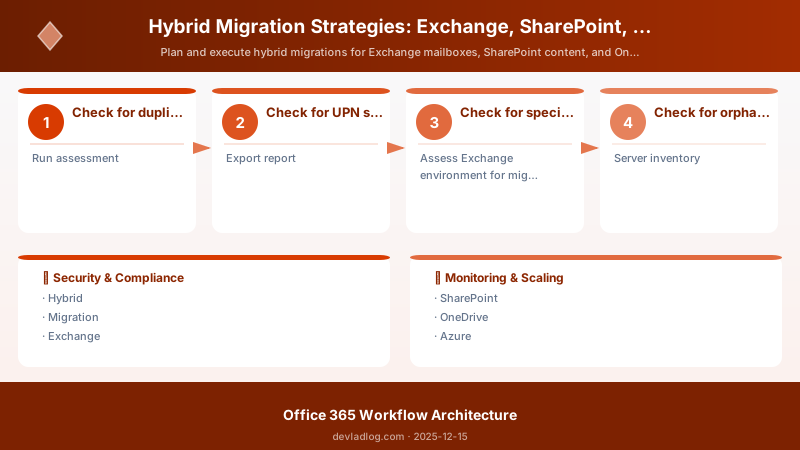
Figure: OneDrive admin – sharing policies, sync settings, and storage reports.
## Migrate home directories from file server to OneDrive
function Start-HomeDriveToOneDriveMigration {
```powershell
[CmdletBinding()]
param(
    [Parameter(Mandatory=$true)]
    [string]$HomeDirectoryRoot,  # \\FileServer\Home\


    [Parameter(Mandatory=$true)]
    [string]$MappingCSV,  # CSV: Username, EmailAddress, HomePath

    [Parameter(Mandatory=$true)]
    [string]$SharePointAdminUrl
)

Connect-SPOService -Url $SharePointAdminUrl

## Import mapping
$users = Import-Csv $MappingCSV


foreach ($user in $users) {
    $sourcePath = Join-Path $HomeDirectoryRoot $user.Username
    $upn = $user.EmailAddress.Replace("@","_").Replace(".","_")
    $oneDriveUrl = "https://contoso-my.sharepoint.com/personal/$upn"

    if (Test-Path $sourcePath) {
        Write-Host "Migrating: $($user.EmailAddress)" -ForegroundColor Cyan

        # Use SPMT or robocopy + SPMT
        # Option 1: SPMT (preferred)
        Add-SPMTTask -FileShareSource $sourcePath `
            -TargetSiteUrl $oneDriveUrl `
            -TargetList "Documents"

        # Option 2: Robocopy + Graph API upload (for very large directories)
        # $backupPath = "C:\Temp\OneDriveMigration\$($user.Username)"
        # robocopy $sourcePath $backupPath /E /COPYALL /R:3 /W:5
        # [Custom Graph API upload logic here]
    } else {
        Write-Warning "Home directory not found: $sourcePath"
    }
}

## Start SPMT migration
Start-SPMTMigration```
}
Home directory migration best practices:
- Pre-migration cleanup: Remove temp files, PST files (>20% of home drive content is typically junk)
- Size analysis: Identify users >100 GB (will require 2-5 days for initial sync)
- Permission simplification: Home directories typically have complex ACLs; OneDrive uses simplified owner-only model
- Sync client deployment: Deploy OneDrive sync client BEFORE migration (use AutoMount registry key for automatic folder mount)
Coexistence Management & Free/Busy Configuration
Free/Busy Calendar Sharing
Exchange hybrid automatically configures free/busy sharing via Organization Relationship:
## Verify free/busy configuration
Connect-ExchangeOnline


## Check organization relationship (Exchange Online perspective)
Get-OrganizationRelationship | Where-Object { $_.TargetApplicationUri -like "*outlook.com*" } |
```text
Select-Object Name, FreeBusyAccessEnabled, FreeBusyAccessLevel, TargetAutodiscoverEpr |
Format-List
Expected output:
Name: O365 to On-Premises
FreeBusyAccessEnabled: True
FreeBusyAccessLevel: AvailabilityOnly # or LimitedDetails
TargetAutodiscoverEpr: https://autodiscover.contoso.com/autodiscover/autodiscover.svc/WSSecurity
Test free/busy lookup from cloud user to on-premises user
Test-CalendarConnectivity -Identity "clouduser@contoso.com" `
-TargetEmailAddress "onpremuser@contoso.com" `
-Verbose
On-premises Exchange: verify reciprocal configuration
(Run on on-premises Exchange server)
Get-OrganizationRelationship | Where-Object { $_.Name -like "O365" } |
Select-Object Name, FreeBusyAccessEnabled, FreeBusyAccessLevel, TargetApplicationUri |
Format-List
Architecture Overview: 
Verify Autodiscover routing
From on-premises Exchange server:
Test-OutlookWebServices -Identity "user@contoso.com" |
Select-Object -ExpandProperty AutodiscoverResult |
Format-List
Expected output shows EWS/OAB/UM URLs pointing to correct environment
Figure: SSMS query editor – execution plan, results grid, and query statistics.
## Cross-Premises Delegation & Mailbox Permissions

Hybrid deployment supports **limited** cross-premises delegation:


- **Send on Behalf**: Works across premises (cloud user can send on behalf of on-premises user)
- **Full Access**: Does NOT work across premises (requires both mailboxes in same environment)
- **Send As**: Does NOT work reliably across premises


**Recommendation**: Migrate shared mailboxes and resource mailboxes in same wave as primary users to avoid delegation issues.

## Monitoring & Validation Framework

### Migration KPIs


| KPI | Target | Measurement Method |
|---|---|---|
| **Migration velocity** | 500-1000 mailboxes/day | Get-MigrationBatch TotalCount / Days |
| **Initial sync success rate** | >95% | Synced count / Total count |
| **Final cutover success rate** | >98% | Completed count / Total count |
| **Data integrity** | 100% item count match | Pre/post-migration item count comparison |
| **User-reported issues** | <5% of migrated users | Help desk ticket count / Migrated users |
| **Free/busy availability** | >99% lookup success | Test-CalendarConnectivity success rate |
| **Mail flow reliability** | >99.9% delivery | Get-MessageTrace delivery rate |
| **Rollback events** | <2% of batches | Batches requiring rollback / Total batches |

### Comprehensive Validation Script

```powershell
## Post-migration validation framework
function Test-MigrationValidation {
```powershell
[CmdletBinding()]
param(
    [Parameter(Mandatory=$true)]
    [string]$UserEmailAddress
)


Connect-ExchangeOnline

$validation = @{
    Mailbox = $null
    ItemCount = $null
    MailboxSize = $null
    Delegates = $null
    MailFlow = $null
    ActiveSync = $null
    OneDrive = $null
}

## Check mailbox exists in Exchange Online
try {
    $mailbox = Get-Mailbox -Identity $UserEmailAddress -ErrorAction Stop
    $validation.Mailbox = [PSCustomObject]@{
        Status = "Success"
        PrimarySmtpAddress = $mailbox.PrimarySmtpAddress
        Database = $mailbox.Database
        MailboxLocation = "Exchange Online"
    }
} catch {
    $validation.Mailbox = [PSCustomObject]@{
        Status = "Failed"
        Error = $_.Exception.Message
    }
    return $validation  # Cannot proceed if mailbox not found


}

## Check mailbox statistics
$stats = Get-MailboxStatistics -Identity $UserEmailAddress
$validation.ItemCount = [PSCustomObject]@{
    ItemCount = $stats.ItemCount
    TotalItemSizeMB = [math]::Round(($stats.TotalItemSize.Value.ToBytes() / 1MB), 2)
    DeletedItemCount = $stats.DeletedItemCount
}


## Check mail flow (send test email)
try {
    $testRecipient = "migrationtest@contoso.com"  # Use a test mailbox
    Send-MailMessage -From $UserEmailAddress `
        -To $testRecipient `
        -Subject "Migration Validation Test - $(Get-Date -Format 'yyyy-MM-dd HH:mm')" `
        -Body "Automated validation test" `
        -SmtpServer "smtp.office365.com" `
        -Port 587 `
        -UseSsl `
        -Credential (Get-Credential $UserEmailAddress)


    $validation.MailFlow = [PSCustomObject]@{
        Status = "Success"
        Note = "Test email sent successfully"
    }
} catch {
    $validation.MailFlow = [PSCustomObject]@{
        Status = "Failed"
        Error = $_.Exception.Message
    }
}

## Check ActiveSync device partnerships
$mobileDevices = Get-MobileDevice -Mailbox $UserEmailAddress
$validation.ActiveSync = [PSCustomObject]@{
    DeviceCount = $mobileDevices.Count
    Devices = $mobileDevices | Select-Object DeviceType, DeviceModel, FirstSyncTime
}


## Check OneDrive provisioning
try {
    $upn = $UserEmailAddress.Replace("@","_").Replace(".","_")
    $oneDriveUrl = "https://contoso-my.sharepoint.com/personal/$upn"


    Connect-SPOService -Url "https://contoso-admin.sharepoint.com"
    $site = Get-SPOSite -Identity $oneDriveUrl -ErrorAction Stop

    $validation.OneDrive = [PSCustomObject]@{
        Status = "Provisioned"
        Url = $oneDriveUrl
        StorageUsedGB = [math]::Round($site.StorageUsageCurrent / 1024, 2)
    }
} catch {
    $validation.OneDrive = [PSCustomObject]@{
        Status = "Not Provisioned"
        Error = $_.Exception.Message
    }
}

return $validation```
}

## Run validation
$validationResult = Test-MigrationValidation -UserEmailAddress "user@contoso.com"

## Display validation report
Write-Host "`n=== Migration Validation Report ===" -ForegroundColor Green
$validationResult.Mailbox | Format-List
Write-Host "`nItem Statistics:" -ForegroundColor Cyan
$validationResult.ItemCount | Format-List
Write-Host "`nMail Flow:" -ForegroundColor Cyan
$validationResult.MailFlow | Format-List
Write-Host "`nActiveSync Devices:" -ForegroundColor Cyan
$validationResult.ActiveSync | Format-List
Write-Host "`nOneDrive:" -ForegroundColor Cyan
$validationResult.OneDrive | Format-List
Rollback Procedures & Risk Mitigation
Mailbox Rollback Strategy
## Rollback mailbox from Exchange Online to on-premises
function Start-MailboxRollback {
```powershell
[CmdletBinding()]
param(
    [Parameter(Mandatory=$true)]
    [string]$UserEmailAddress,


    [string]$TargetDatabase  # On-premises database
)

## WARNING: Rollback should be used sparingly; typically only within 24-48 hours of migration


## Connect to Exchange Online
Connect-ExchangeOnline


## Create reverse migration batch (cloud to on-premises)
$batchName = "Rollback_$($UserEmailAddress.Replace('@','_'))_$(Get-Date -Format 'yyyyMMdd_HHmm')"


New-MoveRequest -Identity $UserEmailAddress `
    -Remote `
    -RemoteHostName "mail.contoso.com" `
    -RemoteCredential (Get-Credential) `
    -TargetDatabase $TargetDatabase `
    -BadItemLimit 50 `
    -LargeItemLimit 50

Write-Host "Rollback initiated for $UserEmailAddress" -ForegroundColor Yellow
Write-Host "Monitor with: Get-MoveRequest -Identity $UserEmailAddress" -ForegroundColor Cyan```
}
Rollback decision criteria:
- Timeframe: <72 hours post-migration (after 72h, delta sync makes rollback impractical)
- Data loss tolerance: Emails received in Exchange Online during rollback window will be lost unless manually forwarded
- User communication: Notify user of 2-4 hour outage during rollback
Risk Mitigation Matrix
| Risk Category | Probability | Impact | Mitigation Strategy | Contingency Plan |
|---|---|---|---|---|
| Identity sync failure | Low (5%) | Critical | 30-day sync observation before migration | Manual UPN cleanup, Azure AD Connect troubleshooting |
| Mail flow disruption | Medium (15%) | Critical | Pre-migration mail flow testing, parallel connectors | Revert MX record, enable on-premises mail flow |
| Data loss | Low (3%) | Critical | Pre-migration PST export, litigation hold | Restore from PST backup, recover from on-premises |
| Free/busy broken | Medium (20%) | High | Pre-migration OAuth validation | Rebuild organization relationship |
| Large mailbox timeout | High (30%) | Medium | Pre-identify >50GB mailboxes, extended sync window | Manual export/import via PST |
| User confusion | High (40%) | Low | Multi-channel communication plan | Extended help desk hours, self-service FAQs |
| Permission loss | Medium (10%) | Medium | Document delegate permissions pre-migration | Manually re-grant permissions post-migration |
Post-Migration Optimization & Decommissioning
Exchange Server Decommissioning Checklist
CRITICAL: Do NOT immediately decommission Exchange on-premises servers post-migration. Microsoft requires at least one Exchange 2016/2019 server to remain on-premises for:
- Recipient management (creating/modifying mailboxes, mail contacts, distribution groups)
- Hybrid configuration maintenance
- Future mailbox moves (new hires, testing)
Recommended timeline:
- Month 1-3: All user mailboxes migrated to Exchange Online
- Month 4-6: Decommission excess Exchange servers, retain minimum 2 servers (HA) for recipient management
- Month 7-12: Evaluate if hybrid configuration is still needed
- Year 2+: Consider Azure AD-only management (requires Azure AD Connect Write-Back, lost some recipient management features)
## Safely decommission Exchange server
function Remove-ExchangeServerSafely {
```powershell
[CmdletBinding()]
param(
    [Parameter(Mandatory=$true)]
    [string]$ServerName,


    [switch]$Force
)

## Safety checks
Write-Host "Performing safety checks on $ServerName..." -ForegroundColor Cyan


## Check for mailboxes
$mailboxes = Get-Mailbox -Server $ServerName -ResultSize Unlimited
if ($mailboxes.Count -gt 0) {
    Write-Warning "Server $ServerName has $($mailboxes.Count) mailboxes!"
    if (-not $Force) {
        Write-Error "Cannot decommission server with active mailboxes. Use -Force to override (NOT RECOMMENDED)"
        return
    }
}


## Check for databases
$databases = Get-MailboxDatabase -Server $ServerName
if ($databases.Count -gt 0) {
    Write-Warning "Server $ServerName has $($databases.Count) databases"
    foreach ($db in $databases) {
        $dbMailboxes = Get-Mailbox -Database $db.Identity -ResultSize Unlimited
        if ($dbMailboxes.Count -gt 0) {
            Write-Error "Database $($db.Name) has $($dbMailboxes.Count) mailboxes - migrate before decommissioning"
            return
        }


        # Remove empty database
        Write-Host "Removing database: $($db.Name)" -ForegroundColor Yellow
        Remove-MailboxDatabase -Identity $db.Identity -Confirm:$false
    }
}

## Check for send/receive connectors
$sendConnectors = Get-SendConnector -Server $ServerName
$receiveConnectors = Get-ReceiveConnector -Server $ServerName


Write-Host "Send connectors: $($sendConnectors.Count)" -ForegroundColor Cyan
Write-Host "Receive connectors: $($receiveConnectors.Count)" -ForegroundColor Cyan

## Uninstall Exchange (PowerShell)
Write-Host "`nTo complete decommissioning:" -ForegroundColor Yellow
Write-Host "1. Run Exchange Setup: Setup.exe /mode:Uninstall" -ForegroundColor Yellow
Write-Host "2. Remove server from Active Directory (if needed)" -ForegroundColor Yellow
Write-Host "3. Update DNS records to remove server references" -ForegroundColor Yellow```
}
DNS Cleanup
Post-migration DNS updates:
## DNS records to update/remove after migration
$dnsUpdates = @"
Record Type | FQDN | Current Value | New Value | Action
------------|------|---------------|-----------|--------
MX | contoso.com | mail.contoso.com (priority 10) | contoso-com.mail.protection.outlook.com (priority 0) | Update
Autodiscover (CNAME) | autodiscover.contoso.com | autodiscover.contoso.local | autodiscover.outlook.com | Update
SPF (TXT) | contoso.com | v=spf1 ip4:1.2.3.4 ~all | v=spf1 include:spf.protection.outlook.com ~all | Update
SRV (_autodiscover._tcp) | _autodiscover._tcp.contoso.com | autodiscover.contoso.com | autodiscover.outlook.com | Update
"@


Write-Host $dnsUpdates
Write-Host "`nVerify DNS propagation with: Resolve-DnsName <record> -Server 8.8.8.8" -ForegroundColor Yellow
License Optimization
Figure: M365 admin center – user management, licenses, and health dashboard.
## Identify inactive licenses post-migration
Connect-MgGraph -Scopes "User.Read.All", "Directory.Read.All"


## Get users with Exchange Online licenses
$licensedUsers = Get-MgUser -Filter "assignedLicenses/`$count ne 0" -ConsistencyLevel eventual -CountVariable count -All


$inactiveUsers = foreach ($user in $licensedUsers) {
```powershell
## Check last sign-in
$signInActivity = Get-MgUser -UserId $user.Id -Property "signInActivity"
$lastSignIn = $signInActivity.SignInActivity.LastSignInDateTime


$daysSinceSignIn = if ($lastSignIn) {
    (New-TimeSpan -Start $lastSignIn -End (Get-Date)).Days
} else {
    999  # Never signed in
}

## Flag users inactive >90 days
if ($daysSinceSignIn -gt 90) {
    [PSCustomObject]@{
        UserPrincipalName = $user.UserPrincipalName
        DisplayName = $user.DisplayName
        LastSignIn = $lastSignIn
        DaysSinceSignIn = $daysSinceSignIn
        Licenses = ($user.AssignedLicenses | ForEach-Object { $_.SkuId }) -join ", "
    }
}```
}


Write-Host "Found $($inactiveUsers.Count) inactive users (>90 days since sign-in)" -ForegroundColor Yellow
$inactiveUsers | Export-Csv -Path ".\InactiveLicensedUsers.csv" -NoTypeInformation
Write-Host "Report exported to InactiveLicensedUsers.csv" -ForegroundColor Green
Expected output:
Welcome to Microsoft Graph!
> **Architecture Overview:** 
## Mailbox batch generation from CSV
Import-Csv .\migration.csv | ForEach-Object {
New-MigrationBatch -Name "Batch-$($_.Batch)" -SourceEndpoint HybridEndpoint -CSVData ([System.IO.File]::ReadAllBytes("batch-$($_.Batch).csv")) -AutoStart
}
Best Practices
Figure: Configuration and management dashboard with status overview.
- Pilot hybrid with IT and early adopters
- Communicate schedule & what changes for end-users
- Use workload-specific owners (Exchange admin, SharePoint admin)
- Monitor migration dashboards daily
- Maintain rollback plan for critical workloads
Troubleshooting
| Issue | Cause | Resolution |
|---|---|---|
| Stalled mailbox batch | Throttling | Reduce concurrent moves; wait window |
| SharePoint list migration errors | Unsupported column types | Transform schema pre-move |
| Sync failures OneDrive | Pre-provision delay | Wait or re-run provisioning |
| Free/busy failures | Autodiscover misconfig | Validate hybrid config wizard output |
Architecture Decision and Tradeoffs
When designing productivity and collaboration solutions with Microsoft 365, consider these key architectural trade-offs:
| Approach | Best For | Tradeoff |
|---|---|---|
| Managed / platform service | Rapid delivery, reduced ops burden | Less customisation, potential vendor lock-in |
| Custom / self-hosted | Full control, advanced tuning | Higher operational overhead and cost |
Recommendation: Start with the managed approach for most workloads and move to custom only when specific requirements demand it.
Security and Governance Considerations
- Least Privilege: Grant only the permissions required for each role
- Secret Management: Store credentials in Azure Key Vault or equivalent; never hard-code secrets
- Audit Logging: Enable diagnostic and activity logs for compliance and forensic analysis
- Data Protection: Encrypt data at rest and in transit; classify data with sensitivity labels where applicable
Cost and Performance Notes
- Primary Cost Drivers: Compute tier, storage volume, and network egress
- Optimization Levers: Right-size resources, use reserved instances or savings plans, and review Azure Advisor recommendations regularly
- Performance Baseline: Define SLAs, latency targets, and throughput thresholds before going live
- Scaling Strategy: Use auto-scale rules and monitor utilisation to balance cost and responsiveness
Validation and Versioning
- Last Validated: April 2026
- Tested With: Current generally-available Microsoft 365 APIs and SDKs
- Known Constraints: Check regional availability and service limits before production deployment
Official Microsoft References
Public Examples from Official Sources
Key Takeaways
Hybrid success depends on structured phases, identity consistency, tooling selection, and rigorous validation at each milestone.
References
- https://learn.microsoft.com/exchange/hybrid-deployment
- https://learn.microsoft.com/sharepointmigration
- https://learn.microsoft.com/sharepoint/manage-user-profiles
Discussion