
SharePoint Migration Strategies: Moving to SharePoint Online
$storageGB = [math]::Round($site.Usage.Storage / 1GB, 2) $owner = $site.Owner.Email
$inventory += [PSCustomObject]@{ URL = $site.Url Title = $site.RootWeb.Title Owner = $owner StorageGB = $storageGB LastModified = $site.LastContentModifiedDate Template = $site.RootWeb.WebTemplate }``` }
$inventory | Export-Csv "SiteInventory.csv" -NoTypeInformation
Analyze storage by site
$inventory | Sort-Object StorageGB -Descending | Select-Object -First 20 | Format-Table
## Customization Assessment

```powershell


## Find farm solutions
Get-SPSolution | Select-Object Name, Deployed, LastOperationTime


## Find sandbox solutions
Get-SPSite -Limit All | ForEach-Object {
```powershell
$site = $_
$solutions = Get-SPUserSolution -Site $site


foreach ($solution in $solutions) {
    [PSCustomObject]@{
        Site = $site.Url
        Solution = $solution.Name
        Status = $solution.Status
    }
}```
} | Export-Csv "SandboxSolutions.csv" -NoTypeInformation

## Find customized master pages
Get-SPSite -Limit All | ForEach-Object {
```powershell
$web = $_.RootWeb
if ($web.CustomMasterUrl -notlike "*/_catalogs/*") {
    [PSCustomObject]@{
        Site = $web.Url
        MasterPage = $web.CustomMasterUrl
    }
}```
}
Migration Tools
SharePoint Migration Tool (SPMT)
Features:
- Free Microsoft tool
- Migrates SharePoint on-prem, file shares, Box, Google Drive
- Supports large-scale migrations
- Incremental migration capability
- Reports and error handling
Install SPMT:
## Download from Microsoft


## https://aka.ms/spmt


## Or install via PowerShell
Install-Module -Name Microsoft.SharePoint.MigrationTool.PowerShell
Expected output:
Package installed successfully.

Migration Using SPMT GUI
-
Launch SPMT
-
Sign in to Microsoft 365
-
Add source:
- SharePoint Server (on-premises)
- Enter server URL and credentials
-
Select content:
- Entire site collection
- Specific sites/libraries
- Individual folders/files
-
Configure destination:
- Target site URL
- Preserve permissions
- Version history options
-
Start migration
-
Monitor progress
-
Review reports
Migration Using SPMT PowerShell
## Import module
Import-Module Microsoft.SharePoint.MigrationTool.PowerShell


## Register source
$sourceUserName = "domain\admin"
$sourcePassword = ConvertTo-SecureString "password" -AsPlainText -Force
$sourceCred = New-Object System.Management.Automation.PSCredential($sourceUserName, $sourcePassword)


Register-SPMTMigration -SPOCredential $sourceCred `
                       -SourceSiteUrl "http://sharepoint2016/sites/team1" `
                       -TargetSiteUrl "https://contoso.sharepoint.com/sites/team1" `
                       -PreservePermissions `
                       -MigrateAllSiteFieldsAndContentTypes

## Start migration
Start-SPMTMigration


## Check status
Get-SPMTMigration


## Generate report
Export-SPMTReport -Path "C:\MigrationReports"
Bulk Migration Script
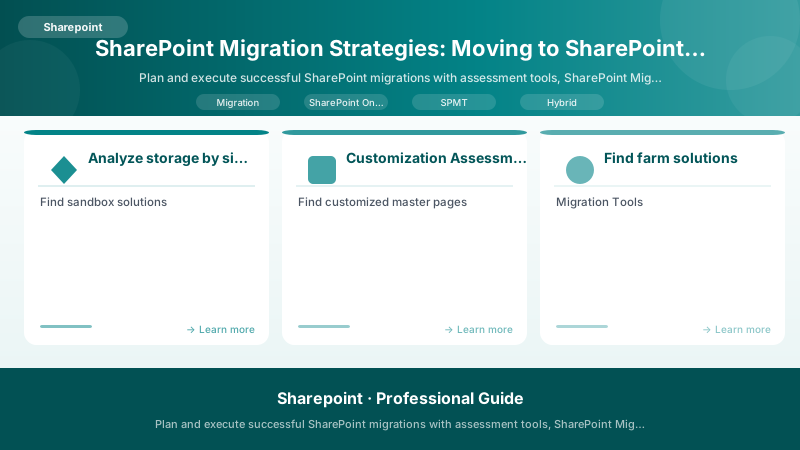
Figure: SharePoint Migration Tool – progress dashboard with status and error log.
## CSV format: SourceUrl,TargetUrl


## Example:


## http://sp2016/sites/team1,https://contoso.sharepoint.com/sites/team1


## http://sp2016/sites/team2,https://contoso.sharepoint.com/sites/team2

$mappings = Import-Csv "SiteMappings.csv"


foreach ($mapping in $mappings) {
```text
Register-SPMTMigration -SPOCredential $sourceCred `
                       -SourceSiteUrl $mapping.SourceUrl `
                       -TargetSiteUrl $mapping.TargetUrl `
                       -PreservePermissions```
}

Start-SPMTMigration -Parallel 5

## Wait for completion
do {
```powershell
$status = Get-SPMTMigration
Write-Host "Migration status: $($status.Status)"
Start-Sleep -Seconds 60```
} while ($status.Status -eq "Running")


Write-Host "Migration completed!"
Third-Party Migration Tools
ShareGate:
- User-friendly interface
- Advanced permissions mapping
- Content remediation
- Pre-migration validation
AvePoint:
- Enterprise-scale migrations
- Automated scheduling
- Custom workflows
- Compliance preservation
Metalogix:
- Incremental migrations
- Content transformation
- Security migration
- Post-migration validation
Migration Waves Planning
Wave Strategy
Wave 1: Pilot (10% of sites)
- Select representative sites
- Include various templates and sizes
- Identify and resolve issues
- Gather user feedback
Wave 2: Early Adopters (20%)
- Power users and champions
- More complex sites
- Refine processes based on pilot
Wave 3: General Migration (70%)
- Bulk of organization
- Optimized processes
- Established support
Wave Planning Spreadsheet
Wave,SiteName,SourceURL,TargetURL,Owner,StorageGB,Priority,MigrationDate
1,HR Portal,http://sp/hr,https://contoso.sharepoint.com/sites/hr,hr@contoso.com,5.2,High,2025-01-15
1,IT Support,http://sp/it,https://contoso.sharepoint.com/sites/it,it@contoso.com,3.1,High,2025-01-15
2,Sales Team,http://sp/sales,https://contoso.sharepoint.com/sites/sales,sales@contoso.com,12.4,Medium,2025-02-01
2,Marketing,http://sp/marketing,https://contoso.sharepoint.com/sites/marketing,marketing@contoso.com,8.7,Medium,2025-02-01
3,Team Site 1,http://sp/team1,https://contoso.sharepoint.com/sites/team1,team1@contoso.com,2.1,Low,2025-03-01
Scheduling Script
$waves = Import-Csv "MigrationWaves.csv"

## Group by migration date
$schedule = $waves | Group-Object MigrationDate


foreach ($date in $schedule) {
```powershell
$migrationDate = [datetime]$date.Name

if ((Get-Date) -ge $migrationDate) {
    Write-Host "Starting migration for $($date.Name)" -ForegroundColor Green

    foreach ($site in $date.Group) {
        Write-Host "  Migrating $($site.SiteName)..."

        Register-SPMTMigration -SourceSiteUrl $site.SourceURL `
                               -TargetSiteUrl $site.TargetURL `
                               -PreservePermissions
    }

    Start-SPMTMigration
}```
}
Content Remediation
Large Lists
Problem: Lists with >5000 items may have view threshold issues.
Solutions:
- Create indexed columns:
## Add index to column
$list = Get-PnPList -Identity "Large List"
$field = Get-PnPField -List $list -Identity "Modified"
$field.Indexed = $true
$field.Update()
Invoke-PnPQuery
Expected output:
Title           ItemCount  Url
-----           ---------  ---
Documents       156        /Shared Documents

- Break into multiple lists:
- Archive old items
- Use retention policies
- Separate by year/category
Broken Permissions
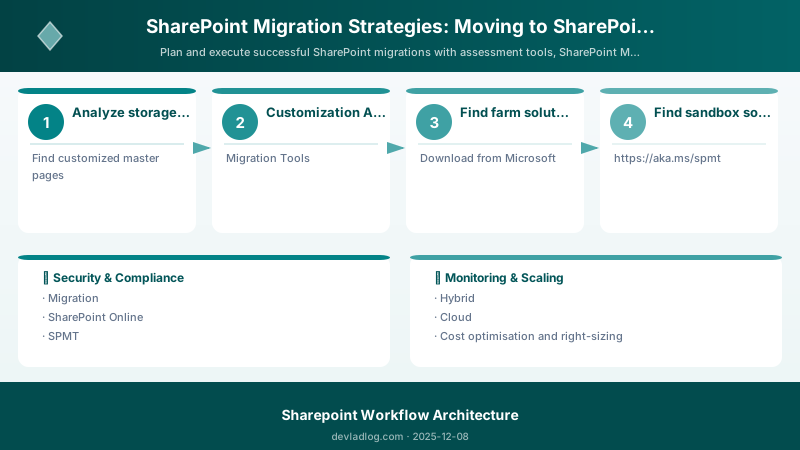
Figure: Site permissions – groups, external sharing, and access request settings.
## Find sites with broken inheritance
$sites = Get-PnPSubWeb -Recurse


$brokenPermissions = @()
foreach ($site in $sites) {
```powershell
Connect-PnPOnline -Url $site.Url -Interactive

$web = Get-PnPWeb
if (-not $web.HasUniqueRoleAssignments) {
    continue
}

$brokenPermissions += [PSCustomObject]@{
    SiteURL = $site.Url
    UniquePermissions = $true
}```
}

$brokenPermissions | Export-Csv "BrokenPermissions.csv" -NoTypeInformation
Expected output:
Connected to https://contoso.sharepoint.com

Custom Content Types
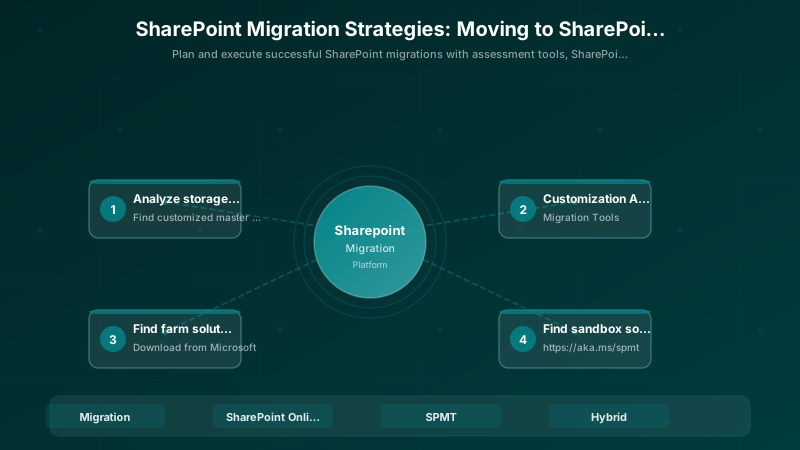
Figure: Content type hub – term store management and content syndication.
## Export content types for migration
$contentTypes = Get-PnPContentType


foreach ($ct in $contentTypes | Where-Object { $ct.Group -ne "_Hidden" }) {
```powershell
$template = Get-PnPSiteTemplate -Out "$($ct.Name).xml" -Handlers ContentTypes -ContentType $ct.Name```
}

## Import to destination
Connect-PnPOnline -Url "https://contoso.sharepoint.com/sites/target" -Interactive
Invoke-PnPSiteTemplate -Path "CustomContentType.xml"
Expected output:
Connected to https://contoso.sharepoint.com

Workflow Migration
SharePoint Designer 2013 Workflows:
- Document existing workflows
- Recreate in Power Automate
- Test thoroughly before migration
- Run in parallel during transition
Example workflow mapping:
| Old Workflow | New Power Automate Flow |
|---|---|
| Document Approval | Start and wait for approval |
| Send Email on New Item | When item created → Send email |
| Update Item on Condition | When item modified → Condition → Update item |
Hybrid Scenarios
Hybrid SharePoint
Connect on-premises SharePoint with SharePoint Online:
## Configure hybrid


## Prerequisites: Azure AD Connect, SharePoint 2016/2019


## Run Hybrid Configuration Wizard


## https://www.microsoft.com/download/details.aspx?id=51885


## Configure hybrid features:


## - Hybrid search


## - Hybrid OneDrive


## - Hybrid sites features
Hybrid Search
Inbound (Cloud to On-Prem):
## Configure cloud SSA to crawl on-prem content


## Displays on-prem results in SharePoint Online search
Outbound (On-Prem to Cloud):
## Configure on-prem SSA to display cloud results


## Unified search experience from on-prem
Phased Migration with Hybrid
- Phase 1: Set up hybrid infrastructure
- Phase 2: Migrate OneDrive for Business
- Phase 3: Migrate site collections in waves
- Phase 4: Retire on-premises infrastructure
Post-Migration Tasks
Validation Checklist
## Verify site accessibility
$targetSites = Import-Csv "MigratedSites.csv"


foreach ($site in $targetSites) {
```powershell
try {
    Connect-PnPOnline -Url $site.TargetURL -Interactive
    $web = Get-PnPWeb

    Write-Host "✓ $($web.Title) - Accessible" -ForegroundColor Green
}
catch {
    Write-Host "✗ $($site.TargetURL) - Error: $($_.Exception.Message)" -ForegroundColor Red
}```
}
Expected output:
Connected to https://contoso.sharepoint.com

Permission Verification
Figure: Site permissions – groups, external sharing, and access request settings.
## Compare permissions before and after
$sourcePermissions = Import-Csv "SourcePermissions.csv"
$targetSite = "https://contoso.sharepoint.com/sites/team1"


Connect-PnPOnline -Url $targetSite -Interactive

$targetGroups = Get-PnPGroup

foreach ($sourceGroup in $sourcePermissions) {
```powershell
$targetGroup = $targetGroups | Where-Object { $_.Title -eq $sourceGroup.GroupName }

if ($targetGroup) {
    $members = Get-PnPGroupMember -Identity $targetGroup.Id
    Write-Host "$($sourceGroup.GroupName): $($members.Count) members"
}
else {
    Write-Host "Missing group: $($sourceGroup.GroupName)" -ForegroundColor Red
}```
}
Expected output:
Connected to https://contoso.sharepoint.com

Search Reindexing
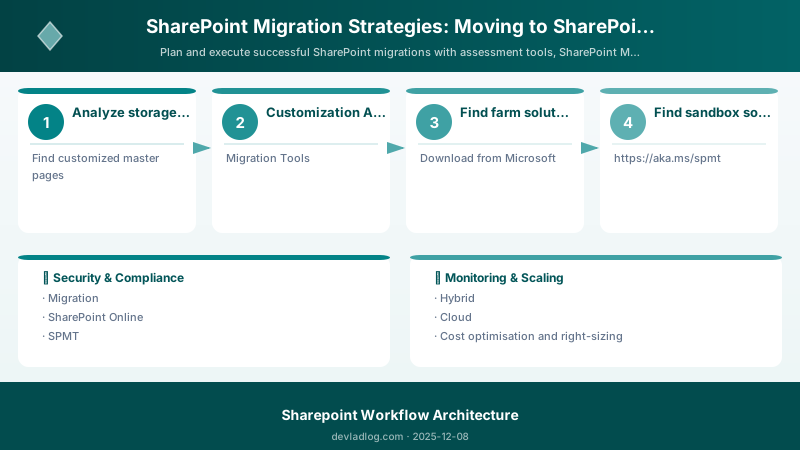
Figure: SharePoint search – refiners, result types, and managed properties.
## Request full crawl of migrated content
Connect-PnPOnline -Url "https://contoso.sharepoint.com/sites/team1" -Interactive


Request-PnPReIndexWeb
Request-PnPReIndexList -Identity "Documents"
Expected output:
Connected to https://contoso.sharepoint.com

User Training
Training Topics:
- Accessing SharePoint Online
- OneDrive sync client
- Mobile apps
- Modern vs. classic experience
- Sharing and permissions
- Version history
Resources:
- Video tutorials
- Quick reference guides
- Lunch and learn sessions
- Champions network
Best Practices
Before Migration
- Clean up content - Delete obsolete sites and documents
- Document customizations - Inventory all customizations
- Test pilot migrations - Validate approach with small sample
- Plan communications - Keep users informed
- Establish support - Have help desk ready
During Migration
- Monitor progress - Watch SPMT logs and errors
- Incremental approach - Migrate in manageable batches
- Off-hours scheduling - Minimize user impact
- Parallel migrations - Use SPMT parallel capability
- Backup source - Keep on-prem content until validated
After Migration
- Validate content - Spot-check migrated sites
- Test permissions - Verify access controls
- Reindex search - Ensure content discoverable
- Update links - Fix hardcoded URLs
- Decommission source - Retire on-premises after validation period
Migration Timeline Example
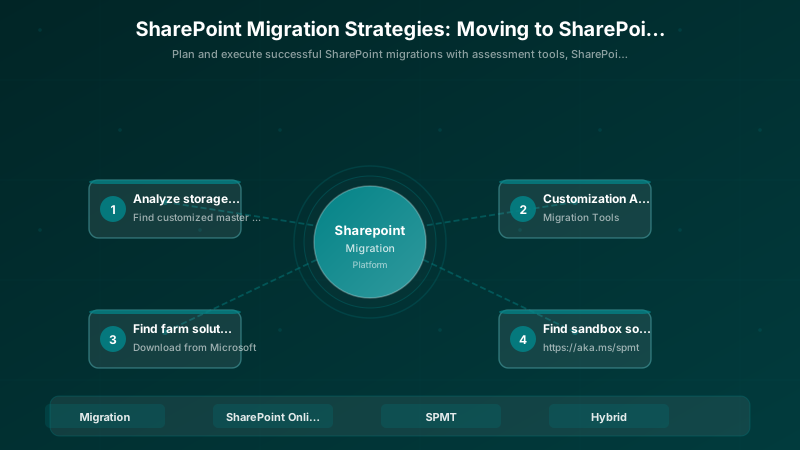
Figure: SharePoint Migration Tool – progress dashboard with status and error log.
Month 1: Assessment and Planning
- Run SMAT
- Inventory content
- Identify customizations
- Define wave strategy


Month 2: Pilot Migration
- Migrate 5-10 pilot sites
- Validate results
- Gather feedback
- Refine processes

Month 3-4: Wave 1 & 2
- Migrate 30% of sites
- Monitor and adjust
- Provide user support

Month 5-6: Wave 3 & 4
- Migrate remaining sites
- Complete validation
- Train users

Month 7: Post-Migration
- Decommission on-premises
- Final validation
- Lessons learned
Troubleshooting
Migration Errors
"Access Denied":
- Verify credentials
- Check permissions on source and target
- Ensure migration account has site collection admin
"Item Size Exceeds Maximum":
- Files >15GB cannot migrate
- Split large files or use OneDrive sync
"Too Many Requests":
- Throttled by SharePoint
- Reduce parallel migrations
- Retry with backoff
Performance Issues
## Check migration performance
Get-SPMTMigration | Select-Object -Property Status, ItemsScanned, ItemsMigrated, BytesMigrated


## Optimize settings
Set-SPMTSettings -ParallelTaskCount 10 `
                 -UseAzureADLoginForSPO $true `
                 -PreserveUserPermissions $true
Architecture Decision and Tradeoffs
When designing content management and collaboration solutions with SharePoint, consider these key architectural trade-offs:
| Approach | Best For | Tradeoff |
|---|---|---|
| Managed / platform service | Rapid delivery, reduced ops burden | Less customisation, potential vendor lock-in |
| Custom / self-hosted | Full control, advanced tuning | Higher operational overhead and cost |
Recommendation: Start with the managed approach for most workloads and move to custom only when specific requirements demand it.
Validation and Versioning
- Last validated: April 2026
- Validate examples against your tenant, region, and SKU constraints before production rollout.
- Keep module, CLI, and SDK versions pinned in automation pipelines and review quarterly.
Security and Governance Considerations
- Apply least-privilege access using RBAC roles and just-in-time elevation for admin tasks.
- Store secrets in managed secret stores and avoid embedding credentials in scripts or source files.
- Enable audit logging, data protection policies, and periodic access reviews for regulated workloads.
Cost and Performance Notes
- Define budgets and alerts, then monitor usage and cost trends continuously after go-live.
- Baseline performance with synthetic and real-user checks before and after major changes.
- Scale resources with measured thresholds and revisit sizing after usage pattern changes.
Official Microsoft References
- https://learn.microsoft.com/sharepoint/
- https://learn.microsoft.com/microsoft-365/enterprise/
- https://learn.microsoft.com/purview/
Public Examples from Official Sources
- These examples are sourced from official public Microsoft documentation and sample repositories.
- Documentation examples: https://learn.microsoft.com/sharepoint/dev/
- Sample repositories: https://github.com/SharePoint/sp-dev-docs
- Prefer adapting these examples to your tenant, subscriptions, and governance requirements before production use.
Key Takeaways
- Thorough assessment prevents migration issues
- SPMT is the recommended free migration tool
- Wave approach reduces risk and user impact
- Content remediation improves migration success
- Hybrid enables phased transitions
- Validation and testing are critical
- User training ensures adoption
Next Steps
- Run SharePoint Migration Assessment Tool
- Create detailed migration plan with waves
- Pilot migration with representative sites
- Document lessons learned for full rollout
Additional Resources
Plan carefully. Migrate confidently.
Discussion