
SharePoint Search: Making Content Discoverable
Introduction
Users don't adopt content they can't find. SharePoint search quality depends on three pillars: structured metadata (content types, site columns, term sets), managed properties (crawled data mapped to refinable/sortable slots), and user experience (verticals, result templates, dynamic rollups). When implemented systematically, search becomes the primary navigation—driving adoption, reducing duplicate creation, and enabling governance through analytics.
This guide covers metadata design, managed property configuration, search center customization, PnP Modern Search web parts, and troubleshooting refinement issues.
Business Scenario
A global enterprise intranet hosts 50,000+ documents across 200 site collections. Users resort to email attachments because search returns irrelevant results or doesn't surface recent policy updates. The solution: consistent metadata (Department, Document Type, Audience), mapped managed properties for refiners, and a custom search center with verticals for Policies, Projects, and Training.
Prerequisites
- SharePoint Online tenant
- Search schema management permissions
- Site collection admin for target sites
Solution Overview
| Layer | Element | Purpose |
|---|---|---|
| IA | Hubs & Navigation | Contextual grouping |
| Metadata | Content Types & Columns | Structured tagging |
| Search | Managed Properties | Refinement & relevance |
| UX | Highlighted Content / PnP | Dynamic surfacing |
Implementation Guide
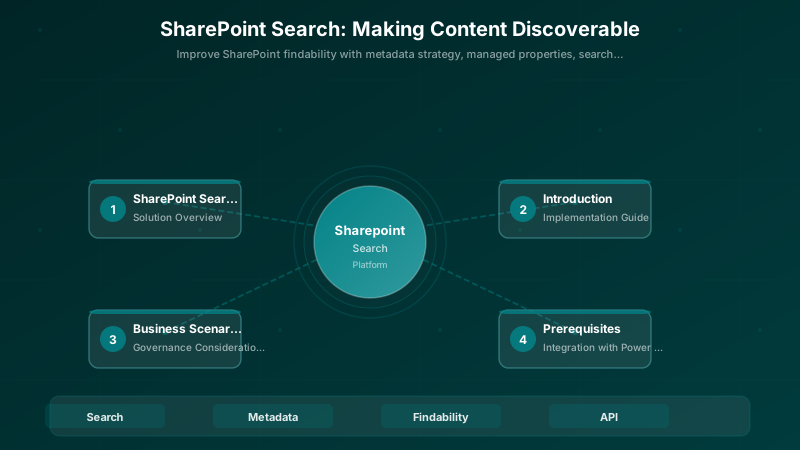
Figure: Content discoverability through metadata architecture and search optimization
Step 1: Design Metadata Strategy
Define 3-5 core site columns (e.g., Department, Document Type, Audience) and add them to content types. Use Term Sets for controlled vocabularies. Avoid freeform text fields for filters; prefer Choice or Managed Metadata.
PnP PowerShell to create a site column:
Connect-PnPOnline -Url https://contoso.sharepoint.com/sites/Intranet -Interactive
Add-PnPField -DisplayName "Department" -InternalName "Department" -Type Choice -Choices "HR","Finance","IT","Sales" -Group "Custom Columns"
Expected output:
Connected to https://contoso.sharepoint.com

Add to content type:
Add-PnPFieldToContentType -Field "Department" -ContentType "Corporate Document"
Step 2: Configure Managed Properties
Crawled properties (e.g., ows_Department) must map to managed properties. Use pre-defined RefinableString00-99 slots for custom fields. Set "Queryable", "Refinable", and "Sortable" as needed.
PnP PowerShell to map:
# Get the crawled property name (run a test crawl first)
$crawled = Get-PnPSearchCrawledProperty -Name "ows_Department"

# Map to RefinableString00
Set-PnPSearchConfiguration -Scope Site -Configuration @"
<SearchConfigurationSettings>
  <ManagedProperties>
    <ManagedProperty Name="DepartmentRefinable" Pid="100">
      <Mappings>
        <Mapping CrawledPropertyName="ows_Department" />
      </Mappings>
    </ManagedProperty>
  </ManagedProperties>
</SearchConfigurationSettings>
"@
Trigger full crawl via Search Admin or wait for incremental.
Step 3: Build Search Center Experience
Create verticals (tabs) to segment results by type (Documents, Policies, People). Use result sources to pre-filter queries. Customize result templates with display templates or PnP Modern Search web parts.
Example result source query (Policies vertical):
ContentClass:STS_ListItem_DocumentLibrary AND DocumentType:Policy
Add refiners (Department, Year) to the search results web part configuration. Use query rules to boost recent or pinned content.
Step 4: Enhance with Highlighted Content Web Part
Use Highlighted Content on landing pages to surface recent documents, popular items, or filtered content dynamically.
Example queries:
Recent HR documents:
{"query":"DepartmentRefinable:HR AND FileType:docx","sortField":"LastModifiedTime","sortOrder":"desc"}
All Project deliverables:
{"query":"ContentTypeId:0x0101* AND RefinableString00:Project","selectProperties":["Title","Path","Author"]}
Configure filters, card layouts, and audience targeting in web part settings.
Governance Considerations
- Permissions: Avoid overscoped item-level permissions impacting crawl; search respects trimming but excessive unique permissions slow indexing.
- Retention: Ensure archived content moved to distinct site collections or tagged with retention labels so search excludes or de-prioritizes it.
- Syntex: Use SharePoint Syntex for AI-driven content type classification and metadata extraction at scale.
- Query Analytics: Monitor top queries, zero-result queries, and click-through in Search Analytics to refine managed properties and query rules.
- Metadata Discipline: Enforce required fields on content types; consider approval workflows to ensure tagging completeness before publication.
Integration with Power Platform
- Power Automate: Scheduled metadata enrichment or archival
- PowerApps: Custom search input component with suggestions
- Power BI: Search analytics for query success rates
Best Practices
- Keep Metadata Sets Small & Meaningful: Limit to 5-7 core fields; too many refiners overwhelm users.
- Train Authors on Tagging Discipline: Provide clear guidelines, examples, and validation rules on content types.
- Monitor Top Failed Queries Monthly: Use Search Analytics to identify gaps; add synonyms or query rules to improve relevance.
- Use PnP Modern Search for Advanced UX: Offers filters, sorting, and custom templates beyond out-of-box web parts.
- Leverage Audience Targeting: Show content only to relevant groups via Highlighted Content or audience-enabled libraries.
- Pre-populate Metadata with Power Automate: Auto-tag based on folder, filename patterns, or approval metadata.
- Test Search as End User: Regularly audit results from non-admin accounts to validate trimming and relevance.
Troubleshooting
Issue: Property not refinable
Solution: Re-map to RefinableString slot & reindex site; ensure managed property flags (Refinable, Queryable) are enabled.
Issue: Result relevance poor
Solution: Use XRANK in query rules or adjust managed property weights; add promoted results for critical queries.
Issue: Recently uploaded documents not appearing
Solution: Incremental crawl runs every 15 minutes; check crawl log for errors; ensure item-level permissions don't block indexing.
Issue: Managed property not available in search schema
Solution: Verify crawled property exists (run full crawl); map it via Search Schema page or PnP; allow 24 hours for propagation.
Issue: Highlighted Content returns no results
Solution: Validate query syntax in Search Results web part first; check that managed properties are spelled correctly and site is crawled.
Architecture Decision and Tradeoffs
When designing content management and collaboration solutions with SharePoint, consider these key architectural trade-offs:
| Approach | Best For | Tradeoff |
|---|---|---|
| Managed / platform service | Rapid delivery, reduced ops burden | Less customisation, potential vendor lock-in |
| Custom / self-hosted | Full control, advanced tuning | Higher operational overhead and cost |
Recommendation: Start with the managed approach for most workloads and move to custom only when specific requirements demand it.
Validation and Versioning
- Last validated: April 2026
- Validate examples against your tenant, region, and SKU constraints before production rollout.
- Keep module, CLI, and SDK versions pinned in automation pipelines and review quarterly.
Security and Governance Considerations
- Apply least-privilege access using RBAC roles and just-in-time elevation for admin tasks.
- Store secrets in managed secret stores and avoid embedding credentials in scripts or source files.
- Enable audit logging, data protection policies, and periodic access reviews for regulated workloads.
Cost and Performance Notes
- Define budgets and alerts, then monitor usage and cost trends continuously after go-live.
- Baseline performance with synthetic and real-user checks before and after major changes.
- Scale resources with measured thresholds and revisit sizing after usage pattern changes.
Official Microsoft References
- https://learn.microsoft.com/sharepoint/
- https://learn.microsoft.com/microsoft-365/enterprise/
- https://learn.microsoft.com/purview/
Public Examples from Official Sources
- These examples are sourced from official public Microsoft documentation and sample repositories.
- Documentation examples: https://learn.microsoft.com/sharepoint/dev/
- Sample repositories: https://github.com/SharePoint/sp-dev-docs
- Prefer adapting these examples to your tenant, subscriptions, and governance requirements before production use.
Key Takeaways
- Metadata + Managed Properties Drive Relevance: Structured tagging and proper mapping are foundational.
- UX Surfacing Accelerates Adoption: Verticals, Highlighted Content, and PnP Modern Search make content easily accessible.
- Continuous Analytics Refinement Improves Outcomes: Monitor queries, failed searches, and click-through to iterate on schema and query rules.
- Permissions and Governance Matter: Search respects security trimming; excessive unique permissions slow crawls and complicate relevance.
Next Steps
- Add vertical for people/profile search to unify document and expertise discovery
- Introduce SharePoint Syntex for auto-classification and extraction at scale
- Pilot PnP Modern Search for advanced filtering and custom result layouts
- Set up monthly query analytics reviews with content owners
Additional Resources
What search improvement had the biggest impact for you?
Discussion