
Modern SharePoint Sites: Design Principles That Work
"Neutral Colors": ["#F3F2F1", "#E1DFDD", "#C8C6C4"], "Fonts": {
"Headings": "Segoe UI Semibold",
"Body": "Segoe UI Regular"```
  },
  "Logo": "Max height 48px, transparent background"
}
Principle 5: Design for Discoverability
The Problem: Excellent content hidden by poor information architecture and inadequate search optimization. Studies show that 70% of intranet users start with browsing, not search—but when browsing fails, they need search to succeed.
The Solution: Structure content, metadata, and search to surface the right information at the right time. Microsoft Search in SharePoint is contextual and personal—it shows different results based on where users search and their permissions.
Implementation
-
Implement Metadata Consistently
- Define key metadata columns: Department, Topic, Audience, Status
- Use managed metadata (term store) for controlled vocabulary
- Apply metadata to pages, documents, and news posts
- Enable metadata navigation in libraries
-
Optimize for Search
- Use descriptive page titles (60 characters or less)
- Write compelling descriptions (150-160 characters)
- Include keywords naturally in content
- Add alt text to images
- Use headings to structure content semantically
-
Create Strategic Quick Links
- Group links by task or topic, not department
- Use descriptive link text ("Submit Expense Report" not "Click Here")
- Add descriptions to quick links for context
- Update regularly to remove dead links
-
Leverage Web Parts for Discoverability
- Highlighted Content Web Part: Dynamically show recent or relevant content
- News Web Part: Feature important announcements
- Site Directory: Help users find related sites
- Search Box Web Part: Provide scoped search options
Real-World Scenarios
Scenario 1: Department Hub Migration (HR)
Challenge: HR department had 15 separate classic sites with inconsistent navigation, duplicated content, and confused users.
Solution Implementation:
Architecture Overview: ## Step 1: Create HR Hub Site
Automating Modern SharePoint with PowerShell
For consistent, repeatable deployments, administrators use SharePoint Online Management Shell and PnP PowerShell to automate hub provisioning, theme application, site association, and governance policies.
Figure: Visual Studio Code with PowerShell showing SharePoint Online and PnP PowerShell commands for provisioning hub sites, associating sites to hubs, applying custom themes, configuring navigation, and automating governance policies—demonstrating the automation patterns used in the HR hub migration and enterprise scenarios in this guide.
Design Decisions:
- Hub Navigation (5 items):
- Policies & Procedures
- Benefits & Compensation
- Onboarding & Training
- HR Forms Library
- Contact HR
- Hub Home Page Layout:
- Hero: Open enrollment announcement (2 tiles)
- News: Recent HR updates (3 articles)
- Quick Links: Top 6 HR tasks (Submit PTO, Update Info, View Paystub, Benefits Summary, Policy Search, Contact Us)
- Highlighted Content: "Recently Updated Policies" (auto-filtered)
- Unified Theme: Corporate blue (#0078D4) with HR accent color (#8764B8)
- Mobile Testing: Verified all forms mobile-accessible via Power Apps integration
Results After 3 Months:
- ✅ 92% reduction in "Where is X?" support tickets
- ✅ 450% increase in policy document views
- ✅ 68% of access from mobile devices
- ✅ 95% user satisfaction score in feedback survey
Modern Site Design Process
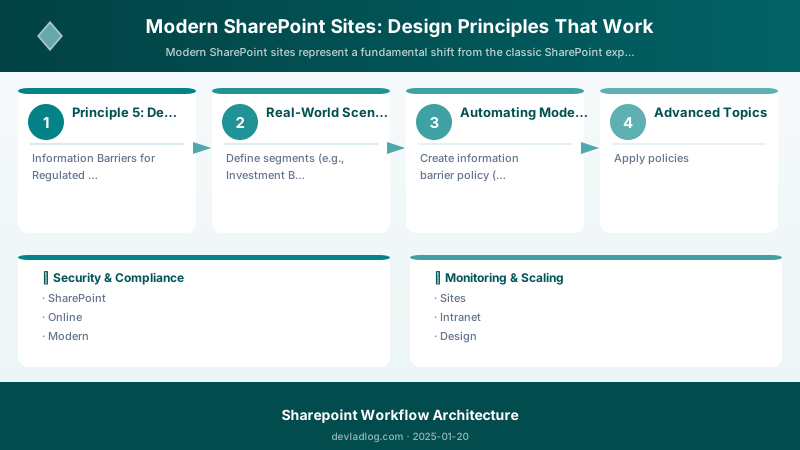
The HR hub migration followed a structured design workflow from stakeholder discovery through iterative improvement, ensuring the new modern architecture met user needs while establishing sustainable governance.
Figure: End-to-end modern site design workflow showing four iterative stages—discovery and planning with stakeholder interviews, information architecture and hub design, page layout and content authoring, and launch with governance and continuous improvement—demonstrating the methodology used for the HR hub migration and intranet scenarios throughout this article.
Scenario 2: Project Collaboration Site (Marketing Campaign)
Challenge: Marketing team launching major product campaign needed centralized collaboration while maintaining strict timeline.
Solution Implementation:
Site Type: Team Site (with Microsoft 365 Group)
Hub Association: Marketing Hub
Team Integration: Microsoft Teams channel created automatically

Page Structure:
  Home:
```text
- Hero: Campaign timeline & milestones (1 tile)
- News: Daily standup updates (team members post)
- Document Library: Filtered view showing "Campaign Assets"
- Planner: Embedded task board showing sprint progress
Creative Assets:
- Image web part: Campaign visuals gallery
- Document library: Filtered by "Asset Type" metadata
- Version history enabled for all creative files
Budget Tracking:
- Embedded Excel workbook (live co-authoring)
- Power BI report: Campaign spend dashboard
Team Members:
- People web part: 12 team members with roles
- Quick Links: Slack channel, shared calendar, budget spreadsheet
**Key Features Leveraged:**

1. **Microsoft 365 Group Benefits**:
   - Automatic SharePoint + Teams + Planner + Outlook integration
   - Shared group calendar for campaign milestones
   - Group conversations in Outlook for email threads
2. **Permission Strategy**:
   - Campaign team: Edit access via M365 group membership
   - Stakeholders: Read-only via SharePoint group
   - External agency: Guest access limited to Creative Assets library
3. **Content Approval Workflow**:
   - Power Automate flow: When creative asset uploaded → Notify creative director → Approval required → Move to "Approved" folder
4. **Mobile Access**: Sales team views campaign materials on tablets during client meetings


**Results:**

- ✅ Campaign launched 2 weeks ahead of schedule
- ✅ Zero file version conflicts (real-time co-authoring)
- ✅ 100% stakeholder visibility without status meetings
- ✅ External agency collaboration seamless (no VPN required)


### Scenario 3: Intranet Home Site with Global Navigation

**Challenge:** 5,000-employee organization needed unified tenant-wide navigation across 200+ sites.

**Solution Implementation:**


> **Architecture Overview:** ## Step 1: Designate home site (requires SharePoint admin)


**Global Navigation Structure** (SharePoint App Bar):


> **Architecture Overview:** 🏠 Home → https: contoso.sharepoint.com sites Intranet


**Intranet Home Page Design:**

1. **Hero Section** (Full-width, 2 tiles):
   - Tile 1: CEO message video (quarterly update)
   - Tile 2: Company town hall registration (call-to-action)
2. **News Section** (Hub layout, 4 articles):
   - Aggregated from all hubs using News web part
   - Audience targeting: Different news for IT vs Sales vs HR
3. **Quick Links Section** (Icon grid, 8 links):
   - Organized by task: "I need to..." (Submit expense, Book travel, Request IT help, etc.)
4. **Org News Section** (News web part):
   - Filtered to show only "Organization News" (boosted by admins)
5. **Sites Directory** (Sites web part):
   - Recommended sites based on user's department and role
6. **Footer** (Custom HTML):
   - Privacy Policy | Accessibility | IT Support | Feedback | © 2025 Contoso


**Advanced Features:**

- **Audience Targeting**: IT staff see different Quick Links than Finance team
- **Multilingual Pages**: English, Spanish, French translations for global workforce
- **Viva Connections Integration**: Same navigation in Microsoft Teams mobile app
- **Analytics Dashboard**: Power BI embedded showing page views, popular content, search queries


**Results After 6 Months:**

- ✅ 89% employee awareness of home site (up from 23%)
- ✅ 4.2 average pages viewed per session (up from 1.8)
- ✅ 73% reduction in "How do I find X?" helpdesk tickets
- ✅ 82% of employees access via mobile (Viva Connections app)


## Advanced Topics

### Audience Targeting for Personalized Experiences


Modern SharePoint supports audience targeting on navigation links, web parts, news posts, and pages. This ensures users see only relevant content.

**Implementation Example:**


> **Architecture Overview:** ## Enable audience targeting on a list library


**Expected output:**

```text
Title           ItemCount  Url
-----           ---------  ---
Documents       156        /Shared Documents

Use Cases:
- Department-Specific News: HR news targeted to HR department group
- Regional Content: Office-specific safety procedures targeted by location
- Role-Based Quick Links: Managers see different quick links than individual contributors
- Language Preferences: Content automatically shown in user's preferred language
Best Practices:
- ⚠️ Don't rely on audience targeting for security — it only hides content from UI, doesn't enforce permissions
- ✅ Use security groups or Microsoft 365 groups for reliable targeting
- ✅ Test targeting with users from different groups before rolling out
- ✅ Provide fallback content for users who don't match any audience
Information Barriers for Regulated Industries
For organizations requiring strict information isolation (finance, healthcare, legal), SharePoint supports Microsoft 365 Information Barriers.
What Information Barriers Do:
- Prevent users in different segments from finding each other in search
- Block site sharing between incompatible segments
- Hide content in search results from restricted segments
- Enforce compliance in SharePoint, Teams, OneDrive, and Yammer
Configuration Example (requires Compliance admin):
## Define segments (e.g., Investment Banking vs. Research)
New-OrganizationSegment -Name "InvestmentBanking" -UserGroupFilter "Department -eq 'Investment Banking'"
New-OrganizationSegment -Name "Research" -UserGroupFilter "Department -eq 'Research'"


## Create information barrier policy (block communication)
New-InformationBarrierPolicy -Name "IB-Research-Barrier" `
  -AssignedSegment "InvestmentBanking" `
  -SegmentsBlocked "Research" `
  -State Active


## Apply policies
Start-InformationBarrierPoliciesApplication
Impact on SharePoint:
- Users in Investment Banking cannot find Research team members in people search
- Research sites do not appear in Investment Banking users' site search
- Sharing Research documents with Investment Banking users is blocked automatically
Multilingual Sites for Global Organizations
Modern communication sites support multilingual capabilities:
Setup Steps:
- Enable multilingual pages (Site Settings → Language settings)
- Add translation languages (e.g., Spanish, French, German)
- Translate navigation manually per language
- Create translated pages:
- Original page creates corresponding page in language folder
- Translator or site owner fills in translated content
- Both versions linked automatically
Example:
/SitePages/Welcome.aspx (English - default)
/SitePages/es-es/Welcome.aspx (Spanish translation)
/SitePages/fr-fr/Welcome.aspx (French translation)

User with Spanish language preference automatically sees Spanish version.
Best Practices:
- ✅ Translate navigation labels manually (not automatic)
- ✅ Use professional translators for critical content
- ✅ Enable translation notifications to alert when source page changes
- ✅ Test with users who have different language preferences
Governance and Compliance
Site Lifecycle Management
Establish Clear Policies:
Architecture Overview: Site Creation:
Implement with Power Automate:
- Flow 1: Site creation request form → Approval → Provision site via API
- Flow 2: Weekly check for sites with no activity in 180 days → Email owner
- Flow 3: Approaching expiration date → Send renewal reminder
- Flow 4: Expiration reached → Archive content → Delete site
Content Approval Workflows
For high-visibility communication sites (intranet home, CEO blog), implement page approval:
Architecture Overview: ## Enable page approval (via UI: Site Pages library settings)
Results: 300% increase in unique visitors, 60% reduction in support requests, 85% positive feedback, 40% mobile traffic
Use Cases
Interface Use Case
Modern SharePoint sites provide an intuitive, responsive interface with global navigation, hub-level navigation, and local site navigation that adapts seamlessly across desktop, tablet, and mobile devices.
Figure: Modern SharePoint home site showing global navigation via the SharePoint app bar, hub navigation for related sites, and a content-rich home page with news web parts, quick links, and highlighted content used in the intranet scenarios throughout this guide.
Workflow Use Case
Designing and deploying modern SharePoint sites follows a structured workflow from discovery and planning through iterative improvement, ensuring sites meet user needs and organizational standards.
Figure: End-to-end modern site design workflow showing four key stages—discovery and planning with stakeholder input, information architecture and hub design, page layout and content authoring, and launch with governance and continuous improvement—demonstrating the approach used for the HR hub and intranet examples in this article.
Implementation Use Case
Modern SharePoint governance and automation are implemented using SharePoint Online Management Shell and PnP PowerShell scripts executed in Visual Studio Code for consistent, repeatable site provisioning and configuration.
Figure: Visual Studio Code with PowerShell showing SharePoint Online and PnP PowerShell commands for provisioning hub sites, associating sites, applying themes, configuring navigation, and automating governance policies as demonstrated in the HR hub migration scenario.
Common Pitfalls to Avoid
- Feature Overload: Just because you can add 20 web parts doesn't mean you should. Limit home pages to 5-7 web parts maximum.
- Ignoring Mobile: Always preview and test on mobile devices. Use Settings → Preview → Mobile in SharePoint.
- Inconsistent Structure: Don't let every site owner invent their own navigation. Establish templates and standards.
- Stale Content: Outdated content is worse than no content—implement governance with expiration policies.
- Missing Metadata: Content without metadata is nearly impossible to find at scale. Mandate key columns: Department, Topic, Audience.
- Over-reliance on Folders: Folders limit discoverability. Use metadata and views instead of deep folder structures.
- Broken Permissions Inheritance: Every broken inheritance adds complexity. Use SharePoint groups and Microsoft 365 groups instead.
- No Search Optimization: Pages without descriptions don't appear in search previews. Always add metadata and descriptions.
- Neglecting Hub Planning: Creating hubs without strategy leads to confusion. Plan hub hierarchy before implementation.
- Skipping User Testing: Designs that work for IT don't always work for end users. Test with real user groups before launch.
Troubleshooting Common Issues
Issue 1: Navigation Not Appearing on Associated Sites
Symptoms: Hub navigation doesn't show on sites you associated to the hub.
Diagnosis:
## Check if site is actually associated
Get-SPOHubSite | Format-List Title,SiteUrl,ID
Get-SPOSite -Identity https://contoso.sharepoint.com/sites/YourSite | Select AssociatedHubSiteId


## If AssociatedHubSiteId is 00000000-0000-0000-0000-000000000000, it's not associated
Solutions:
-
Re-associate the site:
Add-SPOHubSiteAssociation -Site https://contoso.sharepoint.com/sites/YourSite ` -HubSite https://contoso.sharepoint.com/sites/YourHub -
Check hub permissions: Site must have permission to associate (controlled by hub owner)
-
Clear browser cache: Hub navigation cached for 24 hours; hard refresh (Ctrl+F5)
-
Verify hub site is published: Hub site itself must be published and accessible
Issue 2: Mobile Layout Broken or Content Cut Off
Symptoms: Content appears correctly on desktop but broken on mobile devices.
Root Causes:
- Custom HTML/CSS not responsive
- Horizontal layouts with more than 2 columns
- Fixed-width images exceeding mobile viewport
- Custom web parts without mobile support
Solutions:
- Use Mobile Preview: Settings → Preview → Mobile to test before publishing
- Limit Columns: Use 1-column sections or max 2-column layouts (stack automatically on mobile)
- Responsive Images: Ensure images have max-width: 100% in properties
- Avoid Custom HTML: Custom HTML often not responsive; use out-of-box web parts
- Test on Real Devices: Emulators don't catch all issues; test on iOS and Android
Quick Fix for Images:
<!-- If using HTML web part, add this CSS -->
<style>
  img {
```yaml
max-width: 100% !important;
height: auto !important;```
  }
</style>
Issue 3: Search Not Finding Recently Published Content
Symptoms: New pages or documents don't appear in search results even hours after publishing.
Diagnosis:
## Check indexing status (SharePoint admin)
Get-SPOSite -Identity https://contoso.sharepoint.com/sites/YourSite |
  Select Url, NoScriptSite, SearchScope


## NoScriptSite = True can block indexing (rare in modern sites)


## SearchScope = DefaultScope means indexed
Solutions:
-
Wait for Crawl: Search index updates every 15 minutes to several hours depending on activity
-
Check Page Permissions: Pages with restricted permissions may not appear for all users
-
Verify Page is Published: Draft pages and pages in approval workflow not indexed
-
Add Metadata: Pages with title, description, and proper metadata rank higher
-
Manual Re-index (if urgent):
# Force site re-index (SharePoint admin only) Request-SPOReIndex -Identity https://contoso.sharepoint.com/sites/YourSite -
Check Managed Properties: Custom columns may not be mapped to searchable properties
Issue 4: Highlighted Content Web Part Shows No Results
Symptoms: Highlighted Content web part configured but displays "No items to show."
Common Causes:
- Filter criteria too restrictive (no content matches)
- Source site/library has no content or all content filtered out by permissions
- Metadata columns not populated on source items
- Web part pointing to wrong source location
Solutions:
- Simplify Filters: Start with broad filter (e.g., "Modified in last 30 days") and narrow down
- Check Source: Verify source library/site has content you expect to see
- Test Permissions: Log in as different user to confirm content visible
- Populate Metadata: Web part can't filter on empty metadata fields
- Use "This Site" Source: Easiest to test; expands scope after confirming it works
Debugging Steps:
1. Edit web part → Change source to "This site"
2. Remove all filters
3. If content appears → Re-add filters one at a time to find issue
4. If no content → Check document library has items you can see
5. Verify "Show items from" setting includes correct content types


> **Architecture Overview:** ### Issue 5: Hub Association Fails with "Access Denied"

   # Allow anyone to associate their sites to this hub
   Set-SPOHubSite -Identity https://contoso.sharepoint.com/sites/MainHub `
     -EnablePermissionsSync $true

   # Or grant specific users
   Grant-SPOHubSiteRights -Identity https://contoso.sharepoint.com/sites/MainHub `
     -Principals "user@contoso.com" `
     -Rights Join


> **Architecture Overview:** 3. **SharePoint Admin Override:** SharePoint administrators can always associate any site to any hub

## Verify home site is configured (required for global nav)
Get-SPOHomeSite


## If returns error "No home site configured":
Set-SPOHomeSite -HomeSiteUrl https://contoso.sharepoint.com/sites/Intranet


## Then configure app bar in SharePoint admin center:


## Settings → App bar → Enable global navigation
Common Issues:
- Home site not designated (global nav requires home site)
- App bar disabled in SharePoint admin center
- User doesn't have permission to view home site
- Browser cache showing old version (clear cache)
Note: Global navigation rollout can take 24-48 hours after enabling.
Governance Considerations
-
Permissions: Limit site owner roles to trained personnel; use SharePoint groups for scalable permission management
-
Content Approval: For high-visibility sites, implement page approval workflows using Power Automate
-
Metadata Standards: Document required vs. optional metadata fields; provide examples and training
-
Review Cadence: Quarterly content audits to remove outdated pages and update navigation
-
Templates: Centralize page templates and provide documentation for content authors
Integration with Power Platform
-
Power Automate: Create flows to notify teams when new content is published, archive old documents automatically, or request content review at scheduled intervals
-
PowerApps: Build custom forms for content submission, feedback collection, or site request workflows embedded directly in SharePoint pages
-
Power BI: Embed usage analytics dashboards to show page views, popular content, search queries, and user engagement metrics
Architecture Decision and Tradeoffs
When designing content management and collaboration solutions with SharePoint, consider these key architectural trade-offs:
| Approach | Best For | Tradeoff |
|---|---|---|
| Managed / platform service | Rapid delivery, reduced ops burden | Less customisation, potential vendor lock-in |
| Custom / self-hosted | Full control, advanced tuning | Higher operational overhead and cost |
Recommendation: Start with the managed approach for most workloads and move to custom only when specific requirements demand it.
Validation and Versioning
- Last validated: April 2026
- Validate examples against your tenant, region, and SKU constraints before production rollout.
- Keep module, CLI, and SDK versions pinned in automation pipelines and review quarterly.
Security and Governance Considerations
- Apply least-privilege access using RBAC roles and just-in-time elevation for admin tasks.
- Store secrets in managed secret stores and avoid embedding credentials in scripts or source files.
- Enable audit logging, data protection policies, and periodic access reviews for regulated workloads.
Cost and Performance Notes
- Define budgets and alerts, then monitor usage and cost trends continuously after go-live.
- Baseline performance with synthetic and real-user checks before and after major changes.
- Scale resources with measured thresholds and revisit sizing after usage pattern changes.
Official Microsoft References
- https://learn.microsoft.com/sharepoint/
- https://learn.microsoft.com/microsoft-365/enterprise/
- https://learn.microsoft.com/purview/
Public Examples from Official Sources
- These examples are sourced from official public Microsoft documentation and sample repositories.
- Documentation examples: https://learn.microsoft.com/sharepoint/dev/
- Sample repositories: https://github.com/SharePoint/sp-dev-docs
- Prefer adapting these examples to your tenant, subscriptions, and governance requirements before production use.
Key Takeaways
- ✅ Flat Architecture Wins: Modern SharePoint hubs replace hierarchical subsites—flexible, maintainable, scalable
- ✅ Three Navigation Levels: Global (app bar) + Hub + Local creates comprehensive wayfinding without complexity
- ✅ Content-First Always: Start with user needs and content strategy, then choose layouts and web parts
- ✅ Mobile Is Mandatory: 40-60% of SharePoint traffic is mobile—test every design decision on real devices
- ✅ Consistency Builds Trust: Unified themes, templates, and standards across sites improve user confidence
- ✅ Metadata Drives Discovery: Rich metadata + search optimization + dynamic web parts surface right content to right people
- ✅ Governance Prevents Chaos: Site lifecycle policies, content approval, and training ensure long-term success
- ✅ Hub Sites Connect: One hub can unify 50+ related sites with shared navigation, branding, and aggregated content
- ✅ Audience Targeting Personalizes: Show different content to different groups without creating separate sites
- ✅ Test With Real Users: IT-approved designs don't always match user needs—validate before enterprise rollout
Implementation Checklist
Phase 1: Planning (Week 1-2)
- [ ] Audit existing sites and identify pain points
- [ ] Define hub architecture (which sites belong to which hubs)
- [ ] Document user personas and key tasks
- [ ] Establish branding standards (colors, logos, fonts)
- [ ] Create navigation structure (global, hub, local)
- [ ] Define metadata taxonomy (departments, topics, audiences)
Phase 2: Design (Week 3-4)
- [ ] Create custom theme matching brand
- [ ] Build page templates for common scenarios
- [ ] Design home page mockups (desktop and mobile)
- [ ] Configure global navigation (if using home site)
- [ ] Set up first hub site with navigation
- [ ] Test mobile responsiveness on iOS and Android
Phase 3: Content Migration (Week 5-8)
- [ ] Migrate high-priority content from classic sites
- [ ] Apply metadata to all documents and pages
- [ ] Create news posts to announce new sites
- [ ] Configure web parts (Hero, News, Quick Links)
- [ ] Set up Highlighted Content for dynamic discovery
- [ ] Associate sites to appropriate hubs
Phase 4: Testing (Week 9-10)
- [ ] User acceptance testing with 10-20 representatives
- [ ] Mobile testing on actual devices (not just preview)
- [ ] Search testing (can users find what they need?)
- [ ] Permission testing (ensure content visible to right people)
- [ ] Performance testing (page load times under 3 seconds)
- [ ] Accessibility testing (screen readers, keyboard navigation)
Phase 5: Launch (Week 11-12)
- [ ] Train site owners and content authors
- [ ] Publish launch communications
- [ ] Monitor analytics for first 30 days
- [ ] Collect user feedback via surveys
- [ ] Adjust based on real-world usage patterns
- [ ] Document lessons learned for future sites
Phase 6: Governance (Ongoing)
- [ ] Quarterly content audits (remove outdated pages)
- [ ] Monthly site owner check-ins
- [ ] Bi-annual user satisfaction surveys
- [ ] Continuous monitoring of analytics
- [ ] Regular review of hub associations
- [ ] Update templates and standards as Microsoft releases new features
Additional Resources
Official Microsoft Documentation
- Introduction to SharePoint Information Architecture — Comprehensive guide to modern SharePoint architecture
- Plan and Implement SharePoint Site Navigation — Navigation best practices and menu styles
- Planning SharePoint Hub Sites — Hub site planning and implementation guide
- Guide to the Modern Experience in SharePoint — Differences between classic and modern SharePoint
- SharePoint Site Design Guidance — Design system and patterns
Microsoft Learn Training Paths
- Create and Manage SharePoint Sites — Foundational SharePoint Online skills
- Customize Modern SharePoint Sites — Theming, branding, and web parts
- Manage SharePoint Online — Admin and governance
Community and Tools
- SharePoint Look Book — Pre-built site designs and inspiration
- SharePoint PnP (Patterns and Practices) — Community-driven samples and scripts
- Microsoft 365 Tech Community - SharePoint — Forums and discussions
- SharePoint UserVoice — Submit feature requests and vote
PowerShell and Automation
- SharePoint Online Management Shell — PowerShell cmdlets for automation
- PnP PowerShell — Community PowerShell module with 600+ cmdlets
- Microsoft Graph API for SharePoint — Programmatic site management
Accessibility and Compliance
- Accessibility Guidelines for SharePoint — WCAG 2.1 compliance
- Information Barriers in SharePoint — Compliance for regulated industries
- SharePoint Sensitivity Labels — Data classification and protection
What design challenges are you facing with your SharePoint sites? Share your experiences and questions below—let's learn from each other!
Discussion