
Power Fx Deep Dive: Essential Formulas Every Developer
Syntax: Filter(DataSource, Condition1 [, Condition2, ...])
Example: Simple Filter
// Show only active tasks
Filter(Tasks, Status = "Active")

// Multiple conditions (AND logic)
Filter(Tasks, Status = "Active" && Priority = "High")

// OR logic using the || operator
Filter(Tasks, Priority = "High" || Priority = "Critical")
Example: Text Search
// Search across multiple columns
Filter(
```text
Customers,
SearchBox.Text in Name ||
SearchBox.Text in Email ||
SearchBox.Text in Company```
)
Delegation Warning: Filter is delegable for simple comparisons but not for complex expressions. For large datasets (>500 records), test delegation thoroughly.
2. Patch() - Create and Update Records
Patch modifies data sources without requiring forms—essential for programmatic updates.
Syntax: Patch(DataSource, BaseRecord, ChangeRecord)
Example: Create New Record
Patch(
```text
Tasks,
Defaults(Tasks),
{
    Title: TitleInput.Text,
    DueDate: DatePicker1.SelectedDate,
    AssignedTo: {
        '@odata.type': "#Microsoft.Azure.Connectors.SharePoint.SPListExpandedUser",
        Claims: "i:0#.f|membership|" & User().Email,
        DisplayName: User().FullName,
        Email: User().Email
    },
    Status: "Not Started"
}```
)
Example: Update Existing Record
// Update a single field
Patch(Tasks, Gallery1.Selected, {Status: "Completed", CompletedDate: Now()})

// Update multiple records at once
ForAll(
```text
Filter(Tasks, Status = "Pending" && DueDate < Today()),
Patch(Tasks, ThisRecord, {Status: "Overdue"})```
)
Best Practice: Always validate user input before Patch operations to prevent data quality issues.
3. Collect() & ClearCollect() - Work with Collections
Collections are in-memory tables perfect for temporary data storage and offline scenarios.
Syntax: Collect(CollectionName, Item1, Item2, ...) or ClearCollect(CollectionName, DataSource)
Example: Build Collection from Multiple Sources
// OnStart property of App - load data once
ClearCollect(
```text
colTasks,
AddColumns(
    Filter(Tasks, Status <> "Archived"),
    "OverdueFlag",
    If(DueDate < Today() && Status <> "Completed", true, false)
)```
);

// Add calculated columns on the fly
Collect(
```text
colTasks,
{
    Title: "New Task",
    Priority: "Medium",
    CreatedDate: Now()
}```
)
Example: Complex Data Transformation
// Combine data from multiple lists
ClearCollect(
```text
colDashboard,
AddColumns(
    Projects,
    "TaskCount", CountRows(Filter(Tasks, ProjectID = ID)),
    "CompletedTasks", CountRows(Filter(Tasks, ProjectID = ID && Status = "Completed"))
)```
)
Performance Tip: Use ClearCollect instead of Clear() then Collect() to reduce operations.
4. LookUp() - Find a Single Record
Returns the first matching record from a data source—ideal for retrieving related data.
Syntax: LookUp(DataSource, Condition, ResultColumn)
Example: Get Related Data
// Get project name from ProjectID
LookUp(Projects, ID = Gallery1.Selected.ProjectID, Title)

// With default value if not found
Coalesce(
```text
LookUp(Customers, ID = Invoice.CustomerID, CompanyName),
"Unknown Customer"```
)
Example: Cascading Dropdowns
// CategoryDropdown
Distinct(Products, Category)

// SubCategoryDropdown (depends on category selection)
Distinct(
```text
Filter(Products, Category = CategoryDropdown.Selected.Value),
SubCategory```
)

// ProductDropdown (depends on subcategory)
Filter(
```text
Products,
Category = CategoryDropdown.Selected.Value &&
SubCategory = SubCategoryDropdown.Selected.Value```
)
5. If() - Conditional Logic
Evaluates conditions and returns different results—the foundation of business rules.
Syntax: If(Condition, ThenResult, ElseResult)
Example: Nested Conditions
// Color-code priority
If(
```text
ThisItem.Priority = "Critical", Color.Red,
ThisItem.Priority = "High", Color.Orange,
ThisItem.Priority = "Medium", Color.Yellow,
Color.Green```
)
Example: Multi-Condition Validation
If(
```text
IsBlank(TitleInput.Text),
Notify("Title is required", NotificationType.Error),

Len(TitleInput.Text) < 5,
Notify("Title must be at least 5 characters", NotificationType.Warning),

// All validations passed
SubmitForm(Form1);
Notify("Submitted successfully!", NotificationType.Success)```
)
Alternative: Use Switch() for cleaner multi-branch logic when comparing a single value.
6. Switch() - Multi-Way Branch
Cleaner than nested If() statements when comparing one value against multiple options.
Syntax: Switch(Value, Match1, Result1, Match2, Result2, ..., DefaultResult)
Example: Status-Based Logic
Switch(
```text
Gallery1.Selected.Status,
"Not Started", "Ready to begin",
"In Progress", "Work underway",
"Blocked", "Awaiting dependencies",
"Completed", "All done!",
"Unknown status"  // Default```
)
Example: Dynamic Icon Selection
// Icon property
Switch(
```text
ThisItem.Type,
"Document", Icon.Document,
"Folder", Icon.Folder,
"Image", Icon.Camera,
"Video", Icon.Video,
Icon.Document  // Default```
)
7. With() - Variable Scoping
Creates local variables for a formula's scope—improves readability and performance.
Syntax: With({VarName: Value, ...}, Expression)
Example: Simplify Complex Formulas
// Without With() - verbose and recalculates multiple times
If(
```text
LookUp(Projects, ID = Gallery1.Selected.ProjectID, Budget) > 50000,
"Large project: " & LookUp(Projects, ID = Gallery1.Selected.ProjectID, Title),
"Small project: " & LookUp(Projects, ID = Gallery1.Selected.ProjectID, Title)```
)

// With With() - cleaner and more efficient
With(
```json
{project: LookUp(Projects, ID = Gallery1.Selected.ProjectID)},
If(
    project.Budget > 50000,
    "Large project: " & project.Title,
    "Small project: " & project.Title
)```
)
Example: Multi-Variable Context
With(
```json
{
    totalTasks: CountRows(Tasks),
    completedTasks: CountRows(Filter(Tasks, Status = "Completed")),
    overdueTasks: CountRows(Filter(Tasks, DueDate < Today() && Status <> "Completed"))
},
Concatenate(
    "Completion Rate: ", Text(completedTasks / totalTasks, "0.0%"), " | ",
    "Overdue: ", Text(overdueTasks)
)```
)
8. Set() & UpdateContext() - State Management
Variables store values across your app—essential for managing app state and user interactions.
Syntax: Set(GlobalVar, Value) or UpdateContext({LocalVar: Value})
Example: Global Variables (accessible across all screens)
// Button OnSelect
Set(varUserRole, LookUp(UserPermissions, Email = User().Email, Role));
Set(varAppTheme, "Dark");

// Use anywhere in the app
If(varUserRole = "Admin", EnableAdminFeatures, DisableAdminFeatures)
Example: Context Variables (scoped to current screen)
// Screen OnVisible
UpdateContext({
```yaml
locFilterCategory: "All",
locSortColumn: "Title",
locSortAscending: true```
});

// Gallery Items property
SortByColumns(
```text
Filter(Tasks, locFilterCategory = "All" || Category = locFilterCategory),
locSortColumn,
If(locSortAscending, Ascending, Descending)```
)
Best Practice: Prefix global variables with var and local with loc for clarity.
9. Navigate() - Screen Transitions
Controls app flow by moving between screens with optional transitions.
Syntax: Navigate(Screen, Transition [, UpdateContextRecord])
Example: Navigation Patterns
// Simple navigation
Navigate(DetailScreen, ScreenTransition.Cover)

// Pass context to next screen
Navigate(
```text
EditScreen,
ScreenTransition.Fade,
{locEditMode: true, locRecordID: Gallery1.Selected.ID}```
)

// Navigation with validation
If(
```text
IsEmpty(TitleInput.Text),
Notify("Please enter a title", NotificationType.Error),
Navigate(ConfirmScreen, ScreenTransition.Cover)```
)
Example: Back Navigation with State
// Back button OnSelect
If(
```text
varUnsavedChanges,
Set(varShowWarning, true),  // Show warning dialog
Back()  // Navigate to previous screen```
)
Available Transitions: None, Cover, CoverRight, Fade, UnCover, UnCoverRight
10. Notify() - User Feedback
Displays toast notifications for success, errors, and warnings.
Syntax: Notify(Message, NotificationType [, Timeout])
Example: Comprehensive Feedback
// Success notification
Patch(Tasks, Defaults(Tasks), {Title: TitleInput.Text});
Notify("Task created successfully!", NotificationType.Success, 3000);

// Error handling
If(
```sql
IsError(Patch(Tasks, Gallery1.Selected, {Status: "Completed"})),
Notify("Failed to update task. Please try again.", NotificationType.Error),
Notify("Task completed!", NotificationType.Success)```
)

// Warning
If(
```text
CountRows(Filter(Tasks, Status = "Overdue")) > 10,
Notify("You have more than 10 overdue tasks!", NotificationType.Warning)```
)
NotificationType Options: Success (green), Error (red), Warning (yellow), Information (blue)
11. IsBlank() & Coalesce() - Handle Missing Data
Essential for validation and preventing errors from null/blank values.
Example: Field Validation
// Required field check
If(
```text
IsBlank(EmailInput.Text),
Notify("Email is required", NotificationType.Error);
false,
true```
)

// Provide default values
Text(Coalesce(Customer.PhoneNumber, "No phone on file"))

// Chain multiple fallbacks
Coalesce(
```text
LookUp(Contacts, ID = varContactID, FullName),
varContactEmail,
"Unknown Contact"```
)
12. ForAll() - Batch Operations
Iterates over tables to perform actions on multiple records—use cautiously due to delegation.
Syntax: ForAll(Table, Formula)
Example: Bulk Updates
// Mark all selected items as complete
ForAll(
```text
Gallery1.AllItems,
If(
    CheckBox1.Value,
    Patch(Tasks, ThisRecord, {Status: "Completed", CompletedDate: Now()})
)```
);
Notify("Tasks updated", NotificationType.Success)
Example: Complex Calculations
// Calculate total hours across projects
Sum(
```text
ForAll(
    Projects,
    Sum(Filter(TimeEntries, ProjectID = ID), Hours)
),
Value```
)
Warning: ForAll is NOT delegable. Use only for small datasets (<500 records) or collections.
13. Concurrent() - Parallel Operations
Executes multiple operations simultaneously—improves performance for independent actions.
Syntax: Concurrent(Formula1, Formula2, ...)
Example: Load Multiple Data Sources
// Screen OnVisible - load data in parallel
Concurrent(
```text
ClearCollect(colCustomers, Customers),
ClearCollect(colOrders, Orders),
ClearCollect(colProducts, Products),
Set(varUserProfile, LookUp(Users, Email = User().Email))```
);
Notify("Data loaded", NotificationType.Success)
Performance Benefit: Loading 3 data sources sequentially might take 6 seconds; Concurrent() can reduce this to ~2 seconds.
14. Text() - Format Values
Converts numbers, dates, and other types to formatted text strings.
Syntax: Text(Value, FormatString [, Language])
Example: Number Formatting
// Currency
Text(Invoice.Total, "$#,##0.00")  // $1,234.56

// Percentage
Text(CompletionRate, "0.0%")  // 85.5%

// Custom number format
Text(ProductID, "000000")  // 000123
Example: Date Formatting
// Standard formats
Text(Now(), "mm/dd/yyyy")  // 02/03/2025
Text(Now(), "dddd, mmmm d, yyyy")  // Monday, February 3, 2025
Text(Now(), "shortdate")  // 2/3/2025
Text(Now(), "longdate")  // Monday, February 3, 2025

// Custom format
Text(DueDate, "Due: mmm d 'at' h:mm AM/PM")  // Due: Feb 3 at 2:30 PM
15. CountRows() & Sum() - Aggregate Data
Calculate totals, counts, and other aggregate values.
Example: Dashboard Metrics
// Count records
CountRows(Filter(Tasks, Status = "Completed"))

// Sum numeric fields
Sum(Orders, TotalAmount)

// Average calculation
Average(Filter(Reviews, ProductID = varSelectedProduct), Rating)

// Complex aggregation
With(
```json
{totalSales: Sum(Orders, Amount)},
{
    Revenue: totalSales,
    Target: 100000,
    PercentOfTarget: Text(totalSales / 100000, "0%"),
    RemainingToTarget: 100000 - totalSales
}```
)
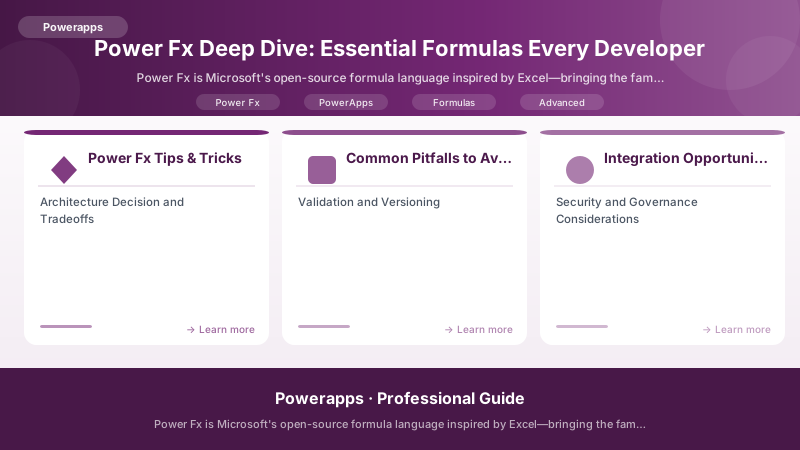
Power Fx Tips & Tricks
-
Tip 1: Use Collections for Performance - Load data once into a collection on app start, then query the collection instead of repeatedly hitting the data source. This dramatically improves performance and reduces delegation issues.
-
Tip 2: Understand Delegation - Delegation allows PowerApps to push filtering to the data source, handling millions of records. Non-delegable formulas retrieve only the first 500 (or 2,000) records. Check for blue underline warnings in formulas.
-
Tip 3: Debug with Label Controls - Create a label with
Textproperty set to your variable or formula output to see real-time values during development. Example:Text(varDebug)orCountRows(Gallery1.AllItems) -
Tip 4: Chain Formulas with Semicolons - Execute multiple formulas in sequence:
UpdateContext({locLoading: true}); Refresh(Tasks); UpdateContext({locLoading: false}) -
Tip 5: Leverage IntelliSense - Press Ctrl+Space to see available formulas, properties, and columns. PowerApps Studio provides excellent autocomplete for faster development.
Common Pitfalls to Avoid
-
Delegation Warnings: Blue underlines indicate non-delegable formulas. For large datasets, restructure queries or use alternative approaches.
-
Overusing ForAll(): ForAll is powerful but not delegable and can cause performance issues. Prefer Filter() and Patch() when possible.
-
Ignoring Error Handling: Always wrap Patch() and other data operations in If(IsError()) checks to gracefully handle failures.
-
Variable Naming Conflicts: Use consistent prefixes (var, loc, col) to avoid confusion between global variables, context variables, and collections.
-
Formula Complexity: Break complex formulas into multiple steps using With() or intermediate variables for better readability and debugging.
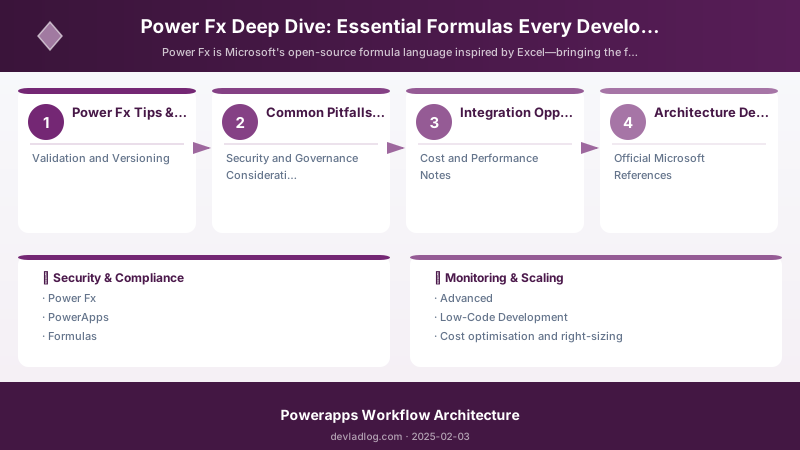
Integration Opportunities
-
Power Automate: Trigger flows from PowerApps using
PowerAppsButton trigger, then useRespond to PowerAppsaction to return data back to the app. Perfect for long-running operations. -
SharePoint: Use these formulas to build sophisticated SharePoint list forms—replace default forms with custom PowerApps for better UX and business logic.
-
Azure: Call Azure Functions using HTTP connectors within Power Fx formulas for complex calculations, external API integration, or legacy system access.
Architecture Decision and Tradeoffs
When designing low-code development solutions with Power Apps, consider these key architectural trade-offs:
| Approach | Best For | Tradeoff |
|---|---|---|
| Managed / platform service | Rapid delivery, reduced ops burden | Less customisation, potential vendor lock-in |
| Custom / self-hosted | Full control, advanced tuning | Higher operational overhead and cost |
Recommendation: Start with the managed approach for most workloads and move to custom only when specific requirements demand it.
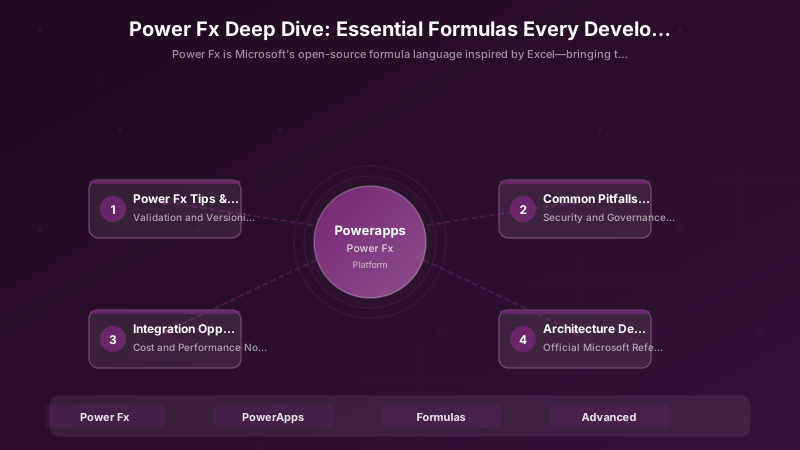
Validation and Versioning
- Last validated: April 2026
- Validate examples against your tenant, region, and SKU constraints before production rollout.
- Keep module, CLI, and SDK versions pinned in automation pipelines and review quarterly.
Security and Governance Considerations
- Apply least-privilege access using RBAC roles and just-in-time elevation for admin tasks.
- Store secrets in managed secret stores and avoid embedding credentials in scripts or source files.
- Enable audit logging, data protection policies, and periodic access reviews for regulated workloads.
Cost and Performance Notes
- Define budgets and alerts, then monitor usage and cost trends continuously after go-live.
- Baseline performance with synthetic and real-user checks before and after major changes.
- Scale resources with measured thresholds and revisit sizing after usage pattern changes.
Official Microsoft References
- https://learn.microsoft.com/power-apps/
- https://learn.microsoft.com/power-platform/admin/
- https://learn.microsoft.com/power-platform/guidance/
Public Examples from Official Sources
- These examples are sourced from official public Microsoft documentation and sample repositories.
- Documentation examples: https://learn.microsoft.com/power-apps/
- Sample repositories: https://github.com/microsoft/PowerApps-Samples
- Prefer adapting these examples to your tenant, subscriptions, and governance requirements before production use.
Key Takeaways
- ✅ Power Fx brings Excel-like simplicity to app development with formulas instead of code
- ✅ Filter, Patch, and Collect form the foundation of data manipulation in PowerApps
- ✅ Understanding delegation is critical for apps handling large datasets (>500 records)
- ✅ With(), Switch(), and proper variable management improve code readability dramatically
- ✅ Combining these formulas unlocks sophisticated business logic without traditional programming
Next Steps
- Practice these formulas by building a sample expense tracker or CRM app
- Explore Power Fx documentation for advanced functions
- Learn about delegation limits for each data source
- Study Power Apps patterns and best practices
- Join the Power Apps Community to share formulas and get help
Additional Resources
- Power Fx Formula Reference
- Power Apps Formulas Documentation
- Delegation in Canvas Apps
- Power Apps Cookbook - Common Formulas
- Power Platform Community Samples
Which Power Fx formula do you use most? Share your favorite formula patterns and tips in the comments below!
Discussion