
Building Your First Canvas App: A Step-by-Step Guide
- Navigate to make.powerapps.com
- Select + Create from the left navigation
- Choose Blank app → Blank canvas app
- Name it "Team Task Tracker"
- Select Tablet format (works on all devices)
- Click Create
Power Apps Studio loads in your browser—this is where all app development happens. Unlike traditional IDEs requiring installations, Power Apps Studio runs entirely in the browser with no local setup needed.
Navigating Power Apps Studio
Power Apps Studio is a comprehensive low-code development environment that combines visual design, data integration, and formula editing in a single interface. Understanding the layout accelerates your development workflow and unlocks the platform's full capabilities.
Studio Interface Layout (5 Primary Panels):
1. Tree View (Left Sidebar)
The hierarchical navigator showing your app's complete structure:
-
Screens: All screens in your app (Screen1, NewTaskScreen, DetailsScreen)
- Click any screen to make it active in the canvas
- Rename screens with descriptive names:
BrowseTasksScreen,EditTaskScreen - Reorder screens by dragging (first screen is the app's startup screen)
-
Components Per Screen: Expand screens to see all controls
- Galleries (TaskGallery)
- Forms (Form1)
- Buttons (SubmitButton, CancelButton)
- Labels (TitleLabel, StatusLabel)
- Text inputs (SearchBox, TaskTitleInput)
- Each control can be selected, renamed, and deleted from tree view
-
Media: Upload and manage images, videos, audio files
- Company logos, icons, background images
- Click + New → Media → Upload files
-
Data Sources: All connected data (SharePoint lists, SQL databases, APIs)
- Click to expand and browse fields/columns
- Drag columns onto canvas to auto-create controls
- Refresh connections if schema changes
2. Canvas (Center Panel)
The visual design surface where your app comes to life:
- WYSIWYG Editor: What you see is what users get—no preview needed
- Device Frames: Tablet, phone, or custom dimensions—app automatically responsive
- Control Selection: Click any element to select (blue outline indicates selection)
- Multi-Select: Ctrl+Click to select multiple controls for bulk property changes
- Alignment Guides: Smart guides appear when dragging to align with other controls
- Zoom Controls: Bottom-right corner—zoom in/out for precise positioning
- Rulers & Grid: Toggle with View menu for pixel-perfect layouts
- Copy/Paste: Ctrl+C / Ctrl+V works across screens and even between apps
3. Properties Panel (Right Sidebar - Upper)
Context-sensitive configuration for selected control:
-
Properties: High-level settings without formulas
- Text: Button labels, text
- Color: Fill, border, text colors (color picker or RGBA values)
- Size: Width, height, padding, margins
- Visibility: Show/hide controls
- Layout: Alignment, direction (horizontal/vertical)
-
Advanced Tab: Fine-grained properties requiring formulas
- OnSelect: Code that runs when clicked
- Default: Initial value for inputs
- Items: Data source for galleries and dropdowns
- Visible: Dynamic show/hide logic
- DisplayMode: Edit, View, or Disabled states
4. Formula Bar (Top)
The Power Fx expression editor (Excel-like formulas):
-
Property Dropdown: Select which property you're editing (OnSelect, Items, Text, etc.)
-
Formula Editor: Write Power Fx expressions with IntelliSense
- Auto-completion: Start typing and suggestions appear
- Syntax highlighting: Blue for functions, green for strings, black for operators
- Error indicators: Red wavy underline shows formula errors
- Expand formula bar: Click ^ icon for multi-line editing
-
Common Formulas Examples:
Navigate(Screen2, ScreenTransition.Fade)
Patch(TaskTracker, Defaults(TaskTracker), {Title: TextInput1.Text})
Filter(TaskTracker, Status = "In Progress")
If(Toggle1.Value, "On", "Off")
5. Insert Menu (Left Toolbar)
Component library for adding controls to canvas:
- Layout: Containers, vertical/horizontal galleries, forms
- Input: Text input, dropdown, date picker, checkbox, slider, toggle
- Display: Label, HTML text, image, video, PDF viewer
- Icons: 200+ built-in icons (add, edit, trash, settings, etc.)
- Charts: Bar, column, pie, line charts (preview feature)
- Media: Camera, microphone, barcode scanner (mobile-only)
- Custom: Import components from component libraries
6. Top Toolbar (Global Actions)
- File: Save, save as, publish, settings, app details
- Home: New screen, undo/redo, cut/copy/paste
- Insert: Quick access to control gallery
- View: Rulers, grid, zoom, app checker (error/warning diagnostics)
- Action: Variables, collections, flows (Power Automate integration)
- Data: Manage connections, add data sources, refresh schemas
- Advanced Tools: Formulas (all app variables), monitor (debugging), test (automated testing)
Keyboard Shortcuts (Productivity Boosters):
| Shortcut | Action |
|---|---|
Ctrl + S |
Save app |
Ctrl + Z |
Undo |
Ctrl + Y |
Redo |
Ctrl + C / Ctrl + V |
Copy/Paste controls |
Ctrl + D |
Duplicate selected control |
Ctrl + G |
Group selected controls |
Ctrl + Shift + G |
Ungroup |
Alt + F11 |
Open formula bar |
F5 |
Preview app (play mode) |
Esc |
Exit preview mode |
Delete |
Remove selected control |
App Checker (Critical for Quality)
- Access via View → App checker or bell icon in top-right
- Shows errors (red): Formula mistakes, missing data sources, broken references
- Shows warnings (yellow): Performance issues, accessibility problems, deprecated functions
- Shows tips (blue): Best practices, optimization suggestions
- Always run App Checker before publishing
The Power Apps Studio interface shown below displays all these elements working together as you build the task tracker app:
Figure: Power Apps Studio showing the blank canvas app with Tree view for screen hierarchy, Properties panel for component configuration, Insert menu for adding controls, and Formula bar for Power Fx expressions used to build the task tracker throughout this guide.
Step 3: Connect to SharePoint Data
Connect your SharePoint list as a data source:
- Click the Data icon (database symbol) in the left panel
- Click Add data → SharePoint
- Select Connect directly (cloud services)
- Enter your SharePoint site URL
- Find and select the TaskTracker list
- Click Connect
The TaskTracker data source now appears in your Data panel.
Step 4: Design the Browse Screen
Let's create the main screen to view all tasks:
- Add a Gallery: Insert → Gallery → Vertical (blank layout)
- Set the gallery's Items property to:
SortByColumns(
```text
Filter(TaskTracker, Status <> "Completed"),
"DueDate",
Ascending```
)
This displays non-completed tasks sorted by due date.
- Design the gallery template: Click the pencil icon on the gallery and add:
- Label for task title:
ThisItem.Title - Label for due date:
Text(ThisItem.DueDate, "mm/dd/yyyy") - Label for priority with conditional color:
- Label for task title:
// Text
ThisItem.Priority

// Color property
Switch(
```text
ThisItem.Priority,
"High", Color.Red,
"Medium", Color.Orange,
"Low", Color.Green```
)
- Add a search box: Insert → Text → Text input
- Name it
SearchBox - Set text: "Search tasks..."
- Update the gallery Items formula:
- Name it
SortByColumns(
```text
Filter(
    TaskTracker,
    Status <> "Completed" &&
    (SearchBox.Text = "" ||
     Title in SearchBox.Text ||
     Description in SearchBox.Text)
),
"DueDate",
Ascending```
)


> **Architecture Overview:** ### Step 5: Create a New Task Screen

SubmitForm(Form1);
If(Form1.Valid,
```text
Notify("Task created successfully!", NotificationType.Success);
Navigate(Screen1, ScreenTransition.Fade);
ResetForm(Form1),
Notify("Please check required fields", NotificationType.Error)```
)
- Cancel button:
- Text: "Cancel"
- OnSelect:
Navigate(Screen1, ScreenTransition.None); ResetForm(Form1)
- Add a navigation button on the main screen:
- Insert → Button
- Text: "+ New Task"
- OnSelect:
Navigate(NewTaskScreen, ScreenTransition.Cover)
Step 6: Add Complete Task Functionality
Allow users to mark tasks as complete:
- On the main screen, add a Checkbox inside the gallery template
- Set its Default property to:
ThisItem.Status = "Completed" - Set its OnCheck property:
Patch(
```text
TaskTracker,
ThisItem,
{
    Status: "Completed",
    CompletedDate: Now()
}```
);
Notify("Task completed!", NotificationType.Success)
- Set its OnUncheck property:
Patch(
```text
TaskTracker,
ThisItem,
{
    Status: "In Progress",
    CompletedDate: Blank()
}```
)
Step 7: Test and Publish
Test your app thoroughly:
- Click the Play button (▶) in the top right
- Create a new task
- Search for tasks
- Mark tasks as complete
- Test on different screen sizes using the device picker
Once satisfied, publish your app:
- Click File → Save
- Click Publish
- Click Publish this version
- Share with your team: File → Share → Add users
Canvas App Development Lifecycle
Canvas app development follows a structured yet flexible iterative methodology. Unlike waterfall development requiring months of requirements gathering before coding, canvas apps embrace rapid iteration: build, test, refine, repeat. The task tracker you just created demonstrates this approach in action.
Phase 1: Planning & Data Design (10-20% of project time)
Successful apps start with clear understanding of user needs and data structure:
-
User Story Definition: Who will use the app? What problems does it solve?
- Example: "Field technicians need to log equipment inspections without returning to the office"
- Example: "HR needs to approve employee requests on mobile during business travel"
-
Data Source Selection: Where does data live? Where should it live?
- SharePoint Lists: Best for structured data with < 2,000 items per list, team collaboration, document attachments
- Dataverse: Best for complex relational data, business rules, enterprise-scale (millions of records)
- SQL Server: Best for existing databases, complex queries, high-volume transactional data
- Excel: Best for prototyping only—not recommended for production apps
-
Schema Design: Define columns, data types, validation rules
- For task tracker: Title (text), Description (multiline), DueDate (date), Priority (choice), Status (choice)
- Avoid overly generic column names like "Field1"—use descriptive names like "CustomerName"
- Plan for future: leave room for expansion (categories, tags, custom fields)
Phase 2: UI Design & Layout (30-40% of project time)
Visual design determines user adoption—ugly apps get abandoned regardless of functionality:
-
Screen Planning: Sketch or wireframe before building
- Browse screen (gallery view)
- Detail/edit screen (form view)
- Settings screen (optional)
- Help screen (recommended for complex apps)
-
Component Selection: Choose right controls for each scenario
- Galleries: Repeating data (task lists, contacts, products)
- Forms: Create/edit records with validation
- Dropdowns: Predefined choices (priority, status, category)
- Date Pickers: Calendar selection with validation
- Combo Boxes: Searchable dropdowns for large lists
-
Visual Consistency: Establish design system
- Define color palette: primary, secondary, accent colors matching corporate brand
- Set font sizes: Headings (20-24pt), Body (12-14pt), Small (10pt)
- Standardize spacing: 10px padding, 20px between sections
- Use icons consistently: same style (outline vs filled)
Phase 3: Formula Development (40-50% of project time)
Power Fx formulas bring apps to life with interactivity and business logic:
-
Data Operations: CRUD (Create, Read, Update, Delete)
// Create new task Patch(TaskTracker, Defaults(TaskTracker), {Title: NewTaskTitle, Status: "Not Started"}) // Update existing task Patch(TaskTracker, Gallery1.Selected, {Status: "Completed", CompletedDate: Now()}) // Delete task with confirmation If(IsBlank(ConfirmDelete), Set(ConfirmDelete, true), Remove(TaskTracker, Gallery1.Selected)) -
Navigation Patterns: Move between screens
// Navigate with context (pass data to next screen) Navigate(DetailScreen, ScreenTransition.Cover, {SelectedTask: Gallery1.Selected}) // Back button Back(ScreenTransition.UnCover) // Reset and go home Navigate(HomeScreen, ScreenTransition.None); ResetForm(Form1) -
Validation Logic: Prevent bad data
// Required field check If(IsBlank(TaskTitle), Notify("Task title is required", NotificationType.Error), SubmitForm(Form1)) // Date validation If(DueDate < Today(), Notify("Due date cannot be in the past", NotificationType.Warning)) // Email validation If(!IsMatch(EmailInput.Text, Email), Notify("Invalid email format")) -
Performance Optimization: Keep apps fast
- Use
ClearCollectto cache data locally - Filter data sources early:
Filter(Tasks, Status="Open")notFilter(AllTasks, Status="Open") - Avoid deeply nested formulas—extract to variables:
Set(varIsValid, ...)
- Use
Phase 4: Testing & Refinement (20-30% of project time)
Testing uncovers issues before users do:
-
Functional Testing: Does every feature work as designed?
- Create, edit, delete records
- Search and filter
- Validation messages appear correctly
- Navigation flows logically
-
Usability Testing: Can users accomplish tasks without training?
- Give app to 3-5 target users without instructions
- Observe where they get confused
- Note frequent errors or misclicks
- Refine based on feedback
-
Performance Testing: Does it remain responsive under load?
- Test with realistic data volume (e.g., 500 tasks not 5)
- Measure screen load times (should be < 2 seconds)
- Check on mobile devices with slow connections
- Identify and fix delegation warnings
-
Cross-Device Testing: Does it work everywhere?
- Desktop browser (1920x1080)
- Tablet (iPad, Surface)
- Mobile phone (iPhone, Android)
- Different browsers (Edge, Chrome, Safari)
Phase 5: Deployment & Governance (10% of project time)
Deployment isn't just "click Publish"—it's change management:
-
Versioning Strategy: Maintain app history
- Publish regularly: minor changes weekly, major changes monthly
- Version naming: v1.0 (initial), v1.1 (minor fix), v2.0 (major redesign)
- Keep version notes: "Added offline sync" / "Fixed date picker bug"
- Restore previous versions if new release has critical bugs
-
User Training: Prepare users for launch
- Create quick start guide (1-page PDF with screenshots)
- Record 2-3 minute video walkthrough
- Host live demo session for early adopters
- Set up feedback channel (Teams, email, forms)
-
Access Management: Control who can use the app
- Share with security groups (not individuals): "All Employees", "Sales Team", "Managers"
- Set permissions: User (run app only), Co-owner (edit app), Viewer (view app source)
- Review quarterly: remove access for users who left organization
-
Monitoring & Analytics: Track usage and health
- Power Platform Admin Center → Analytics: daily active users, session duration
- App Insights integration: track errors, performance, custom events
- User feedback: periodic surveys asking for feature requests
Iterative Refinement (Ongoing)
Apps are never "done"—they evolve based on user needs:
- Feature Backlog: Prioritize enhancement requests
- Bug Triage: Fix critical issues immediately, batch minor fixes monthly
- Technical Debt: Periodically refactor formulas, remove unused controls
- Platform Updates: Leverage new Power Apps features as they release
The workflow diagram below visualizes how these five phases interconnect throughout the task tracker's development:
Figure: End-to-end canvas app development workflow showing four iterative stages—planning with data source selection, UI design and layout, Power Fx formula development, and testing with deployment—demonstrating how the task tracker evolved from SharePoint list design through final publication.
Power Fx Tips & Tricks
Figure 3: Common Power Fx formula patterns for filtering, updating, navigation, and validation
-
Tip 1: Use Meaningful Variable Names -
Set(varSelectedTask, Gallery1.Selected)is clearer thanSet(x, Gallery1.Selected) -
Tip 2: Optimize Gallery Performance - Use
ShowColumns()to load only needed fields:ShowColumns(TaskTracker, "Title", "DueDate", "Priority") -
Tip 3: Handle Blank Values Safely - Use
IsBlank()andCoalesce()to prevent errors:Coalesce(ThisItem.CompletedDate, "Not completed") -
Tip 4: Conditional Visibility - Hide/show elements dynamically:
Visible: !IsBlank(SearchBox.Text) -
Tip 5: Delegation Awareness - Yellow warning triangles indicate delegation issues. For large lists (>500 items), use delegable functions like
Filter()with simple comparisons.
Understanding SharePoint Delegation
When working with SharePoint as a data source, PowerApps supports various delegable operations:
Figure 5: Comprehensive reference for delegable and non-delegable operations on SharePoint
Delegable Functions:
Filter()- with simple comparisons (=, <>, <, >, <=, >=)Sort()andSortByColumns()- on most field typesLookup()- to find specific recordsStartsWith()- on text fields (but not on complex types)
Non-Delegable on SharePoint:
IsBlank()on Choice/Lookup fields (use= Blank()instead)- Relational operators on ID fields (only
=works) UpdateIf()andRemoveIf()- simulate delegation up to 500 records locally
Pro Tip: SharePoint Person fields support delegation only on Email and DisplayName subfields. For larger datasets (>2000 items), consider Dataverse for full delegation capabilities.
Integration Opportunities
Figure 4: PowerApps integrates with 700+ connectors across Microsoft and third-party services
-
SharePoint: Your app already integrates with SharePoint for data storage. Consider adding document attachments using the SharePoint connector's file capabilities. SharePoint lists support complex data types like Choice, Lookup, and Person fields with delegation on specific subfields.
-
Power Automate: Create flows triggered when new tasks are added to send email notifications, post to Teams, or create Planner tasks automatically. Use the PowerApps trigger in flows to create bidirectional communication between apps and workflows.
-
Dataverse: For enterprise-grade apps, migrate to Dataverse for enhanced relational capabilities, server-side business logic, advanced security with field-level permissions, and full delegation support for large datasets (millions of records).
-
Azure: Connect to Azure Functions for complex calculations, integrate Azure Cognitive Services for AI features, or use Azure SQL Database for high-volume data scenarios. Azure integration enables hybrid cloud architectures.
-
Microsoft Teams: Embed your app as a Teams tab for seamless collaboration within channels and chats. Apps automatically inherit Teams authentication and can respond to Teams-specific context (channel, team, user).
Power Fx Formula Development
While Power Apps Studio provides the formula bar for writing Power Fx, many developers use Visual Studio Code with the Power Platform extension for advanced formula development, especially when building complex expressions or component libraries.
Figure: Visual Studio Code with Power Platform extension showing Power Fx formula examples for Filter, Patch, Navigate, and conditional logic—demonstrating the syntax patterns used in the task tracker app and reusable across canvas app development.
Advanced Connection Patterns
On-Premises Integration:
- Use the On-Premises Data Gateway to connect to SQL Server, SharePoint Server, file systems, and other on-prem resources
- Gateway supports Windows authentication and connection pooling
- Install gateway on a secure server with network access to data sources
Custom Connectors:
- Build custom connectors for REST APIs not available in the standard catalog
- Define OpenAPI/Swagger specifications or use Postman collections
- Add authentication (OAuth 2.0, API key, basic auth) and data transformations
Architecture Decision and Tradeoffs
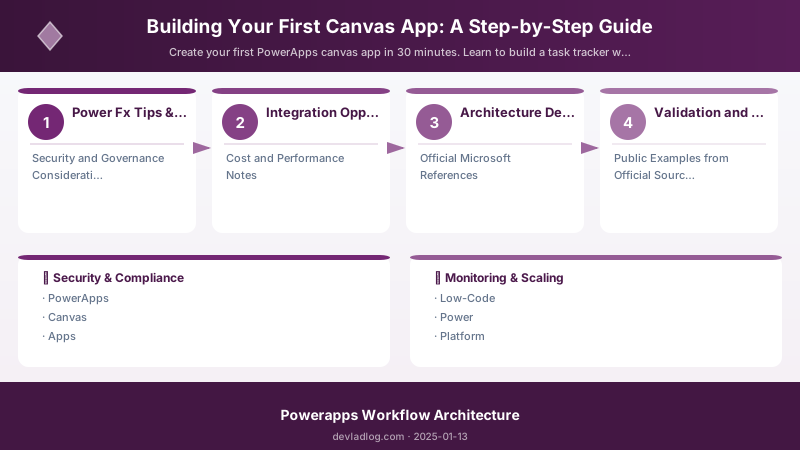
When designing low-code development solutions with Power Apps, consider these key architectural trade-offs:
| Approach | Best For | Tradeoff |
|---|---|---|
| Managed / platform service | Rapid delivery, reduced ops burden | Less customisation, potential vendor lock-in |
| Custom / self-hosted | Full control, advanced tuning | Higher operational overhead and cost |
Recommendation: Start with the managed approach for most workloads and move to custom only when specific requirements demand it.
Validation and Versioning
- Last validated: April 2026
- Validate examples against your tenant, region, and SKU constraints before production rollout.
- Keep module, CLI, and SDK versions pinned in automation pipelines and review quarterly.
Security and Governance Considerations
- Apply least-privilege access using RBAC roles and just-in-time elevation for admin tasks.
- Store secrets in managed secret stores and avoid embedding credentials in scripts or source files.
- Enable audit logging, data protection policies, and periodic access reviews for regulated workloads.
Cost and Performance Notes
- Define budgets and alerts, then monitor usage and cost trends continuously after go-live.
- Baseline performance with synthetic and real-user checks before and after major changes.
- Scale resources with measured thresholds and revisit sizing after usage pattern changes.
Official Microsoft References
- https://learn.microsoft.com/power-apps/
- https://learn.microsoft.com/power-platform/admin/
- https://learn.microsoft.com/power-platform/guidance/
Public Examples from Official Sources
- These examples are sourced from official public Microsoft documentation and sample repositories.
- Documentation examples: https://learn.microsoft.com/power-apps/
- Sample repositories: https://github.com/microsoft/PowerApps-Samples
- Prefer adapting these examples to your tenant, subscriptions, and governance requirements before production use.
Key Takeaways
- ✅ PowerApps enables rapid app development with visual tools and declarative formulas
- ✅ SharePoint lists provide simple, effective data storage for business apps
- ✅ Power Fx formulas are Excel-like and learnable by non-developers
- ✅ Canvas apps work across desktop, tablet, and mobile without extra configuration
- ✅ The Power Platform ecosystem connects apps, flows, and data seamlessly
Real-World Enhancement Scenarios
Scenario 1: Adding Offline Capability with Collections
Enable offline task viewing by loading data into a collection:
// On app start (App.OnStart property)
ClearCollect(
```text
colTasks,
SortByColumns(TaskTracker, "DueDate", Ascending)```
);

// Gallery Items property
colTasks

// On save button
Patch(TaskTracker, ThisItem, {Status: "Completed"});
ClearCollect(colTasks, TaskTracker);  // Refresh collection
Collections store data locally in memory, enabling faster performance and offline scenarios.
Scenario 2: Multi-Language Support with Language() Function
Implement dynamic labels based on user language:
// Create a collection for translations
ClearCollect(
```text
colTranslations,
{Lang: "en-US", NewTask: "New Task", Save: "Save", Cancel: "Cancel"},
{Lang: "es-ES", NewTask: "Nueva Tarea", Save: "Guardar", Cancel: "Cancelar"}```
);

// Button text formula
LookUp(colTranslations, Lang = Language(), NewTask)
Scenario 3: Role-Based Visibility with Office365Users
Show/hide features based on user group membership:
// Check if user is admin
Set(
```text
varIsAdmin,

- [Power Apps Documentation](https://learn.microsoft.com/power-apps/)
- [Power Apps Community](https://powerusers.microsoft.com/t5/Power-Apps-Community/ct-p/PowerApps1)
- [Microsoft Learn - Power Apps](https://learn.microsoft.com/training/powerplatform/power-apps)
- [Power Fx Formula Reference](https://learn.microsoft.com/power-platform/power-fx/formula-reference)
- [Power Apps Samples Gallery](https://github.com/microsoft/PowerApps-Samples)
- [Power Apps ALM Guide](https://learn.microsoft.com/power-platform/alm/)


## Looking Ahead: Enterprise Patterns

Ready for deeper topics like performance tuning, ALM pipelines, Dataverse relational modeling, advanced Power Fx, telemetry, accessibility, and governance? Continue with the advanced companion article:


**Enterprise Canvas App Architecture & Advanced Patterns (2025-02-03)** – explores environment strategy, solution layering, component design systems, performance profiling, security & DLP, Azure integration, telemetry dashboards, automated testing, and future roadmap.

Link (): `2025-02-03-enterprise-canvas-app-architecture-advanced-patterns.md`

---

*Built your first canvas app? What features would you add next? Share your PowerApps journey and questions below!*
Discussion