
Administration and Governance: Premium Capacity Management
Write-Host "$($ds.Name): $([math]::Round($required, 2)) v-cores required" $totalVCores += $required``` }
Write-Host "`nTotal v-cores needed: $([math]::Round($totalVCores, 2))" Write-Host "Recommended SKU: $(
if ($totalVCores -le 8) { 'P1' }
elseif ($totalVCores -le 16) { 'P2' }
elseif ($totalVCores -le 32) { 'P3' }
else { 'P4 or higher' }```
)"
Capacity Assessment Checklist
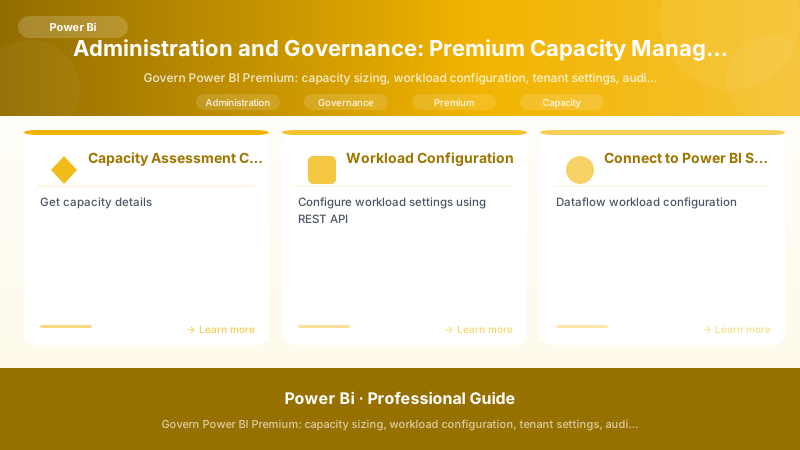
Figure: SharePoint document library – metadata columns, views, and filter panel.
Architecture Overview: ☐ Total dataset size across all workspaces
Workload Configuration
Configuring Workload Settings
## Connect to Power BI Service
Connect-PowerBIServiceAccount


## Get capacity details
$capacity = Get-PowerBICapacity -Scope Organization | Where-Object {$_.DisplayName -eq "Production Capacity"}


## Configure workload settings using REST API
$headers = Get-PowerBIAccessToken
$capacityId = $capacity.Id


## Dataflow workload configuration
$dataflowConfig = @{
```text
name = "dataflows"
state = "Enabled"
maxMemoryPercentageSetByUser = 20```
} | ConvertTo-Json


Invoke-RestMethod -Uri "https://api.powerbi.com/v1.0/myorg/capacities/$capacityId/Workloads" `
```text
-Headers $headers -Method Patch -Body $dataflowConfig -ContentType "application/json"
Paginated reports configuration
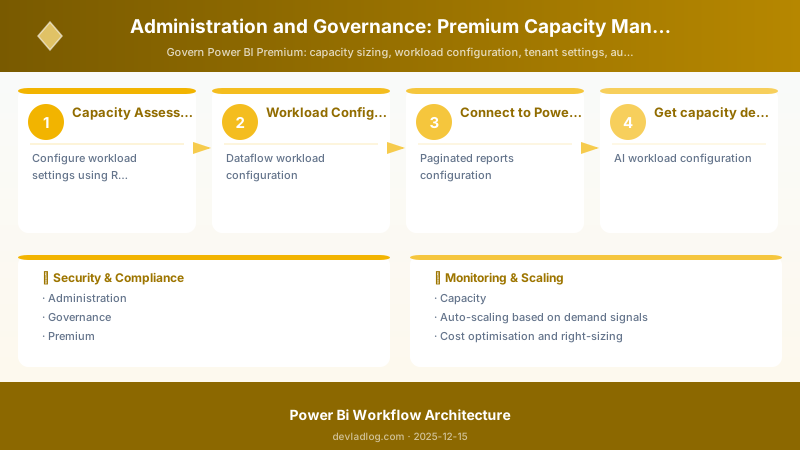
Figure: Power BI Desktop – report canvas with visuals, fields, and format pane.
$paginatedConfig = @{
name = "paginatedReports"
state = "Enabled"
maxMemoryPercentageSetByUser = 20```
} | ConvertTo-Json


Invoke-RestMethod -Uri "https://api.powerbi.com/v1.0/myorg/capacities/$capacityId/Workloads" `
```text
-Headers $headers -Method Patch -Body $paginatedConfig -ContentType "application/json"
AI workload configuration
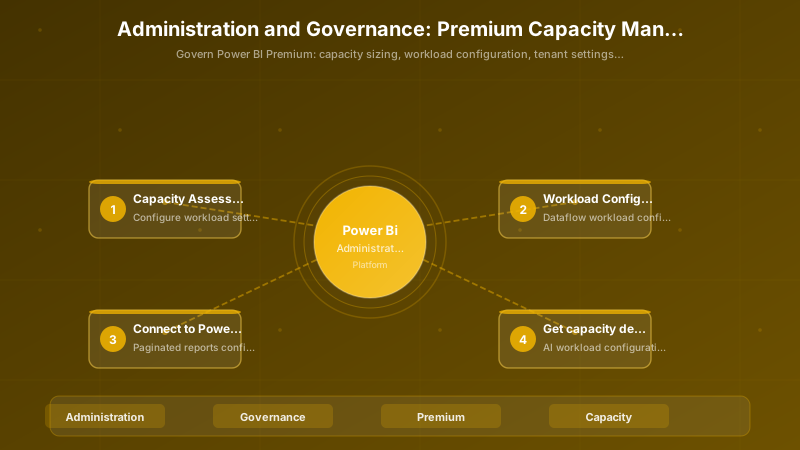
Figure: Configuration editor – appsettings sections with environment overrides.
$aiConfig = @{
name = "aiInsights"
state = "Enabled"
maxMemoryPercentageSetByUser = 20```
} | ConvertTo-Json


Invoke-RestMethod -Uri "https://api.powerbi.com/v1.0/myorg/capacities/$capacityId/Workloads" `
```text
-Headers $headers -Method Patch -Body $aiConfig -ContentType "application/json"
Diagram: See the official Microsoft documentation for architecture details.
Tenant Settings Governance
Critical Tenant Settings
## Export current tenant settings for audit
$tenantSettings = Invoke-PowerBIRestMethod -Url 'admin/tenantsettings' -Method Get | ConvertFrom-Json


## Save to file for compliance review
$tenantSettings | ConvertTo-Json -Depth 10 | Out-File "PowerBI-TenantSettings-$(Get-Date -Format 'yyyy-MM-dd').json"


## Key settings to review:
Write-Host "Current Tenant Settings Status:"
Write-Host "================================"
Write-Host "Export to Excel: $($tenantSettings.exportToExcelSetting.enabled)"
Write-Host "Publish to Web: $($tenantSettings.publishToWebSetting.enabled)"
Write-Host "Share Content External: $($tenantSettings.shareToExternalUsersSetting.enabled)"
Write-Host "Developer Settings: $($tenantSettings.developerSettings.enabled)"
Write-Host "Custom Visuals: $($tenantSettings.tenantCustomVisualsEnabled)"
Governance Policy Matrix
| Setting | Recommended State | Justification | Exceptions |
|---|---|---|---|
| Export to Excel | Enabled (specific groups) | Allow data analysts, restrict general users | Finance team (full access) |
| Export to CSV | Enabled (specific groups) | Control data exfiltration | Data science team |
| Publish to Web | Disabled | Prevent public data exposure | Marketing (pre-approved content) |
| Share External | Enabled (specific groups) | Control guest access | Partner collaboration workspace |
| Custom Visuals | Enabled (certified only) | Security risk mitigation | None |
| Developer Mode | Enabled (specific groups) | Limit API access | Development team |
| Dataflow Storage | Azure Data Lake | Centralized data governance | None |
| Template Apps | Enabled (specific groups) | Control app distribution | None |
| Workspace Creation | Enabled (specific groups) | Prevent workspace sprawl | Department leads |
| Dataset Scale-out | Enabled (Premium workspaces) | Improve query performance | None |
Implementing Tenant Settings
## Example: Restrict "Publish to Web" to specific security group
$publishToWebSetting = @{
```text
settingsName = "PublishToWeb"
enabled = $true
tenantSettingGroup = @(
    @{
        name = "Marketing-Approved"
        type = "SecurityGroup"
        objectId = "12345678-1234-1234-1234-123456789012"
    }
)
canSpecifySecurityGroups = $true```
} | ConvertTo-Json -Depth 5


Invoke-PowerBIRestMethod -Url 'admin/tenantsettings' -Method Put -Body $publishToWebSetting

## Example: Enable custom visuals (certified only)
$customVisualsSetting = @{
```text
settingsName = "CustomVisualsTenant"
enabled = $true
allowVisualDataPointAppliedThemes = $false
addCustomVisualsToBlockList = $false
certifiedCustomVisualsOnly = $true```
} | ConvertTo-Json


Invoke-PowerBIRestMethod -Url 'admin/tenantsettings' -Method Put -Body $customVisualsSetting
Monitoring and Performance Management
Capacity Metrics App Setup
## Install and configure the Premium Capacity Metrics app


## Navigate to: https://app.powerbi.com/groups/me/getapps


## Key metrics to monitor:


## 1. CPU utilization (target: <80% sustained)


## 2. Memory utilization (target: <90%)


## 3. Query duration (P50, P95, P99)


## 4. Query wait times (target: <100ms)


## 5. Refresh duration and success rate


## 6. Active datasets and user sessions


## Create custom monitoring dashboard
$monitoringQuery = @"
// KQL query for Log Analytics workspace
PowerBIActivity
| where TimeGenerated > ago(24h)
| where CapacityName == "Production Capacity"
| summarize
```text
AvgCPU = avg(CpuPercentage),
MaxCPU = max(CpuPercentage),
AvgMemory = avg(MemoryPercentage),
MaxMemory = max(MemoryPercentage),
QueryCount = count(),
AvgDuration = avg(DurationMs)
by bin(TimeGenerated, 1h)```


| render timechart
"@
Real-Time Monitoring Script
Figure: Azure Monitor Logs – KQL query results with time-series visualization.
## Monitor capacity health in real-time
function Monitor-CapacityHealth {
```powershell
param(
    [string]$CapacityName,
    [int]$IntervalSeconds = 300,
    [int]$DurationMinutes = 60
)


$endTime = (Get-Date).AddMinutes($DurationMinutes)

while ((Get-Date) -lt $endTime) {
    $capacity = Get-PowerBICapacity -Scope Organization | Where-Object {$_.DisplayName -eq $CapacityName}

    # Get capacity metrics (requires REST API call)
    $metrics = Invoke-PowerBIRestMethod -Url "admin/capacities/$($capacity.Id)/refreshables" -Method Get | ConvertFrom-Json

    $timestamp = Get-Date -Format "yyyy-MM-dd HH:mm:ss"
    Write-Host "[$timestamp] Capacity: $CapacityName"
    Write-Host "  Active Refreshes: $($metrics.value.Count)"
    Write-Host "  Status: $($capacity.State)"
    Write-Host "  Region: $($capacity.Region)"
    Write-Host "  SKU: $($capacity.Sku)"
    Write-Host "  ---"

    Start-Sleep -Seconds $IntervalSeconds
}```
}

## Run monitoring
Monitor-CapacityHealth -CapacityName "Production Capacity" -IntervalSeconds 300 -DurationMinutes 60
Alert Configuration
## Create alerts for capacity issues
$alertConfig = @{

> **Architecture Overview:** Name = "Capacity CPU High"


## Cost Optimization Strategies

### Capacity Utilization Analysis


```powershell
## Analyze workspace utilization across capacity
function Get-CapacityUtilization {
```powershell
param([string]$CapacityId)


## Get all workspaces on capacity
$workspaces = Get-PowerBIWorkspace -Scope Organization -Filter "capacityId eq '$CapacityId'"


$utilizationReport = foreach ($workspace in $workspaces) {
    # Get datasets in workspace
    $datasets = Get-PowerBIDataset -WorkspaceId $workspace.Id

    $totalSize = ($datasets | Measure-Object -Property StorageMode -Sum).Sum
    $refreshCount = $datasets | Where-Object {$_.IsRefreshable} | Measure-Object | Select-Object -ExpandProperty Count

    [PSCustomObject]@{
        WorkspaceName = $workspace.Name
        DatasetCount = $datasets.Count
        TotalSizeGB = [math]::Round($totalSize / 1GB, 2)
        RefreshableDatasets = $refreshCount
        LastActivity = $workspace.OnPremisesLastSyncDateTime
        IsActive = ((Get-Date) - $workspace.OnPremisesLastSyncDateTime).Days -lt 30
    }
}

return $utilizationReport | Sort-Object -Property TotalSizeGB -Descending```
}

## Run analysis
$utilization = Get-CapacityUtilization -CapacityId "12345678-1234-1234-1234-123456789012"
$utilization | Export-Csv "CapacityUtilization-$(Get-Date -Format 'yyyy-MM-dd').csv" -NoTypeInformation


## Identify candidates for removal or shared capacity migration
$inactiveWorkspaces = $utilization | Where-Object {-not $_.IsActive}
Write-Host "Inactive Workspaces (>30 days): $($inactiveWorkspaces.Count)"
Write-Host "Potential Savings: $([math]::Round(($inactiveWorkspaces | Measure-Object -Property TotalSizeGB -Sum).Sum, 2)) GB capacity freed"
Autoscale Configuration
## Enable autoscale for Premium capacity (P1-P3)


## Note: Autoscale temporarily adds v-cores during high demand, billed per hour


## Configure via Azure Portal or REST API
$autoscaleConfig = @{
```text
isEnabled = $true
maxAutoscaleVCores = 8  # Maximum additional v-cores
notifyOnSuccess = $true
notifyOnFailure = $true
emails = @("admin@contoso.com")```
} | ConvertTo-Json


## Apply to capacity
Invoke-RestMethod -Uri "https://management.azure.com/subscriptions/{subscriptionId}/resourceGroups/{resourceGroup}/providers/Microsoft.PowerBIDedicated/capacities/{capacityName}/autoscale?api-version=2021-01-01" `
```powershell
-Method Put -Body $autoscaleConfig -Headers (Get-AzAccessToken).Headers
Monitor autoscale events
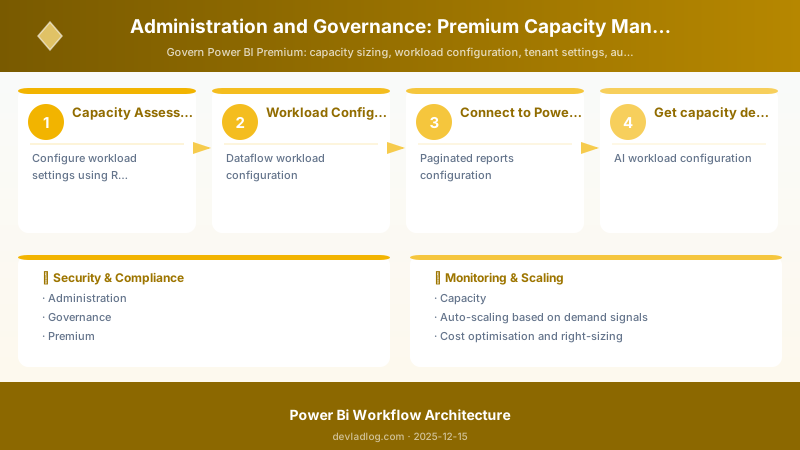
Figure: Azure Monitor Logs – KQL query results with time-series visualization.
$autoscaleEvents = Get-AzActivityLog -ResourceId "/subscriptions/{subscriptionId}/resourceGroups/{resourceGroup}/providers/Microsoft.PowerBIDedicated/capacities/{capacityName}" `
-StartTime (Get-Date).AddDays(-7) | Where-Object {$_.OperationName -like "*autoscale*"}
## Cost Reduction Checklist


> **Architecture Overview:** ☑ Decommission Strategies:


## Security and Compliance

### Row-Level Security (RLS) Governance


```dax
-- Implement dynamic RLS based on user email
[RegionFilter] =
VAR UserEmail = USERPRINCIPALNAME()
VAR UserRegion =
```text
LOOKUPVALUE(
    'UserRegionMapping'[Region],
    'UserRegionMapping'[Email], UserEmail
)```
RETURN
```text
'Sales'[Region] = UserRegion
-- Manager hierarchy RLS [ManagerHierarchy] = VAR CurrentUser = USERPRINCIPALNAME() VAR UserEmployeeId =
LOOKUPVALUE(
    'Employees'[EmployeeID],
    'Employees'[Email], CurrentUser
)```
VAR ManagedEmployees =
```text
FILTER(
    'Employees',
    PATHCONTAINS([ManagerPath], UserEmployeeId)
)```
RETURN
```text
'Sales'[EmployeeID] IN ManagedEmployees
### Object-Level Security (OLS)

```powershell
## Configure OLS using Tabular Object Model (TOM)


## Requires SQL Server Management Studio or Tabular Editor


## Example: Hide sensitive columns from specific roles
$server = New-Object Microsoft.AnalysisServices.Tabular.Server
$server.Connect("powerbi://api.powerbi.com/v1.0/myorg/[WorkspaceName]")


$database = $server.Databases["DatasetName"]
$model = $database.Model

## Hide SalaryColumn from non-HR users
$table = $model.Tables["Employees"]
$column = $table.Columns["Salary"]


$role = $model.Roles["General Users"]
$tablePermission = $role.TablePermissions["Employees"]
$tablePermission.ColumnPermissions.Add("Salary", "None")  # Hide column

$model.SaveChanges()
$server.Disconnect()
Sensitivity Labels Integration
## Apply sensitivity labels to datasets


## Requires Microsoft Information Protection (MIP) labels configured


## List available labels
$labels = Get-Label


## Apply label to dataset
$dataset = Get-PowerBIDataset -WorkspaceId "workspace-id" -DatasetId "dataset-id"


Set-PowerBIDataset -WorkspaceId "workspace-id" -DatasetId "dataset-id" -SensitivityLabel "Confidential"

## Audit label usage
$labeledContent = Get-PowerBIActivityEvent -StartDateTime (Get-Date).AddDays(-30) -EndDateTime (Get-Date) `
```powershell
| Where-Object {$_.Activity -eq "ApplySensitivityLabel"} `
| Group-Object -Property SensitivityLabelName
$labeledContent | Format-Table Name, Count
## Audit Log Analysis

```powershell


## Extract audit logs for compliance reporting
function Export-PowerBIAuditLogs {
```powershell
param(
    [datetime]$StartDate,
    [datetime]$EndDate,
    [string]$OutputPath
)


$activities = @()
$currentDate = $StartDate

while ($currentDate -lt $EndDate) {
    $nextDate = $currentDate.AddDays(1)

    Write-Host "Fetching logs for $($currentDate.ToString('yyyy-MM-dd'))..."

    $dailyActivities = Get-PowerBIActivityEvent `
        -StartDateTime $currentDate.ToString('yyyy-MM-ddT00:00:00') `
        -EndDateTime $nextDate.ToString('yyyy-MM-ddT00:00:00')

    $activities += $dailyActivities | ConvertFrom-Json
    $currentDate = $nextDate
}

## Export to CSV
$activities | Export-Csv -Path $OutputPath -NoTypeInformation


## Generate summary report
$summary = @{
    TotalActivities = $activities.Count
    UniqueUsers = ($activities.UserId | Sort-Object -Unique).Count
    TopActivities = $activities | Group-Object Activity | Sort-Object Count -Descending | Select-Object -First 10
    DataExports = ($activities | Where-Object {$_.Activity -like "*Export*"}).Count
    SharedReports = ($activities | Where-Object {$_.Activity -eq "ShareReport"}).Count
}


return $summary```
}

## Run audit export
$auditSummary = Export-PowerBIAuditLogs `
```powershell
-StartDate (Get-Date).AddMonths(-1) `
-EndDate (Get-Date) `
-OutputPath "C:\Audits\PowerBI-Audit-$(Get-Date -Format 'yyyy-MM').csv"
$auditSummary
## Advanced Optimization Techniques

### Dataset Optimization


```dax
-- Use variables to avoid recalculation
TotalSalesOptimized =
VAR TotalQuantity = SUM('Sales'[Quantity])
VAR AvgPrice = AVERAGE('Sales'[UnitPrice])
RETURN
```text
TotalQuantity * AvgPrice
-- Implement aggregations for large fact tables -- In Power BI Desktop: Manage Aggregations -- Create aggregation table: SalesAggregated = SUMMARIZECOLUMNS(
'Date'[Year],
'Date'[Month],
'Product'[Category],
'Customer'[Country],
"TotalSales", SUM('Sales'[Amount]),
"TotalQuantity", SUM('Sales'[Quantity]),
"OrderCount", COUNTROWS('Sales')```
)

-- Incremental refresh policy (via XMLA endpoint)
-- Configure in Power BI Desktop under dataset settings
-- RangeStart and RangeEnd parameters required
Query Performance Tuning
## Analyze slow queries using DAX Studio


## Connect to dataset via XMLA endpoint: powerbi://api.powerbi.com/v1.0/myorg/[WorkspaceName]


![Connect to dataset via XMLA endpoint: powerbi://api.powerbi.com/v1.0/myorg/[WorkspaceName]](/images/articles/power-bi/2025-12-15-administration-governance-premium-capacity-management-sec69-api.jpg)

## Export query performance data
$slowQueries = @"
SELECT
```text
[SPID],
[TEXT_DATA],
[DURATION],
[CPU_TIME],
[READS],
[WRITES],
[START_TIME]```
FROM $SYSTEM.DISCOVER_SESSIONS
WHERE [DURATION] > 5000  -- Queries taking >5 seconds
ORDER BY [DURATION] DESC
"@


## Analyze query plans


## Look for:


## - Table scans (should use storage engine when possible)


## - Formula engine bottlenecks


## - Unnecessary CALCULATE/FILTER iterations
Troubleshooting Guide
Common Issues and Resolutions
Issue 1: Capacity Overload
Symptoms:
- High CPU utilization (>90% sustained)
- Query wait times increasing
- Refresh failures due to resource constraints
Diagnosis:
## Check capacity metrics
$capacity = Get-PowerBICapacity -Scope Organization | Where-Object {$_.DisplayName -eq "Production Capacity"}


## Get workspaces using the most resources
$resourceIntensiveWorkspaces = Get-PowerBIWorkspace -Scope Organization -Filter "capacityId eq '$($capacity.Id)'" |
```powershell
ForEach-Object {
    $datasets = Get-PowerBIDataset -WorkspaceId $_.Id
    [PSCustomObject]@{
        Workspace = $_.Name
        DatasetCount = $datasets.Count
        TotalSize = ($datasets | Measure-Object -Property AddRowsAPIEnabled -Sum).Sum
    }
} | Sort-Object TotalSize -Descending
$resourceIntensiveWorkspaces | Format-Table
**Resolution:**

1. **Immediate**: Enable autoscale or temporarily upgrade SKU
2. **Short-term**: Redistribute workspaces across multiple capacities
3. **Long-term**: Optimize datasets (aggregations, incremental refresh, remove unused columns)


## Issue 2: Refresh Failures

**Symptoms:**


- Datasets failing to refresh
- Error: "Out of memory" or "Timeout"


**Diagnosis:**

```powershell
## Get refresh history for all datasets
$refreshFailures = Get-PowerBIWorkspace -Scope Organization | ForEach-Object {
```powershell
$workspaceId = $_.Id
$datasets = Get-PowerBIDataset -WorkspaceId $workspaceId


foreach ($dataset in $datasets) {
    if ($dataset.IsRefreshable) {
        $refreshHistory = Get-PowerBIDatasetRefreshHistory -DatasetId $dataset.Id -WorkspaceId $workspaceId -Top 5

        $failures = $refreshHistory | Where-Object {$_.Status -eq "Failed"}

        if ($failures) {
            [PSCustomObject]@{
                Workspace = $_.Name
                Dataset = $dataset.Name
                FailureCount = $failures.Count
                LastError = $failures[0].ServiceExceptionJson
                LastAttempt = $failures[0].EndTime
            }
        }
    }
}```
}

$refreshFailures | Sort-Object FailureCount -Descending | Format-Table
Resolution:
- Memory issues: Reduce dataset size, implement incremental refresh, schedule refreshes during off-peak
- Timeout issues: Optimize source queries, add indexing to source database, split large refreshes
- Connectivity issues: Check gateway health, verify credentials, review firewall rules
Issue 3: Unauthorized Data Access
Symptoms:
- Users accessing data outside their permissions
- Compliance violations
Diagnosis:
## Audit data access patterns
$accessAudit = Get-PowerBIActivityEvent -StartDateTime (Get-Date).AddDays(-7) -EndDateTime (Get-Date) |
```powershell
Where-Object {$_.Activity -in @("ViewReport", "ExportReport", "ExportArtifact")} |
ConvertFrom-Json
Identify unusual access patterns
$suspiciousAccess = $accessAudit |
Group-Object UserId, ReportName |
Where-Object {$_.Count -gt 100} |  # More than 100 accesses in 7 days
Select-Object Name, Count
$suspiciousAccess | Format-Table
**Resolution:**

1. Review and enforce RLS/OLS policies
2. Tighten tenant settings (disable exports for unauthorized groups)
3. Implement periodic access reviews
4. Enable MIP sensitivity labels


## Issue 4: Cost Overruns

**Symptoms:**


- Higher-than-expected Azure bills
- Autoscale frequently triggered


**Diagnosis:**

```powershell
## Calculate capacity cost breakdown
function Get-CapacityCostAnalysis {
```powershell
param([string]$CapacityName, [decimal]$HourlyCost)


## For P2: ~$9,995/month ≈ $13.88/hour


## Autoscale: ~$1.74/v-core/hour

$capacity = Get-PowerBICapacity -Scope Organization | Where-Object {$_.DisplayName -eq $CapacityName}
$baseVCores = switch ($capacity.Sku) {
    "P1" { 8 }
    "P2" { 16 }
    "P3" { 32 }
}


## Get autoscale usage (from Azure billing API or portal)


## This is a simplified example

[PSCustomObject]@{
    CapacityName = $CapacityName
    SKU = $capacity.Sku
    BaseVCores = $baseVCores
    BaseMonthlyCost = $HourlyCost * 730  # hours per month
    EstimatedAutoscaleCost = 0  # Calculate from actual usage
    TotalEstimatedCost = $HourlyCost * 730
}```
}


Get-CapacityCostAnalysis -CapacityName "Production Capacity" -HourlyCost 13.88
Resolution:
- Disable autoscale if consistently triggered (indicates under-provisioned capacity)
- Implement cost allocation tags by department/workspace
- Enforce workspace approval process
- Archive or delete unused content monthly
- Consider PPU for smaller teams (<300 users)
Deployment and CI/CD
Deployment Pipelines Setup
## Create deployment pipeline programmatically
$pipelineConfig = @{
```text
displayName = "Sales Reports Pipeline"
description = "Dev → Test → Production pipeline"
stages = @(
    @{displayName = "Development"; order = 0; workspaceId = "dev-workspace-id"},
    @{displayName = "Test"; order = 1; workspaceId = "test-workspace-id"},
    @{displayName = "Production"; order = 2; workspaceId = "prod-workspace-id"}
)```
} | ConvertTo-Json -Depth 5


$pipeline = Invoke-PowerBIRestMethod -Url "pipelines" -Method Post -Body $pipelineConfig
$pipelineId = ($pipeline | ConvertFrom-Json).id

## Deploy to next stage
Invoke-PowerBIRestMethod -Url "pipelines/$pipelineId/Deploy" -Method Post -Body (@{
```text
sourceStageOrder = 0  # Dev
targetStageOrder = 1  # Test
options = @{
    allowOverwriteArtifact = $true
}```
} | ConvertTo-Json)
Automated Governance Script
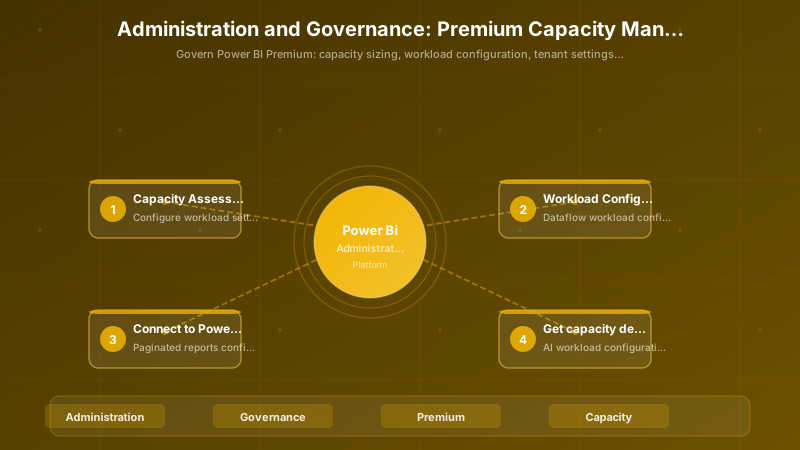
Figure: Azure Policy compliance dashboard – initiative scores and remediation tasks.
## Daily governance automation script


## Schedule via Azure Automation or Task Scheduler

function Invoke-DailyGovernanceChecks {
```powershell
Connect-PowerBIServiceAccount -ServicePrincipal -Credential $cred -Tenant $tenantId


$report = @{
    Date = Get-Date -Format "yyyy-MM-dd"
    Checks = @()
}

## Check 1: Identify uncertified datasets in production
$uncertifiedDatasets = Get-PowerBIWorkspace -Scope Organization -Filter "name eq 'Production'" | ForEach-Object {
    Get-PowerBIDataset -WorkspaceId $_.Id | Where-Object {-not $_.IsEffectiveIdentityRequired}
}


$report.Checks += @{
    Name = "Uncertified Production Datasets"
    Count = $uncertifiedDatasets.Count
    Items = $uncertifiedDatasets.Name
}

## Check 2: Find workspaces without owners
$orphanedWorkspaces = Get-PowerBIWorkspace -Scope Organization | Where-Object {
    $workspaceUsers = Get-PowerBIWorkspaceUser -WorkspaceId $_.Id
    ($workspaceUsers | Where-Object {$_.AccessRight -eq "Admin"}).Count -eq 0
}


$report.Checks += @{
    Name = "Workspaces Without Owners"
    Count = $orphanedWorkspaces.Count
    Items = $orphanedWorkspaces.Name
}

## Check 3: Datasets exceeding refresh time SLA (>2 hours)
$longRefreshes = Get-PowerBIWorkspace -Scope Organization | ForEach-Object {
    Get-PowerBIDataset -WorkspaceId $_.Id | ForEach-Object {
        $refreshHistory = Get-PowerBIDatasetRefreshHistory -DatasetId $_.Id -WorkspaceId $_.Id -Top 1
        if ($refreshHistory -and ($refreshHistory.EndTime - $refreshHistory.StartTime).TotalHours -gt 2) {
            [PSCustomObject]@{
                Dataset = $_.Name
                Duration = [math]::Round(($refreshHistory.EndTime - $refreshHistory.StartTime).TotalHours, 2)
            }
        }
    }
}

$report.Checks += @{
    Name = "Long-Running Refreshes (>2 hours)"
    Count = $longRefreshes.Count
    Items = $longRefreshes
}

## Send email report
$emailBody = $report | ConvertTo-Json -Depth 5
Send-MailMessage -To "biops@contoso.com" -Subject "Power BI Governance Report - $($report.Date)" -Body $emailBody -SmtpServer "smtp.contoso.com"


return $report```
}

## Execute daily checks
Invoke-DailyGovernanceChecks
Security and Compliance Checklist
Enterprise Security Hardening
Identity and Access Management:
☑ Azure AD Integration
  - Enable conditional access policies for Power BI
  - Require MFA for all admin accounts
  - Implement just-in-time (JIT) admin access
  - Regular access reviews (quarterly minimum)

☑ Service Principal Management
  - Dedicated service principal per application/pipeline
  - Certificate-based authentication (not client secrets)
  - Regular credential rotation (90 days)
  - Audit service principal permissions monthly

☑ Guest User Controls
  - Restrict guest invitations to specific domains
  - Limit guest permissions (view only)
  - Implement external sharing policies
  - Monthly guest user access audits

☑ Workspace Security
  - Minimum of 2 admins per workspace (no single point of failure)
  - Role-based access aligned with business functions
  - Separate DEV/TEST/PROD workspaces
  - Document access request and approval workflow
Data Protection:
## Enable sensitivity labels organization-wide
Set-PowerBITenantSetting -SettingName "InformationProtectionPolicies" -Enabled $true


## Configure default sensitivity label for new content
Set-PowerBITenantSetting -SettingName "MandatoryLabelPolicy" -Enabled $true -AppliesTo @("Organization")


## Audit data protection compliance
$labelAudit = Get-PowerBIWorkspace -Scope Organization | ForEach-Object {
```powershell
$workspaceId = $_.Id
Get-PowerBIDataset -WorkspaceId $workspaceId | Select-Object @{
    Name = "Workspace"; Expression = {$workspaceId}
}, Name, @{
    Name = "HasSensitivityLabel"; Expression = {$_.SensitivityLabel -ne $null}
}```
}


## Identify datasets without labels
$unlabeledDatasets = $labelAudit | Where-Object {-not $_.HasSensitivityLabel}
Write-Host "Unlabeled Datasets: $($unlabeledDatasets.Count)"
Encryption and Key Management:
Architecture Overview: ☑ Data at Rest Encryption
Compliance Frameworks
GDPR Compliance:
Architecture Overview: ☑ Data Subject Rights
SOX Compliance (Financial Reporting):
Architecture Overview: ☑ Change Management
HIPAA Compliance (Healthcare):
Architecture Overview: ☑ PHI Protection
Audit and Monitoring
Activity Monitoring PowerShell:
## Comprehensive 30-day activity audit
function Get-PowerBISecurityAudit {
```powershell
param([int]$Days = 30)


$startDate = (Get-Date).AddDays(-$Days)
$endDate = Get-Date
$allActivities = @()

## Fetch activities in 24-hour chunks (API limitation)
for ($i = 0; $i -lt $Days; $i++) {
    $current = $startDate.AddDays($i)
    Write-Host "Fetching activities for $($current.ToString('yyyy-MM-dd'))..."


    $activities = Get-PowerBIActivityEvent `
        -StartDateTime $current `
        -EndDateTime $current.AddDays(1) |
        ConvertFrom-Json

    $allActivities += $activities
}

## Security-relevant activity analysis
$securityEvents = $allActivities | Where-Object {
    $_.Activity -in @(
        "ViewReport", "ExportReport", "ExportArtifact",
        "ShareReport", "ShareDataset", "CreateWorkspace",
        "AddWorkspaceMembers", "UpdateWorkspace",
        "SetScheduledRefresh", "UpdateDatasourceCredentials"
    )
}


## Generate security metrics
$metrics = @{
    TotalActivities = $all Activities.Count
    SecurityEvents = $securityEvents.Count
    UniqueUsers = ($securityEvents | Select-Object -Unique -ExpandProperty UserId).Count
    TopActivities = $securityEvents | Group-Object Activity | Sort-Object Count -Descending | Select-Object -First 10
    ExternalSharing = ($securityEvents | Where-Object {$_.Activity -like "*Share*"}).Count
    DataExports = ($securityEvents | Where-Object {$_.Activity -like "*Export*"}).Count
}


return [PSCustomObject]$metrics```
}

## Run monthly security audit
$securityAudit = Get-PowerBISecurityAudit -Days 30
$securityAudit | Format-List
Compliance Reporting Dashboard:
Create Power BI dashboard tracking:

1. Security Metrics:
   - Failed login attempts by user
   - Access denied events
   - Unusual access patterns (time, geography)
   - Service principal activity

2. Compliance Metrics:
   - % of datasets with sensitivity labels
   - % of reports with RLS enabled
   - Refresh success rate
   - SLA compliance (refresh duration)

3. Governance Metrics:
   - Workspaces without owners
   - Uncertified datasets in production
   - Orphaned content (unused >90 days)
   - Cost per workspace/department

4. Capacity Health:
   - CPU utilization trend
   - Memory utilization trend
   - Query duration percentiles (p50, p95, p99)
   - Refresh queue depth
Best Practices Summary
Capacity Management
- Right-size from the start: Use the sizing calculator and monitor for 30 days before committing to SKU
- Enable autoscale strategically: Use for unpredictable spikes, not as a substitute for proper sizing
- Implement geographic distribution: Use multi-geo capacities for global organizations to reduce latency
- Reserve capacity commitments: Save up to 40% with 1-3 year reserved instances
Workload Optimization
- Balance workload allocation: Don't exceed 100% total memory allocation across workloads
- Separate production and development: Use different capacities or at minimum different workspaces
- Schedule refreshes intelligently: Stagger refreshes, avoid peak business hours, use incremental refresh
- Monitor and adjust: Review capacity metrics weekly, adjust workload settings based on usage patterns
Governance
- Principle of least privilege: Grant minimum necessary permissions, use RLS/OLS extensively
- Certification workflow: Require approval for production dataset promotion
- Audit regularly: Weekly access reviews, monthly compliance reports, quarterly capacity audits
- Document everything: Maintain runbooks, decision logs, exception approvals
Cost Control
- Implement showback/chargeback: Allocate costs to business units by workspace tags
- Quarterly cleanup: Archive unused content, decommission orphaned datasets
- Optimize aggressively: Aggregations, incremental refresh, query performance tuning
- Evaluate alternatives: Consider PPU for teams <300 users, Embedded for external scenarios
Architecture Decision and Tradeoffs
When designing business intelligence solutions with Power BI, consider these key architectural trade-offs:
| Approach | Best For | Tradeoff |
|---|---|---|
| Managed / platform service | Rapid delivery, reduced ops burden | Less customisation, potential vendor lock-in |
| Custom / self-hosted | Full control, advanced tuning | Higher operational overhead and cost |
Recommendation: Start with the managed approach for most workloads and move to custom only when specific requirements demand it.
Validation and Versioning
- Last validated: April 2026
- Validate examples against your tenant, region, and SKU constraints before production rollout.
- Keep module, CLI, and SDK versions pinned in automation pipelines and review quarterly.
Security and Governance Considerations
- Apply least-privilege access using RBAC roles and just-in-time elevation for admin tasks.
- Store secrets in managed secret stores and avoid embedding credentials in scripts or source files.
- Enable audit logging, data protection policies, and periodic access reviews for regulated workloads.
Cost and Performance Notes
- Define budgets and alerts, then monitor usage and cost trends continuously after go-live.
- Baseline performance with synthetic and real-user checks before and after major changes.
- Scale resources with measured thresholds and revisit sizing after usage pattern changes.
Official Microsoft References
- https://learn.microsoft.com/power-bi/
- https://learn.microsoft.com/power-bi/guidance/
- https://learn.microsoft.com/fabric/
Public Examples from Official Sources
- These examples are sourced from official public Microsoft documentation and sample repositories.
- Documentation examples: https://learn.microsoft.com/power-bi/
- Sample repositories: https://github.com/microsoft/PowerBI-Developer-Samples
- Prefer adapting these examples to your tenant, subscriptions, and governance requirements before production use.
Key Takeaways
- Premium capacity requires proactive management: monitoring, optimization, and governance are ongoing activities
- Proper sizing prevents 80% of performance issues: invest time upfront in capacity planning
- Security and compliance are non-negotiable: implement RLS, OLS, sensitivity labels, and audit logging
- Cost optimization is continuous: regular reviews, optimization, and cleanup prevent budget overruns
- Automation is essential: use PowerShell, REST API, and deployment pipelines for consistency
Next Steps
- Complete capacity assessment and sizing exercise
- Configure capacity metrics app and alerting
- Implement core tenant governance policies
- Establish deployment pipeline for production content
- Schedule quarterly governance reviews
- Document standard operating procedures
- Train capacity administrators on monitoring tools
- Implement cost allocation and showback reporting
Additional Resources
- Power BI Premium Capacity Planning
- Capacity Metrics App
- Admin Portal Documentation
- Power BI REST API Reference
- Power BI Governance Whitepaper
- Premium Capacity Optimization
Govern. Monitor. Optimize. Scale.
Discussion