
✅ SUM(Sales[Amount]) WHERE Region = "North America" ❌ NOT: SUM(All Sales) THEN filter to "North America"
### RLS vs Other Security Mechanisms

| Security Type | Scope | Use Case | Applied At |
|---------------|-------|----------|------------|
| **Row-Level Security (RLS)** | Row filtering within tables | Restrict data rows per user/role | Dataset level |
| **Object-Level Security (OLS)** | Hide entire tables/columns | Sensitive columns (SSN, Salary) | Dataset level |
| **Workspace Access** | Report/dashboard access | Who can view/edit content | Service level |
| **App Audiences** | Content sections | Section-based access in apps | App level |
| **Dataset Permissions** | Dataset connection access | Who can build on dataset | Dataset level |

**Best Practice**: Use RLS in combination with other mechanisms for defense-in-depth security.

## Static vs Dynamic RLS Patterns

### Static Roles Pattern


```dax
// Role: "Finance Team"
// Applied to 'Sales' table
[Department] = "Finance"

// Role: "North America Sales"
// Applied to 'Sales' table
[Region] = "North America"

// Role: "Executive"
// No filter (sees all data)
TRUE()
Static Role Characteristics:
- ✅ Simple to implement and understand
- ✅ Fast query performance (no lookups)
- ✅ Easy to test
- ❌ Requires creating new role for each variation
- ❌ Doesn't scale (100s of regions = 100s of roles)
- ❌ Manual updates needed when data values change
When to Use Static Roles:
- Small number of distinct filters (< 10 roles)
- Filters based on static business units
- Simple scenarios where users map 1:1 with data segments
Dynamic Security Pattern
// Security Mapping Table Structure:
// SecurityMapping: UserPrincipalName | RegionKey | DepartmentKey | AccessLevel

// Applied to 'Sales' table, filtering by Region
[RegionKey] IN VALUES('SecurityMapping'[RegionKey])

// More robust version with user validation:
VAR CurrentUser = USERPRINCIPALNAME()
VAR UserExists =
```text
CALCULATE(
    COUNTROWS('SecurityMapping'),
    'SecurityMapping'[UserPrincipalName] = CurrentUser
) > 0```
VAR AllowedRegions =
```text
CALCULATETABLE(
    VALUES('SecurityMapping'[RegionKey]),
    'SecurityMapping'[UserPrincipalName] = CurrentUser
)```
RETURN
```text
IF(
    UserExists,
    [RegionKey] IN AllowedRegions,
    FALSE()  // Deny access if user not in mapping
)
Diagram: See the official Microsoft documentation for architecture details.
Dynamic Role Advantages:
- ✅ Single role scales to unlimited users
- ✅ Security managed via data (can be from SQL, Azure AD)
- ✅ Users can have multiple permitted values
- ✅ Easy to audit (query SecurityMapping table)
- ❌ Slightly more complex to implement
- ❌ Small performance overhead (lookup per query)
Implementing Dynamic Security
// Power Query: Load security mappings from SQL or Azure AD
let
```text
Source = Sql.Database("server", "SecurityDB"),
SecurityTable = Source{[Schema="dbo",Item="UserRegionMapping"]}[Data],

// Transform to expected format
RenamedColumns = Table.RenameColumns(SecurityTable, {
    {"Email", "UserPrincipalName"},
    {"Region_Code", "RegionKey"}
}),

// Ensure lowercase emails (USERPRINCIPALNAME() returns lowercase)
LowercaseEmail = Table.TransformColumns(RenamedColumns, {
    {"UserPrincipalName", Text.Lower, type text}
}),

// Add data validation
RemovedDuplicates = Table.Distinct(LowercaseEmail, {"UserPrincipalName", "RegionKey"})```
in
```text
RemovedDuplicates
```dax
// Create explicit role named "Dynamic Security"
// Apply this filter to all relevant tables

// Filter for Region dimension:
VAR CurrentUser = USERPRINCIPALNAME()
VAR AllowedRegions =
```text
CALCULATETABLE(
    VALUES('SecurityMapping'[RegionKey]),
    'SecurityMapping'[UserPrincipalName] = CurrentUser
)```
RETURN
```text
'Region'[RegionKey] IN AllowedRegions
// Relationship propagates filter to Sales fact table automatically
## Organizational Hierarchy Security

### Manager-Based Security Pattern


```dax
// Employee Table Structure:
// EmployeeID | EmployeeName | ManagerID | Path

// Build Path in Power Query:
let
```csharp
Source = Sql.Database("server", "HRDB"),
Employees = Source{[Schema="dbo",Item="Employees"]}[Data],

// Create hierarchy path using PATH function (requires SQL Server 2008+)
// Or build manually with recursive query
AddPath = Table.AddColumn(Employees, "ManagerPath",
    each Text.Combine(
        List.Transform(
            // Recursive function to build path
            BuildPath([EmployeeID], Employees),
            each Text.From(_)
        ),
        "|"
    )
)```
in
```text
AddPath
// Alternative: Use PATH functions in DAX (requires parent-child table) Employees[ManagerPath] = PATH(Employees[EmployeeID], Employees[ManagerID])
**RLS Filter for Manager Hierarchy**:

```dax
// Applied to 'Sales' table
// Allows manager to see their own data + all subordinates' data

VAR CurrentUser = USERPRINCIPALNAME()
VAR CurrentEmployeeID =
```text
LOOKUPVALUE(
    'Employees'[EmployeeID],
    'Employees'[Email], CurrentUser
)```
VAR CurrentEmployeePath =
```text
LOOKUPVALUE(
    'Employees'[ManagerPath],
    'Employees'[EmployeeID], CurrentEmployeeID
)```
RETURN
```text
PATHCONTAINS(
    RELATED('Employees'[ManagerPath]),
    CurrentEmployeeID
)
// Explanation: // - Gets current user's Employee ID // - Finds their position in org hierarchy // - Checks if sales record's employee is descendant // - PATHCONTAINS returns TRUE if CurrentEmployeeID is in the path
### Alternative: Simpler Lookup Pattern

```dax
// For simpler hierarchies without PATH functions

VAR CurrentUser = USERPRINCIPALNAME()
VAR UserEmployeeID =
```text
LOOKUPVALUE('Employees'[EmployeeID], 'Employees'[Email], CurrentUser)
// Option 1: Direct reports only (one level) RETURN
'Sales'[SalespersonID] = UserEmployeeID ||
RELATED('Employees'[ManagerID]) = UserEmployeeID
// Option 2: Check against manager mapping table VAR AllowedEmployees =
CALCULATETABLE(
    VALUES('ManagerHierarchy'[EmployeeID]),
    'ManagerHierarchy'[ManagerID] = UserEmployeeID
)```
RETURN
```text
'Sales'[SalespersonID] IN AllowedEmployees
### Testing Hierarchy Security

```dax
// Create measure to debug RLS during testing
CurrentUser Debug =
VAR CurrentUser = USERPRINCIPALNAME()
VAR UserEmployeeID =
```text
LOOKUPVALUE('Employees'[EmployeeID], 'Employees'[Email], CurrentUser)```
VAR EmployeeCount =
```text
CALCULATE(
    COUNTROWS('Employees'),
    PATHCONTAINS('Employees'[ManagerPath], UserEmployeeID)
)```
RETURN
```text
"User: " & CurrentUser & " | " &
"Employee ID: " & UserEmployeeID & " | " &
"Can See: " & EmployeeCount & " employees"
Diagram: See the official Microsoft documentation for architecture details.
Implementation:
// Applied to Sales table

VAR CurrentUser = USERPRINCIPALNAME()

// Check Region access
VAR AllowedRegions =
```text
CALCULATETABLE(
    VALUES('UserSecurityBridge'[RegionKey]),
    'UserSecurityBridge'[UserPrincipalName] = CurrentUser
)
// Check Product Category access VAR AllowedCategories =
CALCULATETABLE(
    VALUES('UserSecurityBridge'[ProductCategory]),
    'UserSecurityBridge'[UserPrincipalName] = CurrentUser
)
// Check if user has "All" wildcard access VAR HasAllRegions = "All" IN AllowedRegions VAR HasAllProducts = "All" IN AllowedCategories
RETURN
(
    HasAllRegions ||
    RELATED('Region'[RegionKey]) IN AllowedRegions
) &&
(
    HasAllProducts ||
    RELATED('Product'[Category]) IN AllowedCategories
)
### Handling Wildcards and Special Cases

```dax
// Support for wildcards like "*", "All", or NULL (= full access)

VAR CurrentUser = USERPRINCIPALNAME()
VAR UserMappings =
```text
FILTER(
    'UserSecurityBridge',
    'UserSecurityBridge'[UserPrincipalName] = CurrentUser
)
// Check if user has wildcard access VAR HasWildcard =
COUNTROWS(
    FILTER(
        UserMappings,
        'UserSecurityBridge'[RegionKey] IN {"*", "All", "*All*"} ||
        ISBLANK('UserSecurityBridge'[RegionKey])
    )
) > 0
// Get allowed regions (excluding wildcards) VAR AllowedRegions =
CALCULATETABLE(
    VALUES('UserSecurityBridge'[RegionKey]),
    'UserSecurityBridge'[UserPrincipalName] = CurrentUser,
    'UserSecurityBridge'[RegionKey] <> "*",
    'UserSecurityBridge'[RegionKey] <> "All",
    'UserSecurityBridge'[RegionKey] <> "*All*",
    NOT(ISBLANK('UserSecurityBridge'[RegionKey]))
)
RETURN
HasWildcard ||
RELATED('Region'[RegionKey]) IN AllowedRegions
## Performance Optimization for RLS

### Avoid Expensive Lookups


```dax
// ❌ SLOW: Multiple LOOKUPVALUE calls
VAR CurrentUser = USERPRINCIPALNAME()
VAR Region1 = LOOKUPVALUE('SecurityMapping'[Region], 'SecurityMapping'[User], CurrentUser, 'SecurityMapping'[Priority], 1)
VAR Region2 = LOOKUPVALUE('SecurityMapping'[Region], 'SecurityMapping'[User], CurrentUser, 'SecurityMapping'[Priority], 2)
RETURN [RegionKey] IN {Region1, Region2}

// ✅ FAST: Single CALCULATETABLE
VAR CurrentUser = USERPRINCIPALNAME()
VAR AllowedRegions =
```text
CALCULATETABLE(
    VALUES('SecurityMapping'[Region]),
    'SecurityMapping'[User] = CurrentUser
)```
RETURN [RegionKey] IN AllowedRegions
Pre-Calculate Paths and Keys
// Power Query: Pre-calculate hierarchy paths
let
```sql
Source = Sql.Database("server", "DB"),
Employees = Source{[Schema="dbo",Item="Employees"]}[Data],

// Build complete manager path as concatenated string
AddManagerPath = Table.AddColumn(Employees, "ManagerPathString",
    each BuildPathString([EmployeeID], Employees)),  // Custom function

// Or use SQL Server HIERARCHYID if available
// Or use recursive CTE in source query

// Also pre-calculate depth level
AddLevel = Table.AddColumn(AddManagerPath, "Level",
    each List.Count(Text.Split([ManagerPathString], "|")))```
in
```text
AddLevel
### Use Variables to Cache Calculations

```dax
// ❌ SLOW: Recalculates USERPRINCIPALNAME() multiple times
RETURN
```text
USERPRINCIPALNAME() IN VALUES('SecurityMapping'[User]) &&
RELATED('Region'[RegionKey]) IN
    CALCULATETABLE(
        VALUES('SecurityMapping'[Region]),
        'SecurityMapping'[User] = USERPRINCIPALNAME()  // Calculated again!
    )
// ✅ FAST: Calculate once with variable VAR CurrentUser = USERPRINCIPALNAME() VAR AllowedRegions =
CALCULATETABLE(
    VALUES('SecurityMapping'[Region]),
    'SecurityMapping'[User] = CurrentUser
)```
RETURN
```text
RELATED('Region'[RegionKey]) IN AllowedRegions
### Optimize Security Mapping Table

```text
Security Mapping Table Optimization:

❌ Avoid:
- Text-based keys (use integers)
- Duplicate rows
- Unnecessary columns
- Complex calculated columns

✅ Best Practices:
- Integer surrogate keys
- Indexed in source database
- Minimal columns (User, Key, Level)
- Pre-filtered (remove inactive users)
- Sorted by User for better compression
Testing RLS Thoroughly
Power BI Desktop Testing
Architecture Overview: Test as Role User in Power BI Desktop:
Power BI Service Testing
# Create test users in Azure AD for different scenarios


## Add them to dataset roles in Power BI Service


## Test User 1: Limited access (NA region only)


## Test User 2: Manager (can see subordinates)


## Test User 3: Executive (sees all)


## Test User 4: Not in security mapping (should see nothing)


## Share report with test users
Add-PowerBIWorkspaceUser -WorkspaceId "workspace-id" `
```text
-UserPrincipalName "testuser1@contoso.com" `
-AccessRight Viewer
Have each test user login and verify data visibility
Check that filters work correctly with slicers
Verify drill-through and cross-filtering respect RLS
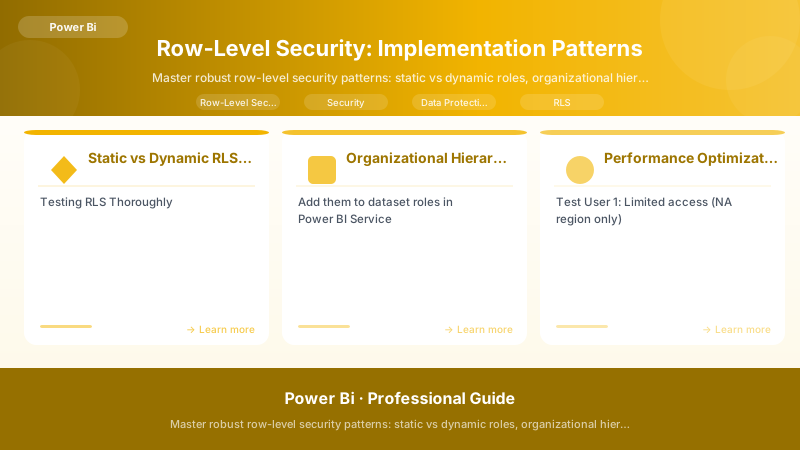
Figure: RLS role editor – DAX filter expression and testing panel.
## Automated RLS Testing

```dax
// Create validation measures for testing


RLS Validation =
VAR CurrentUser = USERPRINCIPALNAME()
VAR ExpectedRowCount = 1000  // Known value for test user
VAR ActualRowCount = COUNTROWS('Sales')
VAR IsValid = ActualRowCount = ExpectedRowCount
RETURN
```text
IF(
    IsValid,
    "✅ PASS: " & ActualRowCount & " rows",
    "❌ FAIL: Expected " & ExpectedRowCount & ", got " & ActualRowCount
)
// Log results for regression testing
### Common Testing Pitfalls


> **Architecture Overview:** ⚠️ Common RLS Testing Mistakes:


## Advanced RLS Patterns

### Time-Based Security


```dax
// Users can only see data from their tenure period

VAR CurrentUser = USERPRINCIPALNAME()
VAR UserStartDate =
```text
LOOKUPVALUE('Employees'[StartDate], 'Employees'[Email], CurrentUser)```
VAR UserEndDate =
```text
LOOKUPVALUE('Employees'[EndDate], 'Employees'[Email], CurrentUser)
RETURN
'Sales'[OrderDate] >= UserStartDate &&
(ISBLANK(UserEndDate) || 'Sales'[OrderDate] <= UserEndDate)
### Conditional RLS by User Attribute

```dax
// Different RLS logic for different user types

VAR CurrentUser = USERPRINCIPALNAME()
VAR UserType =
```text
LOOKUPVALUE('SecurityMapping'[UserType], 'SecurityMapping'[Email], CurrentUser)
RETURN
SWITCH(
    UserType,
    "Sales", [Region] = "NA",  // Sales sees only NA
    "Manager", [Department] IN {"Sales", "Marketing"},  // Manager sees multiple depts
    "Executive", TRUE(),  // Executive sees all
    FALSE()  // Default: no access
)
### RLS with Azure AD Groups

```powerquery
// Import Azure AD group membership
let
```text
Source = AzureActiveDirectory.GetUserGroups(),
ExpandedGroups = Table.ExpandListColumn(Source, "Groups"),

// Map groups to regions
AddRegion = Table.AddColumn(ExpandedGroups, "RegionKey",
    each if [GroupName] = "Sales-NA" then "NA"
         else if [GroupName] = "Sales-EMEA" then "EMEA"
         else if [GroupName] = "Sales-APAC" then "APAC"
         else null
),

FilteredRows = Table.SelectRows(AddRegion, each [RegionKey] <> null)```
in
```text
FilteredRows
## Best Practices Checklist

### Design Phase


> **Architecture Overview:** ☑ Architecture:


### Implementation Phase


> **Architecture Overview:** ☑ Development:


### Maintenance Phase


> **Architecture Overview:** ☑ Ongoing:


## Troubleshooting Guide

### Issue 1: Users See Blank Reports


**Symptoms**:

- User opens report and sees no data
- All visuals are empty
- No error message


**Diagnosis**:

```dax
// Create diagnostic measure
User Security Check =
VAR CurrentUser = USERPRINCIPALNAME()
VAR UserInMapping =
```text
CALCULATE(
    COUNTROWS('SecurityMapping'),
    'SecurityMapping'[UserPrincipalName] = CurrentUser
) > 0```
VAR AllowedRegions =
```text
CALCULATETABLE(
    VALUES('SecurityMapping'[RegionKey]),
    'SecurityMapping'[UserPrincipalName] = CurrentUser
)```
RETURN
```text
"User: " & CurrentUser & " | " &
"In Mapping: " & IF(UserInMapping, "Yes", "❌ No") & " | " &
"Regions: " & CONCATENATEX(AllowedRegions, [RegionKey], ", ")
**Common Causes & Resolutions**:

1. **User not in security mapping table**
   - Add user to SecurityMapping table
   - Or add user's Azure AD group

2. **Email case sensitivity mismatch**
   - USERPRINCIPALNAME() returns lowercase
   - Ensure security table emails are lowercase

3. **RLS filter too restrictive**
   - Review filter logic
   - Check for unintended blank/null filters

4. **Unrelated tables not filtered**
   - Apply RLS to all dimension tables
   - Check relationship directions


### Issue 2: Users See Unauthorized Data

**Symptoms**:

- User sees data they shouldn't
- RLS appears to not be working


**Diagnosis**:

```powershell
## Check role membership in Power BI Service
$datasetId = "dataset-id"
$roles = Invoke-PowerBIRestMethod -Url "datasets/$datasetId/roles" -Method Get | ConvertFrom-Json


## Check who is assigned to each role
foreach ($role in $roles.value) {
```text
$members = Invoke-PowerBIRestMethod -Url "datasets/$datasetId/roles/$($role.id)/members" -Method Get | ConvertFrom-Json
Write-Host "Role: $($role.name)"
Write-Host "Members: $($members.value.principalName -join ', ')"```
}
Common Causes & Resolutions:
-
User not assigned to any role
- Assign user/group to appropriate role in Service
- Users without role assignment see ALL data!
-
RLS not applied to all tables
- Apply filter to dimension tables, not just facts
- Check many-to-many relationships
-
Bidirectional relationship bypassing RLS
- Review relationship directions
- Set to single-direction where possible
-
Calculated tables not respecting RLS
- RLS applies to base tables only by default
- Recreate calculated table with RLS-aware logic
Issue 3: Performance Degradation
Symptoms:
- Reports slow after implementing RLS
- Query times 2-10x slower than without RLS
Diagnosis:
Use DAX Studio to analyze query plan:

1. Connect to dataset via XMLA endpoint
2. Run query with Server Timings enabled
3. Review:
   - Storage Engine vs Formula Engine time
   - Number of Storage Engine queries
   - LOOKUPVALUE or FILTER operations

High Formula Engine time = inefficient RLS logic
Optimizations:
- Pre-calculate paths/hierarchies in Power Query
// Move complex logic from DAX to Power Query
AddManagerPath = Table.AddColumn(Employees, "ManagerPath",
```text
each BuildPath([EmployeeID], [ManagerID]))
2. **Use IN operator instead of OR chains**

```dax
// ❌ SLOW
RETURN [Region] = "NA" || [Region] = "EMEA" || [Region] = "APAC"

// ✅ FAST
RETURN [Region] IN {"NA", "EMEA", "APAC"}
- Cache user lookups with variables
VAR CurrentUser = USERPRINCIPALNAME()  // Calculate once
VAR AllowedKeys = CALCULATETABLE(...)  // Calculate once
RETURN [Key] IN AllowedKeys
- Use integer keys instead of text
Text comparison: Slower, larger memory footprint
Integer comparison: Faster, better compression


> **Architecture Overview:** ### Issue 4: RLS Works in Desktop but Not Service

## Assign users to roles in Service
$datasetId = "dataset-id"
$roleId = "role-id"


$body = @{
```text
identifier = "user@contoso.com"
principalType = "User"```
} | ConvertTo-Json

Invoke-PowerBIRestMethod -Url "datasets/$datasetId/roles/$roleId/members" -Method Post -Body $body
RLS Governance and Auditing
Security Mapping Audit
## Regular audit script to validate security mappings

function Audit-RLSSecurityMappings {
```powershell
param(
    [string]$DatasetId,
    [string]$HRSystemConnectionString
)


## Get current security mappings from Power BI dataset
$pbiMappings = Invoke-PowerBIRestMethod -Url "datasets/$DatasetId/executeQueries" -Method Post -Body (@{
    queries = @(
        @{
            query = "EVALUATE 'SecurityMapping'"
        }
    )
} | ConvertTo-Json)


## Get current employees from HR system
$hrEmployees = Invoke-Sqlcmd -ConnectionString $HRSystemConnectionString -Query "
    SELECT Email, Department, Region, TerminationDate
    FROM Employees
    WHERE TerminationDate IS NULL OR TerminationDate > GETDATE()
"


## Compare and identify discrepancies
$orphanedMappings = $pbiMappings | Where-Object {
    $_.UserPrincipalName -notin $hrEmployees.Email
}


$missingMappings = $hrEmployees | Where-Object {
    $_.Email -notin $pbiMappings.UserPrincipalName
}

## Generate report
Write-Host "=== RLS Security Mapping Audit ==="
Write-Host "Orphaned Mappings (users no longer in HR): $($orphanedMappings.Count)"
Write-Host "Missing Mappings (active users without access): $($missingMappings.Count)"


if ($orphanedMappings.Count -gt 0) {
    Write-Host "`n⚠️ Orphaned Mappings (should be removed):"
    $orphanedMappings | Format-Table UserPrincipalName, RegionKey
}

if ($missingMappings.Count -gt 0) {
    Write-Host "`n⚠️ Missing Mappings (should be added):"
    $missingMappings | Format-Table Email, Department, Region
}```
}

## Run monthly audit
Audit-RLSSecurityMappings -DatasetId "dataset-id" -HRSystemConnectionString "connection-string"


> **Architecture Overview:** ## RLS Design Patterns Comparison

// Combine dynamic RLS with hierarchical logic
[RLS - Regional + Hierarchy] =
VAR CurrentUser = USERPRINCIPALNAME()

// Get user's allowed regions
VAR AllowedRegions =
```text
CALCULATETABLE(
    VALUES(SecurityMapping[RegionKey]),
    SecurityMapping[UserPrincipalName] = CurrentUser
)
// Get user's employee ID for hierarchy VAR CurrentEmployeeID =
LOOKUPVALUE(
    Employee[EmployeeID],
    Employee[Email], CurrentUser
)
// Get all subordinate employees (including self) VAR SubordinateEmployees =
FILTER(
    ALL(Employee[EmployeeID]),
    PATHCONTAINS(Employee[ManagerPath], CurrentEmployeeID)
)
// Combine filters: Region OR Subordinate RETURN
[RegionKey] IN AllowedRegions
|| [EmployeeID] IN SubordinateEmployees
**Scenario: Customer Portal with Time-Based Access**

```dax
// Time-limited customer access pattern
[RLS - Customer Portal] =
VAR CurrentUser = USERPRINCIPALNAME()

// Get customer ID and access dates
VAR CustomerID = LOOKUPVALUE(CustomerPortalUsers[CustomerID], CustomerPortalUsers[Email], CurrentUser)
VAR AccessStart = LOOKUPVALUE(CustomerPortalUsers[AccessStartDate], CustomerPortalUsers[Email], CurrentUser)
VAR AccessEnd = LOOKUPVALUE(CustomerPortalUsers[AccessEndDate], CustomerPortalUsers[Email], CurrentUser)

// Ensure access is still valid
VAR HasActiveAccess = AccessStart <= TODAY() && AccessEnd >= TODAY()

// Filter data
RETURN
```text
Sales[CustomerID] = CustomerID
&& HasActiveAccess
### RLS Testing Framework

```powershell
## Comprehensive RLS testing script
function Test-RLSImplementation {
```powershell
param(
    [string]$DatasetId,
    [string]$WorkspaceId,
    [array]$TestUsers
)


$testResults = @()

foreach ($user in $TestUsers) {
    Write-Host "Testing RLS for: $($user.Email)"

    # Impersonate user and query data
    $body = @{
        queries = @(
            @{
                query = "
                    EVALUATE
                    SUMMARIZECOLUMNS(
                        'Region'[RegionName],
                        'Customer'[CustomerName],
                        ""Total Sales"", SUM('Sales'[Amount])
                    )
                    ORDER BY [Total Sales] DESC
                "
            }
        )
        serializerSettings = @{
            includeNulls = $false
        }
        impersonatedUserName = $user.Email
    } | ConvertTo-Json -Depth 5

    try {
        $result = Invoke-PowerBIRestMethod `
            -Url "datasets/$DatasetId/executeQueries" `
            -Method Post `
            -Body $body | ConvertFrom-Json

        $rowCount = $result.results[0].tables[0].rows.Count
        $totalSales = ($result.results[0].tables[0].rows | Measure-Object -Property "[Total Sales]" -Sum).Sum

        $testResults += [PSCustomObject]@{
            User = $user.Email
            ExpectedRegion = $user.ExpectedRegion
            RowsReturned = $rowCount
            TotalSales = $totalSales
            Status = if ($rowCount -eq $user.ExpectedRowCount) { "✅ PASS" } else { "❌ FAIL" }
        }
    }
    catch {
        $testResults += [PSCustomObject]@{
            User = $user.Email
            ExpectedRegion = $user.ExpectedRegion
            RowsReturned = 0
            TotalSales = 0
            Status = "❌ ERROR: $($_.Exception.Message)"
        }
    }
}

return $testResults```
}

## Define test cases
$testUsers = @(
```text
@{Email = "manager@contoso.com"; ExpectedRegion = "North America"; ExpectedRowCount = 150},
@{Email = "rep.europe@contoso.com"; ExpectedRegion = "Europe"; ExpectedRowCount = 80},
@{Email = "rep.asia@contoso.com"; ExpectedRegion = "Asia"; ExpectedRowCount = 60}```
)


## Execute tests
$results = Test-RLSImplementation -DatasetId "dataset-id" -WorkspaceId "workspace-id" -TestUsers $testUsers
$results | Format-Table -AutoSize
Performance Benchmarking
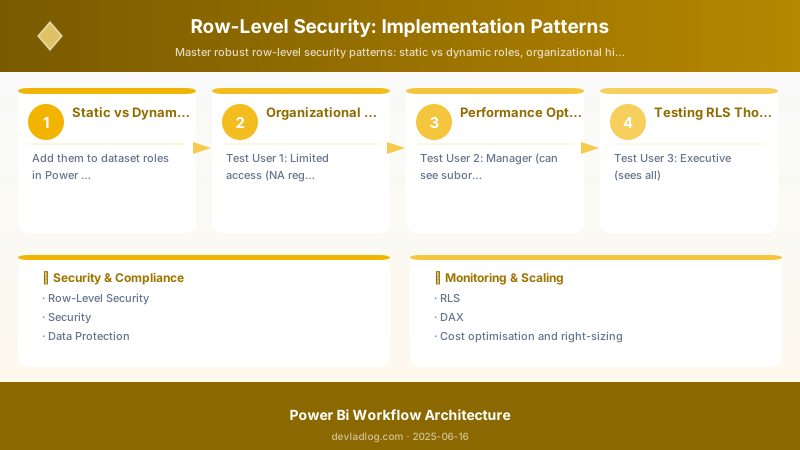
Figure: Power Apps form control – edit form with validation rules and error handling.
## Measure RLS performance impact
function Measure-RLSPerformance {

> **Architecture Overview:** param(


## Architecture Decision and Tradeoffs

When designing business intelligence solutions with Power BI, consider these key architectural trade-offs:

| Approach | Best For | Tradeoff |
|----------|----------|----------|
| Managed / platform service | Rapid delivery, reduced ops burden | Less customisation, potential vendor lock-in |
| Custom / self-hosted | Full control, advanced tuning | Higher operational overhead and cost |

> **Recommendation:** Start with the managed approach for most workloads and move to custom only when specific requirements demand it.

## Security and Governance Considerations

- **Least Privilege:** Grant only the permissions required for each role
- **Secret Management:** Store credentials in Azure Key Vault or equivalent; never hard-code secrets
- **Audit Logging:** Enable diagnostic and activity logs for compliance and forensic analysis
- **Data Protection:** Encrypt data at rest and in transit; classify data with sensitivity labels where applicable

## Cost and Performance Notes

- **Primary Cost Drivers:** Compute tier, storage volume, and network egress
- **Optimization Levers:** Right-size resources, use reserved instances or savings plans, and review Azure Advisor recommendations regularly
- **Performance Baseline:** Define SLAs, latency targets, and throughput thresholds before going live
- **Scaling Strategy:** Use auto-scale rules and monitor utilisation to balance cost and responsiveness

## Validation and Versioning

- **Last Validated:** April 2026
- **Tested With:** Current generally-available Power BI APIs and SDKs
- **Known Constraints:** Check regional availability and service limits before production deployment

## Official Microsoft References

- [Microsoft Learn – Power BI](https://learn.microsoft.com)
- [Power BI Documentation](https://learn.microsoft.com)
- [Azure Architecture Center](https://learn.microsoft.com/azure/architecture/)

## Public Examples from Official Sources

- [Microsoft official samples on GitHub](https://github.com/Azure-Samples)
- [Microsoft Learn training modules](https://learn.microsoft.com/training/)

## Key Takeaways

- **Dynamic RLS scales better** than static roles for most enterprise scenarios
- **Test thoroughly** in both Desktop and Service with real user accounts
- **Performance matters**: Use variables, pre-calculate paths, prefer integer keys
- **Security mapping is data**: Store in database, version control, audit regularly
- **Apply RLS to all tables**: Not just facts, include all related dimensions
- **Many-to-many requires bridge tables**: Plan carefully for complex scenarios
- **Organizational hierarchies need PATH functions**: Or pre-calculate in Power Query
- **Monitor and audit**: Quarterly reviews, automated validation, performance tracking


## Next Steps

1. Audit current RLS implementation (if exists) or design new architecture
2. Create SecurityMapping table in source database
3. Implement dynamic RLS pattern for primary security dimensions
4. Build comprehensive test plan with multiple user scenarios
5. Test in Power BI Service with real Azure AD users
6. Measure performance impact and optimize as needed
7. Document RLS logic and maintenance procedures
8. Schedule quarterly security mapping audits
9. Train report creators on RLS design patterns
10. Implement monitoring for RLS-related access issues


## Additional Resources

- [Power BI Row-Level Security](https://learn.microsoft.com/power-bi/admin/service-admin-rls)
- [Dynamic RLS Patterns](https://learn.microsoft.com/power-bi/guidance/rls-guidance)
- [Object-Level Security](https://learn.microsoft.com/power-bi/enterprise/service-admin-ols)
- [Security Best Practices](https://learn.microsoft.com/power-bi/guidance/whitepaper-powerbi-security)
- [USERPRINCIPALNAME Function](https://dax.guide/userprincipalname/)
- [PATH Functions in DAX](https://dax.guide/path/)


---

*Secure. Test. Monitor. Audit.*
Discussion