
], "background": "#FFFFFF", "foreground": "#000000", "tableAccent": "#0078D4", "bad": "#D83B01", "neutral": "#FFB900", "good": "#107C10", "minimum": "#F2F2F2", "center": "#FFB900", "maximum": "#107C10" }
### Typography Hierarchy

```text
Report Design Typography Standards:

Page Title:          Segoe UI, 18-20pt, Bold
Section Headers:     Segoe UI, 14-16pt, Semibold
Visual Titles:       Segoe UI, 12pt, Semibold
Axis Labels:         Segoe UI, 10pt, Regular
Data Labels:         Segoe UI, 9-10pt, Regular
Footnotes:           Segoe UI, 8pt, Italic

Line Height: 1.4-1.6 (optimal readability)
Avoid: >3 font sizes on one page
Layout Best Practices
Diagram: See the official Microsoft documentation for architecture details.
Accessibility Compliance (WCAG 2.1)
Color Contrast Requirements
# PowerShell script to validate color contrast ratios
function Test-ColorContrast {
> **Architecture Overview:** param(
## Alternative Text Configuration

*Figure: Configuration editor – appsettings sections with environment overrides.*
> **Architecture Overview:** How to Add Alt Text to Power BI Visuals:
### Color-Blind Friendly Palettes
```json
// Tested for Deuteranopia, Protanopia, Tritanopia
{
"name": "AccessiblePalette",
"dataColors": [
```python
"#0173B2", // Blue - Safe for all
"#DE8F05", // Orange - Safe for all
"#029E73", // Green - Distinct from blue/orange
"#CC78BC", // Purple - Additional option
"#CA9161", // Brown - Earth tone alternative
"#949494", // Gray - Neutral option
"#ECE133" // Yellow - Use sparingly (low contrast)```
]
}
// Color-blind simulator tools:
// - https://www.color-blindness.com/coblis-color-blindness-simulator/
// - Chrome extension: "Colorblinding"
Custom Visual Development
Setup Development Environment
## Install Power BI Custom Visuals Tools


## 1. Install Node.js (LTS version 14+)


## Download from: https://nodejs.org/


## 2. Install pbiviz CLI globally
npm install -g powerbi-visuals-tools


## 3. Create SSL certificate for dev testing
pbiviz --install-cert


## 4. Verify installation
pbiviz --version


## Should show: PowerBI Custom Visual Tool 4.x.x

Write-Host "✅ Power BI Visuals SDK installed successfully" -ForegroundColor Green
Expected output:
added 245 packages in 8s
found 0 vulnerabilities

Create Custom Visual Project
Diagram: See the official Microsoft documentation for architecture details.
Custom Visual Example: Advanced KPI Card
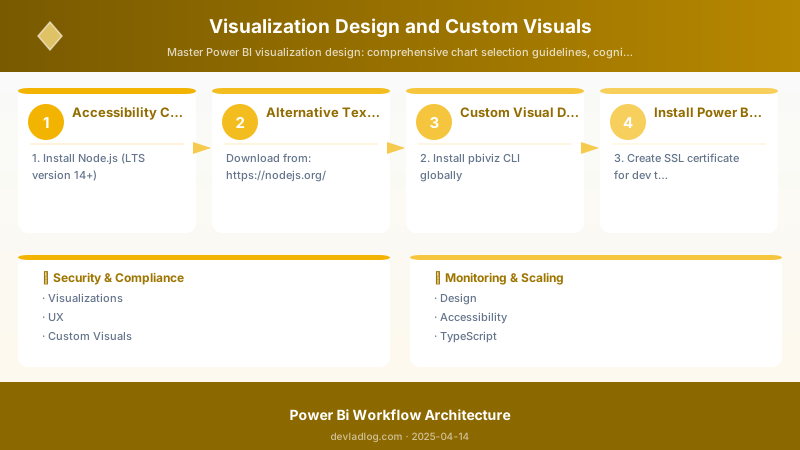
Figure: Power BI Desktop – report canvas with visuals, fields, and format pane.
// src/visual.ts - Custom KPI Visual


module powerbi.extensibility.visual {
```python
import DataView = powerbi.DataView;
import VisualUpdateOptions = powerbi.extensibility.visual.VisualUpdateOptions;
import IVisual = powerbi.extensibility.visual.IVisual;
import VisualConstructorOptions = powerbi.extensibility.visual.VisualConstructorOptions;

export class AdvancedKPI implements IVisual {
    private target: HTMLElement;
    private container: HTMLDivElement;
    private settings: VisualSettings;

    constructor(options: VisualConstructorOptions) {
        this.target = options.element;

        // Create container
        this.container = document.createElement("div");
        this.container.className = "kpi-container";
        this.target.appendChild(this.container);
    }

    public update(options: VisualUpdateOptions) {
        // Get data view
        const dataView: DataView = options.dataViews[0];

        if (!dataView || !dataView.categorical) {
            return;
        }

        // Extract values
        const category = dataView.categorical.categories[0];
        const values = dataView.categorical.values[0];

        const actualValue = values.values[0] as number;
        const targetValue = dataView.categorical.values[1]?.values[0] as number || 0;

        // Calculate percentage
        const percentage = targetValue > 0
            ? ((actualValue / targetValue) * 100)
            : 0;

        const percentageText = percentage >= 100
            ? `+${(percentage - 100).toFixed(1)}%`
            : `-${(100 - percentage).toFixed(1)}%`;

        const statusClass = percentage >= 100 ? "positive" : "negative";

        // Render HTML
        this.container.innerHTML = `
            <div class="kpi-card ${statusClass}">
                <div class="kpi-label">${category.source.displayName}</div>
                <div class="kpi-value">${this.formatNumber(actualValue)}</div>
                <div class="kpi-target">
                    Target: ${this.formatNumber(targetValue)}
                </div>
                <div class="kpi-progress">
                    <div class="progress-bar" style="width: ${Math.min(percentage, 100)}%"></div>
                </div>
                <div class="kpi-percentage ${statusClass}">${percentageText}</div>
            </div>
        `;
    }

    private formatNumber(value: number): string {
        if (value >= 1000000) {
            return `$${(value / 1000000).toFixed(1)}M`;
        } else if (value >= 1000) {
            return `$${(value / 1000).toFixed(0)}K`;
        } else {
            return `$${value.toFixed(0)}`;
        }
    }
}```
}
Custom Visual Styling
// style/visual.less

.kpi-container {
```yaml
width: 100%;
height: 100%;
display: flex;
align-items: center;
justify-content: center;
font-family: "Segoe UI", Arial, sans-serif;```
}

.kpi-card {
```yaml
background: #ffffff;
border-radius: 8px;
padding: 24px;
box-shadow: 0 2px 8px rgba(0, 0, 0, 0.1);
text-align: center;
min-width: 200px;

&.positive {
    border-left: 4px solid #107C10;
}

&.negative {
    border-left: 4px solid #D83B01;
}```
}

.kpi-label {
```yaml
font-size: 12px;
color: #666;
text-transform: uppercase;
letter-spacing: 0.5px;
margin-bottom: 8px;```
}

.kpi-value {
```yaml
font-size: 36px;
font-weight: 600;
color: #000;
margin-bottom: 4px;```
}

.kpi-target {
```yaml
font-size: 11px;
color: #999;
margin-bottom: 12px;```
}

.kpi-progress {
```yaml
width: 100%;
height: 4px;
background: #f0f0f0;
border-radius: 2px;
overflow: hidden;
margin-bottom: 12px;

.progress-bar {
    height: 100%;
    background: linear-gradient(90deg, #107C10, #00B294);
    transition: width 0.3s ease;
}```
}

.kpi-percentage {
```yaml
font-size: 14px;
font-weight: 600;

&.positive {
    color: #107C10;
}

&.negative {
    color: #D83B01;
}```
}
Capabilities Configuration
// capabilities.json - Defines data roles and properties

{
```text
"dataRoles": [
    {
        "displayName": "Category",
        "name": "category",
        "kind": "Grouping"
    },
    {
        "displayName": "Actual Value",
        "name": "actualValue",
        "kind": "Measure"
    },
    {
        "displayName": "Target Value",
        "name": "targetValue",
        "kind": "Measure"
    }
],
"dataViewMappings": [
    {
        "categorical": {
            "categories": {
                "for": { "in": "category" },
                "dataReductionAlgorithm": { "top": { "count": 1 } }
            },
            "values": {
                "select": [
                    { "bind": { "to": "actualValue" } },
                    { "bind": { "to": "targetValue" } }
                ]
            }
        }
    }
],
"objects": {
    "kpiCard": {
        "displayName": "KPI Card Settings",
        "properties": {
            "showTarget": {
                "displayName": "Show Target",
                "type": { "bool": true }
            },
            "targetColor": {
                "displayName": "Target Color",
                "type": { "fill": { "solid": { "color": true } } }
            }
        }
    }
}```
}
Testing and Packaging
Architecture Overview: ## Development workflow
Theme Customization and Branding
Complete Theme JSON Example
{
  "name": "CorporateTheme",
  "dataColors": [
```text
"#0078D4", "#50E6FF", "#FFB900", "#00B294",
"#E74856", "#00CC6A", "#FF8C00"```
  ],
  "background": "#FFFFFF",
  "foreground": "#000000",
  "tableAccent": "#0078D4",

  "visualStyles": {
```text
"*": {
  "*": {
    "title": [{
      "fontSize": 12,
      "fontFamily": "Segoe UI",
      "bold": true,
      "color": {"solid": {"color": "#000000"}}
    }],
    "background": [{
      "color": {"solid": {"color": "#FFFFFF"}},
      "transparency": 0
    }],
    "border": [{
      "color": {"solid": {"color": "#E0E0E0"}},
      "show": true
    }]
  }
},
"card": {
  "*": {
    "categoryLabels": [{
      "fontSize": 12,
      "color": {"solid": {"color": "#666666"}}
    }],
    "dataLabels": [{
      "fontSize": 24,
      "fontFamily": "Segoe UI Semibold",
      "color": {"solid": {"color": "#000000"}}
    }]
  }
},
"lineChart": {
  "*": {
    "dataPoint": [{
      "showAllDataPoints": true
    }],
    "legend": [{
      "show": true,
      "position": "Top",
      "fontSize": 10
    }]
  }
}```
  }
}
Apply Theme Programmatically
## Apply theme to all reports in workspace

$theme = Get-Content "CorporateTheme.json" -Raw
$workspaceId = "workspace-guid"


## Using Power BI REST API
$headers = @{
```text
"Authorization" = "Bearer $accessToken"
"Content-Type" = "application/json"```
}


$reports = Invoke-RestMethod -Uri "https://api.powerbi.com/v1.0/myorg/groups/$workspaceId/reports" -Headers $headers

foreach ($report in $reports.value) {
```text
Write-Host "Applying theme to: $($report.name)" -ForegroundColor Cyan

$uri = "https://api.powerbi.com/v1.0/myorg/groups/$workspaceId/reports/$($report.id)/ApplyTheme"

$body = @{
    theme = $theme | ConvertFrom-Json
} | ConvertTo-Json -Depth 10

Invoke-RestMethod -Uri $uri -Method Post -Headers $headers -Body $body

Write-Host "✅ Theme applied successfully" -ForegroundColor Green```
}
Performance Optimization
Visual Performance Checklist
Architecture Overview: ☑ Data Volume:
Performance Testing Script
## Analyze report performance

function Test-PowerBIReportPerformance {
```powershell
param(
    [string]$ReportId,
    [string]$WorkspaceId
)


Write-Host "Analyzing report performance..." -ForegroundColor Cyan

## Get report pages
$uri = "https://api.powerbi.com/v1.0/myorg/groups/$WorkspaceId/reports/$ReportId/pages"
$pages = Invoke-RestMethod -Uri $uri -Headers $headers


foreach ($page in $pages.value) {
    Write-Host "`nPage: $($page.displayName)" -ForegroundColor Yellow

    $visualCount = $page.visuals.Count
    Write-Host "  Visuals: $visualCount"

    if ($visualCount -gt 12) {
        Write-Host "  ⚠️ WARNING: Too many visuals (>12)" -ForegroundColor Red
        Write-Host "  Recommendation: Split into multiple pages or use drill-through"
    } elseif ($visualCount -gt 8) {
        Write-Host "  ⚠️ CAUTION: High visual count (8-12)" -ForegroundColor Yellow
    } else {
        Write-Host "  ✅ Visual count optimal (<8)" -ForegroundColor Green
    }

    # Check for heavy visuals
    $matrixVisuals = ($page.visuals | Where-Object { $_.type -eq "matrix" }).Count
    $tableVisuals = ($page.visuals | Where-Object { $_.type -eq "table" }).Count

    if ($matrixVisuals + $tableVisuals -gt 2) {
        Write-Host "  ⚠️ Multiple table/matrix visuals detected - consider consolidation" -ForegroundColor Yellow
    }
}```
}
Best Practices Summary
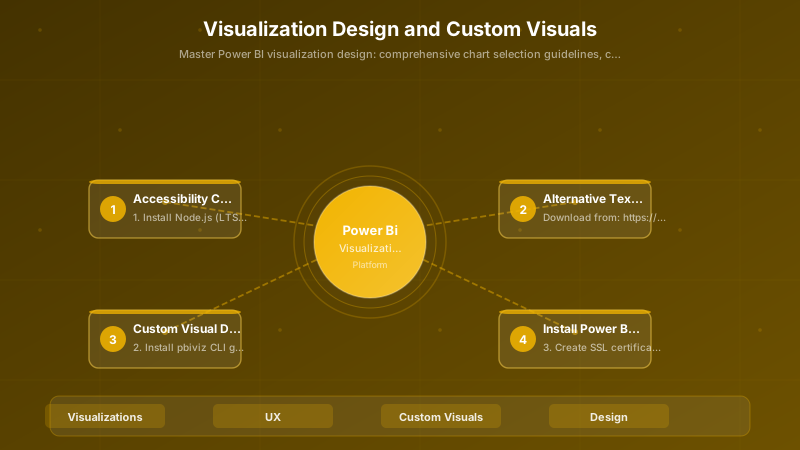
Figure: Configuration and management dashboard with status overview.
☑ Design Principles:
  ☐ Clarity over complexity - every visual answers a question
  ☐ Consistency across reports (colors, layout, naming)
  ☐ F-pattern layout (top-left → top-right → bottom)
  ☐ White space = cognitive breathing room
  ☐ 8-point grid alignment


☑ Chart Selection:
  ☐ Match visual type to data story
  ☐ Avoid pie charts with >5 slices
  ☐ No 3D effects ever
  ☐ Use sorted bar charts for rankings
  ☐ Line charts for trends over time

☑ Color Strategy:
  ☐ Max 7 colors in palette
  ☐ Use color-blind friendly palettes
  ☐ Maintain 4.5:1 contrast ratio (WCAG AA)
  ☐ Consistent color coding (e.g., red = negative)
  ☐ Enforce theme JSON usage

☑ Accessibility:
  ☐ Alt text for all visuals
  ☐ Keyboard navigation support
  ☐ Color not sole indicator
  ☐ Font size ≥10pt
  ☐ Test with screen readers

☑ Performance:
  ☐ 8-12 visuals max per page
  ☐ Use measures over calculated columns
  ☐ Limit data rows returned
  ☐ Optimize custom visual rendering
  ☐ Disable cross-highlight on busy pages

☑ Custom Visuals:
  ☐ Use AppSource visuals when possible
  ☐ Code review before production deployment
  ☐ Version control visual code
  ☐ Document data role requirements
  ☐ Test across browsers and devices

☑ Governance:
  ☐ Central theme library
  ☐ Approved custom visual list
  ☐ Design review process
  ☐ Performance benchmarks
  ☐ Accessibility audit quarterly
Troubleshooting Guide
Issue 1: Visuals Load Slowly
Diagnosis:
- Too many visuals on page
- High cardinality data
- Complex DAX calculations
- Inefficient data model
Resolution:
## Analyze query performance in Power BI Desktop

1. Go to: View → Performance Analyzer
2. Click "Start Recording"
3. Refresh visuals
4. Review timing breakdown:
   - DAX query time
   - Visual display time
   - Other


## Focus optimization on slowest queries


## Typical issues:


## - Missing relationships


## - Calculated columns instead of measures


## - No aggregations defined
Issue 2: Custom Visual Blocked by Admin
Diagnosis:
Error: "This visual is not approved for your organization"


> **Architecture Overview:** **Resolution:**

// Create brand-specific theme JSON

{
  "name": "BrandTheme",
  "dataColors": [
```text
"#<BRAND_PRIMARY>",
"#<BRAND_SECONDARY>",
"#<BRAND_ACCENT_1>",
"#<BRAND_ACCENT_2>"```
  ],
  "background": "#<BACKGROUND_COLOR>",
  "foreground": "#<TEXT_COLOR>",
  "visualStyles": {
```text
"*": {
  "*": {
    "title": [{
      "fontFamily": "<BRAND_FONT>",
      "color": {"solid": {"color": "#<BRAND_PRIMARY>"}}
    }]
  }
}```
  }
}

// Apply via: View → Themes → Browse for themes
Visual Types Deep Dive: When and Why
Core Chart Types
Bar and Column Charts (Comparison)
Use When:
✓ Comparing values across categories (5-20 categories optimal)
✓ Ranking (Top N products, Bottom performers)
✓ Time series (column) or categorical comparison (bar)

Best Practices:
- Start Y-axis at zero for honest comparison
- Sort by value unless time series
- Use horizontal bars for long category names
- Limit to 20 bars maximum (consider TOP N filter)

Avoid:
✗ 3D effects (distort perception)
✗ Multiple stacked series (hard to compare)
✗ Non-zero Y-axis start (misleading)
Line Charts (Trends Over Time)
Use When:
✓ Showing continuous data trends
✓ Multiple series comparison over time
✓ Highlighting change patterns

Best Practices:
- Maximum 5 lines per chart (readability)
- Use consistent time intervals
- Add markers at data points if sparse data
- Different line styles (solid, dashed) for accessibility

Avoid:
✗ Categorical data on X-axis
✗ Too many series (spaghetti chart)
✗ Inconsistent time periods
Pie and Donut Charts (Part-to-Whole)
Use When:
✓ Showing simple proportions (2-5 segments maximum)
✓ One series only
✓ Percentages add to 100%

Best Practices:
- Start at 12 o'clock, arrange clockwise by size
- Label with percentages and values
- Limit to 5 slices (use "Other" category)
- Avoid 3D (distorts perception)

Better Alternative:
→ 100% Stacked Bar Chart (easier comparison)

Avoid:
✗ More than 5 slices
✗ Similar-sized slices (hard to distinguish)
✗ Multiple pies for comparison
Scatter Charts (Correlation and Outliers)
Use When:
✓ Exploring relationships between variables
✓ Identifying clusters and outliers
✓ Three dimensions with bubble size

Best Practices:
- Add trend line if correlation expected
- Use color for third dimension grouping
- Bubble size for fourth dimension (limit variation)
- Include quadrant lines for strategic analysis

Power BI Enhancement:
- Enable Play Axis for time animation
- Add constant lines for targets/benchmarks
- Use zoom slider for detailed exploration
Cards and KPIs (Single Value Focus)
Use When:
✓ Highlighting single most important metric
✓ Dashboard summary at top
✓ Comparison to goal (KPI visual)

Best Practices:
- Position top-left for maximum visibility
- Use large, readable fonts (40-60pt)
- Add sparkline for context (trend)
- Green/red indicators for good/bad performance

KPI Visual Specifics:
- Set goal value (target)
- Define direction (higher/lower is better)
- Color coding: Green (good), Red (bad), Yellow (warning)
Tables and Matrices (Detailed Data)
Use When:
✓ Users need precise values
✓ Multi-dimensional analysis (matrix)
✓ Export to Excel required

Best Practices:
- Limit to 10-15 rows visible (use filters)
- Add conditional formatting (data bars, color scales)
- Right-align numbers, left-align text
- Freeze headers for scrolling

Matrix Specifics:
- Expand/collapse functionality for hierarchies
- Subtotals and grand totals clearly labeled
- Drill-down enabled for detailed exploration
Maps (Spatial Distribution)
Types:
- Map: Geographic data visualization
- Filled Map: Choropleth (regions colored by value)
- ArcGIS Maps: Advanced spatial analysis
- Shape Map: Custom map boundaries

Use When:
✓ Geographic dimension is key insight
✓ Spatial patterns matter (clusters, hotspots)
✓ Store/location analysis

Best Practices:
- Use bubble size or color saturation for values
- Add tooltips with detailed metrics
- Enable zoom and pan for detailed exploration
- Consider accessibility (color alone insufficient)

Performance Note:
- Limit data points (<10,000 for responsive maps)
- Use aggregated data (state/region vs individual addresses)
Advanced Visualizations
Decomposition Tree (Root Cause Analysis)
Use Case: Drilling into metric drivers

Example:
Total Sales → Region → Product Category → Customer Segment

User Action:
Click "+" to expand next level based on AI suggestion or manual selection

Benefits:
✓ Interactive exploration without predefined hierarchy
✓ AI-powered insights (highest/lowest contributors)
✓ Multiple path exploration
Key Influencers (Driver Analysis)
Use Case: "Why did metric increase/decrease?"

Setup:
- Analyze: [Metric to explain]
- Explain By: [Potential factors]

Output:
- Top factors driving metric change
- Ranked by influence strength
- Segment analysis
- Statistical significance indicators

Requirements:
- Minimum 10 data points per category
- Numeric or categorical explanation variables
Q&A Visual (Natural Language)
User Experience:
"Show sales by region for last quarter"
→ Auto-generates appropriate visual

Benefits:
✓ Non-technical user accessibility
✓ Ad-hoc analysis without training
✓ Synonym support (Revenue = Sales)

Setup Requirements:
- Define synonyms (Model → Q&A Setup)
- Add suggested questions
- Review and approve terms
- Test common user queries
Paginated Report Visual (Pixel-Perfect)
Use Case: Regulatory reports, invoices, statements

Embedded Power BI Report Builder report within dashboard

Benefits:
✓ Precise formatting control
✓ Multi-page reports
✓ Print-optimized
✓ Subscriptions for distribution

Considerations:
- Requires Premium capacity
- Different authoring tool (Report Builder)
- Static layout (not responsive)
Visualization Anti-Patterns to Avoid
❌ Common Mistakes
1. Chart Junk (Unnecessary Elements)
Remove:
- 3D effects (distort perception)
- Heavy gridlines (visual clutter)
- Excessive borders/shadows
- Decorative icons
- Background images

Result: Faster comprehension, professional appearance
2. Dual-Axis with Different Scales
Problem:
Left axis: Sales (0-100K)
Right axis: Units (0-500)
→ Misleading correlation

Solution:
- Use separate charts
- OR: Normalize both to percentages (0-100%)
- OR: Use scatter plot (both on same axis)
3. Truncated Y-Axis
Problem:
Y-axis starts at 50,000 instead of 0
→ Exaggerates small differences

Solution:
- Always start at zero for bar/column charts
- Exception: Line charts can truncate if trend is focus
4. Too Many Visuals Per Page
Problem:
15+ visuals on single page
→ Slow load, cognitive overload

Solution:
- Max 12 visuals per page
- Use drill-through for details
- Create multiple pages by audience
- Bookmarks for different views
5. Rainbow Color Palettes
Problem:
Using 10+ colors
→ No color conveys meaning, inaccessible

Solution:
- 3-5 color maximum for categorical
- Sequential palette for continuous data
- Diverging palette for positive/negative
- Reserve red/green for good/bad only
Architecture Decision and Tradeoffs
When designing business intelligence solutions with Power BI, consider these key architectural trade-offs:
| Approach | Best For | Tradeoff |
|---|---|---|
| Managed / platform service | Rapid delivery, reduced ops burden | Less customisation, potential vendor lock-in |
| Custom / self-hosted | Full control, advanced tuning | Higher operational overhead and cost |
Recommendation: Start with the managed approach for most workloads and move to custom only when specific requirements demand it.
Validation and Versioning
- Last validated: April 2026
- Validate examples against your tenant, region, and SKU constraints before production rollout.
- Keep module, CLI, and SDK versions pinned in automation pipelines and review quarterly.
Security and Governance Considerations
- Apply least-privilege access using RBAC roles and just-in-time elevation for admin tasks.
- Store secrets in managed secret stores and avoid embedding credentials in scripts or source files.
- Enable audit logging, data protection policies, and periodic access reviews for regulated workloads.
Cost and Performance Notes
- Define budgets and alerts, then monitor usage and cost trends continuously after go-live.
- Baseline performance with synthetic and real-user checks before and after major changes.
- Scale resources with measured thresholds and revisit sizing after usage pattern changes.
Official Microsoft References
- https://learn.microsoft.com/power-bi/
- https://learn.microsoft.com/power-bi/guidance/
- https://learn.microsoft.com/fabric/
Public Examples from Official Sources
- These examples are sourced from official public Microsoft documentation and sample repositories.
- Documentation examples: https://learn.microsoft.com/power-bi/
- Sample repositories: https://github.com/microsoft/PowerBI-Developer-Samples
- Prefer adapting these examples to your tenant, subscriptions, and governance requirements before production use.
Key Takeaways
- Chart selection is driven by data story (comparison, composition, distribution, relationship, spatial)
- Cognitive load reduction uses limited color palettes, typography hierarchy, and strategic white space
- Accessibility is non-negotiable—WCAG 2.1 Level AA minimum for enterprise reports
- Custom visuals require TypeScript knowledge, pbiviz CLI, and testing across scenarios
- Theme JSON enforces consistent branding across all reports programmatically
- Performance degrades rapidly above 12 visuals per page—use drill-through and bookmarks
- Layout patterns follow F-pattern reading (top-left most important)
- Color contrast must meet 4.5:1 ratio for normal text, 3:1 for large text (18pt+)
- Alternative text should be descriptive, not decorative
- Governance includes approved visual lists, central theme library, and design review process
Next Steps
- Audit existing reports using performance analyzer
- Create brand theme JSON with approved colors and fonts
- Implement accessibility alt text and contrast compliance
- Set up custom visual development environment if needed
- Establish design system documentation with examples
- Create visual selection guide for report authors
- Define performance benchmarks (<3 seconds load time target)
- Quarterly accessibility audits with assistive technology testing
- User testing sessions with target audience
- Iterate based on feedback and usage analytics
Additional Resources
- Power BI Visualization Best Practices
- Custom Visuals Development
- Power BI Themes Gallery
- WCAG 2.1 Guidelines
- Color Contrast Checker
- pbiviz Tools GitHub
- Power BI Community Forums
Design with purpose. Build with precision. Deliver with impact.
Discussion