
Security and Data Loss Prevention in Flows
[PSCustomObject]@{ ConnectionName = $.DisplayName ConnectorName = $.ConnectorName Owner = if ($owner) { $owner.DisplayName } else { "Unknown/Deleted" } OwnerEmail = if ($owner) { $owner.UserPrincipalName } else { "N/A" } Created = $.CreatedTime LastUsed = $.LastConnectionTime Status = if ($owner) { "Active" } else { "Orphaned" } FlowsUsingConnection = (Get-AdminFlow -EnvironmentName "env-prod-guid" | Where-Object { $.Internal.properties.connectionReferences.PSObject.Properties.Value.id -contains $.ConnectionName }).Count }``` }
Export report
$connectionReport | Export-Csv -Path "C:\Reports\ConnectionAudit_$(Get-Date -Format 'yyyyMMdd').csv" -NoTypeInformation
Alert on orphaned connections
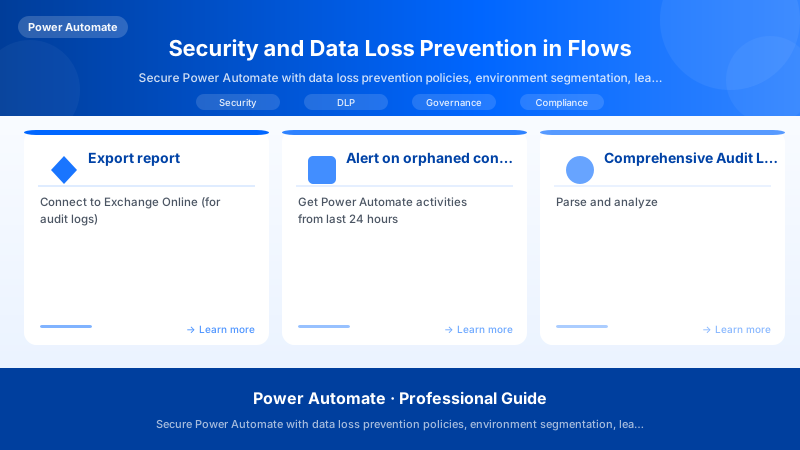
Figure: Viva Connections – adaptive card dashboard with Teams integration.
$orphaned = $connectionReport | Where-Object { $_.Status -eq "Orphaned" } if ($orphaned.Count -gt 0) {
Architecture Overview: Send MailMessage `
Comprehensive Audit Logging and Monitoring
Unified Audit Log Configuration
Enable Audit Logging (Microsoft 365 Compliance Center):
- Navigate to: https://compliance.microsoft.com
- Solutions → Audit → Start recording user and admin activity
- Configure retention: 1 year standard, 10 years (E5 license)
Relevant Power Automate Audit Events:
| Event | Description | Risk Level |
|---|---|---|
| Created flow | New flow created | Medium (review for shadow IT) |
| Updated flow | Flow modified | Low (normal operations) |
| Deleted flow | Flow removed | Medium (potential disruption) |
| Created connection | New connection established | High (credential management) |
| Shared flow | Flow shared with users | High (access control) |
| Consented to app | Connector permissions granted | High (data access) |
PowerShell Audit Log Query
Daily Audit Report:
## Connect to Exchange Online (for audit logs)
Connect-ExchangeOnline


## Get Power Automate activities from last 24 hours
$startDate = (Get-Date).AddDays(-1)
$endDate = Get-Date


$auditLogs = Search-UnifiedAuditLog `
```text
-StartDate $startDate `
-EndDate $endDate `
-Operations "Created flow","Updated flow","Deleted flow","Created connection","Shared flow" `
-ResultSize 5000
Parse and analyze
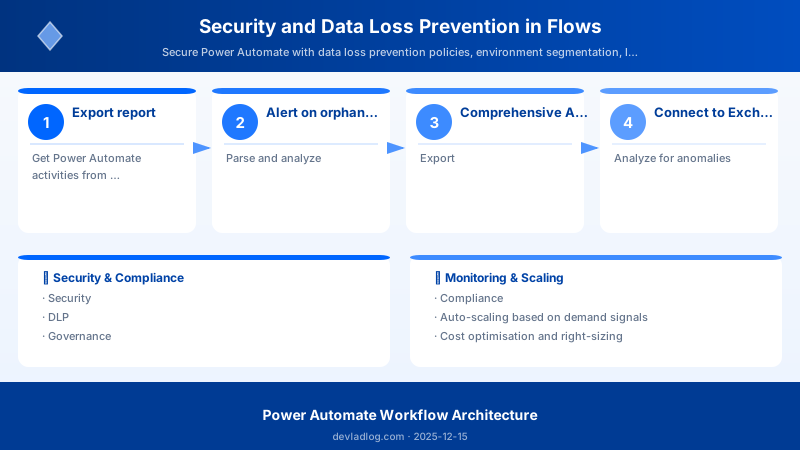
Figure: Configuration and management dashboard with status overview.
$report = $auditLogs | ForEach-Object {
$auditData = $_.AuditData | ConvertFrom-Json


[PSCustomObject]@{
    Timestamp = $_.CreationDate
    User = $_.UserIds
    Operation = $_.Operations
    FlowName = $auditData.FlowDisplayName
    Environment = $auditData.EnvironmentName
    ConnectorUsed = $auditData.ConnectorName
    IPAddress = $auditData.ClientIP
    UserAgent = $auditData.UserAgent
}```
}

## Export
$report | Export-Csv -Path "C:\Reports\PowerAutomateAudit_$(Get-Date -Format 'yyyyMMdd').csv" -NoTypeInformation


## Analyze for anomalies
$suspiciousActivities = $report | Where-Object {
```powershell


## Flag suspicious patterns
$_.User -notlike "*@contoso.com" -or  # External user
$_.ConnectorUsed -in @("Gmail","Dropbox","Twitter") -or  # Blocked connectors
$_.Operation -eq "Shared flow" -and $_.User -notin $authorizedSharers  # Unauthorized sharing```
}


if ($suspiciousActivities.Count -gt 0) {
```text
## Alert security team
Send-MailMessage `
    -To "security@contoso.com" `
    -From "monitoring@contoso.com" `
    -Subject "🚨 Suspicious Power Automate Activity Detected" `
    -Body "Detected $($suspiciousActivities.Count) suspicious activities. Review immediately." `
    -SmtpServer "smtp.contoso.com"```
}
Application Insights Integration for Real-Time Monitoring
Send flow telemetry to Azure Application Insights for advanced analytics.
Flow Pattern:
{
  "HTTP_SendTelemetry": {
```text
"type": "Http",
"inputs": {
  "method": "POST",
  "uri": "https://dc.services.visualstudio.com/v2/track",
  "headers": {
    "Content-Type": "application/json"
  },
  "body": {
    "name": "Microsoft.ApplicationInsights.Event",
    "time": "@{utcNow()}",
    "iKey": "@{parameters('AppInsights_InstrumentationKey')}",
    "data": {
      "baseType": "EventData",
      "baseData": {
        "name": "FlowExecution",
        "properties": {
          "FlowName": "@{workflow().name}",
          "RunId": "@{workflow().run.name}",
          "Environment": "@{workflow().tags.environmentName}",
          "TriggerType": "@{trigger().name}",
          "User": "@{triggerBody()?['Editor']?['Email']}",
          "Status": "Started",
          "ConnectorsUsed": "@{string(variables('ConnectorList'))}",
          "DataClassification": "@{triggerBody()?['SensitivityLabel']}"
        }
      }
    }
  }
}```
  }
}
Application Insights Query (KQL):
customEvents
| where name == "FlowExecution"
| extend FlowName = tostring(customDimensions.FlowName),
         Environment = tostring(customDimensions.Environment),
         ConnectorsUsed = tostring(customDimensions.ConnectorsUsed),
         DataClassification = tostring(customDimensions.DataClassification)
| where DataClassification == "Confidential" and ConnectorsUsed contains "HTTP"
| summarize Count = count(), UniqueUsers = dcount(tostring(customDimensions.User)) by FlowName
| order by Count desc
Threat Detection and Response
Security Alerting Patterns
Alert 1: Unauthorized Data Exfiltration
Scenario: Flow copies SharePoint data to external service (Gmail, Dropbox)
Detection:
## Daily scan for risky connector combinations
$flows = Get-AdminFlow -EnvironmentName "env-prod-guid"


$riskyFlows = $flows | ForEach-Object {
```powershell
$flowDef = $_.Internal.properties.definition | ConvertFrom-Json
$connectors = $flowDef.actions.PSObject.Properties.Value.type | Select-Object -Unique

## Check for risky combinations
$hasBusinessData = $connectors -match "SharePoint|Dataverse|SQL"
$hasExternalConnector = $connectors -match "Gmail|Dropbox|Twitter|HTTP"


if ($hasBusinessData -and $hasExternalConnector) {
    [PSCustomObject]@{
        FlowName = $_.DisplayName
        Environment = $_.EnvironmentName
        Owner = $_.CreatedBy.userPrincipalName
        ConnectorCombination = ($connectors -join ", ")
        Risk = "High - Business data + External connector"
        Created = $_.CreatedTime
    }
}```
}

## Alert on findings
if ($riskyFlows.Count -gt 0) {
```powershell
$riskyFlows | Export-Csv -Path "C:\Reports\RiskyFlows_$(Get-Date -Format 'yyyyMMdd').csv"


Send-MailMessage `
    -To "security@contoso.com" `
    -Subject "High-Risk Flows Detected" `
    -Body "Found $($riskyFlows.Count) flows with risky connector combinations." `
    -Attachments "C:\Reports\RiskyFlows_$(Get-Date -Format 'yyyyMMdd').csv" `
    -SmtpServer "smtp.contoso.com"```
}
Alert 2: Abnormal Flow Execution Volume
Scenario: Flow suddenly executes 10x normal volume (potential runaway loop or attack)
Mitigation: Auto-disable flow, alert administrators, investigate root cause.
Alert 3: Off-Hours Execution from Unusual Location
Scenario: Flow executes at 2 AM from IP address in foreign country
Action: Review audit logs, check for compromised accounts, rotate credentials.
Data Protection and Encryption
Encryption at Rest: Dataverse uses AES-256 encryption for all data.
Encryption in Transit: TLS 1.2+ enforced for all API calls between connectors.
Customer-Managed Keys (BYOK): Premium feature allows organizations to bring their own encryption keys stored in Azure Key Vault.
Secrets Management: Use Azure Key Vault to store API keys, passwords, certificates instead of hardcoding in flows.
Compliance Framework Integration
SOX (Sarbanes-Oxley)
Requirements:
- Segregation of duties (separate Maker and Admin roles)
- Change management (documented approvals for production changes)
- Audit trail (7-year retention of all flow changes)
- Quarterly certifications
HIPAA (Healthcare)
Requirements:
- BAA (Business Associate Agreement) with Microsoft
- PHI access controls (authentication, authorization, audit logging)
- Encryption (at rest, in transit)
- Breach notification procedures
GDPR (Privacy)
Requirements:
- Data subject rights (access, deletion, portability automation)
- Consent management integration
- Data minimization (only collect necessary fields)
- Cross-border transfer restrictions
- 72-hour breach notification
Example DSAR Automation: Flow triggered by email request, collects all user data from Dataverse/SharePoint, generates PDF report, emails to data subject within 30 days.
Governance Processes and Center of Excellence
Quarterly Flow Review
Process:
- Generate flow inventory report (all flows by owner, last run date, success rate)
- Identify orphaned flows (owner departed company)
- Identify inactive flows (no runs in 90 days)
- Review high-risk flows (external connectors, high failure rate)
- Decommission obsolete flows
Automation Script:
## Quarterly flow health check
$flows = Get-AdminFlow -EnvironmentName "env-prod-guid"


$orphanedFlows = $flows | Where-Object {
```powershell
$owner = Get-AzureADUser -ObjectId $_.CreatedBy.userId -ErrorAction SilentlyContinue
$null -eq $owner```
}

Write-Host "Found $($orphanedFlows.Count) orphaned flows"

## Reassign to FlowAdmin group
foreach ($flow in $orphanedFlows) {
```powershell
Set-AdminFlowOwnerRole -FlowName $flow.FlowName -EnvironmentName $flow.EnvironmentName -PrincipalId "flowamdins-group-guid"```
}
New Connector Request Workflow
Process:
- Maker submits request via Microsoft Forms
- Flow creates ServiceNow ticket
- Security team evaluates connector (data classification, vendor reputation, compliance)
- Compliance officer approves/rejects
- If approved, IT Admin updates DLP policy to allow connector
Evaluation Criteria:
- Data classification (Public, Internal, Confidential, Highly Confidential)
- Vendor security certifications (SOC 2, ISO 27001)
- Encryption standards (TLS 1.2+, data at rest)
- Compliance alignment (GDPR, HIPAA, SOX)
Maker Training Program
Curriculum:
- DLP policy overview (what connectors are allowed, why restrictions exist)
- Secure flow design patterns (service principals, Key Vault, error handling)
- Compliance requirements (GDPR, HIPAA, SOX)
- Incident reporting procedures
Certification: Makers must complete training and pass assessment before gaining Production environment access.
Best Practices Summary
DO:
1. Implement Multi-Layered Security
- Use DLP policies at tenant AND environment levels
- Combine with Azure AD Conditional Access policies
- Enable MFA for all Power Platform administrators
- Implement network restrictions (IP allowlisting) where possible
2. Adopt Service Principal Connections
- Use Azure AD App Registrations for production flows
- Avoid personal user connections (MFA interruptions, user departure risk)
- Rotate secrets every 90 days (automated via Key Vault)
- Grant minimum necessary API permissions
3. Maintain Comprehensive Audit Trail
- Export audit logs daily to long-term storage (Azure Log Analytics, SIEM)
- Retain for 7 years minimum (compliance requirements)
- Monitor for security events (DLP violations, unusual connector combinations)
- Alert on anomalies (execution spikes, off-hours activity, geographic anomalies)
4. Enforce Environment Segmentation
- Separate Production, Pre-Production, Development, Sandbox environments
- Strictest DLP in Production, more permissive in Sandbox
- Never test with production data (use synthetic/anonymized data)
- Use security groups to control environment access
5. Automate Governance Processes
- Quarterly flow reviews (identify orphaned, inactive, high-risk flows)
- Monthly connection audits (detect orphaned, over-privileged connections)
- Weekly DLP policy reviews (adapt to new threats)
- Automated onboarding/offboarding (add/remove users from security groups)
6. Document and Train
- Maintain DLP policy catalog with scope, business justification, owners
- Provide maker training (secure design patterns, compliance requirements)
- Create secure flow templates (pre-approved connector combinations)
- Publish security guidelines and decision trees
7. Test Security Controls
- Conduct annual penetration testing (attempt DLP bypasses)
- Run tabletop exercises (incident response drills)
- Validate backup/disaster recovery procedures
- Test connection failover (simulate service principal rotation)
8. Integrate with Enterprise Security Tools
- Send logs to SIEM (Splunk, Azure Sentinel)
- Integrate with ServiceNow/Jira for incident management
- Use Azure Application Insights for real-time monitoring
- Implement automated threat response (disable risky flows)
9. Implement Least Privilege Access
- Use Azure AD groups (not individual user assignments)
- Regular access reviews (quarterly certify who needs access)
- Just-In-Time admin access (temporary elevation for specific tasks)
- Separate Maker and Admin roles (SOX segregation of duties)
10. Use Secrets Management
- Store all credentials in Azure Key Vault (never hardcode)
- Use Managed Service Identity for Azure resources
- Rotate secrets automatically (90-day maximum)
- Audit all secret access (log every Key Vault read)
DON'T:
1. Don't Use Overly Permissive DLP Policies
- Blocking all connectors (makers will find workarounds)
- Allowing all connectors (defeats purpose of DLP)
- One-size-fits-all policy (use environment-specific policies)
2. Don't Ignore Audit Logs
- Collecting logs but never reviewing (100% of organizations collect, <20% analyze)
- Manual review only (automate analysis with SIEM)
- Short retention (7 years minimum for compliance)
3. Don't Allow Personal Connections in Production
- User accounts break when users leave, change passwords, hit MFA
- Over-privileged (user's full permissions, not scoped)
- No audit trail (can't distinguish flow actions from user actions)
4. Don't Hardcode Secrets
- API keys in flow definitions (visible to all flow editors)
- Passwords in environment variables (stored in plain text)
- Certificates as file attachments (insecure distribution)
5. Don't Skip Maker Training
- Assuming makers understand security (most don't)
- Expecting makers to read documentation (provide interactive training)
- No consequences for violations (require certification for Production access)
6. Don't Create Shadow IT Environments
- Uncontrolled personal environments (no DLP, no monitoring)
- Production flows in Default environment (shared, uncontrolled)
- No change management (ad-hoc production changes)
7. Don't Neglect Compliance Requirements
- Assuming Microsoft handles all compliance (shared responsibility model)
- Ignoring industry regulations (GDPR, HIPAA, SOX)
- No documented procedures (compliance audits will fail)
8. Don't Over-Rely on DLP Alone
- DLP is one layer (need monitoring, training, governance)
- Doesn't prevent all data exfiltration (copy-paste, screenshots)
- Can be bypassed (custom connectors, HTTP to approved domains)
9. Don't Ignore Orphaned Resources
- Flows without owners (break when connections expire)
- Connections from departed users (credential/license waste)
- Unused flows (technical debt, noise in monitoring)
10. Don't Forget Disaster Recovery
- No backup of flow definitions (use ALM solutions, Git integration)
- No documented recovery procedures (RTO/RPO undefined)
- No tested failover (annual DR drills required)
Troubleshooting Guide
Issue 1: Flow Blocked by DLP Policy
Symptoms:
- Flow fails with error: "The API operation 'GetItems' requires the connection 'shared_sharepointonline' to be in the 'Business' group, but it's currently in the 'Blocked' group"
- Flow cannot be saved due to connector group conflict
- Flow runs successfully in Dev but fails in Production
Diagnosis:
## Check DLP policies affecting environment
Get-DlpPolicy -EnvironmentName "env-prod-guid" |
```powershell
ForEach-Object {
    Write-Host "Policy: $($_.DisplayName)"
    Write-Host "Business Connectors: $($_.ConnectorGroups.Business.connectorId -join ', ')"
    Write-Host "Blocked Connectors: $($_.ConnectorGroups.Blocked.connectorId -join ', ')"
}
**Common Causes:**

1. Connector in wrong group (e.g., HTTP in Blocked instead of Non-Business)
2. Mixing Business + Non-Business connectors in same flow
3. Policy updated after flow was created


**Resolution:**

**Option A: Redesign Flow (Recommended)**

- Separate into two flows: one with Business connectors, one with Non-Business
- Use child flows to pass data between segments
- Use Dataverse as intermediary (write from Business flow, read from Non-Business flow)


**Option B: Request DLP Policy Exception**

- Submit formal exception request with business justification
- Security team evaluates risk and mitigations
- If approved, create dedicated environment with custom DLP policy
- Document exception and review quarterly


**Option C: Use Allowed Connector Alternative**

- Replace HTTP with Power Query (approved in Business group)
- Replace Dropbox with OneDrive for Business
- Replace Gmail with Office 365 Outlook


## Issue 2: Unauthorized Data Movement Detected

**Symptoms:**


- Alert from SIEM: "Flow copying SharePoint data to external service"
- Audit log shows unexpected "Created connection" to Gmail/Dropbox
- User reports flow sending sensitive data via email to personal account


**Diagnosis:**

```powershell
## Investigate flow definition for risky patterns
$flow = Get-AdminFlow -FlowName "suspicious-flow" -EnvironmentName "env-prod-guid"
$flowDef = $flow.Internal.properties.definition | ConvertFrom-Json


## Check all actions
$flowDef.actions.PSObject.Properties | ForEach-Object {
```powershell
Write-Host "Action: $($_.Name)"
Write-Host "Type: $($_.Value.type)"
Write-Host "Inputs: $($_.Value.inputs | ConvertTo-Json -Depth 5)"```
}
Common Causes:
- Maker unaware of data classification (doesn't realize data is confidential)
- Testing flow with production data (meant to use test data)
- Malicious insider threat (deliberate data exfiltration)
- Compromised user account (attacker created flow)
Resolution:
Immediate Actions:
- Disable flow:
Set-AdminFlow -FlowName "suspicious-flow" -EnvironmentName "env-prod-guid" -Enabled $false - Revoke external connections:
Remove-AdminConnection -ConnectionName "gmail-connection" - Rotate credentials: Change passwords for affected service accounts
- Alert security team: Create incident ticket
Investigation:
- Review flow run history (what data was accessed?)
- Check audit logs (who created flow? when? from what IP?)
- Interview flow owner (legitimate business need or security incident?)
- Assess data impact (was sensitive data exfiltrated? notify compliance team)
Long-Term Mitigation:
- Update DLP policy to block connector (if not legitimate use case)
- Provide maker training on data classification
- Implement pre-approval for external connectors
- Add automated alerting for similar patterns
Issue 3: Shadow IT Flows in Personal Environment
Symptoms:
- Business-critical flows discovered in Default environment
- Production data in personal productivity environments
- No change management or documentation for flows
- Flows break when user leaves company (orphaned)
Diagnosis:
## Scan all environments for production-like flows
$allEnvironments = Get-AdminPowerAppEnvironment


foreach ($env in $allEnvironments) {
```powershell
$flows = Get-AdminFlow -EnvironmentName $env.EnvironmentName

## Identify production-like flows (high run count, business connectors)
$suspectFlows = $flows | Where-Object {
    $runCount = (Get-FlowRun -FlowName $_.FlowName -EnvironmentName $env.EnvironmentName).Count
    $runCount -gt 1000  # More than 1,000 runs suggests production use
}


if ($suspectFlows.Count -gt 0) {
    Write-Host "Environment: $($env.DisplayName) - Found $($suspectFlows.Count) high-usage flows"
}```
}
Common Causes:
- Makers lack access to official Dev/Prod environments
- Slow approval process for official flows (makers bypass)
- Lack of awareness of proper ALM procedures
- No consequences for shadow IT (no enforcement)
Resolution:
Short-Term:
- Identify critical shadow IT flows (interview makers, review run history)
- Migrate to managed environment (export as solution, import to Dev)
- Apply proper governance (DLP, change management, monitoring)
- Document flows (purpose, dependencies, support contact)
Long-Term:
- Make official process easier (self-service Dev environment provisioning)
- Provide maker training on ALM (proper Dev → Test → Prod lifecycle)
- Enforce policy: Disable Default environment for makers (require managed environments)
- Regular scans for shadow IT (automated monthly reports)
Issue 4: Orphaned Connections and Flows
Symptoms:
- Flow fails with "Unauthorized" error after user departure
- Connection shows "Unknown" owner in admin portal
- License costs for inactive user accounts
- Security risk: Credentials not rotated after offboarding
Diagnosis:
## Find all orphaned connections
$connections = Get-AdminPowerAppConnection -EnvironmentName "env-prod-guid"


$orphanedConnections = $connections | ForEach-Object {
```powershell
$owner = Get-AzureADUser -ObjectId $_.CreatedBy.userId -ErrorAction SilentlyContinue

if ($null -eq $owner) {
    [PSCustomObject]@{
        ConnectionName = $_.DisplayName
        ConnectorName = $_.ConnectorName
        OriginalOwner = $_.CreatedBy.userId
        Created = $_.CreatedTime
        Status = "Orphaned"
    }
}```
}

Write-Host "Found $($orphanedConnections.Count) orphaned connections"
Common Causes:
- User left company (account deactivated)
- User changed roles (no longer needs connection)
- No offboarding checklist for Power Platform resources
- No co-owner assigned (single point of failure)
Resolution:
Immediate:
- Identify impacted flows:
Get-AdminFlow | Where-Object { $_.Internal.properties.connectionReferences -contains "orphaned-connection-id" } - Assign new owner:
Set-AdminFlowOwnerRole -FlowName "flow-name" -PrincipalId "new-owner-guid" - Recreate connection with service principal (replace user connection)
- Test flow thoroughly (verify no permission issues)
Prevention:
-
Require two owners for all production flows:
# Audit single-owner flows $flows = Get-AdminFlow -EnvironmentName "env-prod-guid" $singleOwnerFlows = $flows | Where-Object { (Get-AdminFlowOwnerRole -FlowName $_.FlowName -EnvironmentName $_.EnvironmentName).Count -eq 1 } Write-Warning "$($singleOwnerFlows.Count) flows have single owner (risk)" -
Use service principals for production flows: Eliminates user dependency entirely
-
Offboarding checklist:
- List all flows owned by departing user
- Reassign to team members
- Update connection references
- Rotate shared secrets
- Remove user from security groups
-
Monthly orphaned resource scan: Automated report to administrators
Issue 5: Compliance Audit Failure
Symptoms:
- SOX/HIPAA/GDPR auditor requests evidence of controls
- Cannot produce 7-year audit logs (retention too short)
- No documented approval for production flow changes
- Lack of segregation of duties (same user Maker + Admin)
Diagnosis:
## Generate compliance evidence package
$evidence = @{
```powershell
DLPPolicies = Get-DlpPolicy
EnvironmentAccess = Get-AdminPowerAppEnvironmentRoleAssignment -EnvironmentName "env-prod-guid"
AuditLogs = Search-UnifiedAuditLog -StartDate (Get-Date).AddDays(-90) -EndDate (Get-Date) -Operations "Created flow","Updated flow","Deleted flow"
FlowInventory = Get-AdminFlow -EnvironmentName "env-prod-guid"```
}


$evidence | ConvertTo-Json -Depth 10 | Out-File "C:\Compliance\EvidencePackage_$(Get-Date -Format 'yyyyMMdd').json"
Common Causes:
- Power Platform governance implemented after compliance requirements
- Lack of documentation (policies exist but not documented)
- Default audit log retention too short (90 days default)
- No change management integration (ad-hoc production changes)
Resolution:
Immediate:
- Export all available audit logs before they expire
- Document existing controls (DLP policies, environment segmentation, training)
- Work with auditor to demonstrate compensating controls
- Create remediation plan with timelines
Long-Term:
-
Extend audit log retention:
- Microsoft 365 E5: 10-year retention available
- Export to Azure Log Analytics for indefinite retention
- Immutable storage (WORM) for tamper-proof logs
-
Implement change management:
- All production changes require ServiceNow/Jira ticket
- Flow deployment via ALM (solution import with approval)
- Git integration for version control
-
Enforce segregation of duties:
- Separate Maker (Dev environment) and Admin (Prod deployment) roles
- Peer review required before production promotion
- Automated compliance checks (block direct Prod edits)
-
Document policies and procedures:
- DLP policy catalog (scope, purpose, owner, review date)
- Security operations playbook (incident response procedures)
- Training materials (maker certification curriculum)
Architecture Decision and Tradeoffs
When designing process automation solutions with Power Automate, consider these key architectural trade-offs:
| Approach | Best For | Tradeoff |
|---|---|---|
| Managed / platform service | Rapid delivery, reduced ops burden | Less customisation, potential vendor lock-in |
| Custom / self-hosted | Full control, advanced tuning | Higher operational overhead and cost |
Recommendation: Start with the managed approach for most workloads and move to custom only when specific requirements demand it.
Validation and Versioning
- Last validated: April 2026
- Validate examples against your tenant, region, and SKU constraints before production rollout.
- Keep module, CLI, and SDK versions pinned in automation pipelines and review quarterly.
Security and Governance Considerations
- Apply least-privilege access using RBAC roles and just-in-time elevation for admin tasks.
- Store secrets in managed secret stores and avoid embedding credentials in scripts or source files.
- Enable audit logging, data protection policies, and periodic access reviews for regulated workloads.
Cost and Performance Notes
- Define budgets and alerts, then monitor usage and cost trends continuously after go-live.
- Baseline performance with synthetic and real-user checks before and after major changes.
- Scale resources with measured thresholds and revisit sizing after usage pattern changes.
Official Microsoft References
- https://learn.microsoft.com/power-automate/
- https://learn.microsoft.com/power-platform/admin/
- https://learn.microsoft.com/power-platform/guidance/
Public Examples from Official Sources
- These examples are sourced from official public Microsoft documentation and sample repositories.
- Documentation examples: https://learn.microsoft.com/power-automate/
- Sample repositories: https://github.com/microsoft/PowerPlatformConnectors
- Prefer adapting these examples to your tenant, subscriptions, and governance requirements before production use.
Key Takeaways
-
Defense-in-Depth: Security requires multiple layers - DLP policies, environment segmentation, IAM controls, monitoring, and governance processes working together.
-
Service Principals Over Users: Use Azure AD App Registrations for production flows to eliminate dependency on individual user accounts and prevent MFA interruptions.
-
Automate Governance: Manual processes don't scale - automate quarterly flow reviews, monthly connection audits, daily security alerting, and incident response.
-
Train Makers: Most security incidents result from lack of awareness, not malicious intent. Require security training and certification before granting Production access.
-
Monitor Continuously: Collect audit logs, analyze for anomalies, alert on suspicious activity, and integrate with enterprise SIEM for correlation with other security events.
-
Plan for Compliance: Design governance with regulatory requirements in mind (GDPR, HIPAA, SOX) rather than retrofitting controls later.
-
Test Security Controls: Annual penetration testing, tabletop exercises for incident response, and DR drills to validate controls are effective.
-
Document Everything: Policies, procedures, approvals, exceptions, incidents - comprehensive documentation is critical for compliance audits and operational continuity.
Next Steps
-
Assess Current State: Run security audit scripts to identify gaps (orphaned resources, risky flows, DLP violations)
-
Prioritize Remediation: Focus on high-risk issues first (production flows with external connectors, orphaned admin accounts, missing audit logs)
-
Implement Quick Wins: Service principal connections, DLP policy updates, automated alerting (can be done in days, not months)
-
Plan Long-Term Improvements: Center of Excellence, maker training program, SIEM integration, ALM automation (multi-quarter initiatives)
-
Measure Progress: Define KPIs (DLP violation rate, orphaned resource count, audit finding resolution time) and track monthly
Resources
- Data Loss Prevention Policies - Official Microsoft documentation
- Power Platform Security and Governance Whitepaper - Enterprise architecture guidance
- Power Platform Center of Excellence Toolkit - Pre-built governance solutions
- Azure Active Directory Conditional Access - Advanced identity security
- Microsoft 365 Compliance Center - Unified audit logs and DLP policies
Discussion