
.NET MAUI: Building Cross-Platform Mobile Apps
Introduction
.NET MAUI (Multi-platform App UI) is Microsoft's modern framework for building native cross-platform applications from a single C# and XAML codebase. Targeting Android, iOS, macOS, and Windows from one project, .NET MAUI eliminates the need to maintain separate codebases while delivering native performance and platform-specific UI experiences.
This guide covers project setup, UI development with XAML and C# markup, data binding, navigation, platform-specific customizations, and deployment strategies.
Prerequisites
- Visual Studio 2022 17.8+ with .NET MAUI workload installed
- .NET 8 SDK
- For iOS: macOS build host with Xcode 15+
- For Android: Android SDK (installed by Visual Studio)
- Basic C# and XAML knowledge
Project Structure
Figure: Configuration and management dashboard with status overview.
Architecture Overview: MyMauiApp
Implementation
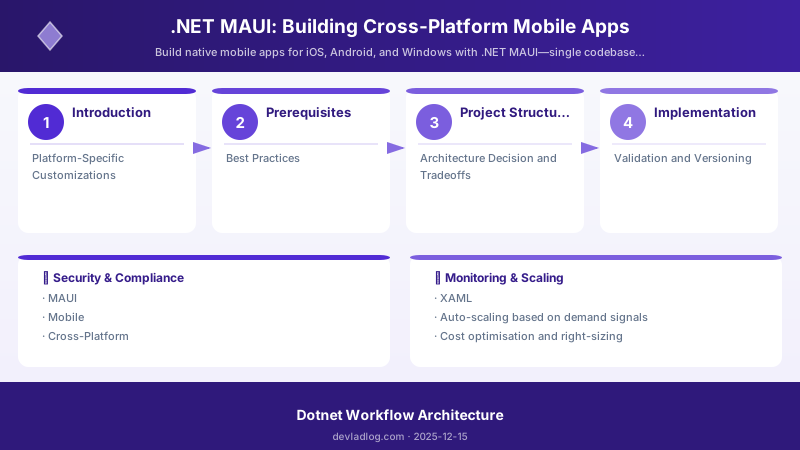
Figure: Configuration and management dashboard with status overview.
Step 1: Define the Data Model
public class TodoItem
{
    public int Id { get; set; }
    public string Title { get; set; } = string.Empty;
    public string Description { get; set; } = string.Empty;
    public bool IsCompleted { get; set; }
    public DateTime DueDate { get; set; }
    public Priority Priority { get; set; }
}

public enum Priority { Low, Medium, High, Critical }
Step 2: Create the ViewModel
public partial class TodoListViewModel : ObservableObject
{
    private readonly ITodoService _todoService;

    [ObservableProperty]
    private ObservableCollection<TodoItem> _todos = new();

    [ObservableProperty]
    [NotifyCanExecuteChangedFor(nameof(AddTodoCommand))]
    private string _newTodoTitle = string.Empty;

    [ObservableProperty]
    private bool _isLoading;

    public TodoListViewModel(ITodoService todoService)
    {
        _todoService = todoService;
    }

    [RelayCommand]
    private async Task LoadTodosAsync()
    {
        IsLoading = true;
        try
        {
            var items = await _todoService.GetAllAsync();
            Todos = new ObservableCollection<TodoItem>(items);
        }
        finally
        {
            IsLoading = false;
        }
    }

    [RelayCommand(CanExecute = nameof(CanAddTodo))]
    private async Task AddTodoAsync()
    {
        var item = new TodoItem
        {
            Title = NewTodoTitle,
            DueDate = DateTime.Today.AddDays(7),
            Priority = Priority.Medium
        };

        await _todoService.AddAsync(item);
        Todos.Add(item);
        NewTodoTitle = string.Empty;
    }

    private bool CanAddTodo() => !string.IsNullOrWhiteSpace(NewTodoTitle);

    [RelayCommand]
    private async Task ToggleCompletedAsync(TodoItem item)
    {
        item.IsCompleted = !item.IsCompleted;
        await _todoService.UpdateAsync(item);
    }
}
Step 3: Build the UI
<?xml version="1.0" encoding="utf-8" ?>
<ContentPage xmlns="http://schemas.microsoft.com/dotnet/2021/maui"
             xmlns:x="http://schemas.microsoft.com/winfx/2009/xaml"
             xmlns:vm="clr-namespace:MyMauiApp.ViewModels"
             x:Class="MyMauiApp.Views.TodoListPage"
             Title="My Tasks">

    <Grid RowDefinitions="Auto,*,Auto" Padding="16">

        <!-- Header -->
        <Label Text="Task Manager"
               FontSize="24"
               FontAttributes="Bold"
               Margin="0,0,0,16" />

        <!-- Task List -->
        <CollectionView Grid.Row="1"
                        ItemsSource="{Binding Todos}"
                        EmptyView="No tasks yet. Add one below!">
            <CollectionView.ItemTemplate>
                <DataTemplate x:DataType="models:TodoItem">
                    <SwipeView>
                        <Frame Margin="0,4" Padding="12" CornerRadius="8">
                            <Grid ColumnDefinitions="Auto,*,Auto">
                                <CheckBox IsChecked="{Binding IsCompleted}"
                                          Command="{Binding Source={RelativeSource AncestorType={x:Type vm:TodoListViewModel}}, Path=ToggleCompletedCommand}"
                                          CommandParameter="{Binding .}" />
                                <VerticalStackLayout Grid.Column="1" Margin="8,0">
                                    <Label Text="{Binding Title}" FontSize="16" />
                                    <Label Text="{Binding DueDate, StringFormat='Due: {0:MMM dd}'}"
                                           FontSize="12" TextColor="Gray" />
                                </VerticalStackLayout>
                                <Label Grid.Column="2" Text="{Binding Priority}"
                                       FontSize="11" VerticalOptions="Center" />
                            </Grid>
                        </Frame>
                    </SwipeView>
                </DataTemplate>
            </CollectionView.ItemTemplate>
        </CollectionView>

        <!-- Add Task -->
        <Grid Grid.Row="2" ColumnDefinitions="*,Auto" Margin="0,8,0,0">
            <Entry Placeholder="New task..."
                   Text="{Binding NewTodoTitle}" />
            <Button Grid.Column="1" Text="Add"
                    Command="{Binding AddTodoCommand}"
                    Margin="8,0,0,0" />
        </Grid>
    </Grid>
</ContentPage>
Step 4: Register Services
// MauiProgram.cs
public static MauiApp CreateMauiApp()
{
    var builder = MauiApp.CreateBuilder();
    builder.UseMauiApp<App>()
        .ConfigureFonts(fonts =>
        {
            fonts.AddFont("OpenSans-Regular.ttf", "OpenSansRegular");
        });

    // Register services
    builder.Services.AddSingleton<ITodoService, TodoService>();

    // Register ViewModels
    builder.Services.AddTransient<TodoListViewModel>();

    // Register Pages
    builder.Services.AddTransient<TodoListPage>();

    return builder.Build();
}
Platform-Specific Customizations
Figure: Power Apps form control – edit form with validation rules and error handling.
// Platform-specific code using conditional compilation
#if ANDROID
    // Android-specific: handle back button
    protected override bool OnBackButtonPressed()
    {
        // Custom back navigation logic
        return base.OnBackButtonPressed();
    }
#endif


#if IOS
    // iOS-specific: safe area handling is automatic with Shell
#endif

// Or use platform-specific handlers
Microsoft.Maui.Handlers.EntryHandler.Mapper.AppendToMapping("NoUnderline", (handler, view) =>
{
#if ANDROID
    handler.PlatformView.BackgroundTintList =
        Android.Content.Res.ColorStateList.ValueOf(Android.Graphics.Color.Transparent);
#endif
});
Best Practices
- Use MVVM with CommunityToolkit.Mvvm: Source generators reduce boilerplate significantly
- Implement Shell Navigation: Shell provides URI-based navigation with automatic back stack management
- Test ViewModels in Isolation: Business logic in ViewModels can be unit tested without UI
- Optimize CollectionView: Use virtualization and avoid complex templates for smooth scrolling
- Handle Connectivity: Always check network status before API calls with the Connectivity API
- Use Compiled Bindings: Add x:DataType to templates for compile-time binding validation
Architecture Decision and Tradeoffs
When designing application development solutions with .NET, consider these key architectural trade-offs:
| Approach | Best For | Tradeoff |
|---|---|---|
| Managed / platform service | Rapid delivery, reduced ops burden | Less customisation, potential vendor lock-in |
| Custom / self-hosted | Full control, advanced tuning | Higher operational overhead and cost |
Recommendation: Start with the managed approach for most workloads and move to custom only when specific requirements demand it.
Validation and Versioning
- Last validated: April 2026
- Validate examples against your tenant, region, and SKU constraints before production rollout.
- Keep module, CLI, and SDK versions pinned in automation pipelines and review quarterly.
Security and Governance Considerations
- Apply least-privilege access using RBAC roles and just-in-time elevation for admin tasks.
- Store secrets in managed secret stores and avoid embedding credentials in scripts or source files.
- Enable audit logging, data protection policies, and periodic access reviews for regulated workloads.
Cost and Performance Notes
- Define budgets and alerts, then monitor usage and cost trends continuously after go-live.
- Baseline performance with synthetic and real-user checks before and after major changes.
- Scale resources with measured thresholds and revisit sizing after usage pattern changes.
Official Microsoft References
- https://learn.microsoft.com/dotnet/
- https://learn.microsoft.com/aspnet/core/
- https://learn.microsoft.com/azure/developer/dotnet/
Public Examples from Official Sources
- These examples are sourced from official public Microsoft documentation and sample repositories.
- Documentation examples: https://learn.microsoft.com/dotnet/
- Sample repositories: https://github.com/dotnet/samples
- Prefer adapting these examples to your tenant, subscriptions, and governance requirements before production use.
Key Takeaways
- ✅ .NET MAUI enables true cross-platform development from a single C#/XAML codebase
- ✅ MVVM with CommunityToolkit.Mvvm provides clean architecture with minimal boilerplate
- ✅ Shell navigation simplifies complex navigation patterns with URI-based routing
- ✅ Platform-specific customizations are available when native behavior differs
- ✅ The .NET ecosystem (NuGet, testing, CI/CD) integrates seamlessly with MAUI projects
Discussion